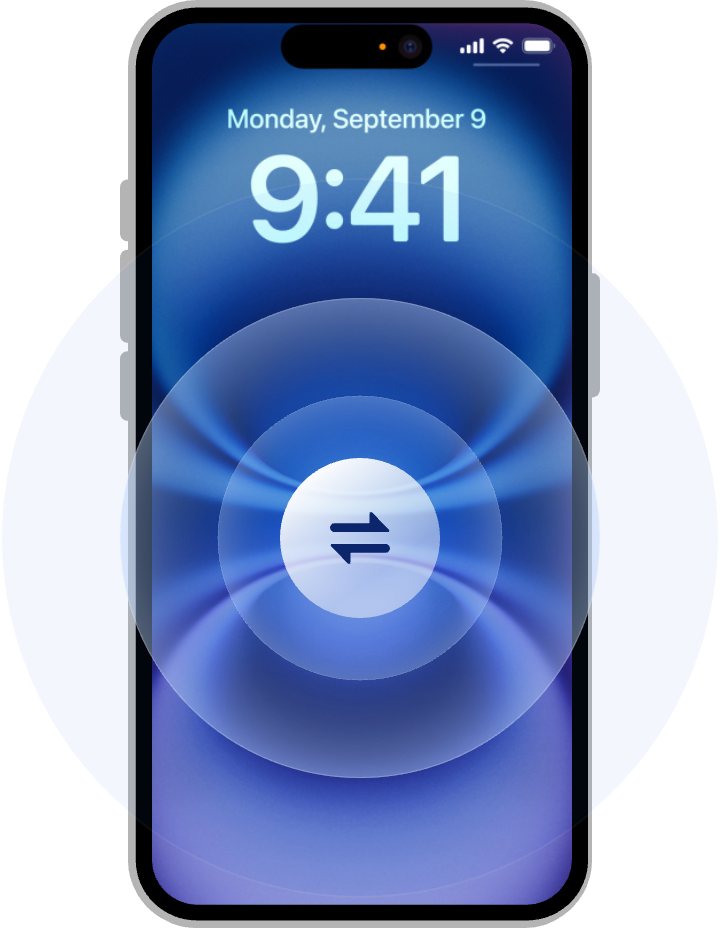
Switching to New iPhone You Need to Know

Tips for iPhone Replacement
Notes on Common iPhone Switch Methods

For Smoothly Switching

  • Back up your old device data in case of any data loss scenarios.
  • Upgrade your old iPhone to the latest iOS for optimal performance and compatibility.
  • Ensure both iPhones have sufficient power during the migration process.
  • Make sure both iPhones are connected to a stable Wi-Fi network.

For the Security of iPhone Data

  • Sign out of your iCloud account to prevent syncing on all your signed-in devices .
  • Disassociate your old iPhone from your Apple ID to prevent your information from being modified.
  • Erase the old iPhone data, 100% eliminate the possibility of information leakage, credit card theft, and identity tampering.

With Quick Start

  • Ensure your old and new iPhones are running the latest operating system.
  • Ensure your device is connected to a stable Wi-Fi network and Bluetooth is turned on.
  • Ensure both devices have enough power.

With iCloud

  • Make sure your iCloud account has enough storage space to store the backup.
  • Check the date and time of the backup to make sure it contains all the important data you want to migrate.
  • Check that the data on your new iPhone has been fully migrated.

Professional and Fast Phone Transfer Tool

Transfer Data between PC and iPhone

Import photos, music, contacts, messages, etc. from iPhone to PC to free up space on your iPhone. You can also export any file from your computer to your iPhone for on-the-go use.

1 Click Transfer iPhone to iPhone or Android

Whether you switch from iPhone to iPhone, from iPhone to Android, from Android to iPhone, or from Android to Android, with just 1 click you can quickly migrate all your data to the new Phone without resetting.

Quick Transfer

Just select the music, documents, pictures and other files and folders you need to transfer from your computer to any destination tiles you want to transfer to your iOS device. You can switch the phone to another in less time.

Transfer without Internet

Transferring from an old phone to a new one often encounters network errors. FoneTool does not require Wi-Fi or cellular data and does not require data traffic at all to transfer data. You just turn on the Wi-Fi settings to connect the two phones and quickly transfer data from one device to another.

Phone Transfer without Data Deleting and Resetting

If you need to transfer data from Android to iPhone and from iPhone to Android after setting it up, FoneTool for iOS will be your best choice. FoneTool won’t overwrite/delete/reset the data of the targeted device, nor will it make any changes to it.

Buy Now
Free Download to try

Backup iPhone Data in Professional Way

Regular backups are vital for data safety. FoneTool offers multiple backup solutions that are essential for a secure and enjoyable experience.

Fully or Selective Backup

FoneTool is a comprehensive iPhone backup and restore tool. You can selectively backup and restore photos, videos, contacts, messages, music, etc. FoneTool also offer a way to one-click backup all iPhone local content to computer.

Incremental Backup Data

You don’t want to spend a long-time selecting file each time you backup. Fortunately, FoneTool support backup incrementally. It can automatically find the newly added and changed files since the last backup.

Private and Safe

FoneTool works without Internet or Wi-Fi. Your iPhone data won’t be uploaded to any server. And it supports encrypting your backup encryption to safeguard your data. You don’t have to worry about data leakage.

Easy Backup Management

FoneTool is good at managing backup files. When you complete a backup task, you can restore, delete, location, view the backup files on your computer, and it allows you to restore backup to another iPhone, iPad.

Buy Now
Free Download to try

Explore More FoneTool Features

Data Eraser

Permanently erase data to prevent personal information leakage.

HEIC Converter

Batch convert HEIC images to JPG/JEPG/PNG for access on Windows.

iCloud Manager

Efficiently manage and sync iCloud data as you like.

Photo Deduplication

Quickly find and remove duplicate or similar photos to free up iPhone storage.

WhatsApp Management

Easily backup, export and transfer WhatsApp data.

Ringtone Maker

Make iPhone ringtones from your favorite videos/songs.

Buy Now
Free Download to try

Switch to New iPhone with Easy and Fast Way

  • 1

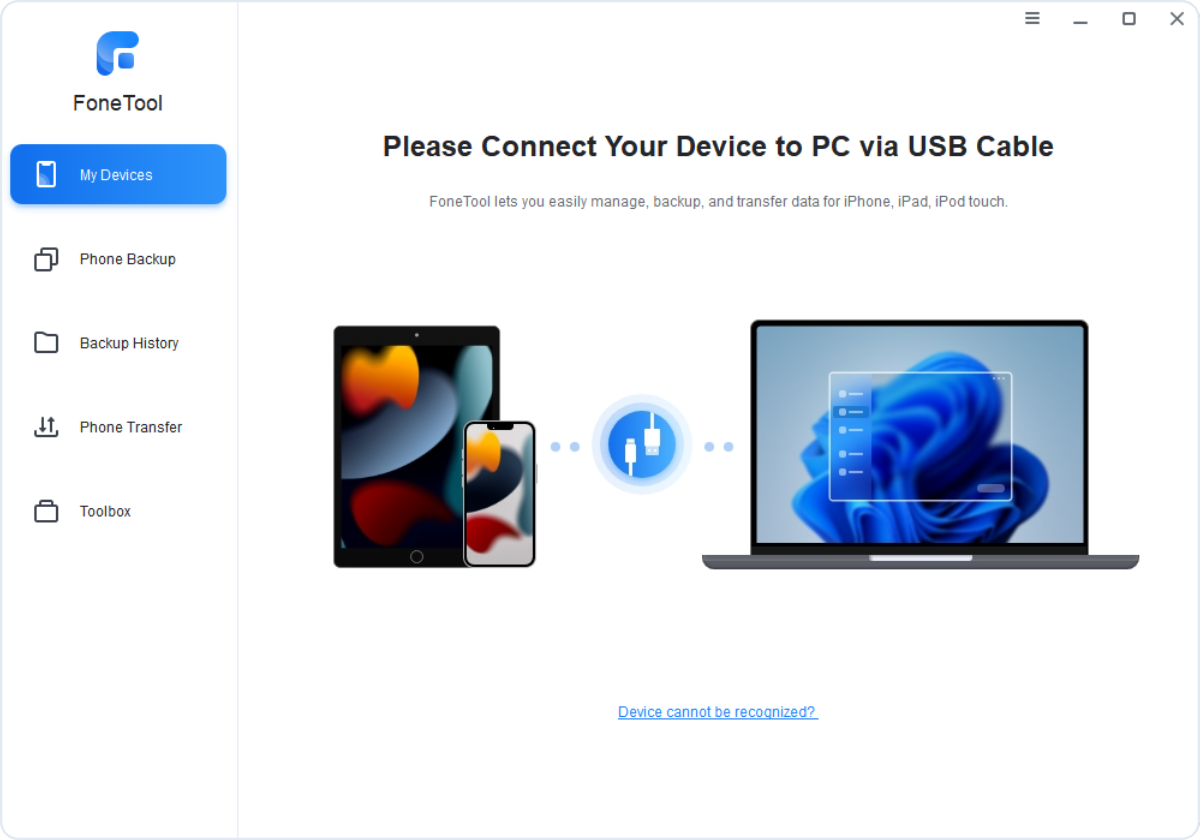
    Launch the FoneTool , and connect your two iPhones to this computer.

  • 2

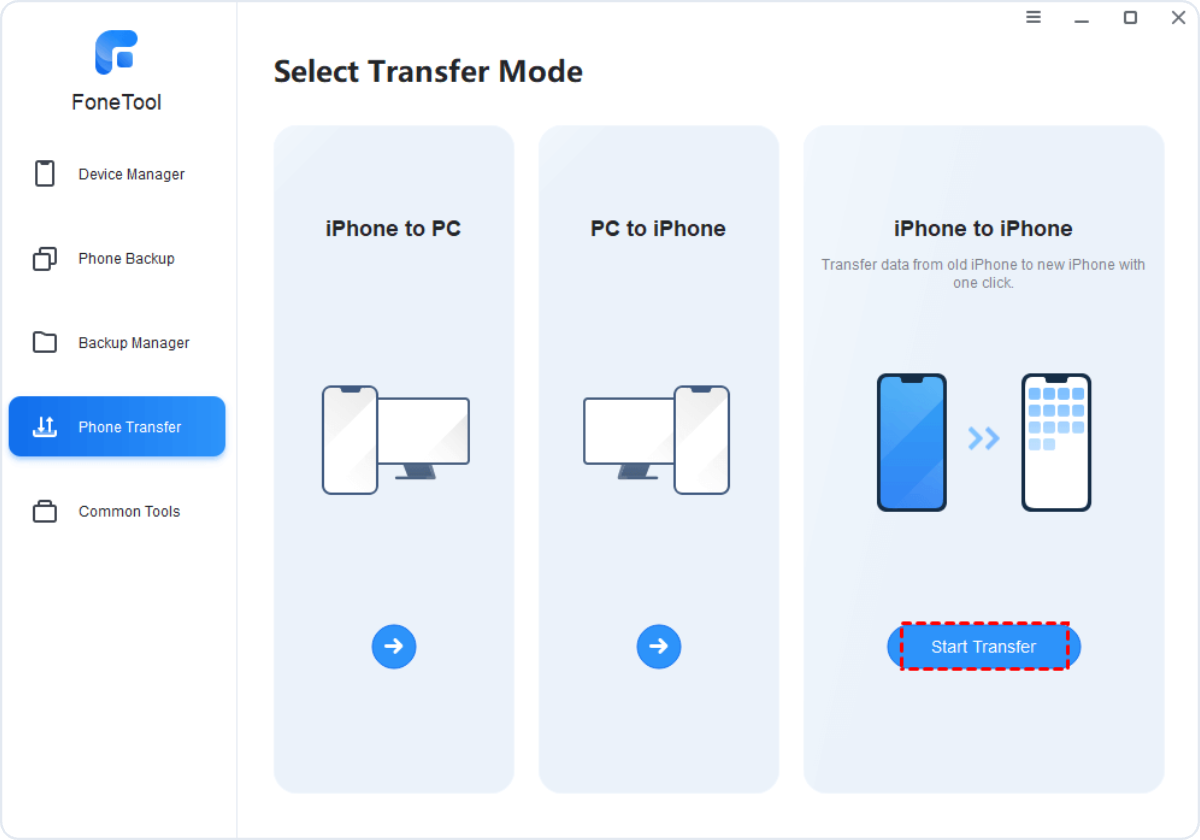
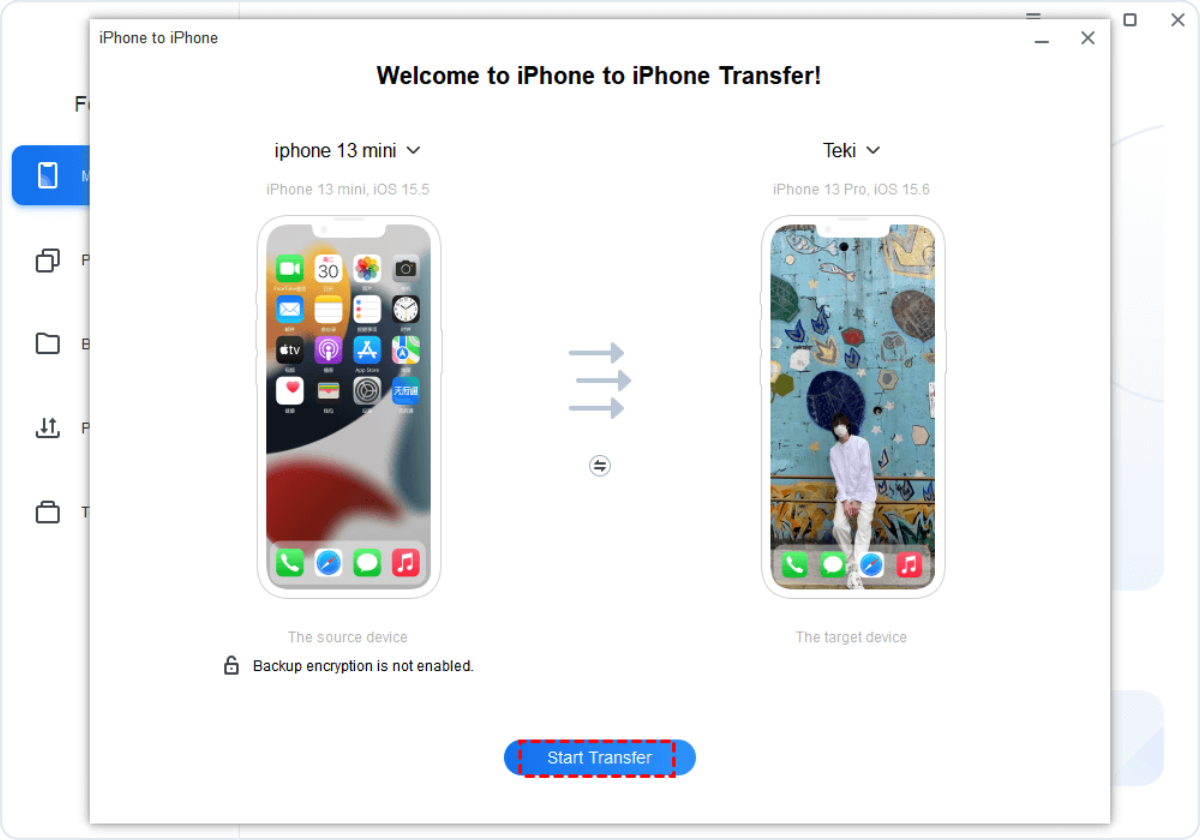
    Click the Phone Transfer tab, and select iPhone to iPhone > Start Transfer.

  • 3

    Just wait a few moments to finish the iPhone transfer.

FoneTool

Make your phone data transfer process simple, fast, and safe. Take action now, let your Phone 16 integrate into your life as soon as possible, and start a new smart experience!

Buy Now Free Download to try