 FoneTool
When transfer large video files from iPhone to PC
iPhone video plays an important role in recording unforgettable moments in daily life. There are always cases when you need to get long videos from iPhone to computer, including:
- Free up iPhone storage: Large videos files, especially 4k videos, can take up plenty of iPhone storage. Transfer them to computer can be a nice choice!
- Create backups: Copy valuable large videos files to computer for backup to prevent data loss due to wrong operations or OS crash.
- Edit videos on computer: Editing software on a computer typicality offers more advanced features, compared with editing apps on phone.
- View with a better experience: Watching videos on computer to enjoy a larger screen, better resolution and audio quality.
How to transfer large video files from iPhone to PC
If you have intended to get long videos from iPhone to PC, keep reading to get the detailed tutorial on how to perform the task. First of all, free download the iPhone data transfer and management tool, FoneTool on your PC. It enables you to transfer not only long video files, but also music, photos, etc. From iPhone to PC, or PC to iPhone with high speed; it can also transfer all data from old iPhone to new iPhone.What’s more, you can use it to backup and manage all data on iPhone.
Step 1. Connect your iPhone with cable to your Windows computer; then launch FoneTool.
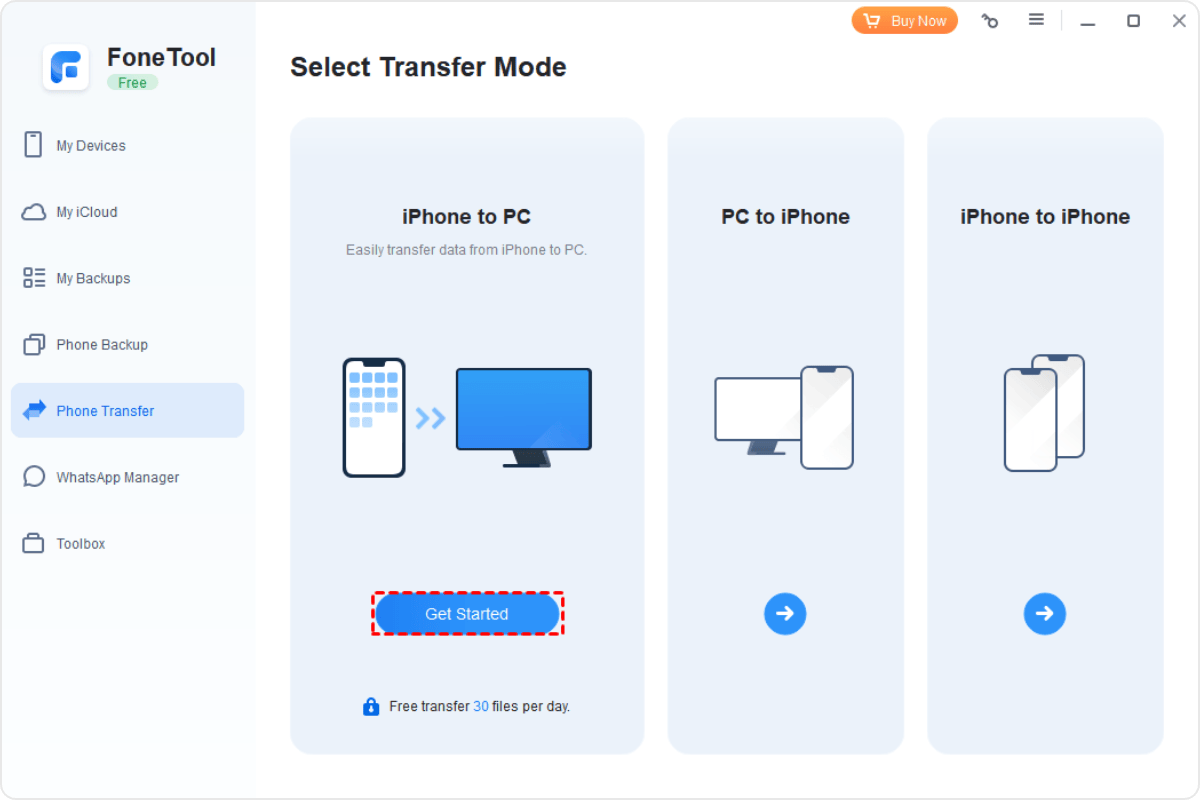
Step 2. Choose Phone Transfer > Go to iPhone to PC and click Get Started.
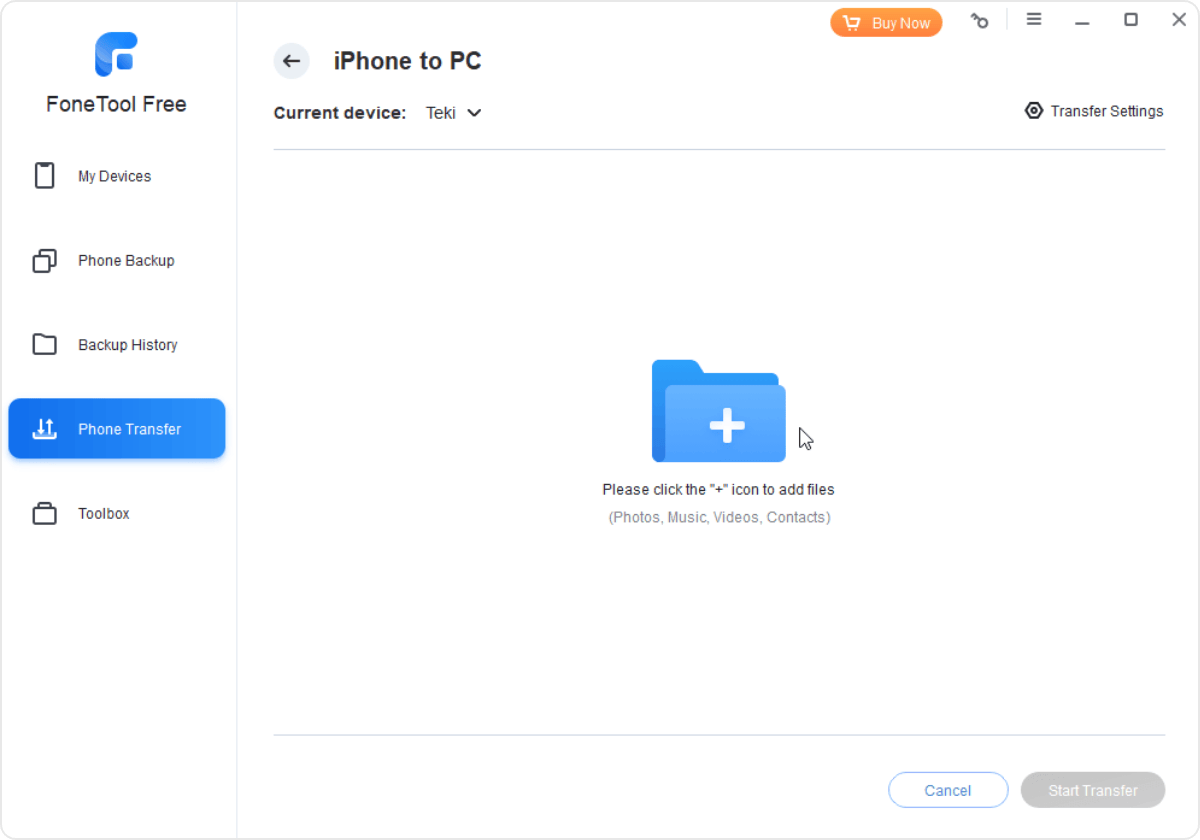
Step 3. Click the + icon, click Videos and uncheck other options > Choose the videos you want to transfer and click OK to continue. (The recorded videos are stored in Photos.)
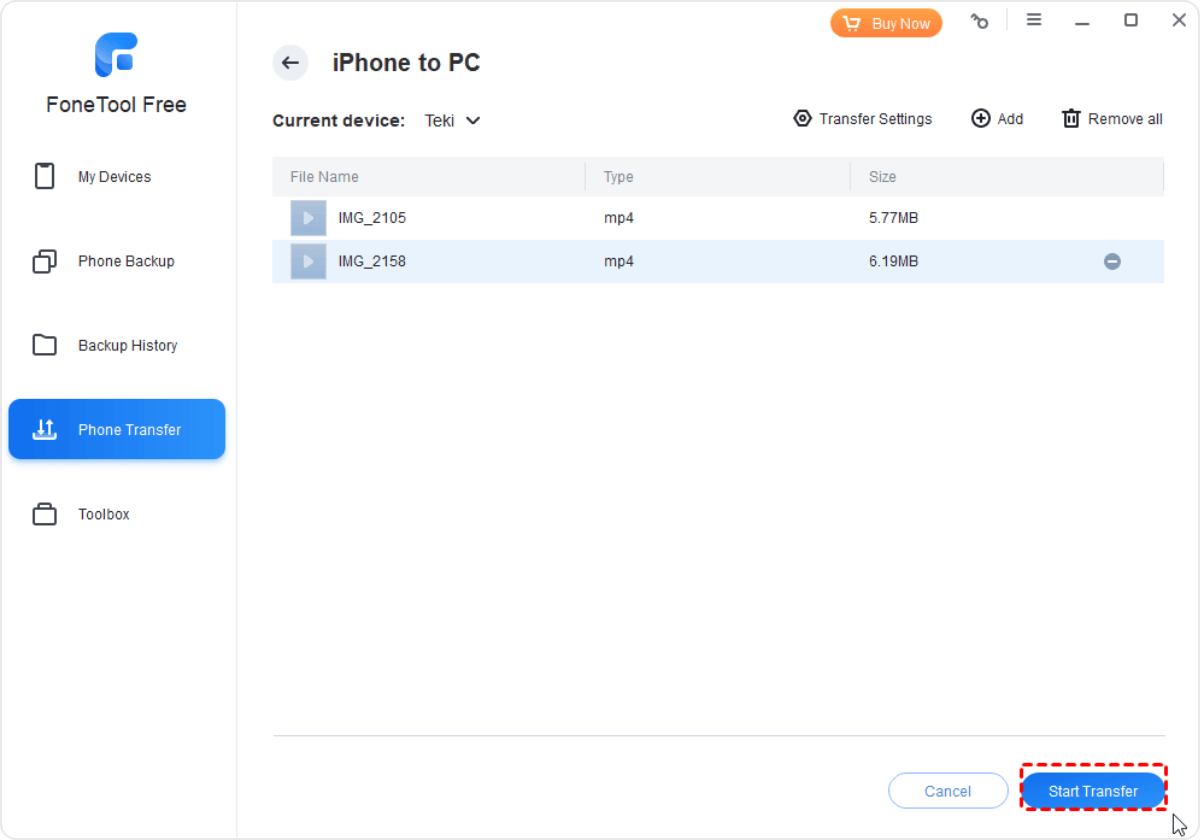
Step 4. Select a path and click Start Transfer to save the large videos to the computer.
FAQs about sending video from iPhone to PC
-
Q1: How do I transfer videos from iPhone to computer without internet?
FoneTool transfers files, including video files, from iPhone to PC with the steps aforementioned. All steps can be completed without internet.
-
Q2: How do I transfer videos from iPhone to PC without cable?
If you don’t have a USB cable at hand, you can transfer videos from iPhone to computer in Windows 11/10/8/7 via Google Drive or Snapdrop. Firstly, you need to upload videos on iPhone through Google Drive app. Then, tap the Locate link or go the folder that you chose when uploading the videos and share the link of the video to yourself via email. Finally, check out the link on PC.
-
Q3: Can I AirDrop to a PC?
You can't use airdrop to transfer data from iOS to a Windows 10/11/8/7 computer. Luckily, we can still use iTunes and FoneTool to share your data between iPhone and PC.
-
Q4: What if FoneTool fails to recognize iPhone/iPad/iPod Touch correctly?
If you connect iPhone, iPad, or iPod Touch to computer through USB cable, please try the following methods to solve the problem:1. Try to reconnect the device using the USB cable.
2. Confirm that the USB cable is intact, or try to connect the device with another USB cable.
3. Confirm that the USB port of the PC can be connected normally, or try to connect the device to another USB port.
4. If the device connected to the PC is in locked screen state, please keep the device in unlocked state during the operation.
5. If the connection between the device and PC is normal but the device is still unrecognized, it may because the FoneTool service doesn't detect the device in time, please try to restart FoneTool. After the device is connected to the PC via a USB cable, please check whether the driver of the device is installed on the PC if the device cannot be recognized .
6. Normally after connecting, you can try to manually reinstall or update the device driver.
7. If the device is connected normally but FoneTool still cannot recognize the device, please try FoneTool's repair driver function to check whether there is a problem with FoneTool's driver.
8. If the device is connected normally and there is no problem with FoneTool driver, but the device is still unrecognized, please check if the Security Protection or Anti-virus software blocks the program. You can add FoneTool.exe to the whitelist of Protection or Anti-virus software.
9. Check whether FoneTool is the latest version. The previous FoneTool version may not support the new iOS system.
Conclusion
Transferring larger video files from your iPhone to your PC can be useful whether you’re seeking to free up storage space on your iPhone, create secure backups of precious memories, or harness the power of advanced editing software on your computer. With FoneTool, you can not only gain access to a seamless and efficient data transfer solution but also unlock a plethora of features to manage and safeguard your iPhone data. With its intuitive interface and high-speed transfer capabilities, it empowers you to effortlessly move large video files between your iPhone and PC, ensuring that your memories are safely preserved and easily accessible. Click Below to get FoneTool for free and better manage your iPhone data right now!