7 Ways to Transfer Data from Android to iPhone After Setup
Can you transfer data from Android to iPhone after setup? This guide will show you how to move data from Android to iPhone after setup in 7 different methods.
 by Owin
Updated April 14, 2023
by Owin
Updated April 14, 2023


What will you learn?
1.What Is System Clone or System Migration?
2.Disk Clone vs System Clone: Key Differences and Trade-offs
3.Why Is Windows System Clone So Popular?
4.BestSystemCloneSoftwareinWindows10
5.HowtoPerformSystemClonetoSSDwithoutReinstallingWindows
6.Summary
Can you transfer data from Android to iPhone after setup?
When it comes to how to move data from Android to iPhone, the Move to iOS app is probably the first choice for many people. So here we list out a tutorial on “how do I use Move to iOS app after setup?”. Besides, we also share 6 other methods to transfer from Android to iPhone after setup quickly when Move to iOS not working. Next, let’s see how to transfer data from Android to iPhone after setup.
In this detailed guide, we will provide 7 practical ways and lead you to effortlessly transfer data from Android to iPhone after setup. if you don’t want to lose those valuable data on your Android phone, keep on reading this step-by-step guide.
Way 1. Use Move to iOS to transfer data from Android to iPhone after setup
Move to iOS is a great Android-to-iOS transfer app developed by Apple, dedicated to helping users seamlessly transfer data from Android to a new iPhone. it allows you to transfer contacts, photos, videos, message history, email accounts, calendars, and other data to a new iPhone. Learn about how to move data from Android to iPhone after setup.
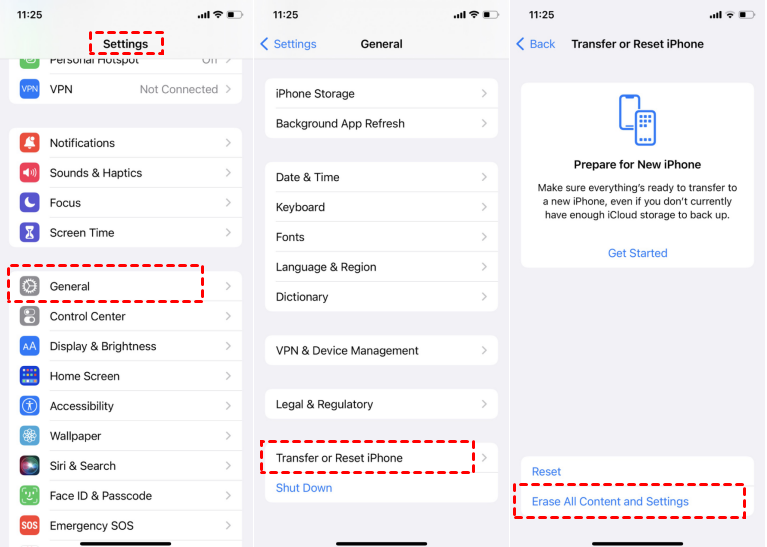
If you have already set up your iPhone, please wipe all existing data on your iPhone first. You can go to Settings > General > Transfer or Reset iPhone > Erase All Content and Settings to reset your iPhone. If you don't want to reset your iPhone, please go to method 2 to continue reading.
This powerful iPhone data management tool is the best way to backup iPhone without iCloud or iTunes.
- iOS 16/15/14/13/12/11 and former
- iPadOS 16/15/14/13/12/11 and former
- iPhone 14/14 Pro (Max), 13/13 mini/Pro (Max)
- iPhone 12/12 mini/Pro (Max), iPhone 11/11 Pro (Max)
Windows 11/10/8/8.1/7

100% secure
The steps on how to use Move to iOS after setup
Step 1. Connect the iPhone to a stable WiFi network > Follow the onscreen guidance to set up iPhone until you see the Apps & Data interface > Select the Move Data from Android option.
Step 1. Connect the iPhone to a stable WiFi network > Follow the onscreen guidance to set up iPhone until you see the Apps & Data interface > Select the Move Data from Android option.
Step 2. Download Move to iOS app to your Android phone, run Move to iOS, and click Continue > Tap to agree with the terms and conditions > click Next.
Step 3. Click Continue on your iPhone > Wait for a digital
code
to
appear on your iPhone.
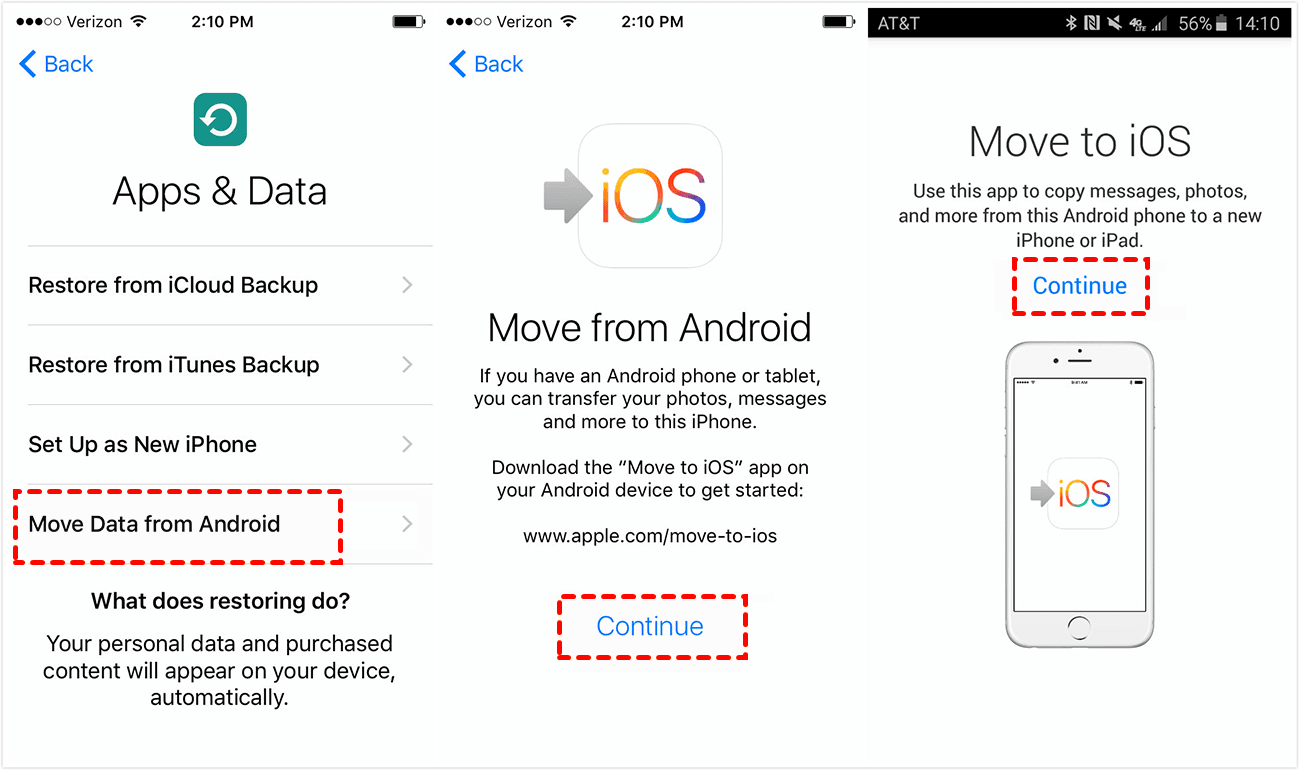
Step 4. Enter the code on your Android phone > Choose the data you want to transfer and click Next to move data from Android after setup. “How long it takes to use Move to iOS after setup to transfer data” depends on how much content you need to move.
Step 5. After the transfer progress is finished, tap Done on your Android phone > tap Continue on your iPhone to complete the remaining setup steps.
Way 2. How to transfer data from Android to iPhone without resetting
will give you great help. As a no-reset iOS setup assistant, you can first transfer photos, videos, or songs from your Android phone to your computer, and then easily move data from Android to iPhone after setup manually via FoneTool.
Compared with method 1, it won't erase any existing data on your iPhone. It is an easy-to-use tool for first-time users with a user-friendly interface and transferring data in just a few simple steps. It has some shining points as follows.
- Equipped with advanced technology, it has a super fast transfer speed and a very high success rate.
- It enables users to preview and select the data to move from Android to iOS after setup flexibly
- It can transfer music, photos, videos, messages and all kinds of files without data loss in the absence of a network
- It works perfectly with all other iOS devices such as iPhone, iPad, etc. It also works with iOS16/15/14
Step 1. Connect your Android phone to your computer with a USB cable and transfer the desired data to your PC.
Step 2. Download and install this tool for free. Connect your iPhone to the computer and open FoneTool.
Windows 11/10/8/8.1/7
100% secure
Step 3. Connect your Android phone to your computer with a USB
cable
and
transfer the desired data to your PC.
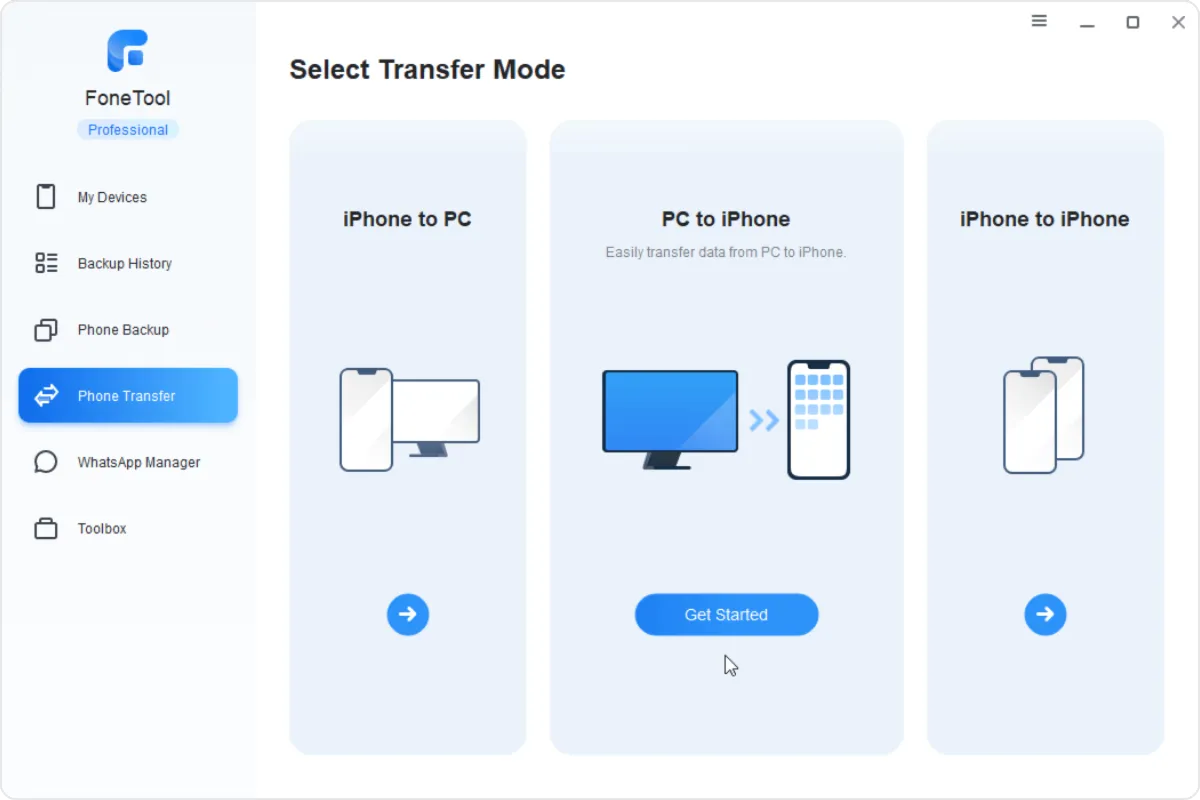
Step 4. Click the + icon to browse and select
the
data
you need.
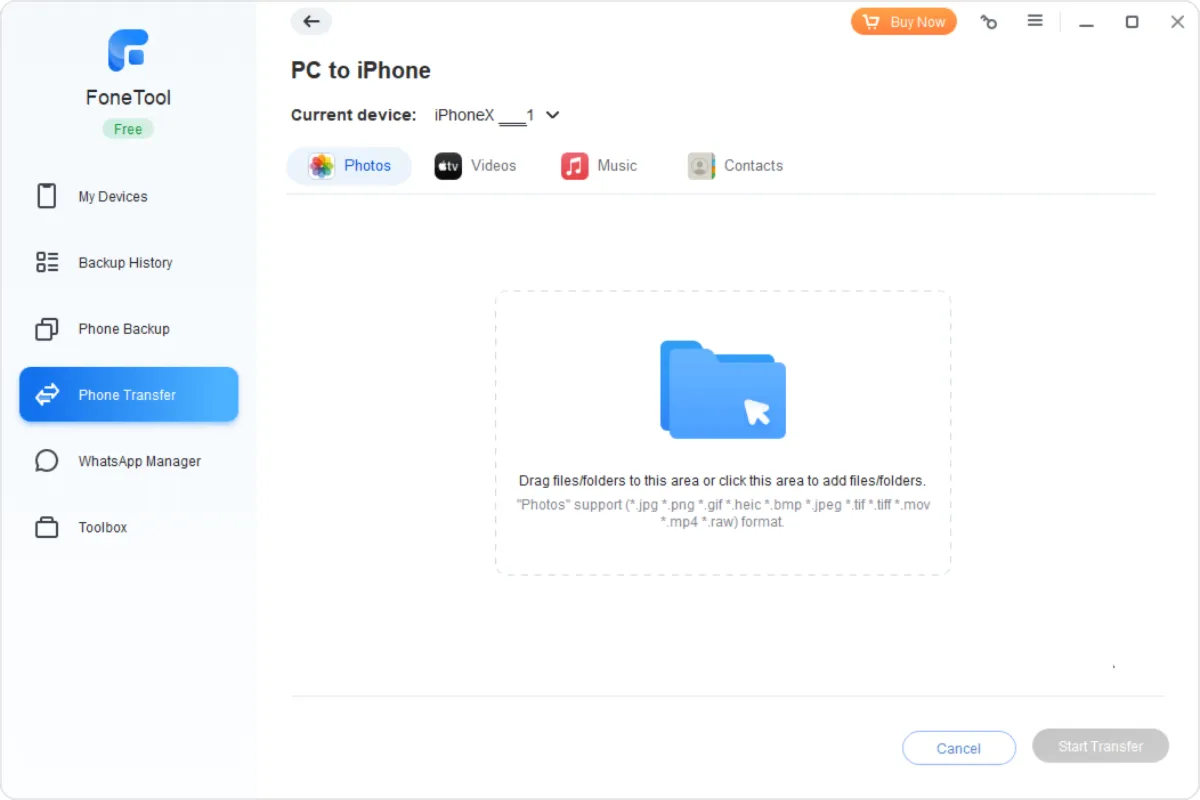
Step 5. Click the + icon to browse and select
the
data
you need.
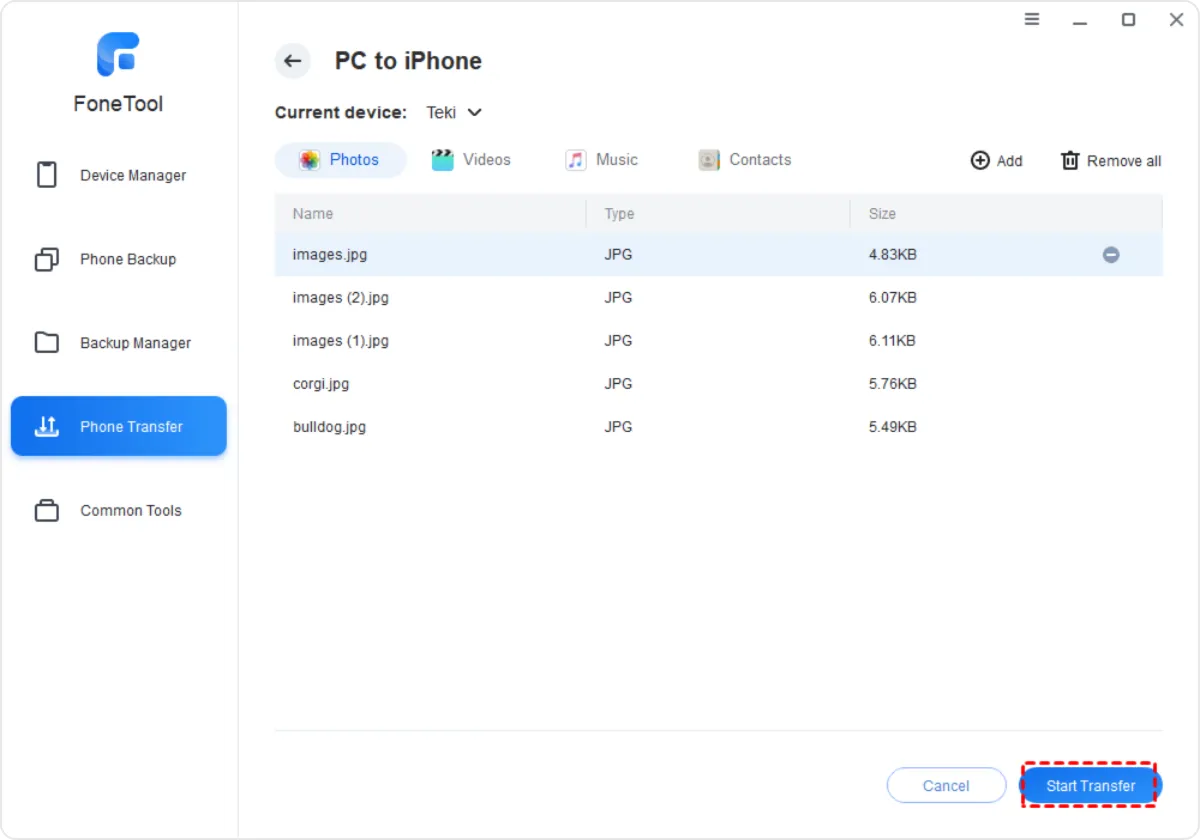
You should learn about how to transfer photos from Android to iPhone after setup. FoneTool is also an iPhone backup tool. It offers Full Backup and Selective Backup to help you backup iPhone with ease.
To sum up
You have learned disk clone vs. system clone from this page. The best cloning software AOMEI Backupper can help you complete these two tasks perfectly. Apart from the clone feature, AOMEI Backupper is specialized backup and sync software. You may use it to do system backup, disk backup, file synchronization and more. If you are a server user who is running Windows Server 2019/2016/2012, etc,AOMEI Backupper Server is available. Go for it right now!
FoneTool - All-in-one iPhone Data Manager
Transfer, backup and manage data on iPhone, iPad and iPod touch in an easy and way.
-
 iOS 16.1 Compatible
-
 iPhone 14 Supported
Windows 11/10/8/8.1/7
100% secure
Help Us Improve This Article
Was the provided information useful? Your vote is important to use!
 Yes
Yes
 No
No
Author
Ivy is an editor of the MiniTool Team since 2016 who has more than 5 years’ writing experiences in the field of technical articles. Her articles mainly focus on disk & partition management, PC data recovery, video conversion, as well as PC backup & restore, helping users to solve some errors and issues when using their computers. In her spare times, she likes shopping, playing games and reading some articles.
Read the full bio >>Hot Topics
- iPhone Transfer
- iPhone Data Recovery
- iPhone Transfer
- iPhone Data Recovery
- iPhone Transfer
- iPhone Data Recovery