How to View iPhone Messages on PC/Mac Computer
This guide provides instructions on how to view iPhone messages on computer and save iPhone messages on a PC/Mac. If you wonder how to view iPhone messages on computer, this guide is for you.


Why View iPhone Messages on Computer?
Your iPhone is a treasure trove of text messages, containing valuable conversations, memories, and important information. However, there may be times when you need to access and view your iPhone messages on your PC or Mac computer. Whether it's for backing up messages, reviewing important conversations, or simply enjoying the convenience of a larger screen, this comprehensive guide will show you various methods to view iPhone messages on your computer.
Read on to discover the step-by-step instructions and tools to make this process smooth and hassle-free.
Part 1. How to view iPhone messages on Mac computer
For Mac users, iCloud provides seamless message synchronization between iPhone and Mac, enabling real-time access to your text messages without constantly checking your phone.
Prerequisites: Ensure both devices use the same Apple ID and maintain internet connectivity.
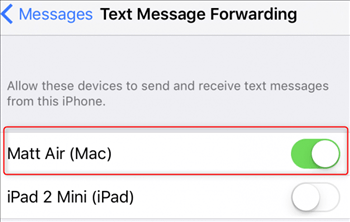
Step 1. Enable text message forwarding.
- On iPhone: Settings > Messages > Text Message Forwarding
- Toggle on the switch next to your Mac's name
Step 2. Activate iCloud messages sync.
- On iPhone: Settings > [your name] > iCloud > Enable Messages
- On Mac: Preferences > Settings > iMessage > Check Enable Messages in iCloud
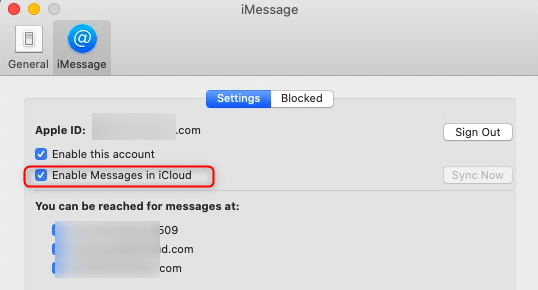
This setup ensures your message history remains updated and accessible across both devices.
Part 2. How to view iPhone messages on PC
Due to platform compatibility limitations, iCloud doesn't support direct message access on Windows PCs. However, third-party software like FoneTool provides reliable solutions for viewing iPhone messages offline
This powerful iPhone data management tool is the best way to backup iPhone without iCloud or iTunes.
- Preview and select specific messages for transfer
- Quickly transfer photos, videos, contacts, etc. between iPhone and PC
- Offline functionality without iMessage sync requirements
- Free download with comprehensive message backup capabilities

100% Secure
Follow the steps below to know how to view iPhone text messages on computer for free.
Step 1. Connect iPhone to PC via USB > Launch FoneTool > Phone Backup > Selective Backup.
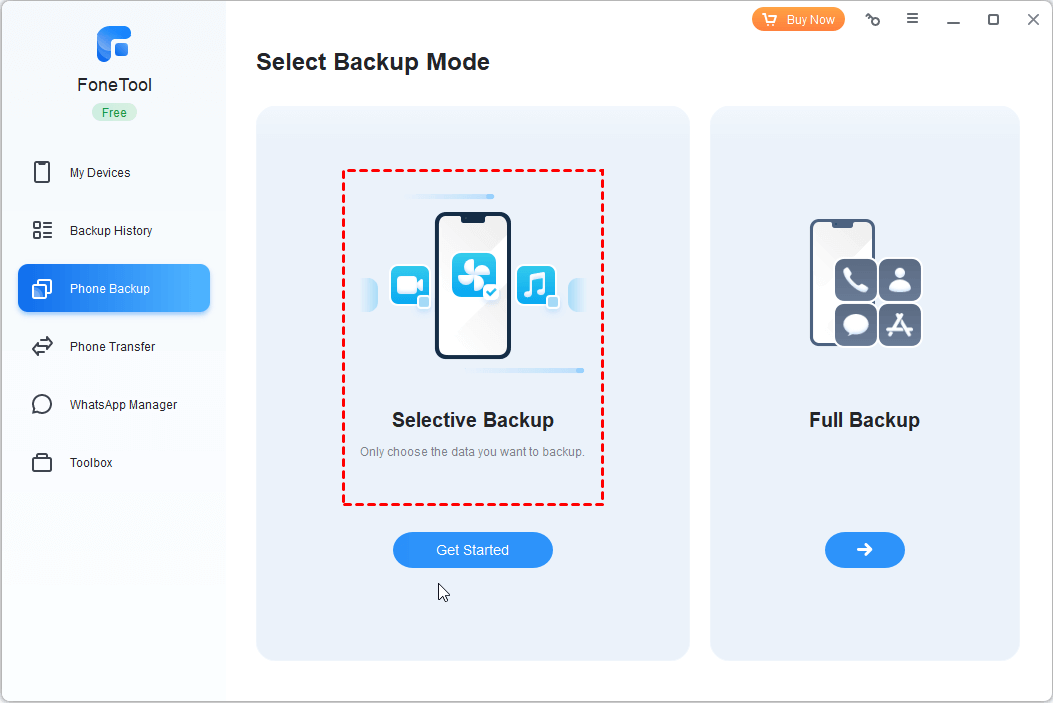
Step 2. Check Messages icon > Deselect other file types > Choose specific messages > OK.
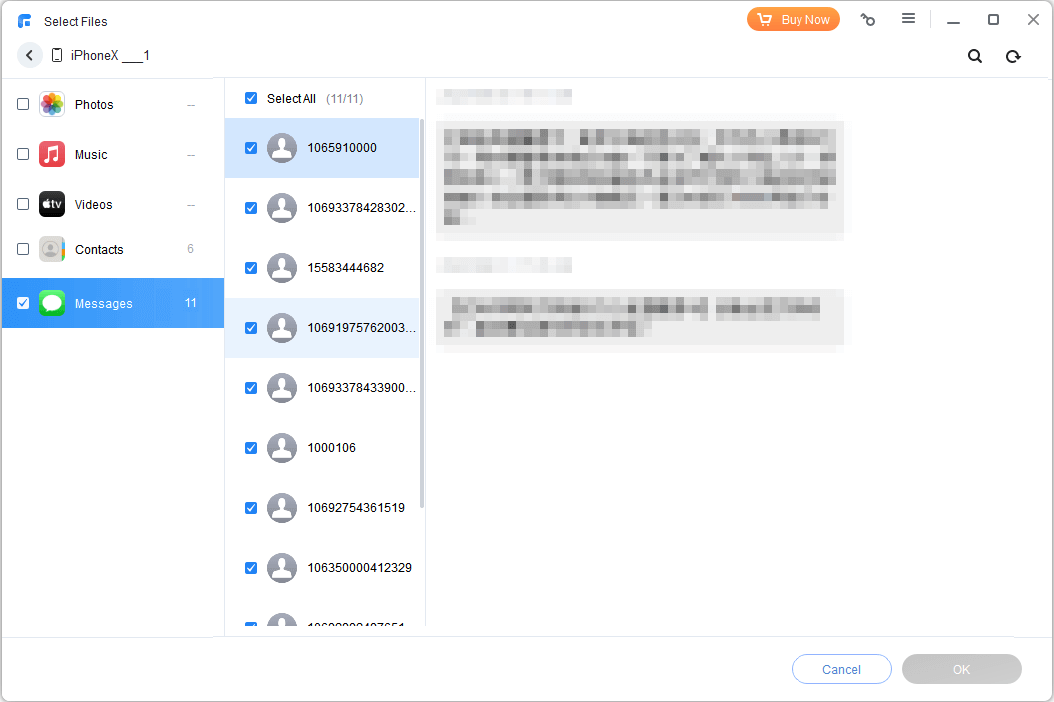
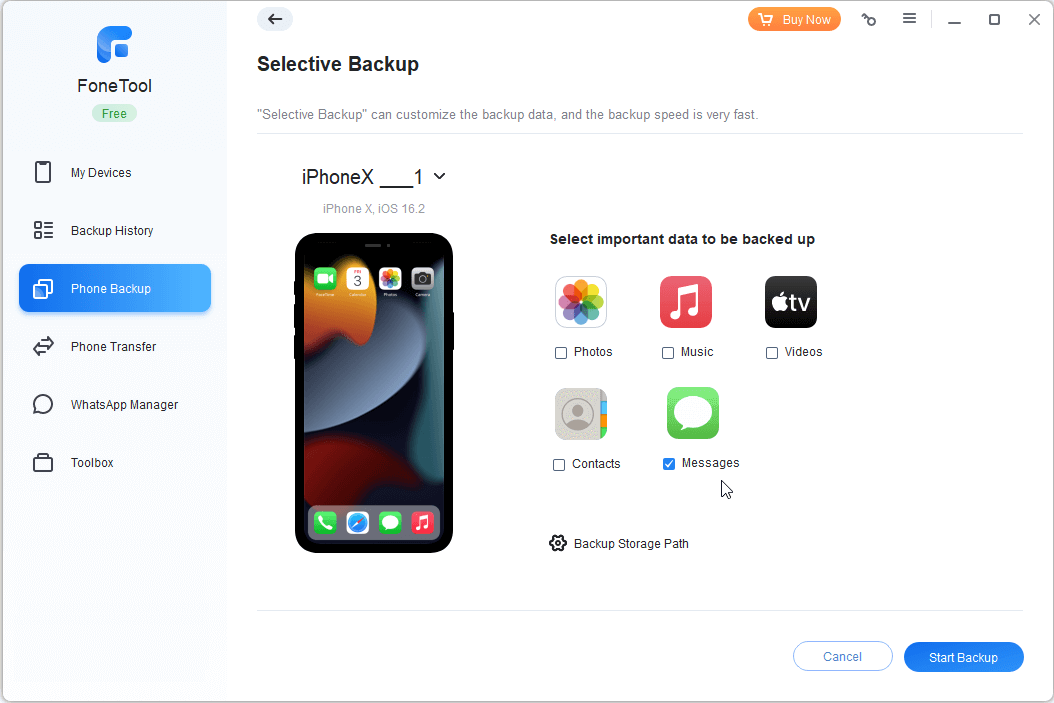
Step 3. Select backup location > Click Start Backup to make it.
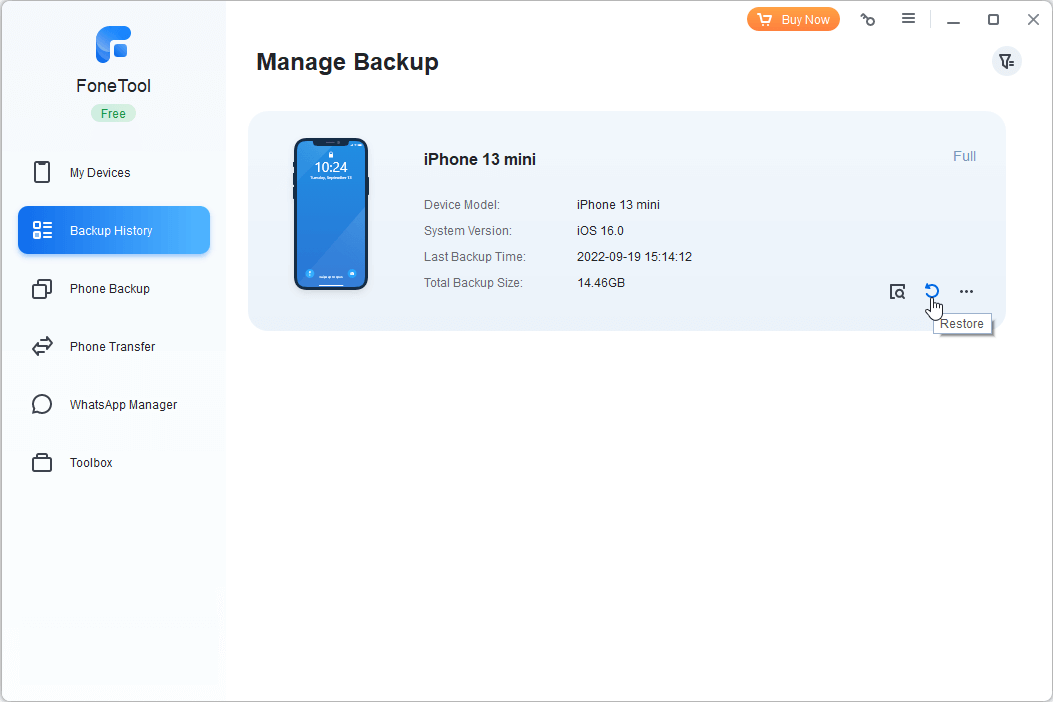
Step 4. Access messages: My Backups > Locate backup file > Restore > Message.
Part 3. Essential tips and considerations
After knowing how to view iPhone messages on computer, there are something you may need to pay attention to.
Security and privacy protection
-
Verify software security before using third-party applications
-
Avoid sharing sensitive information through unverified platforms
-
Use encrypted connections for data transfers
Data management best practices
-
Maintain regular iPhone backups via iCloud or iTunes
-
Confirm software compatibility with your specific device models
-
Keep two-factor authentication enabled for Apple ID security
Conclusion
Accessing and managing your iPhone messages on your PC or Mac computer enhances your messaging experience with improved convenience and flexibility. Whether using Windows or macOS, these methods enable seamless message viewing, backup, and management on larger screens. For Mac users, iCloud sync provides real-time access, while PC users can rely on FoneTool for comprehensive message backup and viewing capabilities.
FAQs
FoneTool - All-in-one iPhone Data Manager
Transfer, backup and manage data on iPhone, iPad and iPod touch in an easy way.
-
 iOS 27 Compatible
 iPhone 17 Supported
Windows 11/10/8/8.1/7

100% Secure

Kelsey is an English editor at FoneTool, passionate about helping users solve tech issues. She specializes in iPhone data management, backup, and recovery. In her free time, she enjoys learning IT skills and spending time with loved ones.
Read author info >>



 as a preferred
source on Google
as a preferred
source on Google