Can You Merge iPhone Backups? 3 Ways to Combine iPhone Data
You cannot directly merge two complete iPhone backups into one. However, you can combine selected data from two iPhones by restoring files selectively, syncing supported iCloud data, or restoring one backup and then transferring the remaining files. This guide explains the trade-offs of each method.


Can you merge two iPhone backups?
Backing up iPhone data regularly is a habit for most users, and you may want to merge iPhone backups for these reasons:
- • Upgrade to a new iPhone while preserving data from multiple devices
- • Combine a work iPhone and a personal iPhone into one
- • Prevent data loss when switching between iPhones
- • Sync files, contacts, and messages between two iPhones for seamless access
The methods below do not merge two backup files. Instead, they help you combine data from two iPhones on one target device.
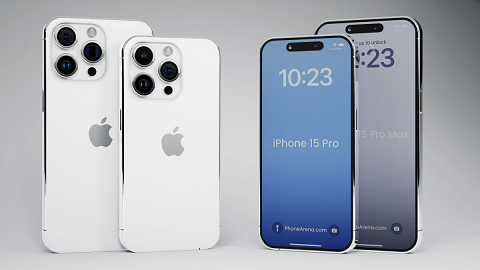
Apple's native backup system doesn't provide a direct way to merge two backups into one. However, you can manually combine iPhone data by selectively restoring data from one backup to another. The following methods demonstrate practical workarounds.
Way 1. Selectively combine iPhone data with FoneTool
FoneTool lets you back up selected data from a source iPhone to a Windows PC and restore compatible items to a target iPhone. Because you choose the data to restore, you can add files without replacing the target device with a complete backup.
- Completely free local backup without storage limits
- Quick full or selective backup to PC
- Preview and choose specific files to backup
- Incremental backup saves time and space
- Restore iPhone backup data without overwriting existing files

100% Secure
Easy steps to merge backups for iPhone
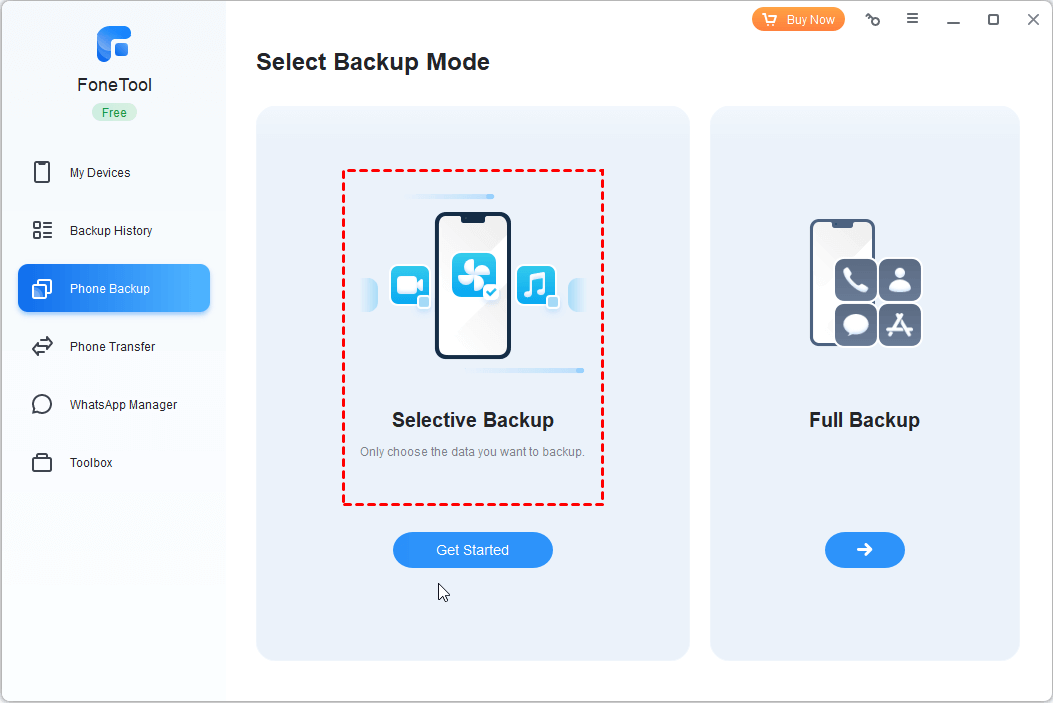
Step 1. Connect source iPhone > Open FoneTool > Phone Backup > Selective Backup > Get Started.
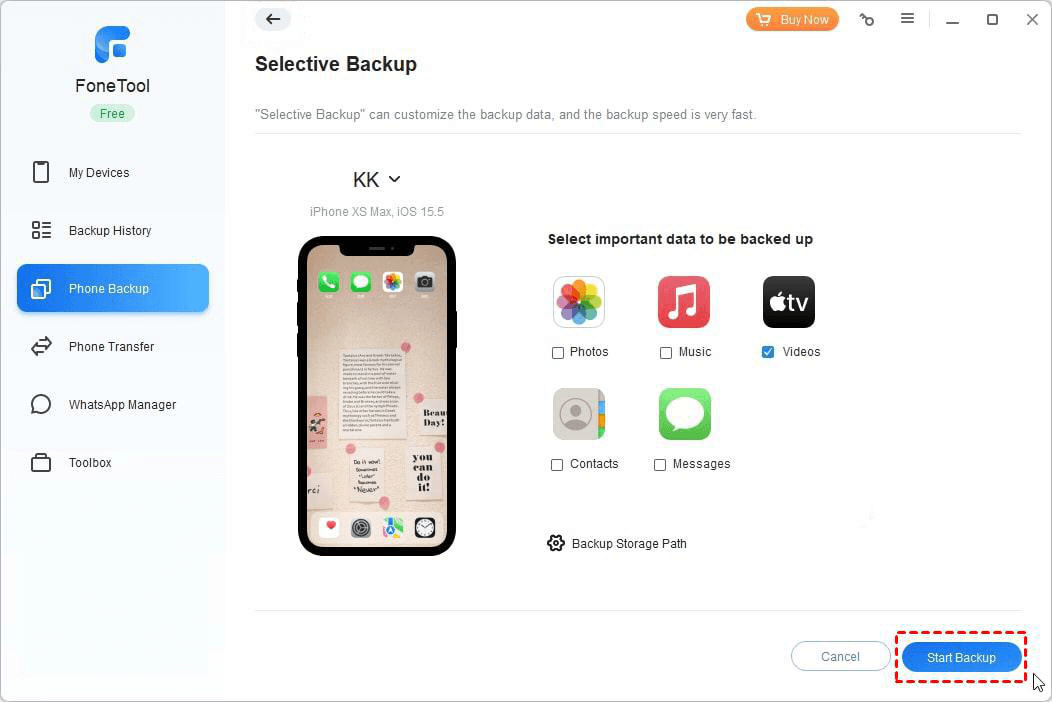
Step 2. Select file types to backup > Click OK to confirm.
Step 3. Cick the Backup Storage Path to choose backup location >Click Start Backup.
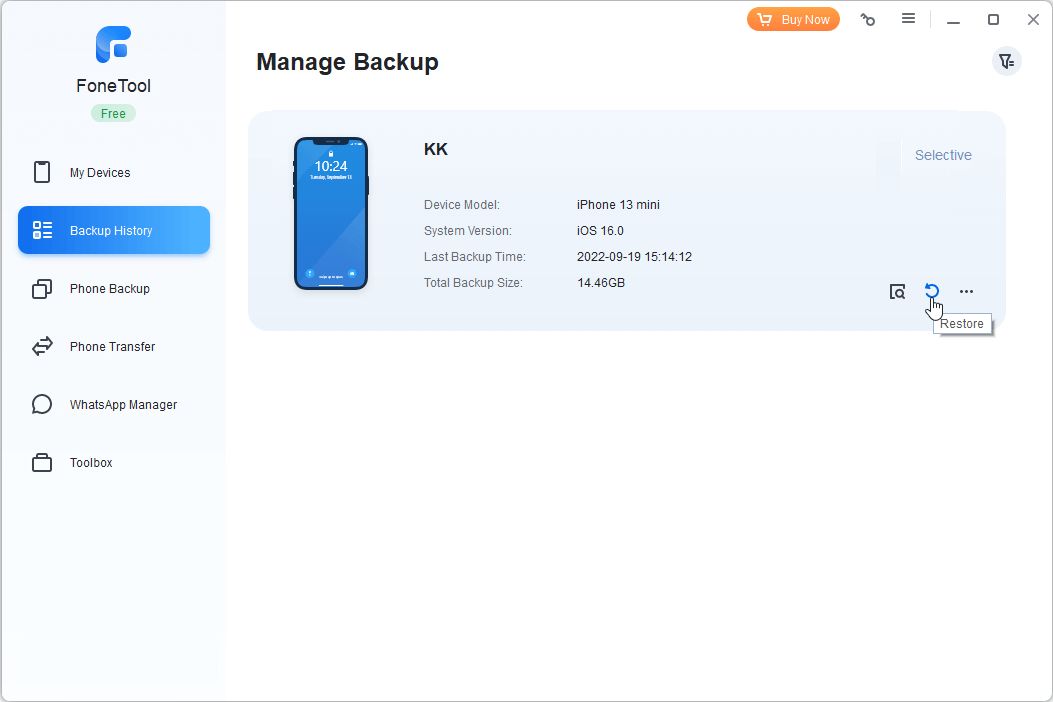
Step 4. Connect your target iPhone > Backup History > Find the latest backup > Click the Restore icon.
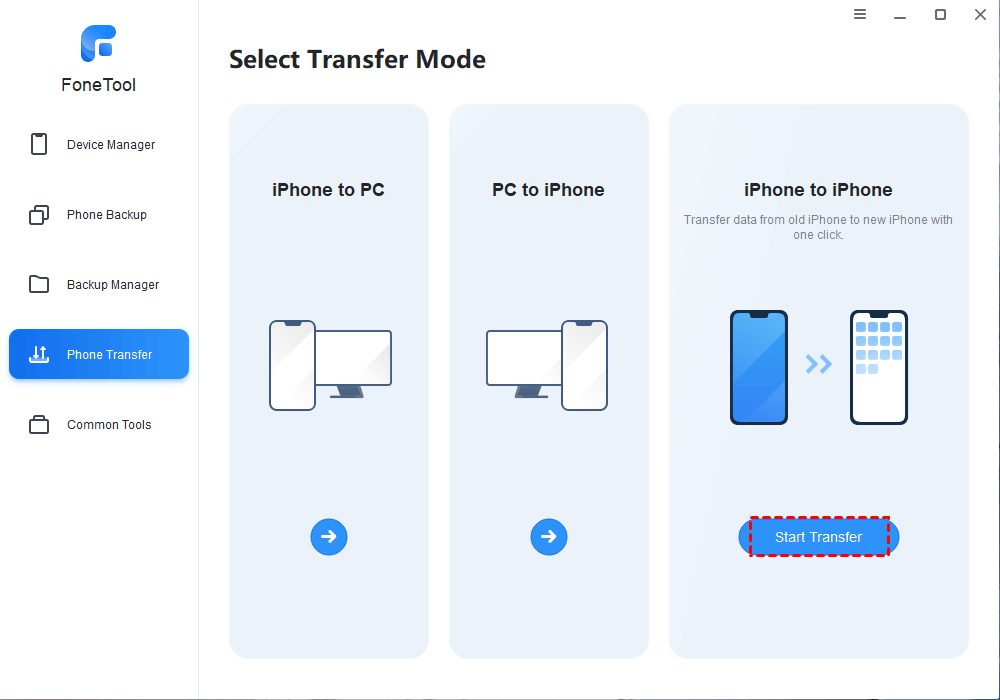
If your goal is to move data from one old iPhone to a new iPhone, use FoneTool's iPhone to iPhone transferi nstead of creating and restoring a backup.
Way 2. Sync supported data with iCloud
While iCloud doesn't directly merge backups, you can sync data across devices and use restoration to combine information.
- ★Important:
- Restoring an iCloud backup does not merge it with the data already stored on the target iPhone. If the iPhone is already set up, Apple requires you to erase it before restoring the backup. Back up the target iPhone and confirm that synced data has finished uploading before you erase anything. SeeApple's instructions for restoring an iPhone from a backup.
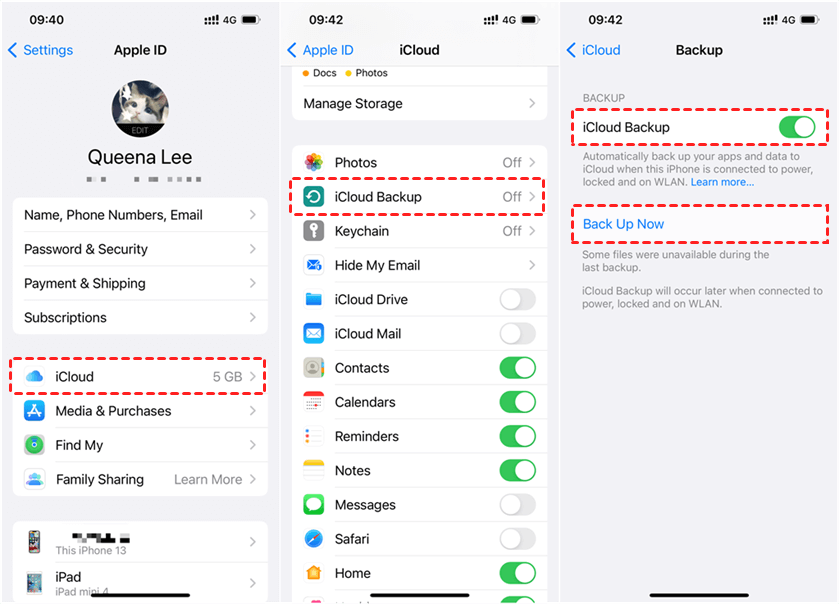
Step 1. Enable iCloud sync on both iPhones: Settings > [your name] > iCloud > Toggle on data categories.
Step 2. Create iCloud backups: Settings > [your name] > iCloud Backup > Back Up Now.
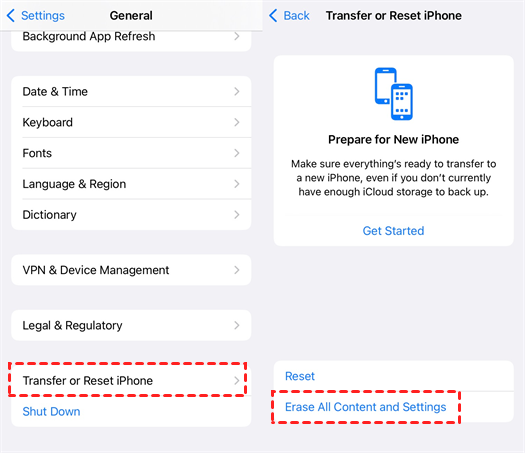
Step 3. Reset target iPhone: Settings > General > Transfer or Reset iPhone > Erase All Content.
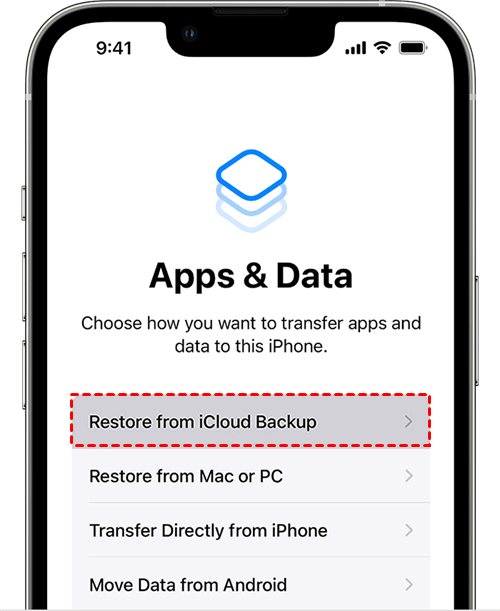
Step 4. Restore from iCloud: Setup iPhone > App & Data screen > Restore from iCloud Backup > Choose latest backup.
Way 3. Restore one computer backup, then add other data
A computer restore also replaces the target iPhone with one selected backup; it does not combine two backup files. First export the target-device files you need, restore the source backup with Apple Devices on Windows, Finder on Mac, or iTunes where applicable, and then transfer the exported files back.
Step 1. Export target iPhone data: Use FoneTool > iPhone to PC > Select files to transfer to computer.
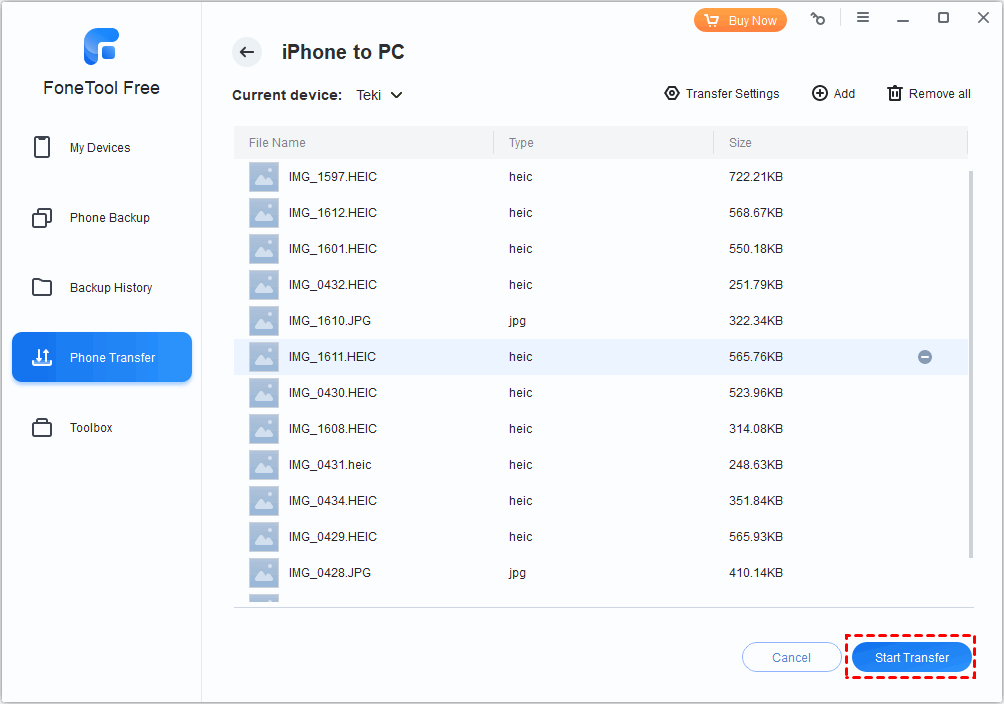
Step 2. Back up the source iPhone to a computer: Connect the source iPhone > Open Apple Devices on Windows, Finder on Mac, or iTunes where applicable > Select the device > Choose Back Up Now.
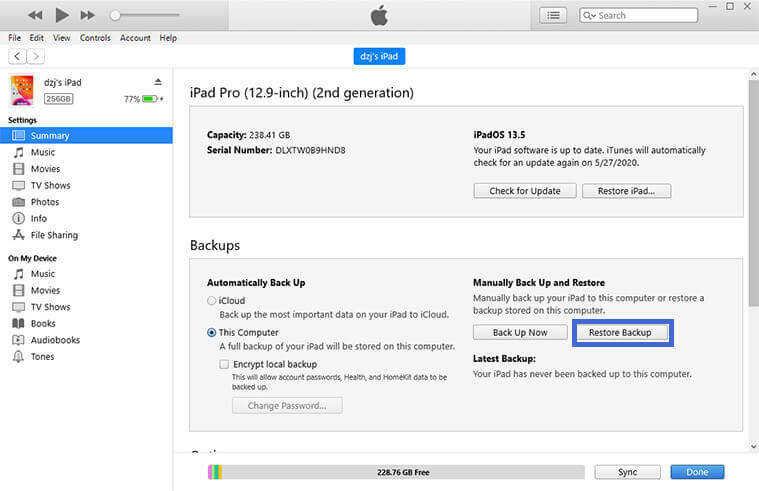
Step 3. Restore to target iPhone: Connect the target iPhone > Open Apple Devices, Finder, or iTunes > Select Restore Backup > Choose the source backup by checking its date and size.
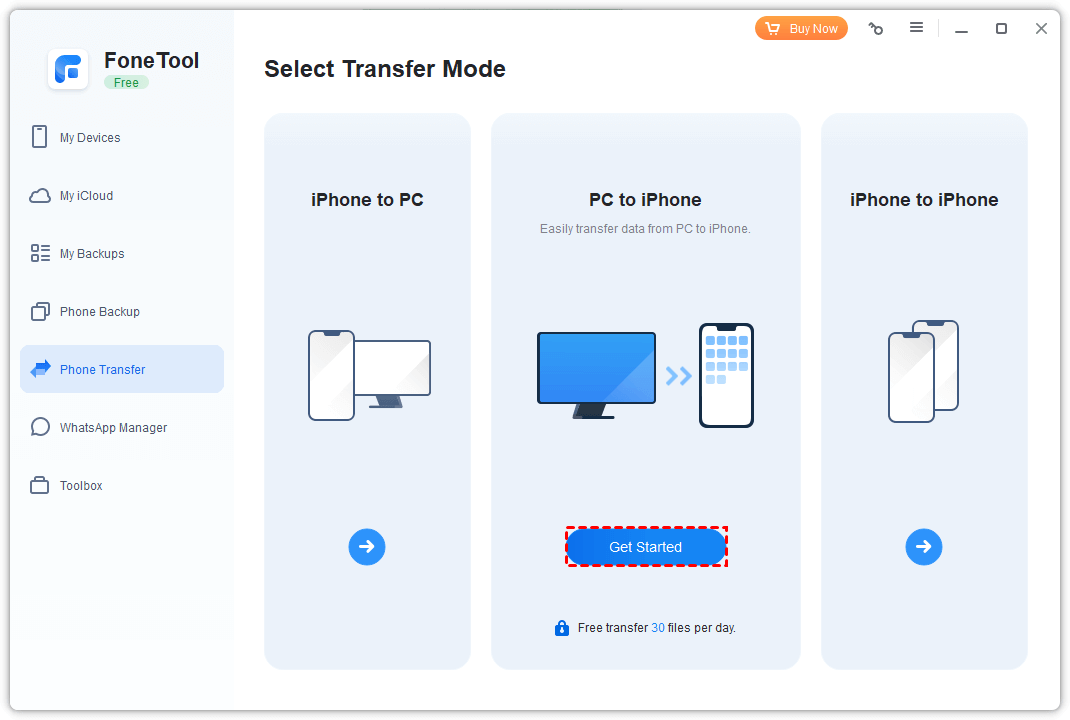
Step 4. Reimport original data: FoneTool > PC to iPhone > Transfer exported files back to iPhone.
Other ways to transfer or keep iPhone data in sync
If you want to connect two iPhones together and make sure they sync automatically, you can consider using the following methods:
Choose the right transfer or sync option
🔹 iCloud sync: Keep supported data categories updated across devices signed in to the same Apple Account.
🔹 Quick Start: Transfer data when setting up a new iPhone; this is a migration method, not continuous sync.
🔹 AirDrop: Send selected files between nearby Apple devices; this does not transfer a backup.
Conclusion
You cannot combine two complete iPhone backups into a single backup file. Choose a workaround based on the data you need to keep:
-
FoneTool backs up and restores selected compatible data
-
iCloud syncs supported data and restores one selected backup
-
Apple Devices, Finder, or iTunes restores one computer backup before you add separately exported data
Choose the method that best fits your needs to ensure your data remains intact across devices. If you need further help, feel free to contact us or explore more iPhone management solutions!
FAQs on merging iPhone backups
FoneTool - All-in-one iPhone Data Manager
Transfer, backup and manage data on iPhone, iPad and iPod touch in an easy way.
-
 iOS 27 Compatible
 iPhone 17 Supported
Windows 11/10/8/8.1/7

100% Secure

Kelsey is an English editor at FoneTool, passionate about helping users solve tech issues. She specializes in iPhone data management, backup, and recovery. In her free time, she enjoys learning IT skills and spending time with loved ones.
Read author info >>



 as a preferred
source on Google
as a preferred
source on Google