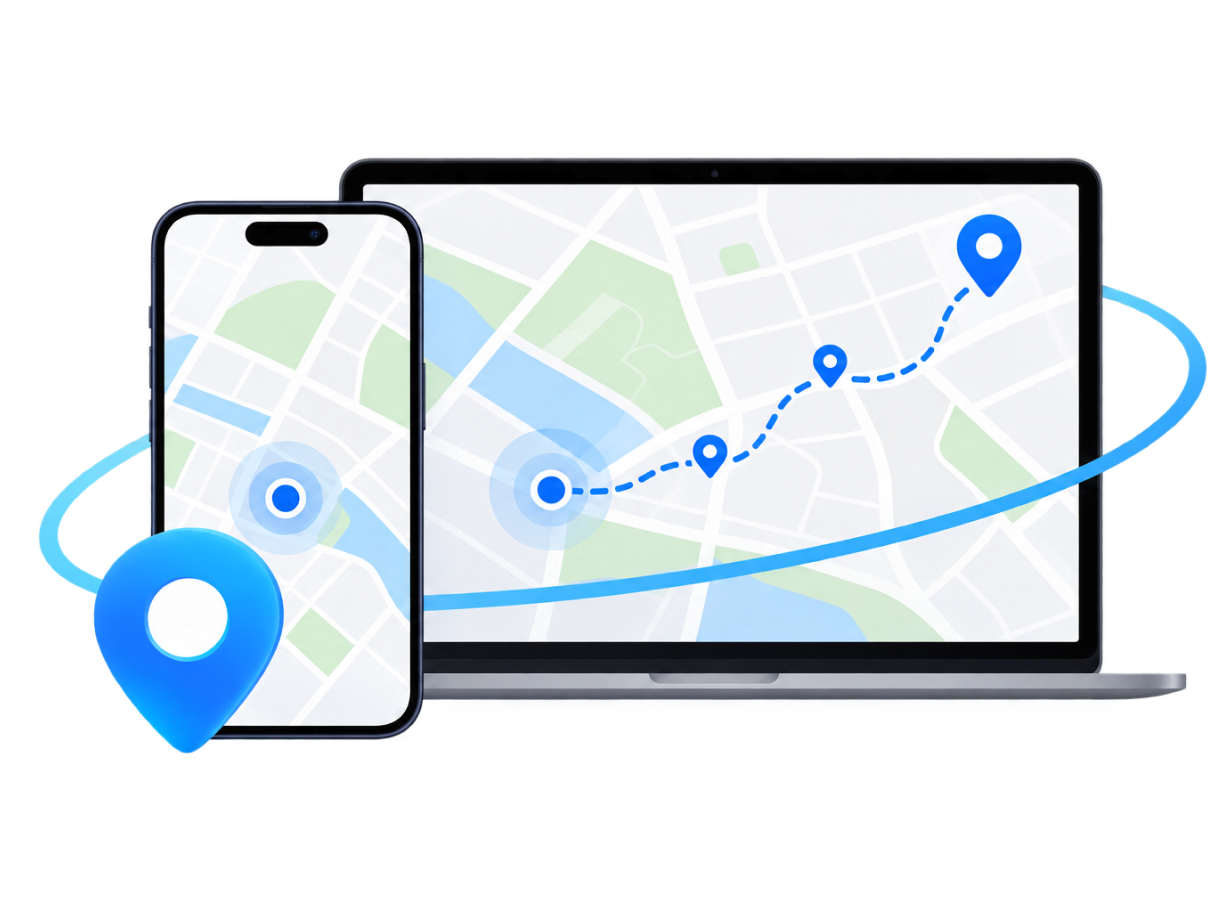
Keep Your Address Private
When an app asks for your location just to show nearby content, set a nearby public landmark instead of your exact home or workplace. The app still works, but your precise address stays private.
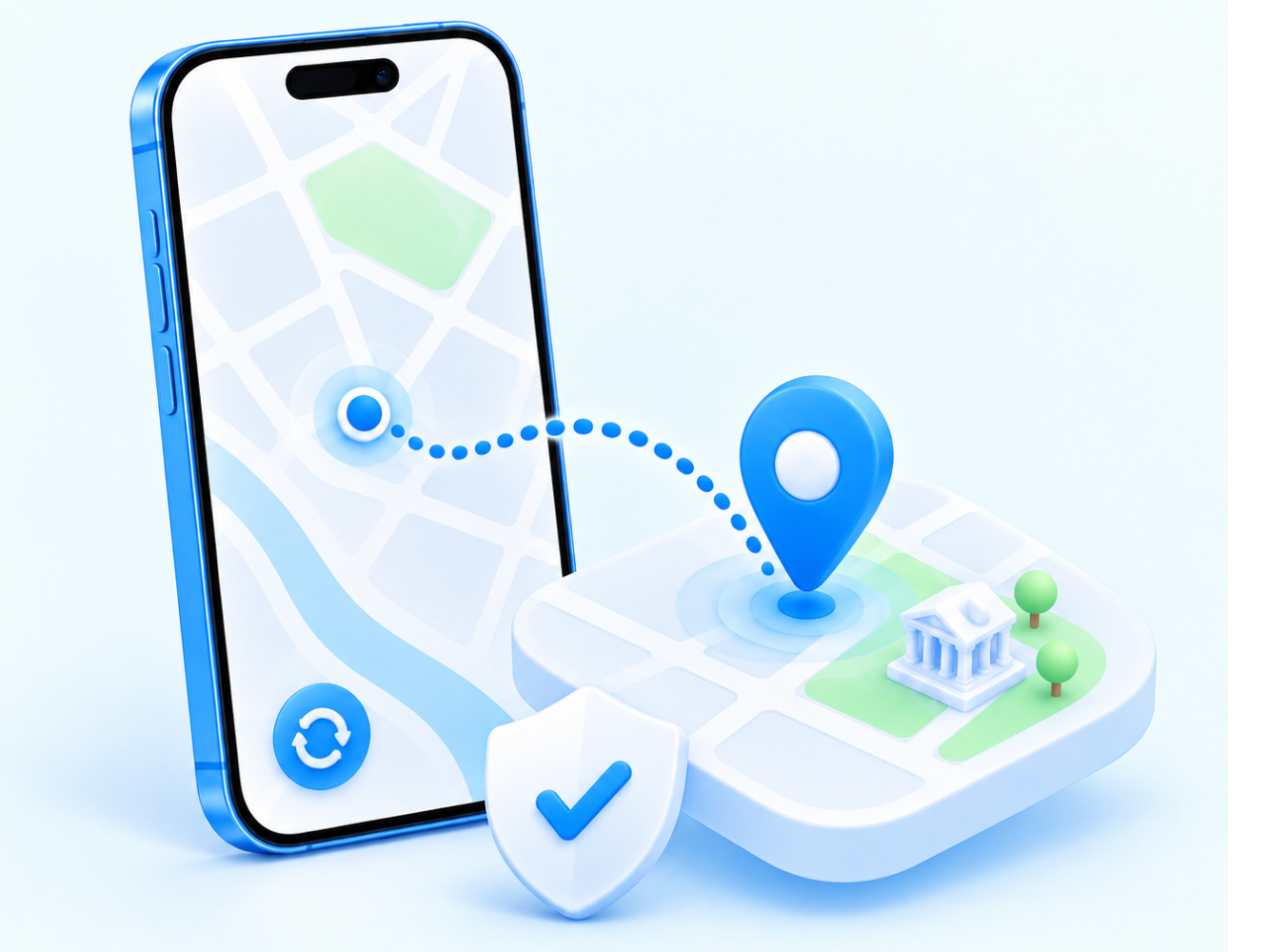
Turning off Precise Location lets an app use your approximate area. FoneTool VirtualLocation lets you choose a different GPS spot yourself. This free location changer for privacy changes the virtual location your device reports to apps, without turning off Location Services entirely.
When an app asks for your location just to show nearby content, set a nearby public landmark instead of your exact home or workplace. The app still works, but your precise address stays private.

Use Fluctuation Mode to make your virtual location fluctuate within a few meters of the selected spot. A real GPS signal is never perfectly fixed - a small amount of drift makes your virtual location look more like a real one.

Turning off Location Services breaks features in many apps. FoneTool VirtualLocation lets you keep using location-based apps while showing a different location.

FoneTool VirtualLocation is free to use and does not require jailbreaking your iPhone or iPad. Connect your device, pick a spot, and start using it.
A real GPS signal is never perfectly still. Even when you’re standing in one place, your phone’s GPS coordinates drift by a few meters due to satellite signal variations. Apps that use location data expect to see this natural variation.
FoneTool VirtualLocation’s Fluctuation Mode adds small variations around your selected virtual location. Instead of reporting a perfectly fixed coordinate, which can look unusual - your device reports small, realistic variations.


Here are some privacy scenarios where a virtual GPS location can help. Each scenario uses Change Location mode with Fluctuation Mode for natural results.
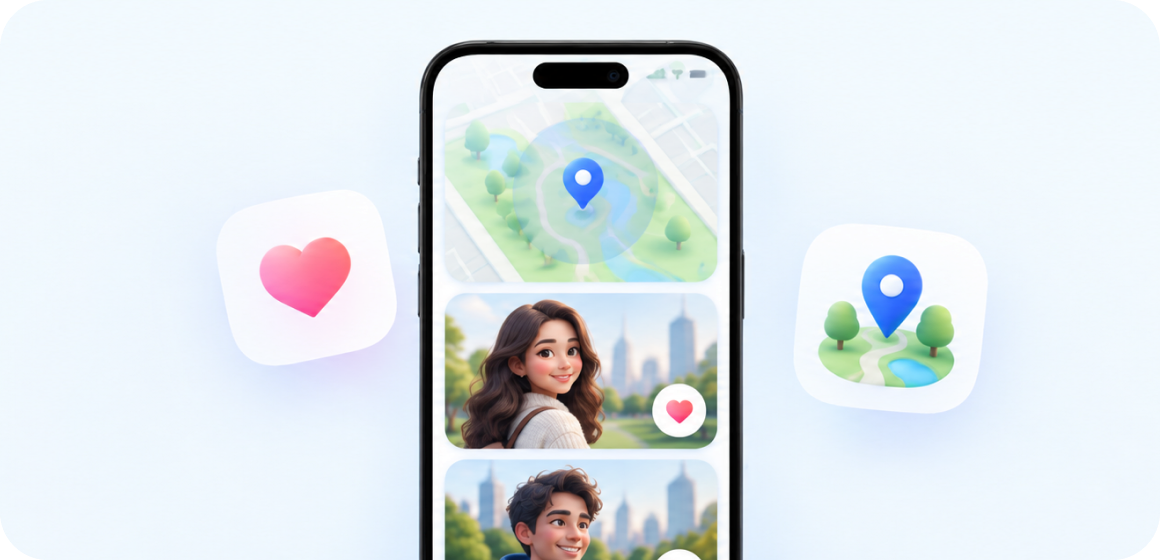
Some social apps request your location to show nearby content or suggestions. If you don’t need to share your exact address, set a nearby public spot instead - the app still works, but your home location stays private.
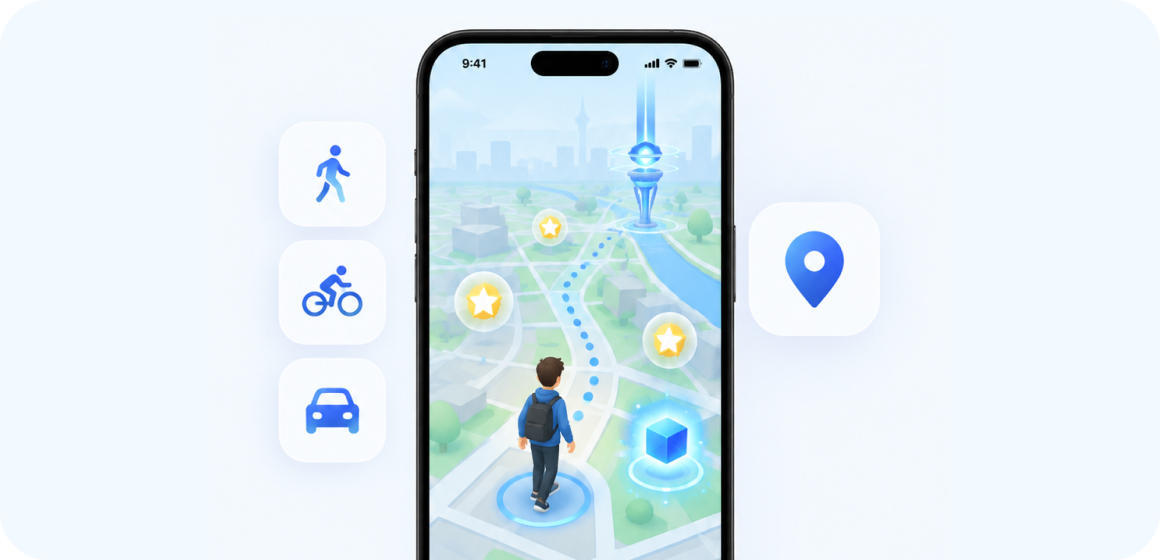
Location-based games may access your GPS position. If you want to keep your real location private while playing, set a virtual location in a public area near you.
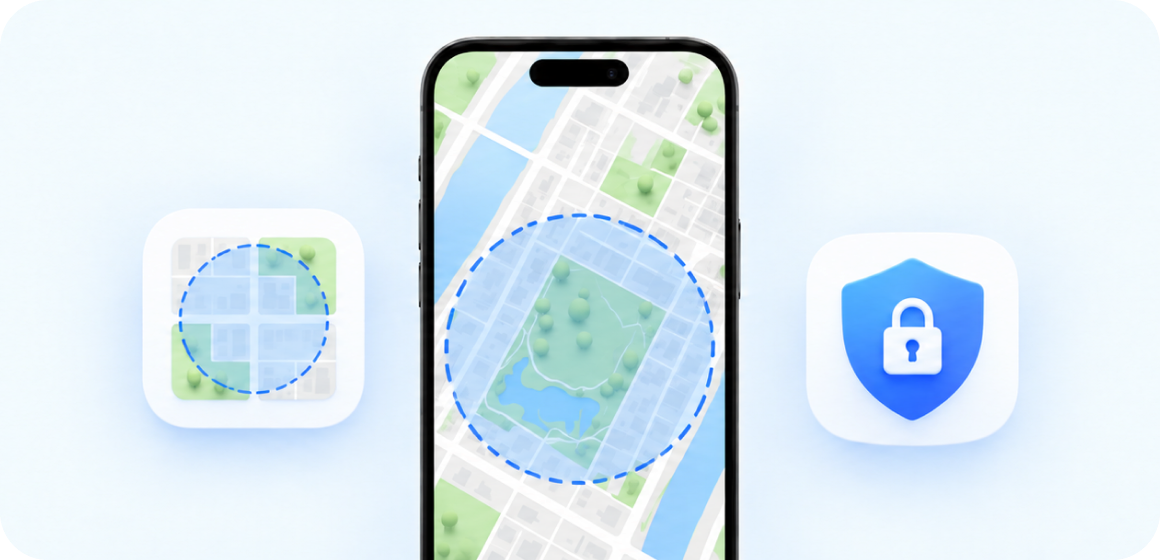
Some apps request location permission without a clear reason. If you want to limit what location data they receive, set a general area instead of your precise coordinates.
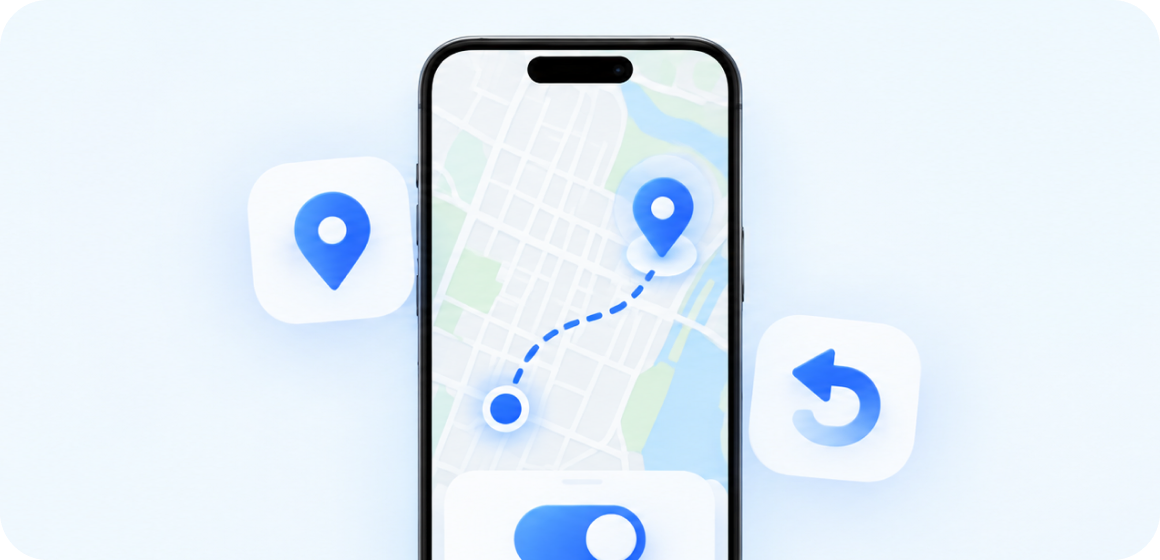
Set a virtual GPS spot for location-based apps, then restore your real location when you’re done.
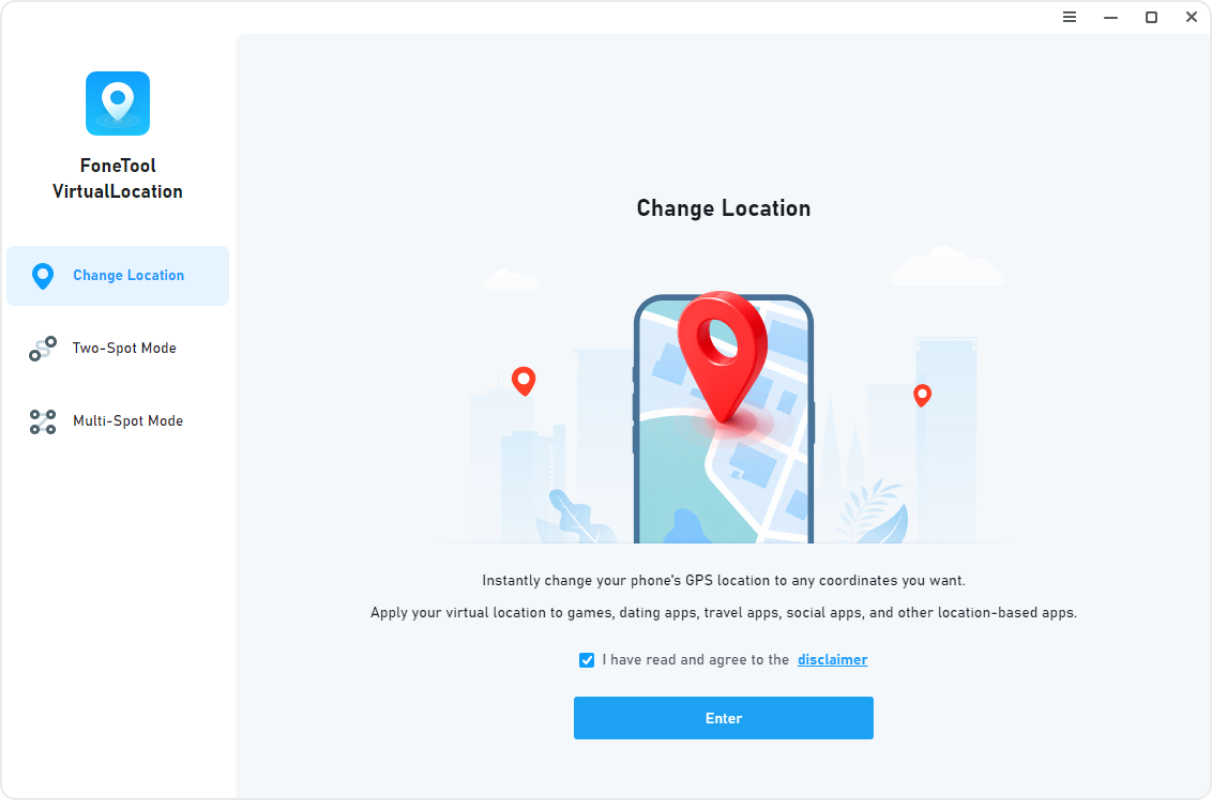
Note:
For iOS 16 and later, Developer Mode is required. If prompted, go to Settings > Privacy & Security > Developer Mode, turn it on, and confirm. Your device will restart. After restarting, unlock your device and tap “Turn On” to enable Developer Mode.
No. A VPN changes your device’s IP address, which affects how websites and online services identify your network location. GPS location comes from a different source: your device’s GPS receiver uses satellite signals to determine your physical coordinates.
| Comparison | VPN | FoneTool VirtualLocation |
|---|---|---|
| What it changes | Your public IP address | Your device’s GPS coordinates |
| Affects GPS location? | No | Yes |
| Used for | Network privacy, accessing region-restricted content | Changing the GPS location your device reports to apps |
| Works without jailbreak? | Yes | Yes |
Note:
A VPN and a GPS location changer solve different problems. If an app uses your GPS location to determine where you are, a VPN alone will not change that. FoneTool VirtualLocation changes the GPS location reported by your device.
“I don’t want every app knowing my exact address. FoneTool VirtualLocation lets me set my location to a café near my apartment. Fluctuation Mode makes it look more natural - the location shifts a few meters like a real GPS signal would.”
“I use a few social apps that ask for location. Instead of sharing my home, I set a public spot nearby. When I’m done, I click Restore Real Location and everything goes back to normal. It’s simple and gives me peace of mind.”
“I tested other location tools but they either required jailbreaking or were complicated to set up. FoneTool VirtualLocation was free and worked without jailbreaking. The Fluctuation Mode is a nice touch - it makes the location look less artificial.”
“I don’t like apps tracking where I am all the time. FoneTool VirtualLocation lets me set a nearby location and turn on Fluctuation Mode. It’s not about hiding from anyone in particular. I just don’t want my exact location logged constantly.”
A VPN changes your device’s IP address, which affects how websites identify your network location. A GPS location changer changes the GPS coordinates your device reports to apps. They solve different problems. FoneTool VirtualLocation changes GPS coordinates, not IP addresses.
Yes. FoneTool VirtualLocation changes the GPS location reported by your iPhone or iPad. It is designed for privacy-conscious location control, you can set a nearby public spot instead of your exact address, and restore your real location when you’re done.
FoneTool VirtualLocation changes the GPS location your device reports. It is designed for privacy-conscious location control, app testing, and other permitted uses. Some apps and services prohibit virtual location use in their terms, so users should follow each service’s rules.
Use Change Location mode to set a nearby public landmark, and enable Fluctuation Mode to make the virtual location look more natural. Restore your real location when you’re done. This helps hide your location from apps that don’t need your exact address.
Some apps and services prohibit virtual location use in their terms. FoneTool VirtualLocation does not interfere with any app’s detection systems. Users are responsible for following each service’s terms and using the tool responsibly.
A real GPS signal is never perfectly fixed - it drifts by a few meters due to satellite signal variations. Fluctuation Mode makes your virtual location fluctuate within a few meters of the selected spot, so it looks more like a real GPS reading rather than a perfectly fixed point.
No. FoneTool VirtualLocation works without jailbreaking. For iOS 16 and later, Developer Mode is required. The app provides on-screen guidance.
Yes. The Restore Real Location button stays accessible in the left panel. Return to your actual GPS position in one click.
Yes. The first release is free to download and use. There are no feature limitations in the free version.
No. FoneTool VirtualLocation does not store your location history or route data.
Not at this time. FoneTool VirtualLocation supports iPhone, iPad, and iPod touch.

Hide your real GPS location with a virtual spot that moves naturally.
Download Freeware