How to Transfer PDF from Android to iPad [4 Simple & Free Ways]
When it comes to sharing documents without compromising content,, PDFs are an excellent choice. But do you know how to transfer PDF from Android to iPad. This article has all the details you need!


Your Android phone has important PDF files – work documents, boarding passes, e-books, and more, which you need to transfer to your iPad to view on a larger screen. But transferring files between Android and Apple devices can feel like crossing a digital divide.

Unlike transferring files between two iPhones, in which case AirDrop allows for instant transfers, transferring files from an Android device to an iPad requires a different approach. The good news? You have four reliable and completely free transfer methods to choose from. This guide will explain these methods in detail so that you can choose the one that suits you best based on your needs (whether you need speed, simplicity, or no blackout extras).
| Method | Best For | Speed | Internet Needed? | File Size Limit |
|---|---|---|---|---|
| FoneTool App | Fast, wireless, no size limits | ⚡ Fast | No | None |
| Quick one-off transfers, no apps | 🐢 Slow | Yes | ~25 MB per email | |
| Chat Apps (WhatsApp/Telegram) | Casual sharing, already installed | ⏱ Medium | Yes | Varies by app (usually 100 MB–2 GB) |
| Cloud Storage | Large libraries, long-term access | ⏱ Medium | Yes | Depends on cloud plan |
Method 1. Transfer PDF from Android to iPad with FoneTool (Easy & Fast)
As a data transfer app for both Android and iOS devices, FoneTool offers one of the best and fastest ways to enable you to “airdrop” from Android to iPad. FoneTool simplifies the transfer process with its easy-to-use interface and reliable performance, making it the top choice for wirelessly transferring PDF files and other file types between Android and iOS devices.
- No internet required – Transfers work anywhere, even offline
- No file size limits – Send huge PDFs, even 1GB+ files
- Wireless & selective – Choose exactly which PDFs to send
- Fast & efficient – Optimized for speed, even with large files
- Cross‑platform– Works for Android ↔ iPad, iPhone, and more
You can download FoneTool from App Store to iPad and Android phone, and follow these simple steps to use FoneTool app to transfer PDF from Android to iPad.
Step 1. Open FoneTool app on both devices > Allow the app to use WLAN and access data on the device. No need to connect to Wi-Fi, just turn on this option.
Step 2. On two devices, go to Connect Device > Tap Connect to Android on iPad > Tap Connect to iOS on Android phone, and use iPad to scan the QR code.
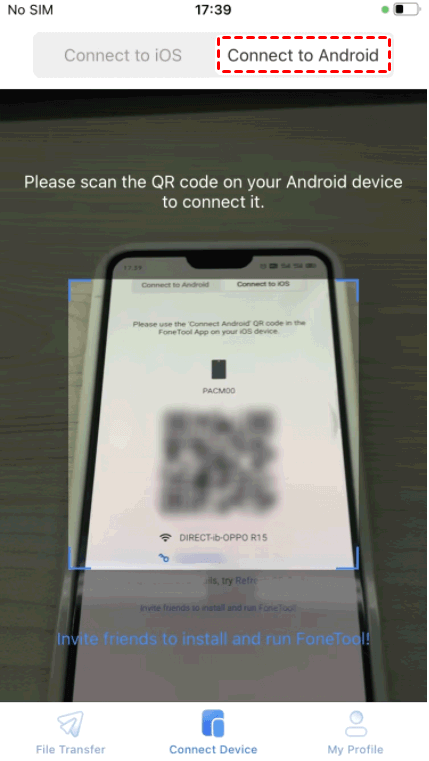
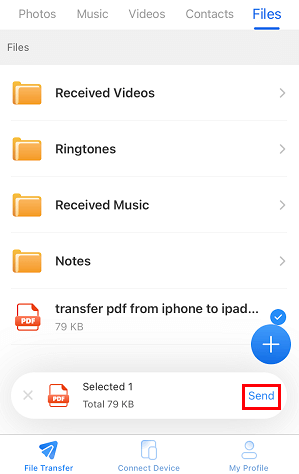
Step 3. On your Android phone, go to File Transfer > Files > Locate and choose the PDF files saved in your Android Files app > Tap Send to start the transfer.
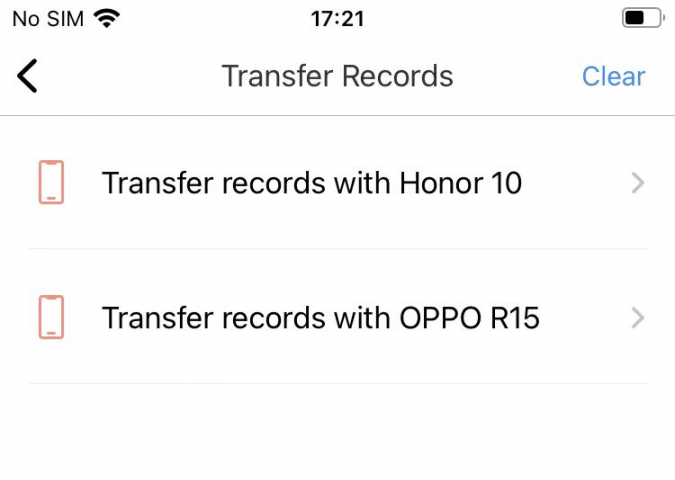
Step 4. On your iPad, tap Confirm from the prompted window to get the transferred PDF files. You can tap the transfer icon on the top right corner to check the transferred files.
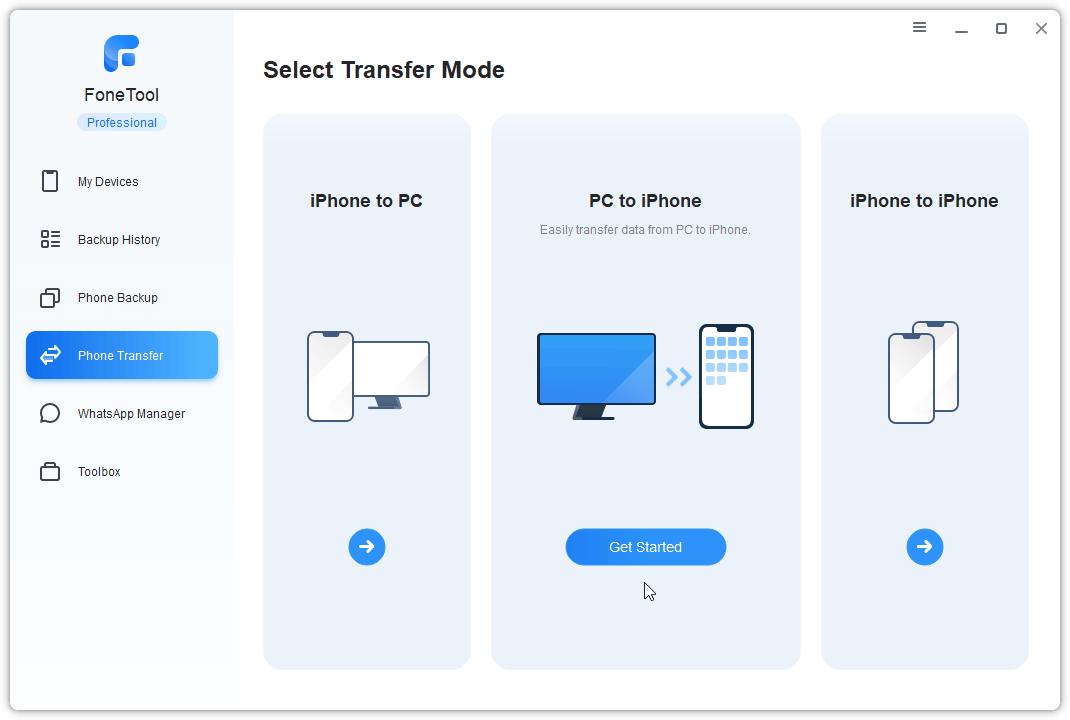
💡Pro Tip: FoneTool also has a desktop version for Windows. It lets you transfer files between Android/iOS and your PC via USB, perfect for backing up or managing large document collections. The desktop version of FoneTool allows you to transfer data betweeniOS devices and a computer. And you are also allowed to backup iOS devices to computer with it. You can download it to your Windows PC to have a try.
Method 2. How to Transfer PDF from Android to iPad via Email
Email has long been a convenient method for sharing files with others due to its simplicity and speed. When transferring PDF files from Android to iPad via email, it's important to note that each PDF file should not exceed 20 or 25 MB in size. While you can add multiple PDF files, be mindful not to exceed this limit. Now, let's explore how to complete the transfer process.
Step 1. Open the PDF file you want to transfer on your Android device.
Step 2. Tap on the share icon and select the option to share via Email.
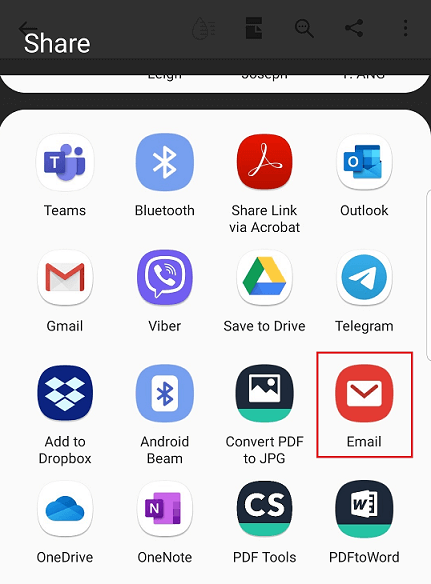
Step 3. Enter the recipient’s email address and send the email with the attached PDF file.
Step 4. On your iPad, open the email app and locate the email with the attached PDF file. Download the attached PDF file to your iPad's local storage.
Method 3. How to Transfer PDF from Android to iPad with Chat App
Using a chat app like WhatsApp or Telegram can also facilitate the transfer of PDF files from Android to iPad. While similar to the way using email, file size limitations may apply.
Besides, the transfer speed using chat apps widely depends on the internet connection. Just for an example, here’s how to do it using WhatsApp.
On Android:
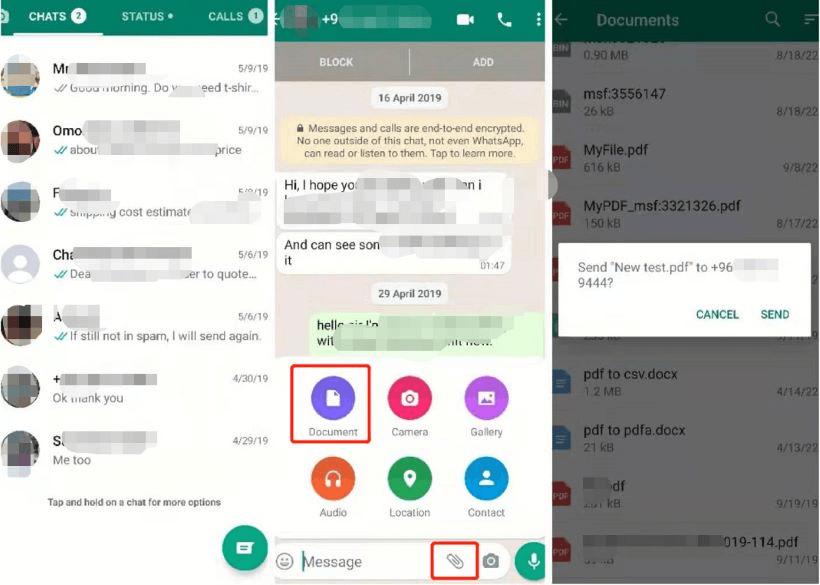
Step 1. Open WhatsApp on your Android device > Go to the chat you want to send a PDF file to.
Step 2. Tap the paperclip icon > Choose Document to choose the PDF you want to send > Tap SEND after choosing the PDF.
- ★Tip:
- If you have multiple PDF files to send, long-press any PDF and select all the files you want to transfer, and tap the SEND button to transfer.
On iPad:
Step 1. Open WhatsApp and go to the same chat, and tap the PDF attachment to download it.
Step 2. Tap the Share icon > Save to Files to save PDF files from WhatsApp on your iPad/iPhone.
Method 4. How to Transfer PDF from Android to iPad using Cloud Storage
Another option for transferring PDF files from Android to iPad is using cloud storage services. Begin by uploading the PDF to the cloud from your Android phone. Then, share the link to the PDF with your iPad. For example, let's consider Google Drive. Alternatively, you can utilize platforms like Dropbox or OneDrive for this purpose.
On Android:
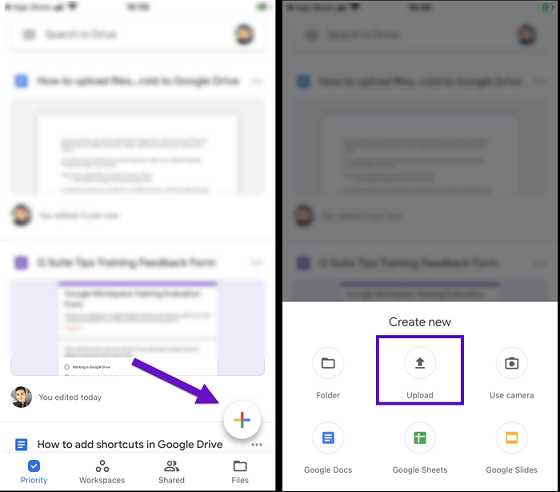
Step 1. Download Google Drive app on Android phone > Sign in to your account > Tap the Plus icon.
Step 2. Choose Upload > Preview and choose the PDF files from your Android phone to upload.
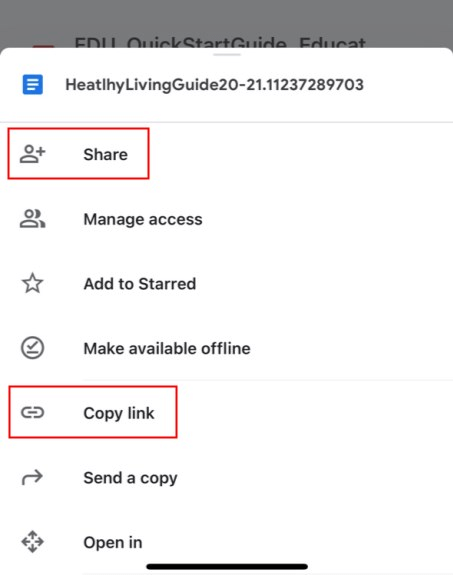
Step 3. Tap the three-dots icon next to the PDF file. Choose Share to share the PDF. Or choose Copy link and send the link to iPad.
On iPad:
Step 1. Install and open Google Drive on your iPad, locate the shared PDF or tap the link.
Step 2. Download the file or open it directly in Google Drive. To save locally, tap the Share icon > Save to Files.
Conclusion
You now know exactly how to transfer PDF from Android to iPad using four reliable methods. Whether you need a quick email attachment or a direct wireless connection, the right solution is at your fingertips.
For the fastest, most seamless transfer without limits: Choose FoneTool. It works offline, handles any file size, and requires no cloud uploads—just instant peer‑to‑peer speed.
FoneTool - All-in-one iPhone Data Manager
Transfer, backup and manage data on iPhone, iPad and iPod touch in an easy way.
-
 iOS 27 Compatible
 iPhone 17 Supported
Windows 11/10/8/8.1/7

100% Secure

Kelsey is an English editor at FoneTool, passionate about helping users solve tech issues. She specializes in iPhone data management, backup, and recovery. In her free time, she enjoys learning IT skills and spending time with loved ones.
Read author info >>



 as a preferred
source on Google
as a preferred
source on Google