View Saved iPhone Passwords in One Place on Your PC

  • View website, app, and Safari passwords stored on your iPhone
  • Find saved Wi-Fi passwords with network names clearly displayed
  • Check Apple ID, email accounts, and Screen Time passcode information
  • Check password information found in previous scans with Scan History
  • Keep your password data secure with local processing on your PC
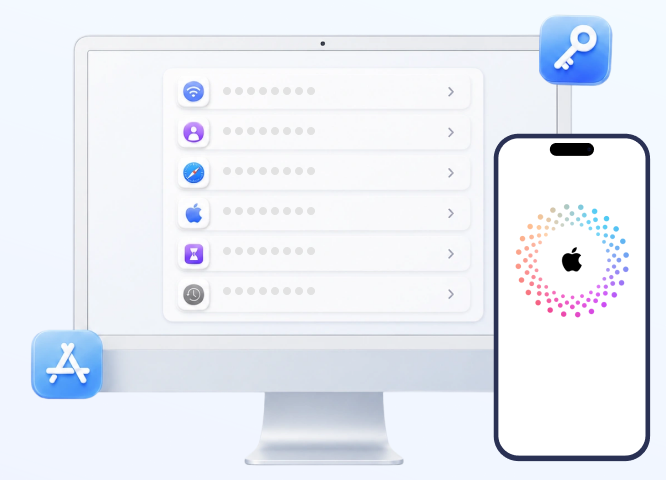
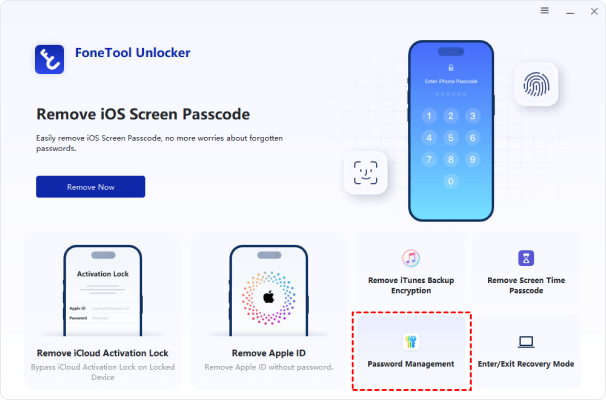
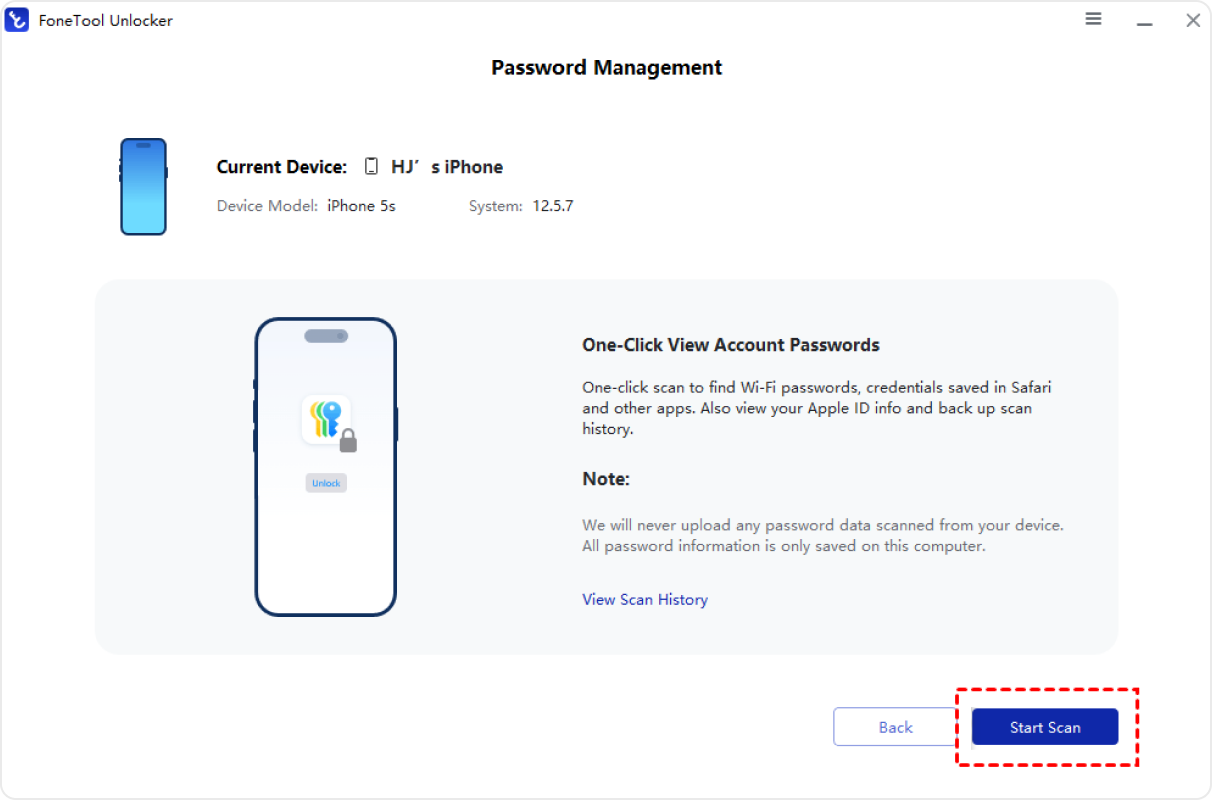
FoneTool Unlocker password management interface
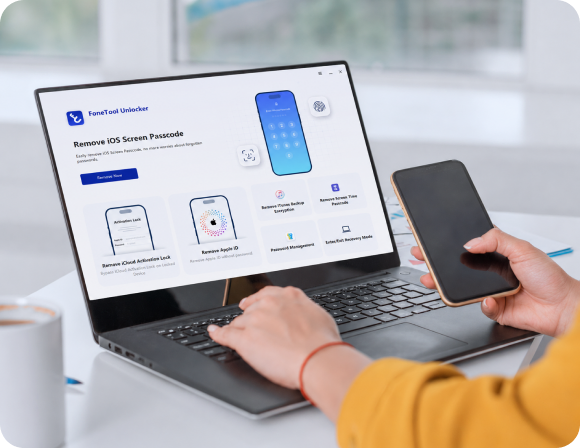
Person using an iPhone

Forgot a Saved Password on iPhone? View It Clearly on Your PC

Your iPhone may store Wi-Fi passwords, website logins, app credentials, Apple ID information, email accounts, and more.

Instead of checking them one by one on your device, FoneTool Unlocker Password Management helps you scan and view supported saved password information from a clear Windows desktop interface.

After scanning once, you can also reopen View Scan History to check password information found in previous scans.

  • Forgot your Wi-Fi password and need to connect another device?
  • Can't remember an app login and want to avoid resetting credentials?
  • Need to verify Apple ID or email details before restoring, upgrading, or transferring your iPhone?
  • Need to check a Screen Time passcode on an older iOS device?

What Password Information Can You View?

FoneTool Unlocker Password Management helps you scan and view supported passwords and account information stored on your connected iOS device from a clean, easy-to-read Windows interface.

Find Saved Wi-Fi Passwords

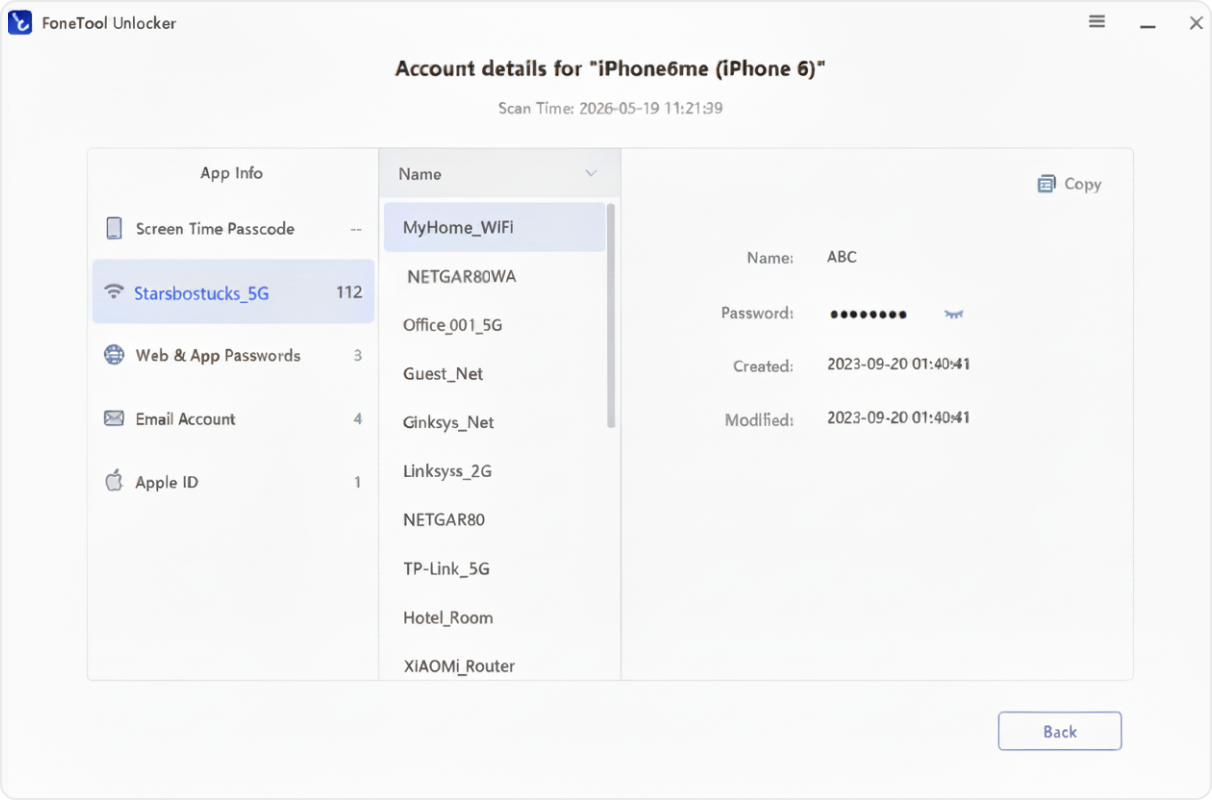
Forgot a Wi-Fi password or need to connect another device? Password Management displays the Wi-Fi passwords stored on your iPhone, making it easier to retrieve saved network credentials when you need them.

  • View saved Wi-Fi network names and passwords
  • Check previously connected networks
  • Useful for home, office, and shared devices
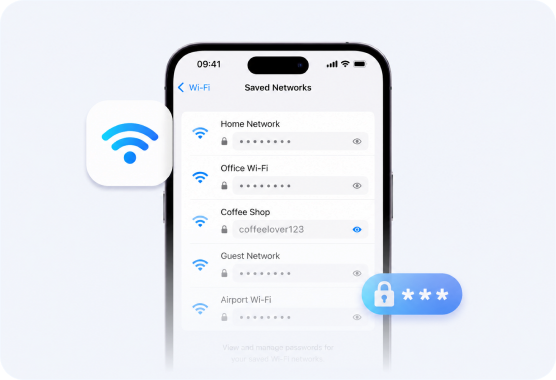
Saved Wi-Fi password results

View Saved App Logins

Quickly review the usernames and passwords saved for supported apps, so you can regain access to your accounts more easily.

  • View saved usernames and passwords
  • Check saved app login credentials
  • Avoid resetting credentials when saved information is available
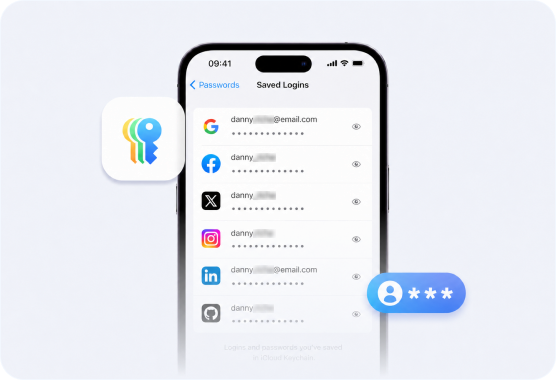
Saved app login results

Review Website & Safari Passwords

Review website passwords saved on your iPhone and easily check the login credentials you have chosen to save for future sign-ins.

  • View website passwords saved on your iPhone
  • Review frequently used online accounts
  • Check saved login information from Safari and supported apps
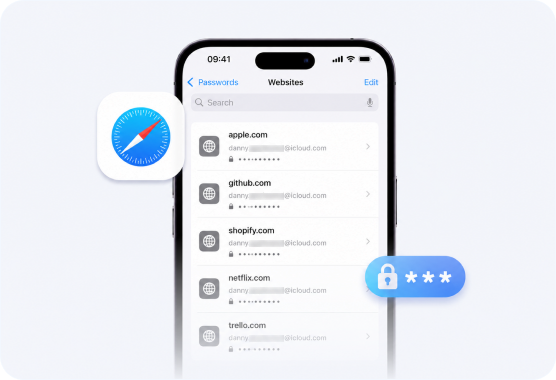
Website and Safari password results

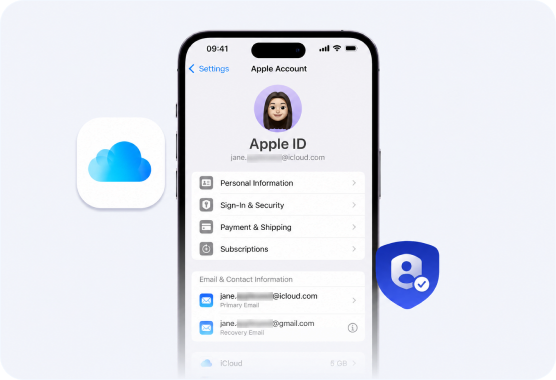
Check Apple ID & Email Information

Need to verify which Apple ID or email account is stored on your device? Password Management helps you quickly review important account information before setting up or transferring your iPhone.

  • View Apple ID information stored on your device
  • Check saved email account information
  • Verify account details before switching devices
Apple ID and email information

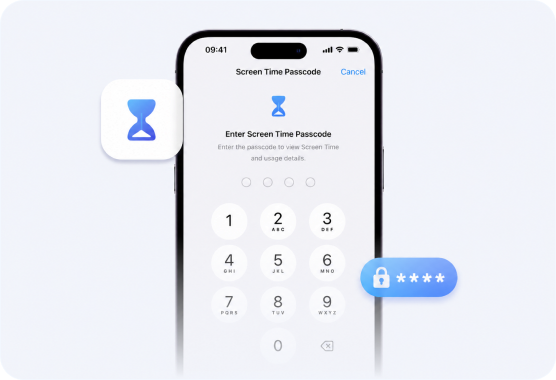
View Screen Time Passcode

Need to check your Screen Time passcode on an older iOS device? Password Management lets you view the Screen Time passcode stored on supported iOS 12 and earlier devices.

  • View the Screen Time passcode stored on supported iOS 12 and earlier devices
  • Verify parental-control settings on older devices
  • Use this feature only on your own device or a device you have permission to manage
Screen Time passcode information

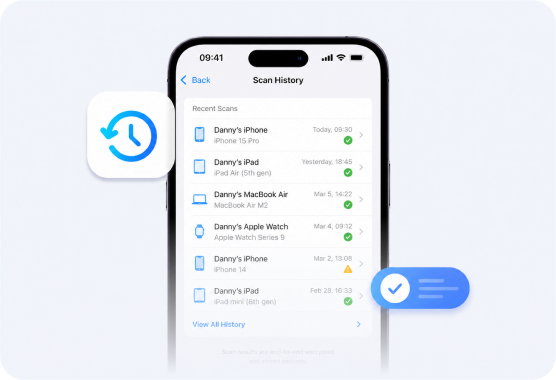
Review Previous Scan Results

After a successful scan, FoneTool Unlocker keeps a scan history. You can open View Scan History to view password information found in earlier scans whenever needed.

  • A scan history is created after you scan your iPhone once
  • Click View Scan History to check password information found in previous scans
  • Useful when you need to review previous results without scanning the same device again
Password scan history

View Saved Passwords in 3 Simple Steps

  1. 1 Open FoneTool Unlocker on your Windows PC and select Password Management from the main interface.
  2. 2 Connect your iOS device using a USB cable, and click Start Scan to scan your device for supported saved passwords and account information.
  3. 3 Review the passwords and account information found on your device in a clear desktop list.

Tip: After scanning once, click View Scan History to check password information found in previous scans.

Password Management scanning steps Password Management scanning steps Password Management scanning steps

Why Use FoneTool Unlocker for iPhone Password Management?

All-in-One Password View

View all supported passwords, Wi-Fi, apps, websites, Apple ID, email, and more in one place.

Quick History Review

After scanning once, reopen View Scan History to check password information found in previous scans.

Clear Categorized View

Review saved information by category without switching between multiple iPhone settings or apps.

Secure Local Processing

Your password information is processed locally on your Windows computer and is not uploaded to online servers.

No Jailbreak Required

Scan supported password information without jailbreaking your iOS device.

Password data remains local

Your Password Data Stays Local

FoneTool Unlocker scans supported password information from your connected iOS device and processes it locally on your Windows PC. Your password data is not uploaded to online servers during the password management process.

  • Use Password Management only on your own device or a device you have permission to manage.
  • No jailbreak is required to access supported password information.

FAQs on Managing iPhone Passwords

Can I view saved passwords on my iPhone?

Yes. FoneTool Unlocker Password Management lets you scan and view supported saved password information from your connected iPhone in a clear Windows desktop interface.

What information can Password Management view?

It can view supported Wi-Fi passwords, app login credentials, website/Safari passwords, Apple ID information, email account information, and Screen Time passcodes on supported iOS 12 and earlier devices.

Can I find my saved Wi-Fi password?

Yes. If the Wi-Fi password is stored on your iPhone, Password Management can display the saved network name and password, making it easier to reconnect another device or check the right network credentials.

Can I view passwords saved in Safari?

Yes. Password Management helps you view website passwords saved on your iPhone, including credentials stored through Safari and supported apps.

Can I check which Apple ID is signed in?

Yes. Password Management can display Apple ID information stored on your device, making it easier to verify the account before restoring, upgrading, or transferring your iPhone.

Can I view my previous scan results?

Yes. After you scan your iPhone once, a scan history is created. You can click View Scan History to check password information found in previous scans.

Can I view the Screen Time passcode?

Password Management can view the Screen Time passcode stored on supported iOS 12 and earlier devices. Availability may vary depending on the iOS version and device status.

Does Password Management require jailbreaking?

No. FoneTool Unlocker works with standard iOS devices and does not require jailbreaking to access supported password information.

Is my password information secure?

Yes. Your password data is processed locally during the password management process and isn't uploaded to online servers.

Find Saved iPhone Passwords in Minutes

Scan your iPhone once, view supported saved passwords clearly, and reopen Scan History whenever you need to check previous results.

Password management illustration