Overview of FoneTool

FoneTool supports multiple languages, including English, German (Deutsch), French (Français), Japanese (日本語), Italian (Italiano), Spanish (Español) and Traditional Chinese (繁體中文). If you want to set it to your native language, please see the instructions below.
Way 1. Use Move to iOS to transfer data from Android to iPhone after setup
-
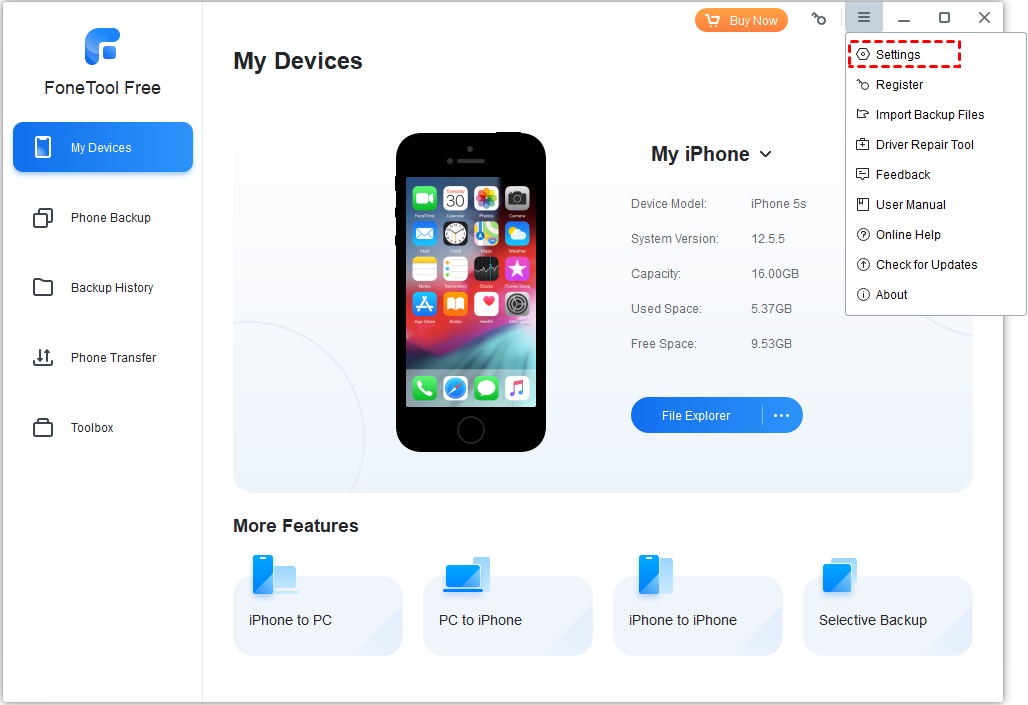
Step 1: On the Home window, click "Menu" (three-lines on the upper right side of the main window) and choose "Settings".
-
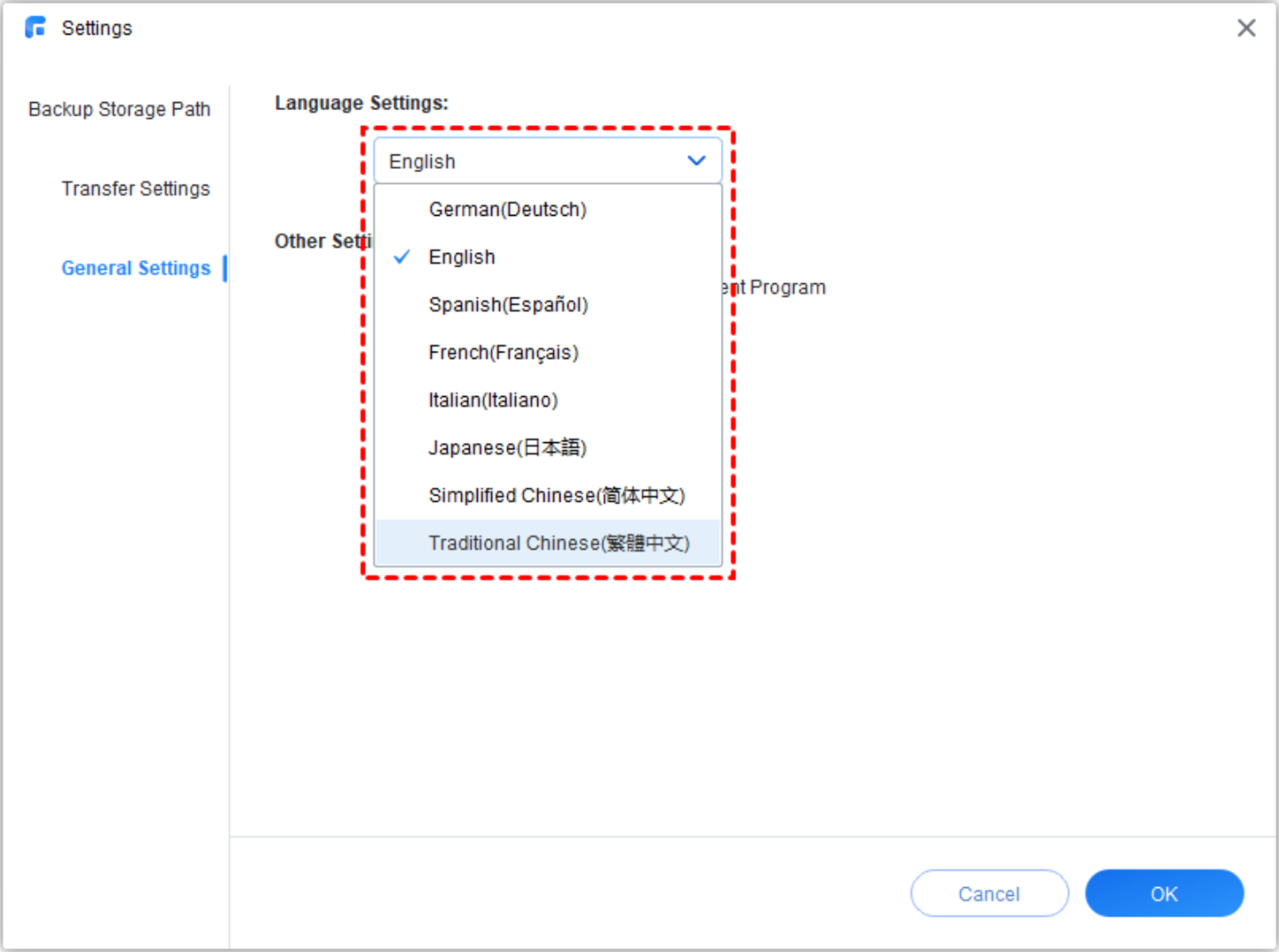
Step 2: In the pop-up window, click "General Settings"-->"Language Settings".
-
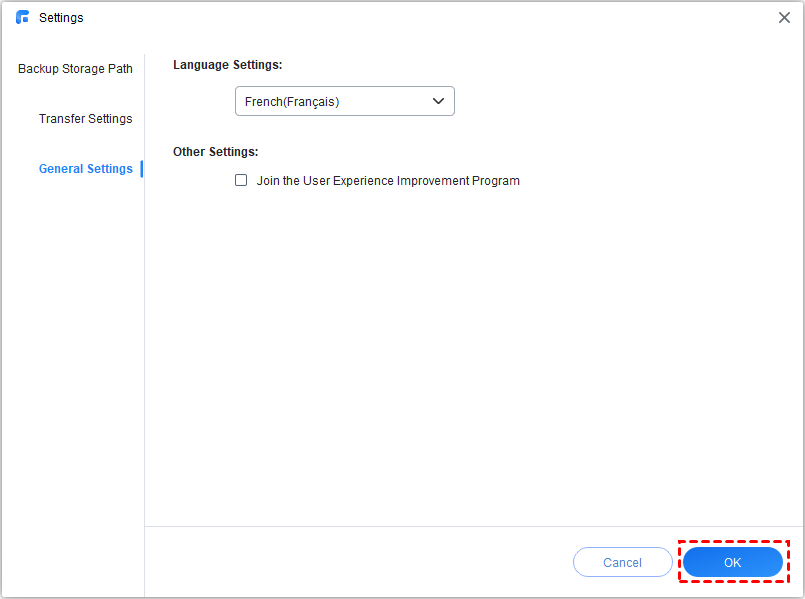
Step 3: Choose the language you want to use and click "OK" to save the changes. After that, you will see that the language has been changed.
-
Note:
You could add custom language in AOMEI MBackupper. To do this, please first copy the language file (for example kr.txt) to the installation directory of MBackupper-->lang (the default path is "C:\Program Files (x86)\AOMEI MBackupper\lang"). Right-click on langList.xml and choose Edit, start a new line and enter the text below: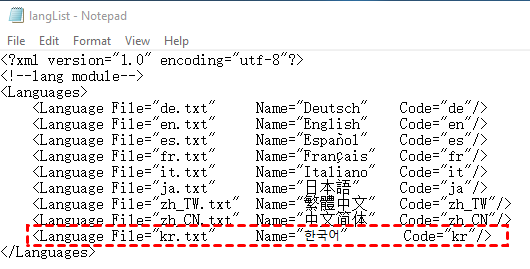
Save the changes and run MBackupper, you will see the new added language is listed in "Language Settings".
FoneTool Can Do More for You

- Manage Phone Data In One Place
with FoneTool - iPhone Transfer
- iPhone Backup
- iPhone Data Recovery
- Erase iPhone Data
- HEIC Converter
- Photo Duplication
- WhatsApp Backup and Transfer
- FoneTool is Compatible with All iOS
and iDevices - iOS 16/15/14/13/12/11 and former
- iPadOS 16/15/14/13/12/11 and former
- iPhone 14/14 Pro (Max), 13/13 mini/Pro (Max),
- iPhone 12/12 mini/Pro (Max), iPhone 11/11 Pro (Max)
- iPhone X/XR/XS/XS Max, iPhone 8/8 Plus,
- iPhone 7/7 Plus, iPhone 6/6s/6s Plus
- iPhone SE (1st, 2nd, 3rd generations)
- iPod touch 1/2/3/4/5/6/7
- All models of iPad Air, iPad mini, iPad Pro and iPad