New iCloud Terms and Conditions Won't Accept? Here's Real Fix
New iCloud terms and conditions stuck or error? From sign-out to reset network, plus FoneTool Unlocker to remove Apple ID when you're locked out.


You open Settings. A pop-up appears: "New iCloud Terms and Conditions". You tap "OK".Nothing happens. Or it keeps coming back every few minutes. Or the button is greyed out.
This is one of the most annoying Apple ID issues. You can't use iCloud, update apps, or back up your phone until you accept. This guide walks you through exactly why it happens and how to fix it, including when you need a tool like FoneTool Unlocker.
Why the New iCloud Terms Pop-Up Keeps Sticking?
Before jumping into other fixes, understand why you're seeing iCloud terms and conditions not working or iCloud terms and conditions keep popping up. Common causes:
- Apple ID verification issue, your device can't reach Apple's servers correctly.
- Outdated iOS version, older software may not handle the new terms properly.
- Network glitch, poor Wi-Fi, or cellular connection.
- Stuck iCloud session, your Apple ID is in a half-signed-in state.
- Screen Time or MDM restrictions, device management blocks the pop-up.
- Corrupted iCloud cache, stored data prevents acceptance.
Let's fix each one.
Method 1. Can't Accept Because You're Locked Out? Unlock It
Sometimes the new iCloud terms and conditions appear, but you can't accept them because you don't have access to your Apple ID. Maybe you forgot your password. Maybe the device is locked to a previous owner's Apple ID. Maybe you're stuck on the Activation Lock screen.
In those cases, you can't even sign in to iCloud to accept the terms. The fix starts with removing the old Apple ID. FoneTool Unlocker does exactly that, directly from your computer, no password needed.
- ★Highlights:
-
Removes Apple ID without the original password.
Works on disabled iPhones and Activation Lock screens.
Keeps your device data intact if Find My is off.
Also removes screen passcodes and Screen Time restrictions.
Safe, fast, and supports all iOS versions.
Step 1. Download and install FoneTool Unlocker on computer. Connect your iPhone to the computer via USB.
Step 2. Launch the tool and select "Remove Apple ID".

Step 3. Follow the on-screen instructions to disable Find My iPhone (the tool walks you through it).
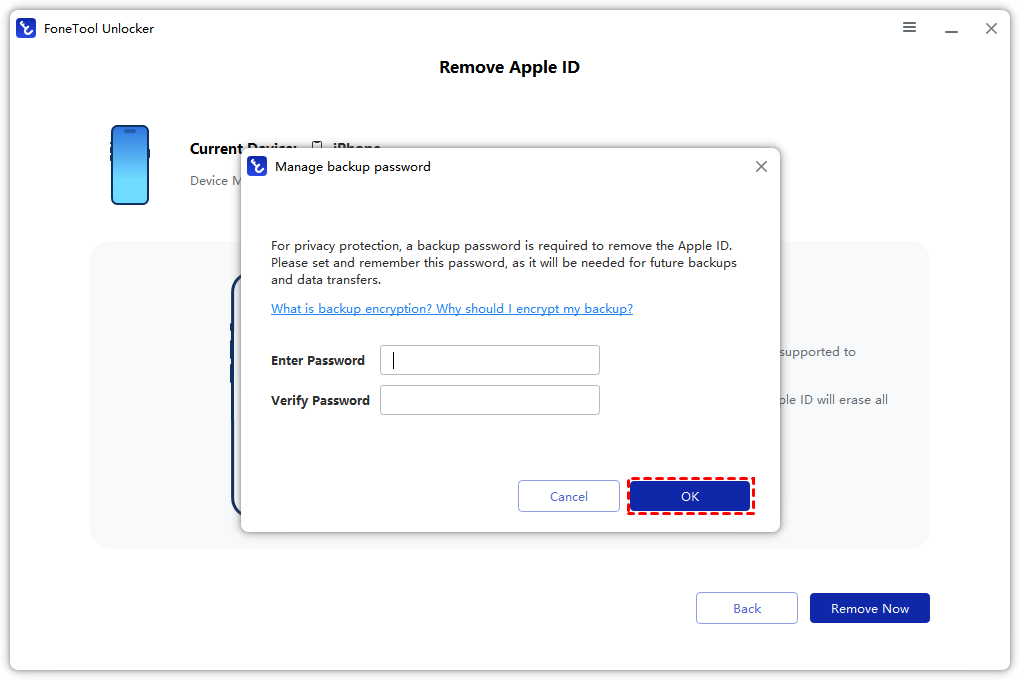
Step 4. Click "Remove Now" and wait a few minutes.
Once the Apple ID is removed, restart your iPhone. Then sign in with your own Apple ID, or create a new one, and you'll be able to accept new iCloud terms without any problem.
Method 2. Sign Out of Apple ID and Sign Back In
The quickest fix for can't accept iCloud terms is to refresh your Apple ID session.
Step 1. Go to Settings > tap your name at the top.
Step 2. Scroll down and tap Sign Out.
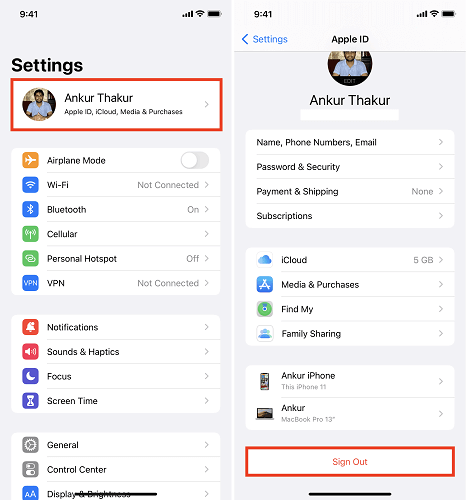
Step 3. Enter your Apple ID password to turn off Find My.
Step 4. Tap Sign Out again and choose to keep a copy of your data.
Step 5. Restart your iPhone. Then sign back in with your Apple ID.
The terms prompt should appear again, and this time, it should work.
Method 3. Check Your Internet Connection
iCloud terms and conditions often mean your iPhone can't reach Apple's servers. Go to Settings > Wi-Fi and make sure you have a working connection. Or switch to cellular data (Settings > Cellular > turn on for Settings). Then tap "OK" on the pop-up again.
Method 4. Force Close Settings and Retry
Sometimes the prompt is just frozen. Double-click the home button (or swipe up from the bottom on Face ID models) and swipe away the Settings app. Reopen Settings, and the new iCloud terms and conditions pop-up should return. Tap "OK" immediately.
Method 5. Reset Network Settings
If the iCloud terms and conditions error persists, your network configuration might be corrupted.
Step 1. Go to Settings > General > Transfer or Reset iPhone.
Step 2. Tap Reset > Reset Network Settings.
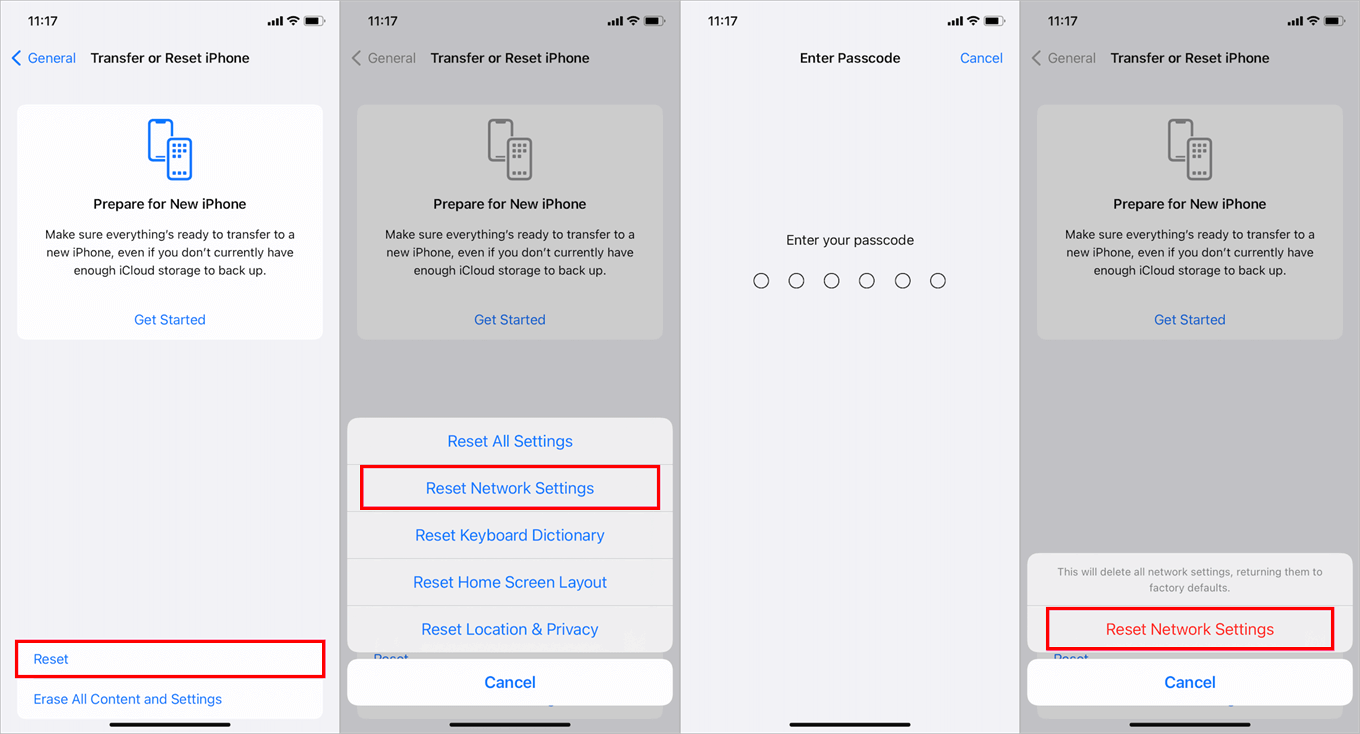
Step 3. Enter your passcode and confirm.
Your iPhone restarts. Reconnect to Wi-Fi, then go back to Settings. The terms prompt will reappear; now it should work.
Method 6. Update iOS Version
An outdated iOS version can cause iCloud terms and conditions to be greyed out or a completely missing accept button.
Step 1. Go to Settings > General > Software Update.
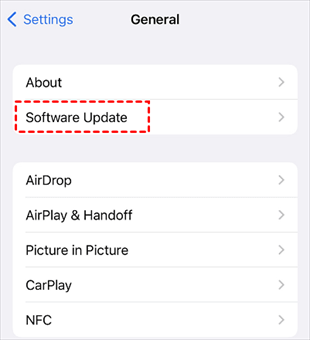
Step 2. If an update is available, tap Download and Install.
Step 3. Restart your iPhone after the update.
Then check Settings, the terms pop-up should behave normally.
Method 7. Reset All Settings
This clears iCloud cache and preferences without deleting your data. It's a strong fix for new iCloud terms and conditions not working.
Step 1. Settings > General > Transfer or Reset iPhone.
Step 2. Tap Reset > Reset All Settings.
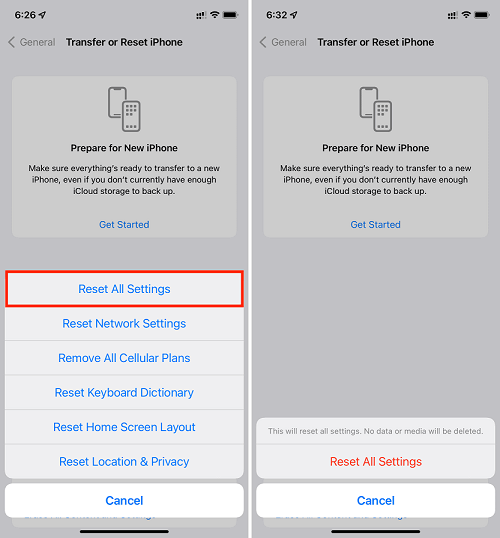
Step 3. Enter your passcode and confirm.
Your iPhone restarts with default settings, but your photos, apps, and messages remain. Then sign back into your Apple ID and accept the terms.
Method 8. Check Screen Time and MDM Restrictions
If your iPhone is managed by a company or school, or has Screen Time restrictions enabled, you might not be able to accept new terms.
Go to Settings > Screen Time > Content & Privacy Restrictions and temporarily turn it off.
If you see a "Device Management" or "MDM" profile under Settings > General > VPN & Device Management, contact your IT administrator. They may need to approve the new terms for all devices.
Method 9. Contact Apple Support
If none of the above work, even after resetting all settings, your Apple ID account may have a unique issue. Visit appleid.apple.com from a computer and sign in. If you can accept the terms there, the problem is device-specific. If not, call Apple Support. They can verify your identity and push the terms to your account.
FAQs About New iCloud Terms and Conditions
Reset network settings (Method 5) or reset all settings (Method 7). Both resolve update-related configuration issues.
No, Apple requires acceptance to use iCloud services. But if you're locked out of your Apple ID, use FoneTool Unlocker (Method 1) to remove the old Apple ID, then sign in with a new one.
Your device isn't saving your acceptance. It's usually a stuck iCloud session or corrupted cache. Signing out and back in (Method 2) fixes it.
Yes,iCloud storage, backup, Find My, and other Apple services won't work until you accept.
Summary
When new iCloud terms and conditions won't let you accept, start by signing out of Apple ID and back in that solves most cases. If the pop-up keeps appearing, update iOS, reset network settings, or reset all settings. If the problem is that you're locked out of your Apple ID entirely (forgotten password or Activation Lock), FoneTool Unlocker removes the locked Apple ID from your device, letting you sign in with a fresh account and accept the terms without data loss.
FoneTool Unlocker - 1-Click iPhone Unlock Software
Easily unlock all passcodes and restrictions on your iPhone, iPad, and iPod Touch.
-
 iOS 27 Compatible
 iPhone 17 Supported
100% Secure

Kelsey is an English editor at FoneTool, passionate about helping users solve tech issues. She specializes in iPhone data management, backup, and recovery. In her free time, she enjoys learning IT skills and spending time with loved ones.
Read author info >>



 as a preferred
source on Google
as a preferred
source on Google