Full Guide: How to Unhide Apps on iPhone [iOS 18/26]
No matter whether you hid your iPhone apps accidentally or for testing, you may have no idea how to unhide them. In this guide, we’ll elaborate detailed instructions on how to unhide apps on iPhone iOS 18.


How do I unhide my hidden app on ios 18
This is gonna sound stupid but how do I unhide the app I hid . I was just testing the feature out and now I have no idea on how to unhide it.
- Question from Reddit
With the release of iOS 18, Apple introduced not only Apple Intelligence, but also another significant addition - lock and hide apps, giving users more control over your iPhone interface and data security. While, it may sometimes lead to confusion if you've accidentally hidden an app you frequently use. Then, how can you unhide apps on iPhone?
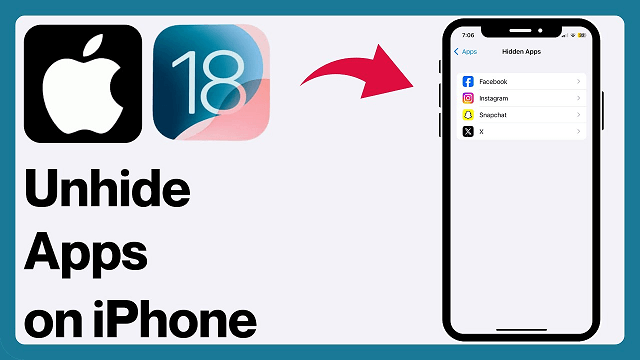
In this guide, we’ll guide you through the overview of the new feature - lock and hide apps in iOS 18, and also how to unhide apps on iPhone iOS 18.
If you are in a hurry unhiding apps on your iPhone, you can directly skip to Part 2. to get detailed instructions.
Part 1. Overview of iOS 18 New Feature - Lock and Hide Apps
The lock and hide apps feature in iOS 18 allows you to hide apps from your home screen and prevent unwanted access. This feature is very handy for users who wish to hide specific programs, such as banking or personal apps, while still having access to them when necessary.
If you wonder how you hid your apps on iPhone before, the following steps may help.
How to Hide Apps on iPhone iOS 18
To hide specific apps, long press the app icon you wish to hide > Tap Require Face ID > Choose Hide and Require Face ID to confirm.
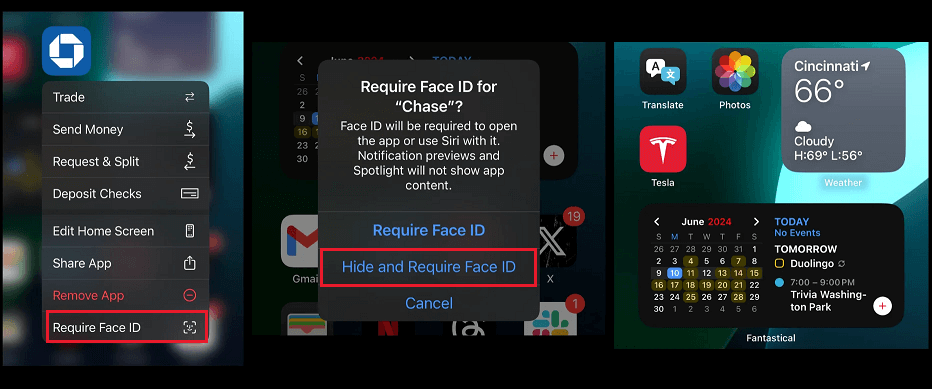
Once hidden, the app will be hidden from your Home Screen, and the app will only be available via the Hidden folder, which requires Face ID to open.
⚠️ Cannot hide app? If you cannot find the option to hide the app by long-pressing the app icon, the apps cannot be hidden by default.
How to Find Hidden Apps on iPhone iOS 18
Swipe Left on your Home Screen until you reach the App Library > Scroll down to locate the Hidden folder at the bottom > Tap on the Hidden folder and authenticate using Face ID or your passcode.
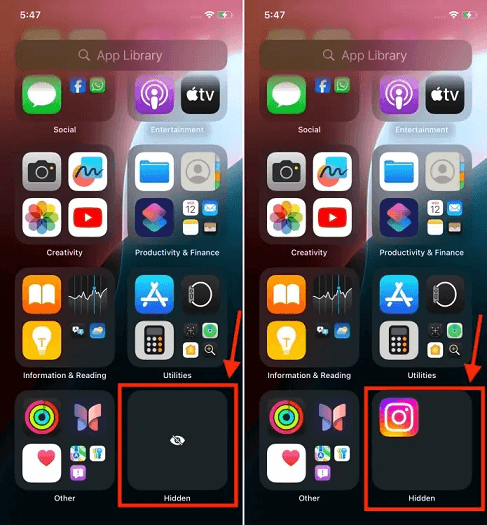
Part 2. How to Unhide Apps on iPhone iOS 18
Now, it’s time to know how to unhide an app on iPhone iOS 18 when you want to restore it to your Home Screen. It’s pretty straightforward to move apps from the hidden folder to your iPhone’s Home Screen by following the steps below.
Step 1. On the Home Screen, swipe left past all the pages to go to App Library.
Step 2. Scroll down to tap Hidden Folder > Authenticate with your Face ID or passcode to access the hidden apps.
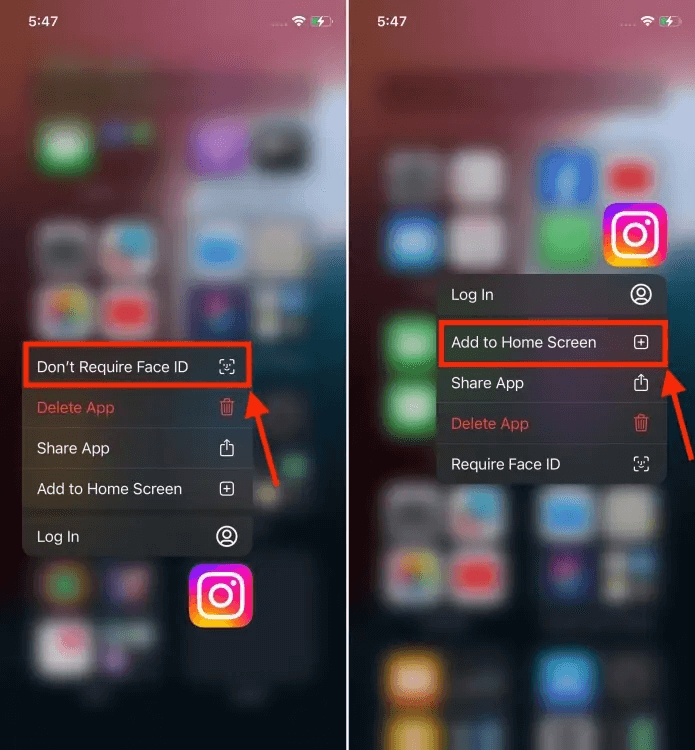
Step 3. Long-press the app icon you’d like to unhide > Tap Don’t Require Face ID.
Step 4. Upon authentication, go to Recently Added folder in the App Library > Long-press the app icon, and tap Add to Home Screen.
Bonus: How to Unhide apps on iPhone in Settings
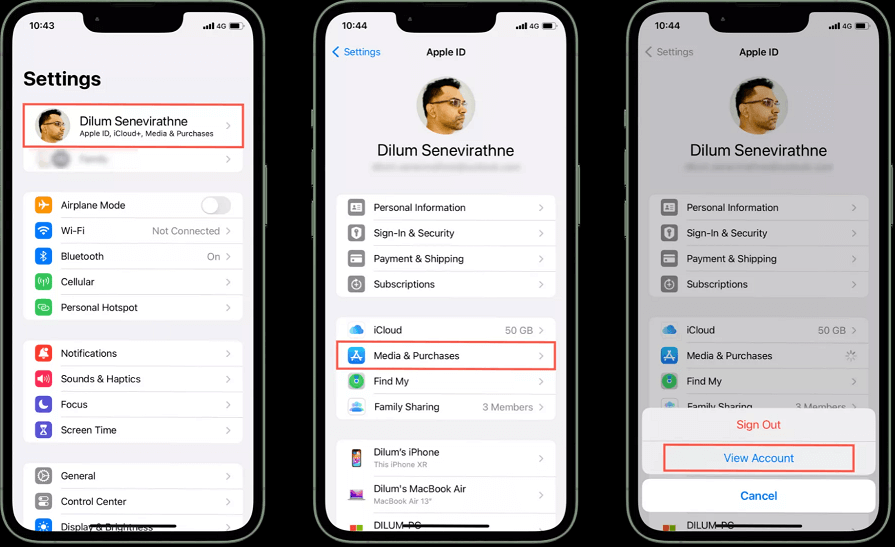
If the hidden apps you’d like to unhide were purchased on your iPhone, you can also visit your iPhone Settings app to unhide them. Here are the steps.
Step 1. Go to your iPhone Settings > Tap [your name] > Tap Media & Purchases > Choose View Account.
Step 2. Scroll down and tap Hidden Purchases > Select Unhide next to an app to add it back to the App Store purchases page.
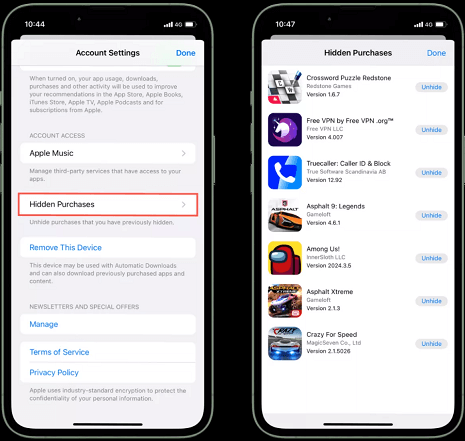
Step 3. Finally, go to the App Store to re-download it to your iPhone Home Screen.
Bonus: Backup and Lock iPhone Data to PC
In addition to unhiding apps, it’s essential to secure and backup your iPhone data. FoneTool is a powerful tool that simplifies data backup and management for you. Here’s how you can use FoneTool to back up and lock your iPhone data.
Step 1. Click the icon below to download, install, and launch FoneTool on your computer > Connect your iPhone to PC via USB.
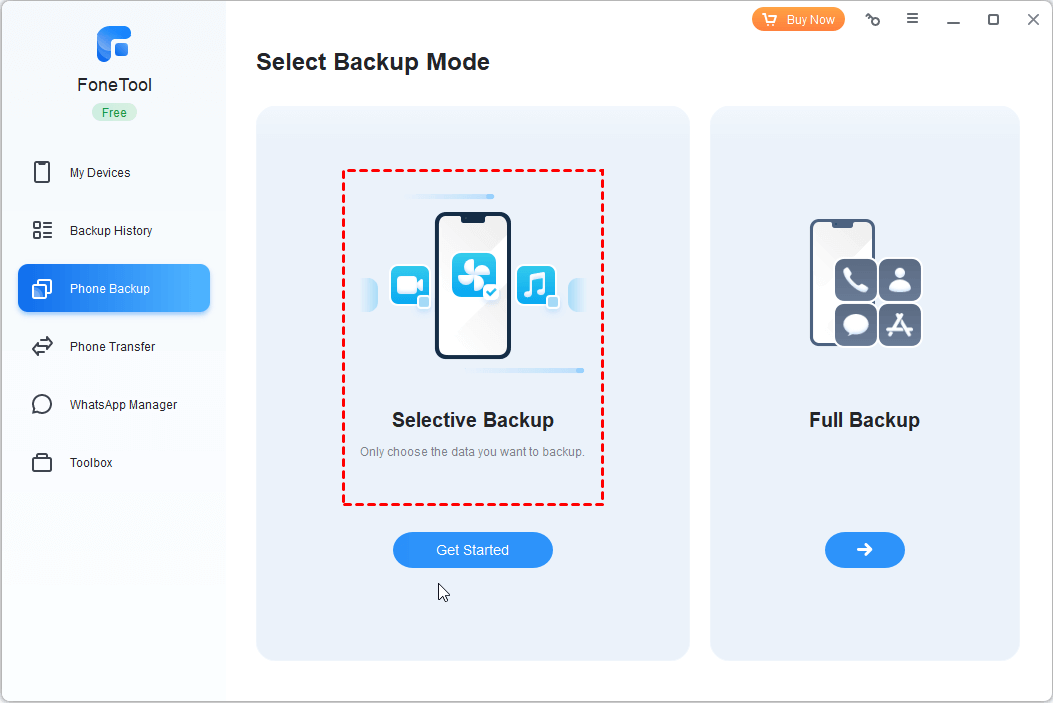
Step 2. From the main interface of FoneTool, choose Selective Backup. Click Get Started.
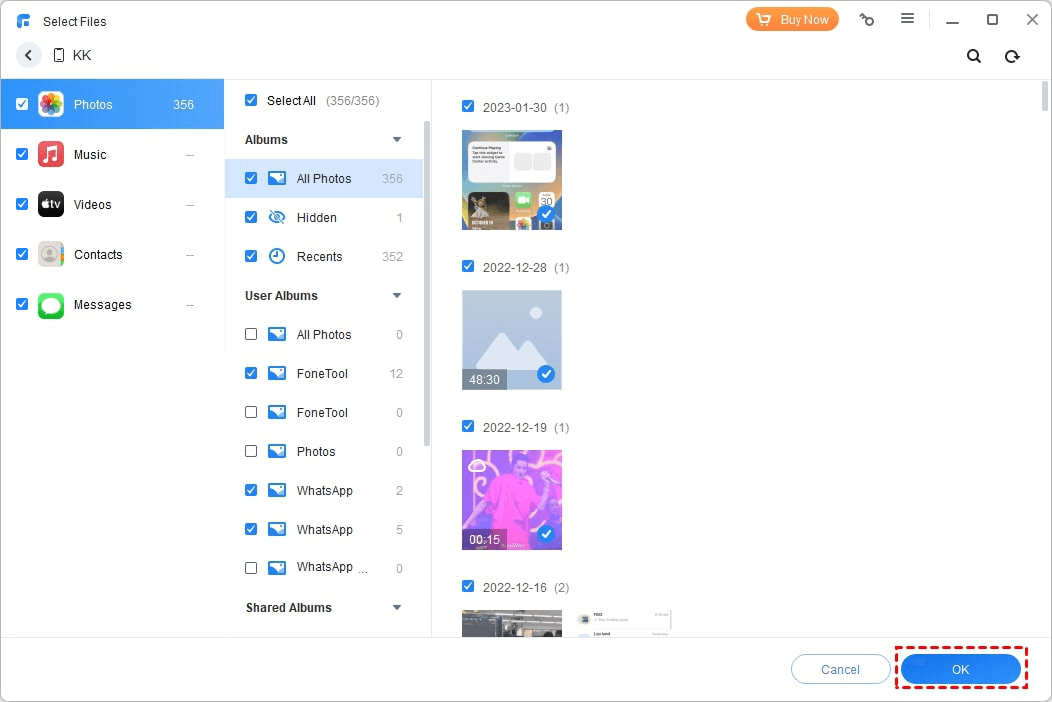
Step 2. Select the files you want to backup, and you can click the file type icon to choose the specific items.
Step 3. You can click the Backup Storage Path to save a location to save the data. Then click Start Backup.
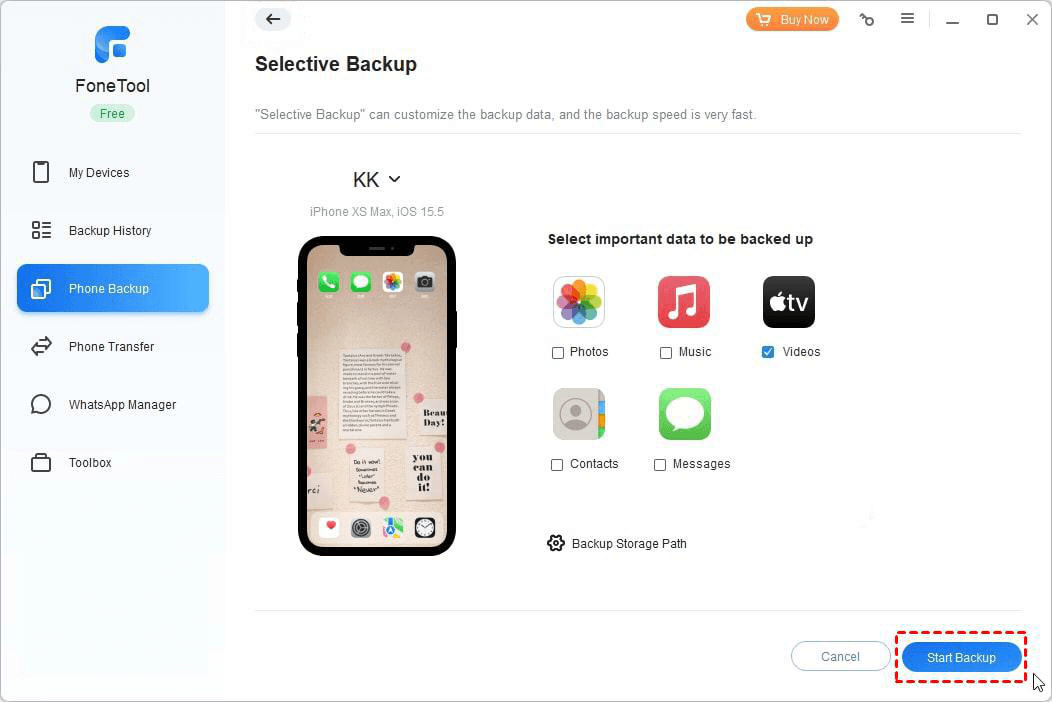
When it is completed, you can only access your private backup files by visiting FoneTool > My Backups. You can also delete or restore the backup from here.
What to Do If iOS 18/26 System Goes Wrong? Quick fix!
If you're experiencing issues with the hide/unhide app feature not working properly, or other system glitches after updating to iOS 18/26, it might be due to deeper system-level corruption. FoneTool Repair specializes in fixing such iOS system issues that can cause functionality failures.
This powerful iOS system repair tool is the best way to fix iOS/iPadOS issues without data loss
Step 1. Install and launch FoneTool Repair on your computer > Connect your iPhone via USB cable. Select iOS System Repair.

Step 2. Choose Standard Mode (no data loss).

Step 3. Follow instructions to enter recovery mode > Download the firmware package.
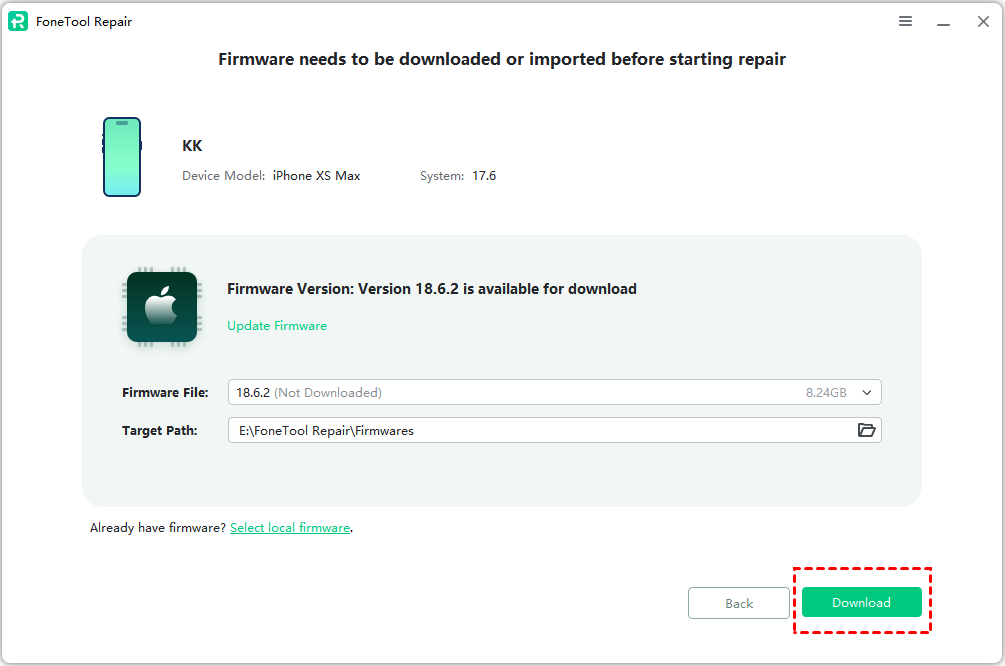
Step 4. Click Start Repair to begin the system repair process.

Summary
That's all for how to unhide apps on iPhone iOS 18. Hiding and unhiding apps on iOS 18/26 is a straightforward process, offering enhanced privacy and organizational options for iPhone users.
Besides, don't forget to regularly backup your iPhone data to keep your private data safe. For any persistent system issues or functionality problems, FoneTool Repair provides professional iOS system repair capabilities to keep your device running smoothly.
Fixes 160+ iOS/iPadOS issues, boot loops, crashes, failed updates, with no data loss.
-
 iOS 27 Compatible
 iPhone 17 Supported
100% Secure

Demi is an editor of FoneTool group as well as an good advisor in the area of iOS-related issues. She does well in finding solutions to people's problems. She enjoys traveling, gardening, and watching movies. She spends most of her free time with her pet and family.
Read author info >>



 as a preferred
source on Google
as a preferred
source on Google