How to Fix iOS 26/18 CarPlay Not Working [Top 8 Ways]
Are you looking for ways to fix iOS 26/18 Carplay not working? Well, this post will show you the top 8 ways to help you fix iOS 26/18 Carplay not working after update.


Experiencing the issue of “iOS 18 Carplay not working”? Apple CarPlay is an essential driving companion, seamlessly connecting your iPhone to your car's entertainment center. However, the advent of iOS 26/18 has triggered a wave of complaints about CarPlay failures. Well, this post will show common reasons and offer 8 reliable ways to restore Apple CarPlay functionality.
Part 1: Why is My iOS 18 CarPlay Not Working?
Dealing with CarPlay glitches can be exasperating, especially when its operation fluctuates unpredictably. Various typical factors could trigger the issue of “Carplay not working on iOS 18”, such as:
- Connection Hiccups: CarPlay might encounter difficulties linking to your vehicle's infotainment system, resulting in a blank or unresponsive screen.
- Software Glitches: Potential bugs within the iOS 26/18 beta or its final release could disrupt the seamless operation of Apple CarPlay.
- Compatibility Issues with Car Systems: Certain vehicles may face challenges syncing with recent iOS updates, manifesting problems like CarPlay unavailability or functionalities such as Siri failing to engage.
Part 2: How to Fix iOS 26/18 CarPlay Not Working - 8 Simple Ways
If you encounter the issue of "iOS 18 Carplay not working after update”, there's no need to fret. Read on to learn 8 useful ways to restore Apple CarPlay's functionality.
Way 1. Restart the iPhone and Infotainment System
If Apple CarPlay encounters a problem, a simple reboot usually solves the problem. You can do this as follows:
- Reboot your iPhone: press and hold the power button, slide it off, wait a moment, and then turn it back on.
- Reboot your car's infotainment system: Turn off your vehicle completely, pause for a moment, and then restart your car.
- Re-establish CarPlay connection: after rebooting both devices, try reconnecting to CarPlay again.
Way 2. Verify CarPlay Activation on Your iPhone
If Apple CarPlay fails to connect, it might be due to the feature not being activated on your iPhone. Follow these steps to confirm and enable CarPlay:
Step 1: Access Settings on your iPhone > Navigate to General > Choose CarPlay.
Step 2: Confirm that your car is listed among the available connections. If it's missing, re-establish the connection by selecting it from the available devices.
Way 3. Experiment with a Wireless CarPlay Dongle
When encountering challenges with iOS 26/18 CarPlay, a wireless dongle could offer a solution. Execute the following steps:
- Procure a compatible dongle: Ensure the dongle supports wireless CarPlay for your specific car model.
- Install the dongle: Insert the dongle into your car's USB port.
- Pair your iPhone: Follow the prompts on the screen to pair your iPhone with the dongle using Bluetooth or Wi-Fi.
- Test CarPlay: Once connected, assess if CarPlay functions seamlessly without the need for a cable.
Way 4. Remove the Car from Bluetooth Pairing
For individuals encountering troubles with iOS 126/8 CarPlay on BMW vehicles, deleting the car from your iPhone's Bluetooth settings could potentially address the problem. Follow these steps:
Step 1: Access Settings > Bluetooth on your iPhone > Identify your car's Bluetooth connection in the displayed list.
Step 2: Tap the (i) icon adjacent to your car's name > Choose Forget This Device.
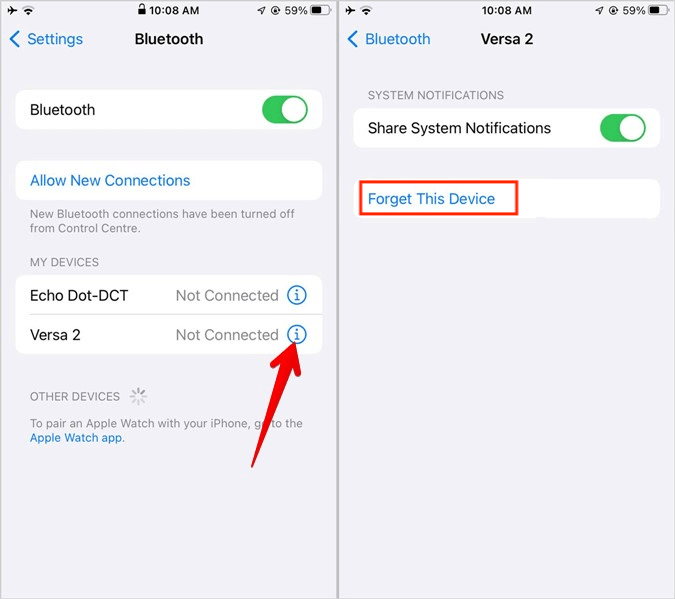
Step 3: Re-establish the connection by pairing your iPhone with your car once more through CarPlay.
This action refreshes the link and often resolves persistent Bluetooth-related issues.
Way 5. Repair iOS 26/18 Carplay Issue with FoneTool Repair
If your CarPlay issues persist after trying basic troubleshooting, the problem might be deeper iOS system corruption. Using a professional tool like FoneTool Repair can effectively resolve underlying system issues that may be affecting CarPlay functionality.
This powerful iOS system repair tool is the best way to fix iOS/iPadOS issues without data loss
Step 1. Connect your iPhone to the computer, download and launch FoneTool, and access iOS System Repair.

Step 2: Choose Standard Mode (recommended for connectivity issues), and initiate the process by clicking Start.

Step 3: Choose the required firmware version, designate a storage path via the Target Path option, and commence the firmware download by selecting Download.
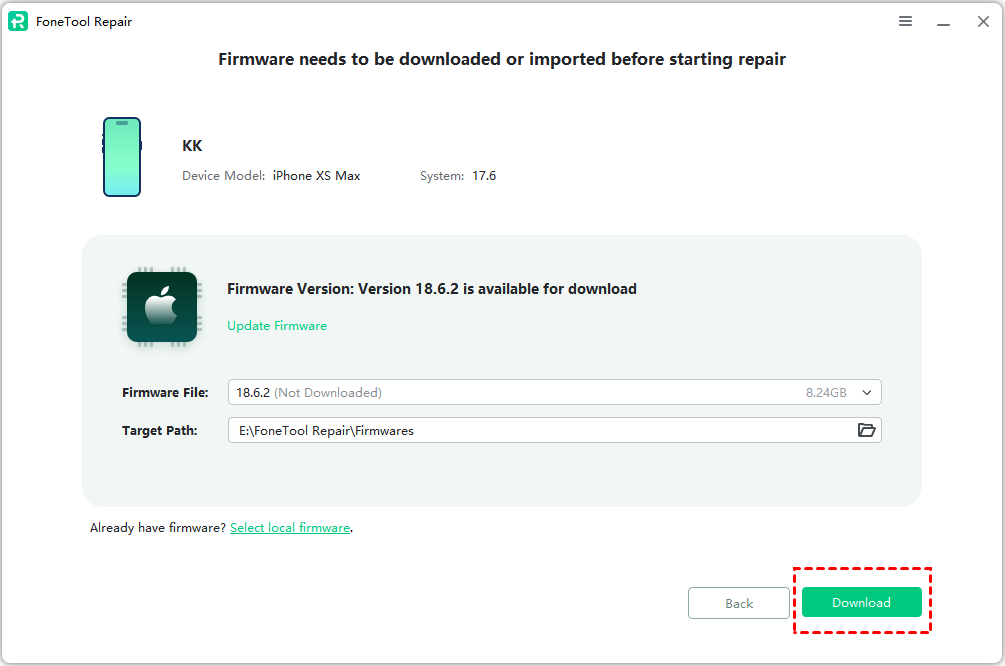
Step 4: Upon completion of the download, initiate the issue fix task by clicking Start Repair.

After completion, your iPhone will restart normally. Reconnect to CarPlay to check if the issue is resolved.
Way 6. Deactivate Content & Privacy Restrictions
If CarPlay is inaccessible, it could stem from content or privacy constraints on your iPhone. These settings might hinder crucial features like Siri, integral to CarPlay's smooth operation. To address this:
Step 1: Navigate to Settings > Screen Time > Content & Privacy Restrictions > Disable the toggle to lift the restrictions.
Step 2: Confirm Siri's activation by visiting Settings > Siri & Search. This action typically resolves most restriction-related CarPlay issues.
Way 7. Experiment with an Alternative Cable or USB Port
When CarPlay fails despite your phone charging, the culprit could be the cable or port. Here's how to troubleshoot this scenario:
- Test a different cable: Opt for an Apple-certified Lightning cable, as third-party variants might not function correctly with CarPlay.
- Switch USB ports: Certain vehicles feature multiple USB ports, but not all are CarPlay-compatible. Experiment with an alternative port.
- Inspect for damage: Scrutinize both your cable and port for any physical impairment that could impede the connection.
Way 8. Reset Network Settings
In cases where iOS 26/18 CarPlay struggles to connect, resetting your network settings could provide a solution. This process clears stored Wi-Fi networks and Bluetooth devices, frequently resolving stubborn connection problems. To initiate a network settings reset:
>> Navigate to Settings > General > Reset. Choose Reset Network Settings.
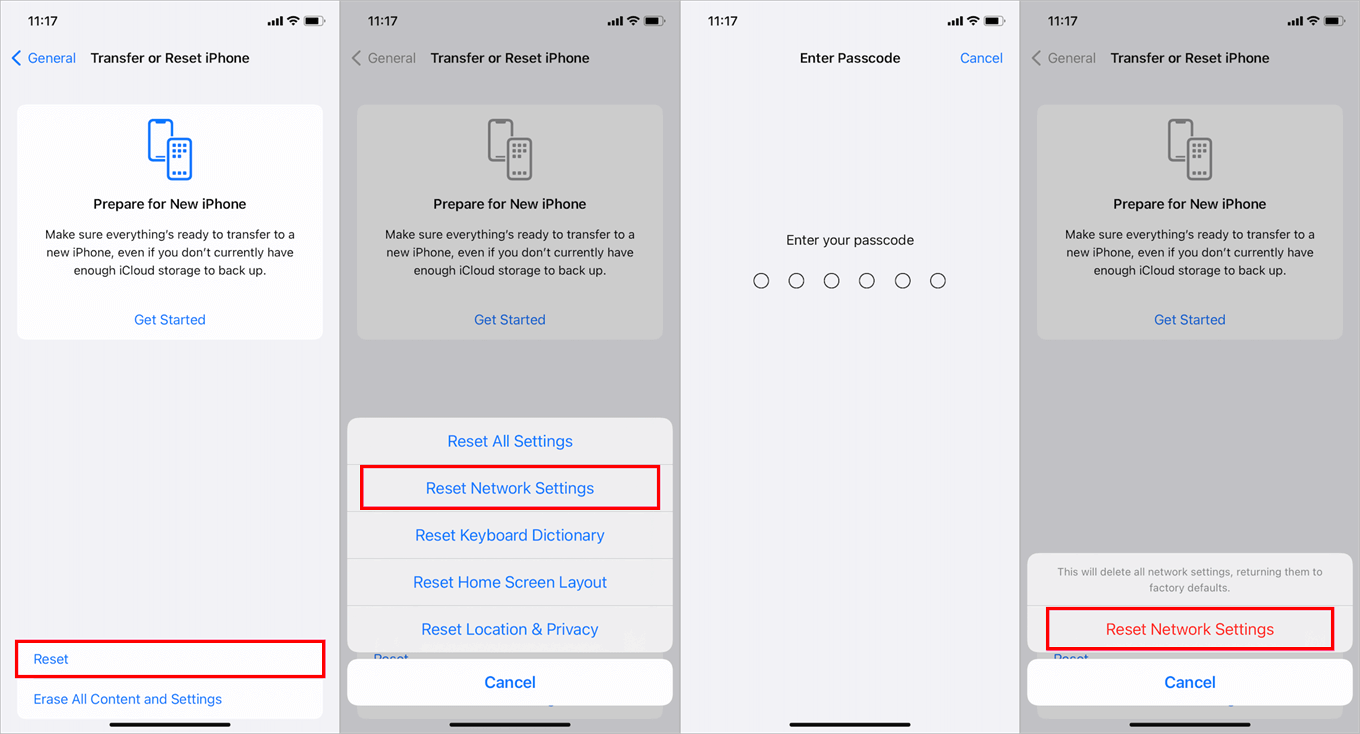
Before proceeding, back up your data, as this action will delete saved networks and Bluetooth pairings.
Also Read: Will I Lose Anything If I Reset Network Settings on iPhone? >>
Conclusion
Experiencing iOS 26/18 Carplay not working is frustrating, but these 9 solutions offer comprehensive strategies for restoration. For persistent system-related issues, FoneTool Repair provides professional-grade solutions to fix iOS system problems affecting CarPlay connectivity. Whether through basic troubleshooting or advanced system repair, these methods will help restore your CarPlay functionality.
Fixes 160+ iOS/iPadOS issues, boot loops, crashes, failed updates, with no data loss.
-
 iOS 27 Compatible
 iPhone 17 Supported
100% Secure

May is an editor who is passionate about sharing computer tips and providing reliable solutions, specializing in iOS/Android and file backup and recovery. In her spare time, May enjoys watching movies, going shopping, or chatting with friends.
Read author info >>



 as a preferred
source on Google
as a preferred
source on Google