How to Fix iOS 18/26 Green Screen [Top 5 Simple Solutions]
Dealing with an iOS 18 green screen? Fear not! This comprehensive guide will show you 5 simple and effective solutions to fix the iOS 18/26 green screen problem.


Is the iOS Green Screen of Death Fixable?
Seeing a mysterious green screen on your iPhone after updating to iOS 18 or iOS 26? This frustrating display problem can interrupt your daily activities and make you worry about your device's condition. The good news is that most green screen issues can be fixed with some straightforward troubleshooting. In this guide, you'll learn five practical methods to eliminate the iOS 18/26 green screen and get your iPhone's display back to normal.
Why Is My iPhone Suddenly Green Screen after iOS 18/26 Update?
Before we jump into solutions, let's explore why your iPhone might show a green screen after an update. Common causes include:
- Software conflicts from the iOS update process
- Background app interference is causing display errors
- Overheating issues affecting screen performance
- Hardware concerns like display damage or liquid exposure
How to Fix iOS 18/26 Green Screen - 5 Simple Solutions
Looking for an easy iOS 18 green screen fix? This section will show you the various solutions available to help get your iPhone display back to normal.
Solution 1. Force Restart iPhone
A force restart is your best first step to resolve temporary software glitches causing the green screen.
Step 1. Briefly press and release the Volume Up button.
Step 2. Briefly press and release the Volume Down button.
Step 3. Press and hold the Side button until the Apple logo appears.
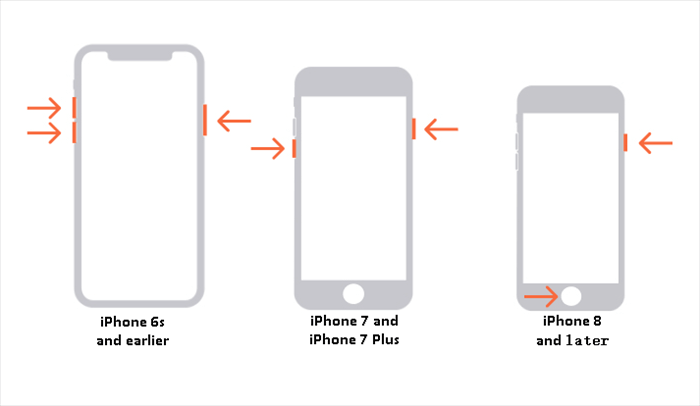
📝 Note: This process doesn't erase your data but simply refreshes your iPhone's operating system.
Solution 2. Assess iPhone Moisture Levels
Sometimes apps running in the background can conflict with system processes and cause display problems.
Step 1. Access the app switcher by swiping up from the bottom edge and pausing (or double-pressing Home on older models).
Step 2. Swipe up on each app preview to close all background applications.
Step 3. Return to your home screen and check if the green screen has disappeared.
Solution 3. Close Background Apps to Optimize iPhone Performance
Liquid exposure can trigger various display issues, including the green screen effect.
-
Inspect your iPhone's ports and seams for moisture or corrosion
-
Listen for unusual sounds that might indicate liquid damage
-
Avoid using the device if you suspect recent water exposure
- ★Tip:
- If you find evidence of liquid damage, professional repair may be necessary to prevent further issues.
Solution 4. Repair Any iOS 18/26 Issue with FoneTool Repair
When software problems like iOS 26 green screen continue, FoneTool Repair provides a specialized solution that fixes various iOS system issues that cause display abnormalities, update failures, and more, without data loss.
This powerful iOS system repair tool is the best way to fix iOS/iPadOS issues without data loss
Step 1. Download and install FoneTool Repair on your Windows PC, connect your iPhone via USB cable
Step 2. Launch the tool and navigate to the iOS System Repair section.

Step 3. Choose between Standard Mode (no data loss) or Deep Mode (for persistent issues).

Step 4. Select your firmware version and download location, then click Download.
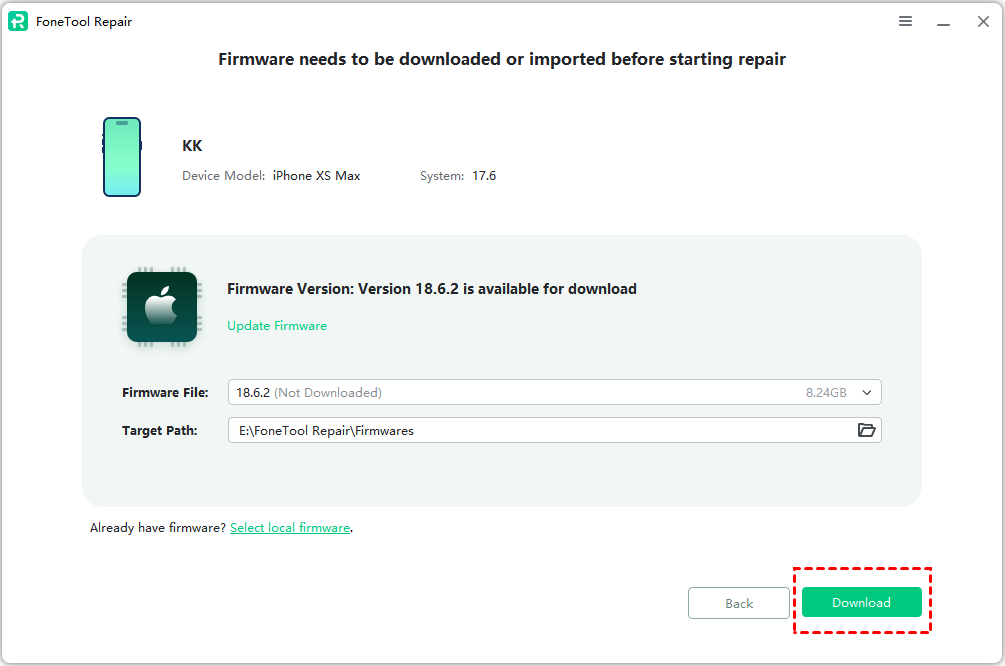
Step 5. Click Start Repair to begin resolving the iOS 26/18 screen turning green.

After completion, your iPhone will restart with the green screen problem resolved.
Solution 5. Restore iPhone Using iTunes
For persistent green screen issues, a full restore through iTunes can eliminate deep-seated software problems.
Step 1. Connect your iPhone to your computer and open iTunes.
Step 2. Select your device and navigate to the Summary tab.
Step 3. Click Restore iPhone to reinstall iOS completely.
Important: This method erases all data, so make sure you have a recent backup before starting.
Frequently Asked Questions
The Bottom Line
The iOS 18/26 green screen issue, while concerning, is typically fixable through systematic troubleshooting. Begin with simple solutions like force restarting and closing background apps before moving to more advanced options. For software-related green screens, FoneTool Repair offers the most efficient solution that protects your data while fixing system errors. If hardware issues continue, Apple Support can provide additional diagnostics and repair options to get your iPhone display back to normal.
Fixes 160+ iOS/iPadOS issues, boot loops, crashes, failed updates, with no data loss.
-
 iOS 27 Compatible
 iPhone 17 Supported
100% Secure

Kelsey is an English editor at FoneTool, passionate about helping users solve tech issues. She specializes in iPhone data management, backup, and recovery. In her free time, she enjoys learning IT skills and spending time with loved ones.
Read author info >>



 as a preferred
source on Google
as a preferred
source on Google