How to Find My iTunes Password: 6 Ways to Recover or Reset It
How to find my iTunes password? This guide shows how to check or reset saved passwords in iPhone, iPad, or Mac, or try FoneTool Unlocker when needed. Keep reading to get back in.


You open iTunes to restore an iPhone backup, and suddenly you're staring at a password prompt you don't remember. No warning. No hint. Just a locked screen and frustration.
You're not alone. Most people assume their iTunes password is their Apple ID password. But that's only half the story. There are actually two different passwords people call "iTunes password":
- iTunes Store / Apple ID password – the one you use to sign in to iTunes Store, App Store, Apple Books, and other Apple services.
- iTunes backup password/encrypted backup password) – A completely independent password that protects encrypted iPhone/iPad backups stored on your computer. Not the same as your Apple ID password
This guide covers different methods to find or reset iTunes passwords, from built-in Apple tools to official recovery channels, and a reliable solution when nothing else works.
Keep reading - one of these methods will get you back in.
How to Find iTunes Store or Apple ID Password
If you mean you can't remember your iTunes Store or Apple ID password when searching “how to find my iTunes password”, don't worry, it's often saved somewhere on your iPhone, iPad, or Mac without you even realizing it. Try the following two quick methods before resetting.
Method 1: Check Saved Passwords on iPhone or iPad
If you previously saved your iTunes Store or Apple ID password on your iPhone or iPad, it's likely still sitting in your Passwords settings - waiting for you to retrieve it.
Step 1. Open Settings on your iPhone or iPad. Scroll down to the search box and type Password to find it.
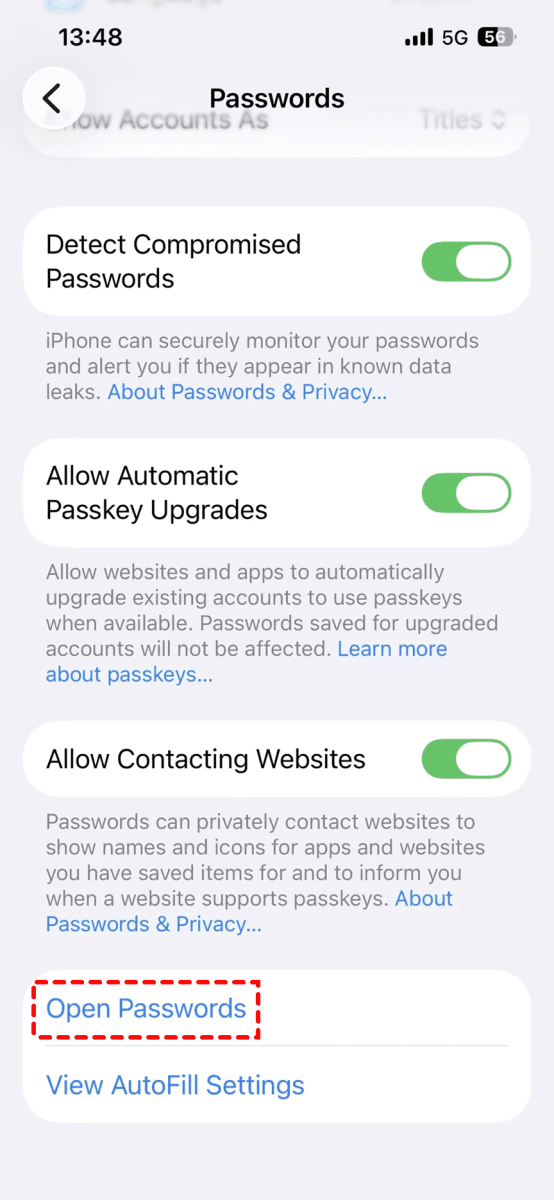
Step 2. Click Open Passwords at the bottom. Authenticate with Face ID, Touch ID, or your device passcode.
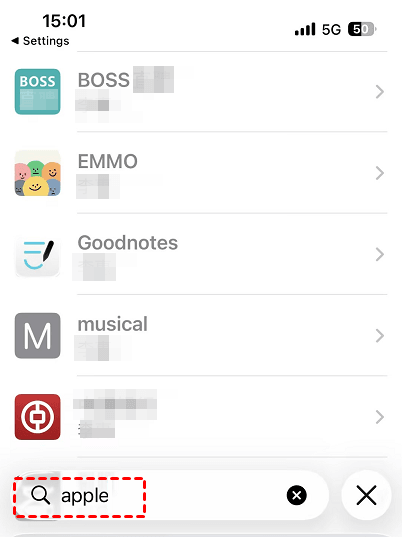
Step 3. In the search bar, type"Apple", "apple.com", or "iTunes" to find a matching entry and tap it to view the saved password.
Method 2: Check Saved Passwords on Mac (Keychain Access)
Mac users have an extra builtin tool called Keychain Access. It stores passwords, certificates, and encryption keysand it might hold the iTunes Store or Apple ID password you're looking for.
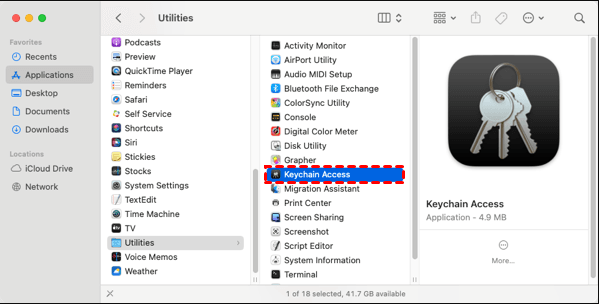
Step 1. Open Finder > Applications > Utilities >Keychain Access. You can also use Spotlight (Cmd + Space) and type "Keychain Access" to launch it instantly.
Step 2. In the search bar, type "apple.com" or "iTunes Store" to find all saved entries related to Apple services.
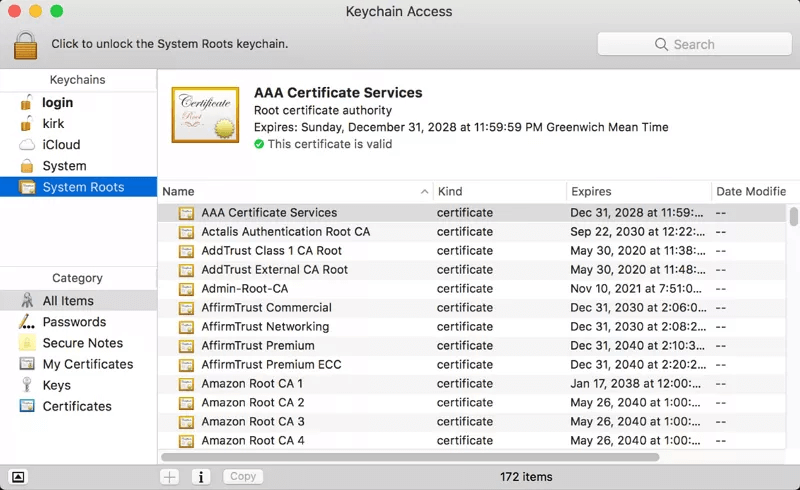
Step 3. Double-click the relevant entry to check the password. Enter your Mac's admin password when prompted. The one you use to log in to your Mac, not your Apple ID.
Method 3: Reset iTunes Password using Account Recovery
If the iTunes Store or Apple ID password isn't saved on your device, resetting it is the next best option. Apple's official account recovery (iforgot.apple.com) solution is fast and secure.
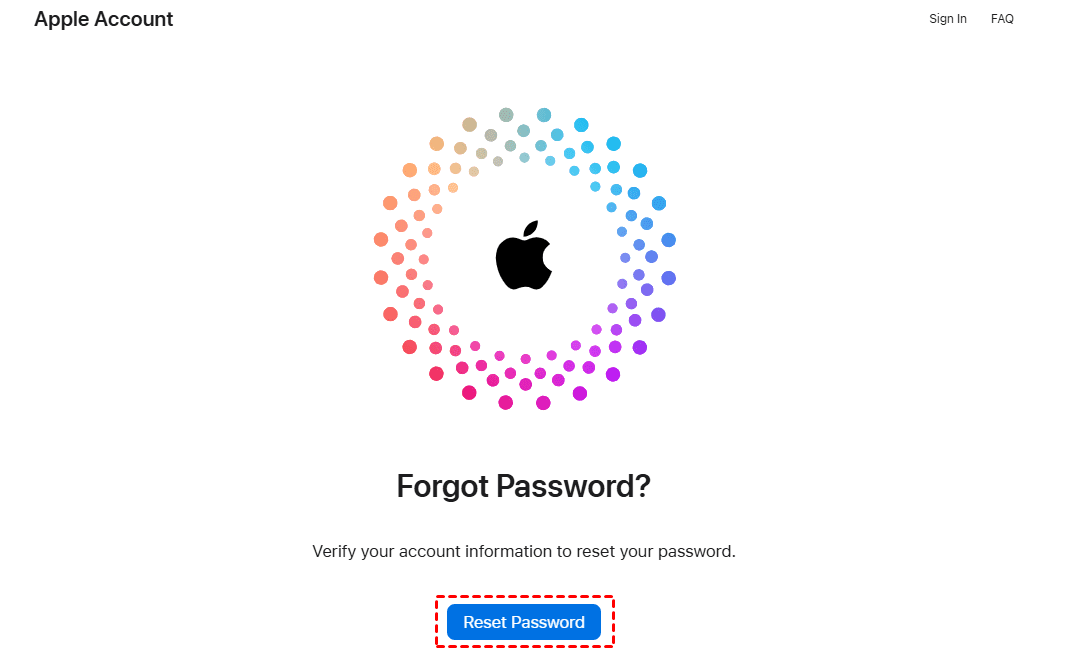
Step 1. Visit iforgot.apple.com in any browser and click Reset Password.
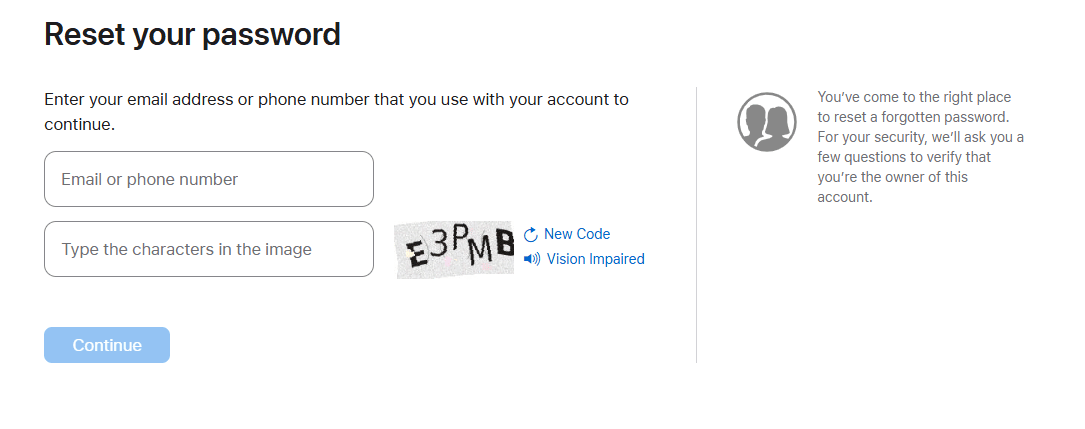
Step 2. Enter your email address or phone number and click Continue.
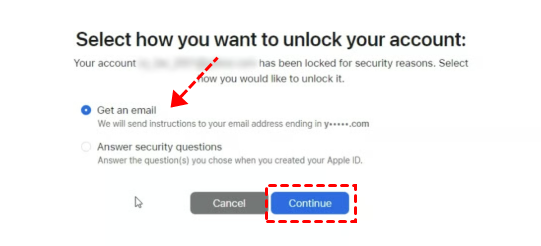
Step 3. Select a way to unlock your account and click Continue. Then, follow the on-screen instructions to recover your Apple TV password.
- Get an email - usually within 72 hours, confirming your request and allowing you to reset it after several days or longer.
- Answer security questions you chose when you created your Apple Account.
Resetting your Apple ID password does not affect your encrypted iTunes backup password- they are completely independent. If you're trying to recover a backup, you'll need to use the methods in the next section below.
How to Find iTunes Encrypted Backup Password
Unlike your Apple ID password, the encrypted backup password is stored locally on your device, not on Apple's servers. If you forget it, you cannot restore from a specific encrypted backup without the password. However, you have 3 options to find iTunes encrypted backup password.
Method 1: Check Keychain Access on Mac (The Easiest One)
If you previously checked "Remember this password in my keychain" when creating an encrypted iTunes backup, macOS may save it for you. This only works on a Mac. Windows users will need to skip to Methods 2 or 3.
Step 1. Open Keychain Access on Mac.
Step 2. In the search bar, type "iPhone Backup" or "backup". If you don't see any results, try searching for "Apple" or "iTunes" instead.
Step 3. Look for a relevant entry, usually the most recent one, and double-click to check the iTunes backup password. Enter your Mac's admin password when prompted and copy it for recovery.
Method 2: Reset All Settings and Start Over
If you can’t find the iTunes backup password in Keychain Access on Mac, you still can reset all settings on iPhone or iPad.However, you will lose access to all previous encrypted backups. You can only create new ones going forward.
Step 1. Open Settings on your iPhone or iPad. Then tap General > Transfer or Reset iPhone. Or click Reset on older versions.
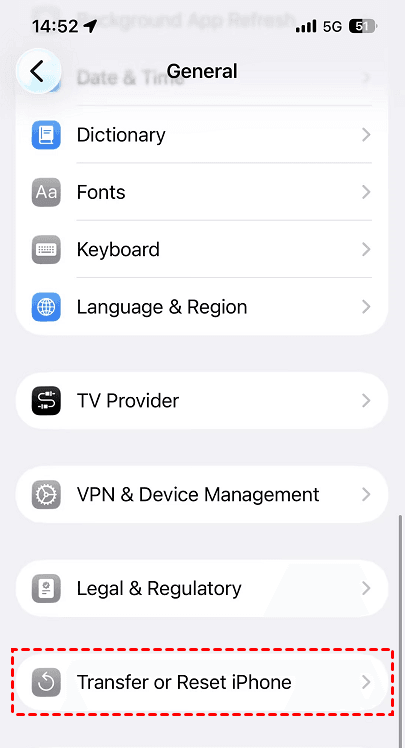
Step 2. Tap Reset > Reset All Settings. Enter your device passcode (the one you use to unlock your iPhone, not the backup password).
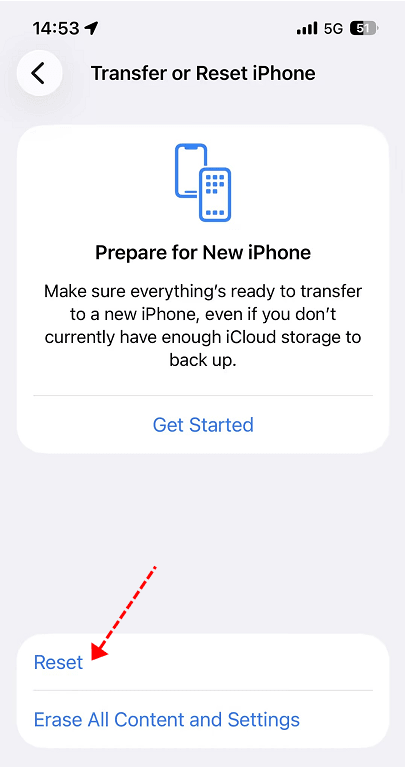
Step 3. Tap Reset All Settings to confirm. It will remove encrypted backup password, but not delete your photos, messages, apps, etc.
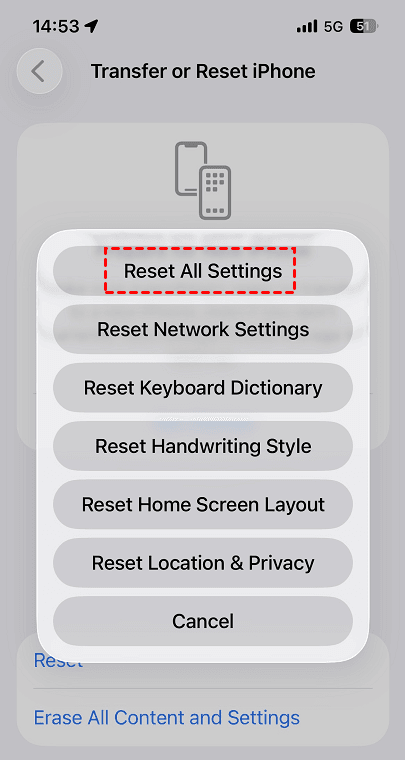
📌What happens next:
- Connect your device to the Finder, Apple Devices app (Windows), or iTunes and create a new encrypted backup
- You can set a new password for future backups
- You cannot restore from any previous encrypted backups
A More Flexible Data Recovery and Unlock Tool - FoneTool Unlocker
FoneTool Unlocker is a core data recovery and viewing tool and provides users with two methods to break this issue.
- Thoroughly scan your iOS device and retrieve saved Apple ID or iTunes backup password. You can also check WiFi passwords, Safari browserand appsaccount credentials, and more.
- Remove Apple ID, iTunes backup password, locked iCloud activation, screen passcode(4digit/6digit), Touch ID, Face ID, and more. So you can access your iOS device even if you forget a password or it’s locked.
Step 1. Download, install, and launch FoneTool Unlocker on your Windows PC. On the main interface, click Password Management.

Step 2. Click Start Scan to find all passwords and credentials, including Apple ID and encrypted backup passwords.
Step 3. For a smooth scan, connect your iPhone, unlock it, tap Trust This Computer, and confirm it's trusted in FoneTool Unlocker.
Step 4. Click Continue Scan and wait for the process to be complete.
Step 5. Click View Password when scan completed successfully.
Step 6. Click Web & App Passwords, Apple ID, or Email Account to find iTunes password. Or directly search "Apple", "iTunes", or “backup”.
If you still can’t find iTunes password, you can choose to Remove Apple ID or Remove iTunes Backup Encryption, depending on what you want to find. It will unlock your iOS device and regain access.
Quick Comparison: Which Method Should You Use?
Not sure which method fits your situation? Use this quick guide to match your problem with the right solution. Each method is tailored to a specific scenario- pick the one that matches your device, platform, and password type.
|
Scenario |
Recommended Method |
|
You're on a Mac and saved your iTunes password in Keychain |
Keychain Access |
|
Saved your Apple ID password on iPhone or iPad |
iPhone Passwords |
|
Can’t find forgotten Apple ID password |
|
|
Scan and view saved passwords |
FoneTool Unlocker (Password Management) |
|
Locked out of your iOS device or it’s a secondhand device |
FoneTool Unlocker (Remove Apple ID) |
|
Don't mind losing old backups and just need a fresh start |
Reset All Settings |
Conclusion
The question “how to find my iTunes password" means two different things: your Apple ID password or your encrypted backup password. Each requires a different recovery approach.
Start with the simplest method: check Mac Keychain Access or Settings > iPhone or iPad Passwords. If that doesn't work, use Apple's official reset tools. For retrieving saved passwords from your device or dealing with lockouts, FoneTool Unlocker offers both password management and unlock capabilities to help you.
Bookmark this guide so you're prepared the next time a password prompt catches you off guard, and share it with someone who might need it.
FoneTool Unlocker - 1-Click iPhone Unlock Software
Easily unlock all passcodes and restrictions on your iPhone, iPad, and iPod Touch.
-
 iOS 27 Compatible
 iPhone 17 Supported
100% Secure

Ivey is passionate about teaching users how to easily protect mobile device data. With the FoneTool series of iPhone management, unlocking, and repair software, even beginners can perform data backup, iPhone unlocking, and troubleshooting like a pro.
Read author info >>



 as a preferred
source on Google
as a preferred
source on Google