iPhone Turn Passcode Off Greyed Out? 7 Proven Fixes (2026)
Can’t turn off iPhone passcode? Discover why "Turn Passcode Off" is greyed out and get 7 proven fixes, including using FoneTool Unlocker. Learn how to fix it now!


Seeing the "Turn Passcode Off" option greyed out on your iPhone can be frustrating. This common iOS issue typically occurs when security policies or restrictions prevent passcode removal. Understanding the causes and applying the correct fixes is essential to regain control.
This comprehensive guide covers the top reasons and solutions for a greyed-out passcode option, including step-by-step instructions and a recommended professional tool to resolve the issue efficiently.
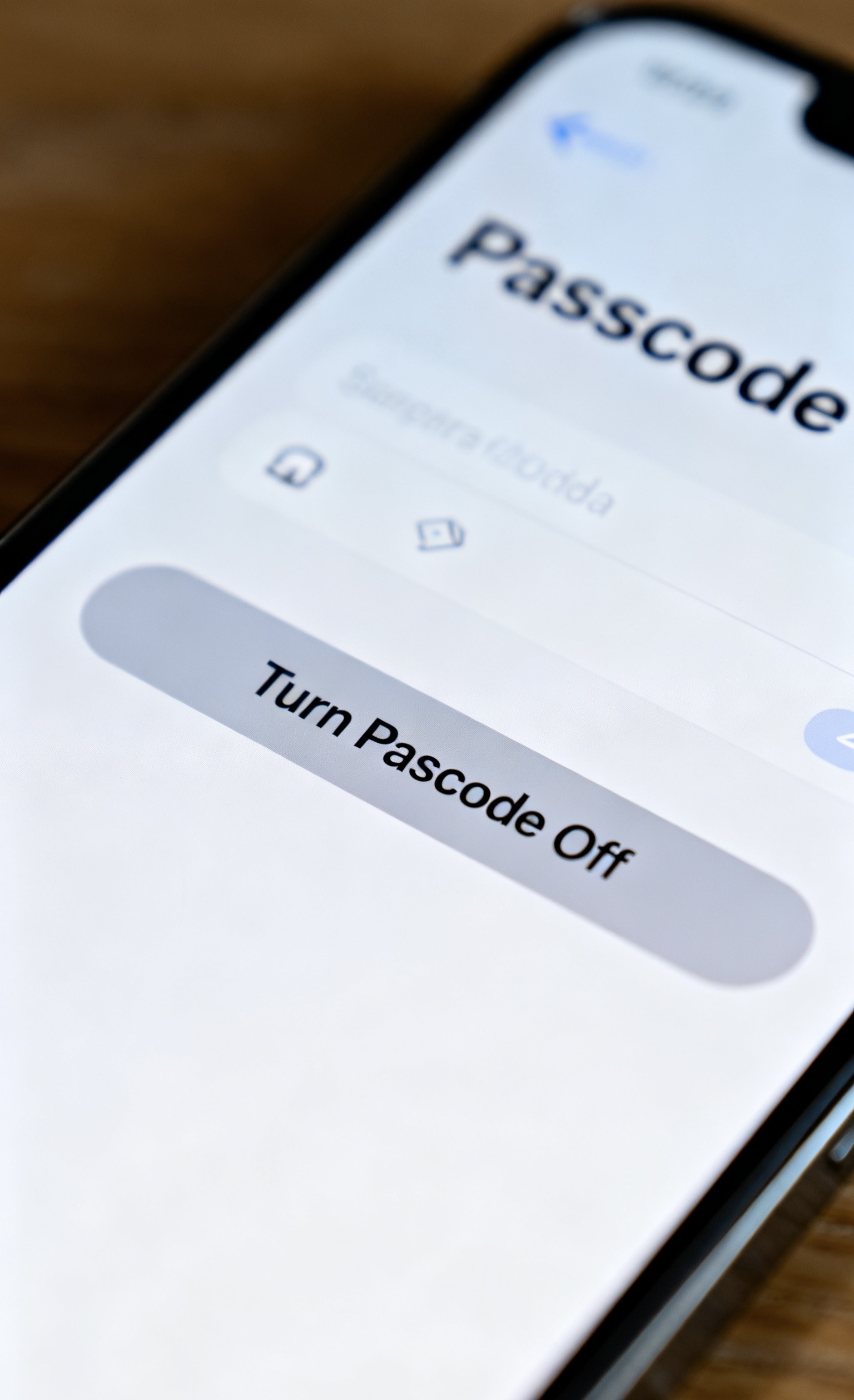
Why Is "Turn Passcode Off" Greyed Out on Your iPhone?
The "Turn Passcode Off" feature becomes unavailable when your iPhone enforces security policies or restrictions that mandate a passcode. Here are the primary causes :
📱 MDM Configuration Profiles: Mobile Device Management (MDM) profiles, often installed by employers or schools, enforce security rules like mandatory passcodes.
⏳ Screen Time Restrictions: Enabling "Content & Privacy Restrictions" in Screen Time can block passcode changes.
📧 Corporate Email Accounts: Exchange or other enterprise email accounts often impose security requirements, including passcode enforcement.
👛 Apple Wallet Security: Storing sensitive items like car keys or digital IDs in Apple Wallet requires a persistent passcode.
👆 Face ID/Touch ID Dependencies: Biometric authentication systems rely on a passcode as a backup, preventing its removal in certain configurations.
7 Effective Ways to Fix "Turn Passcode Off Greyed Out"
Now that we understand the common causes, let's dive into the practical solutions. The following methods are arranged from the simplest and most common fixes to more advanced solutions.
Way 1. Remove MDM Configuration Profiles
If your iPhone is managed by an organization (e.g., your employer or school), an MDM profile is the most likely culprit. This profile overrides your personal settings to enforce security policies.
Step 1. Open Settings > General > VPN & Device Management.
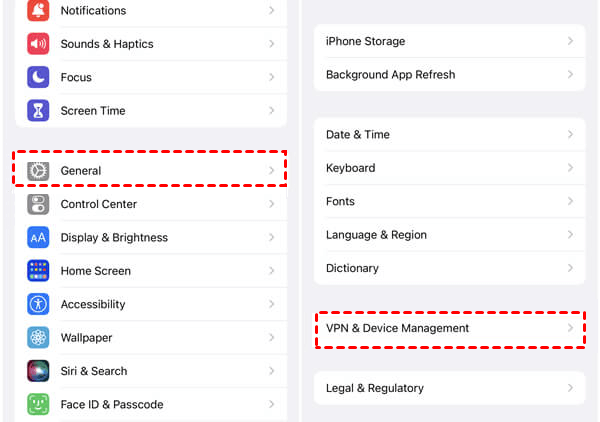
Step 2. Select any listed Configuration Profile.
Step 3. Tap Remove Management and confirm.
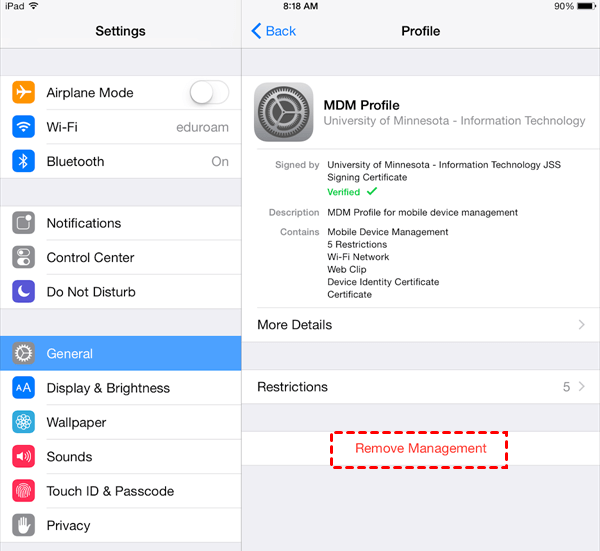
Step 4. Restart your iPhone and check if the option is enabled.
Way 2. Disable Screen Time Restrictions
Screen Time is a powerful parental control feature that can inadvertently lock certain settings. If you or someone else set up a Screen Time passcode, it might be restricting passcode changes.
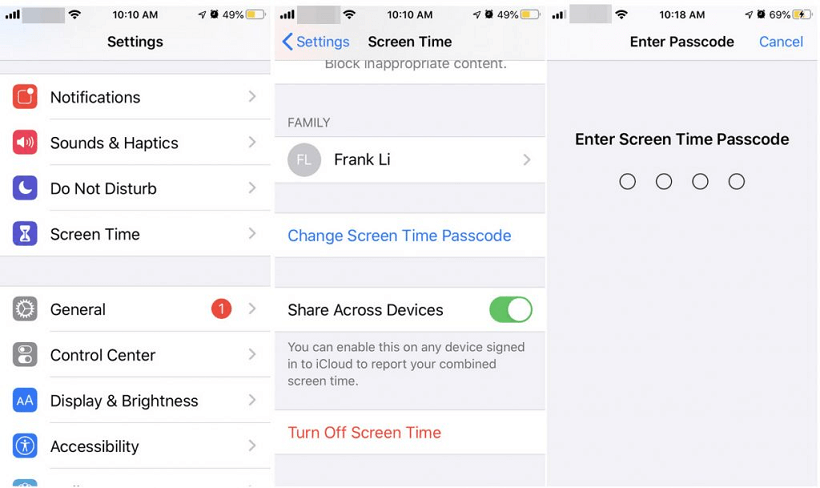
Step 1. Navigate to Settings > Screen Time > Content & Privacy Restrictions.
Step 2. Enter your Screen Time passcode if prompted.
Step 3. Tap Face ID & Passcode Changes and set it to Allow.
Step 4. Alternatively, turn off Screen Time entirely (Settings > Screen Time > Turn Off Screen Time).
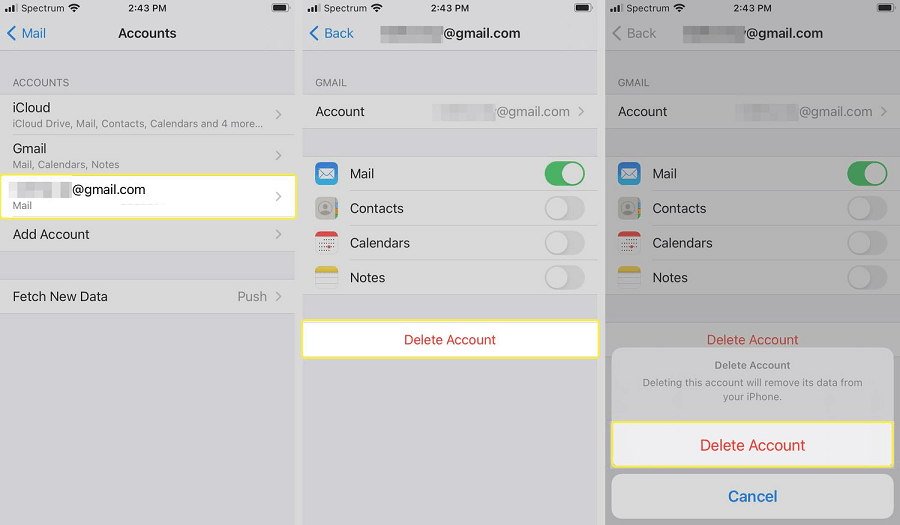
Way 3. Delete Corporate Email Accounts
Corporate email services like Microsoft Exchange often require a device passcode as a basic security compliance measure. Removing the associated account can lift this restriction.
Step 1. Go to Settings > Mail > Accounts.
Step 2. Select the corporate account (e.g., Exchange).
Step 3. Tap Delete Account and confirm.
Way 4. Remove Apple Wallet Keys or Passes
For added security, certain digital items in your Wallet—such as car keys, hotel room keys, or student IDs—require a device passcode to remain active. Removing them can free you from this requirement.
Step 1. Open the Wallet app.
Step 2. Swipe left on keys, passes, or licenses and delete them.
Restart your iPhone and attempt to turn off the passcode again.
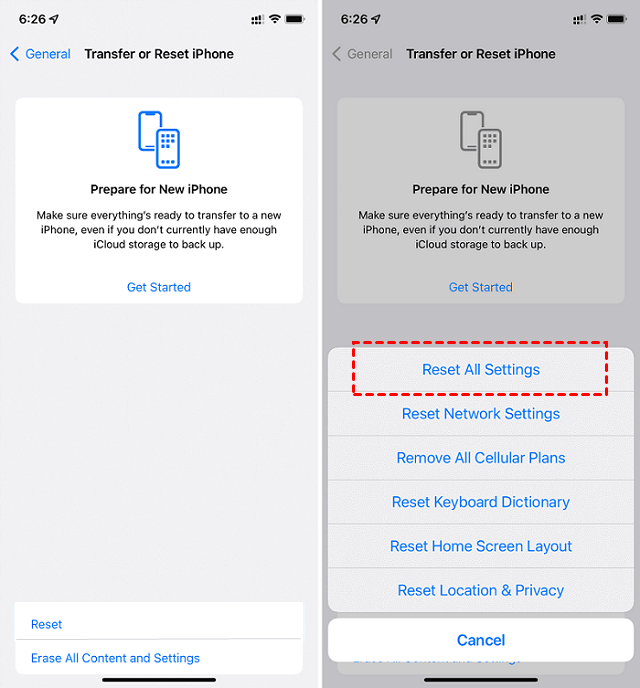
Way 5. Reset All Settings
This is a broader solution that won't erase your data but will revert all system settings (like Wi-Fi passwords and wallpaper) back to their defaults. It can resolve issues caused by a misconfigured setting.
Step 1. Go to Settings > General > Transfer or Reset iPhone.
Step 2.Tap Reset > Reset All Settings.
Way 6. Use FoneTool Unlocker (Recommended Tool)
When manual methods fail or you're faced with a forgotten Screen Time passcode, a dedicated tool like FoneTool Unlocker offers a powerful bypass. It's designed to remove various software-level locks without extensive technical know-how.
✅ Removes screen passcodes, Apple ID, and Screen Time restrictions
✅ Compatible with the latest iOS versions and iPhone models
✅ User-friendly interface with no technical expertise required
✅ Ensures data security during the unlocking process
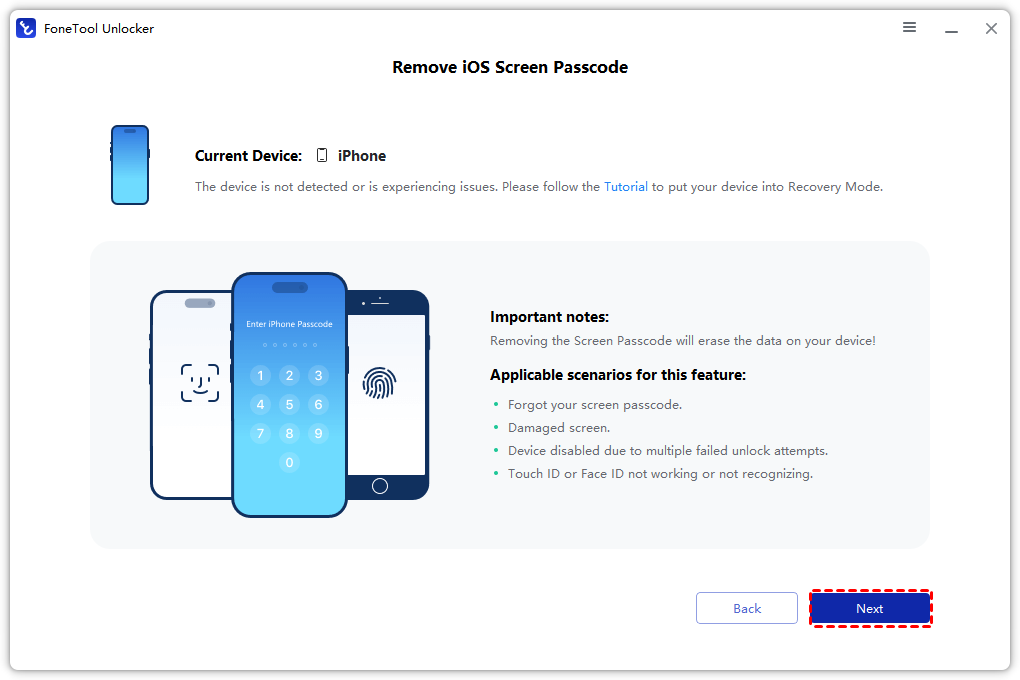
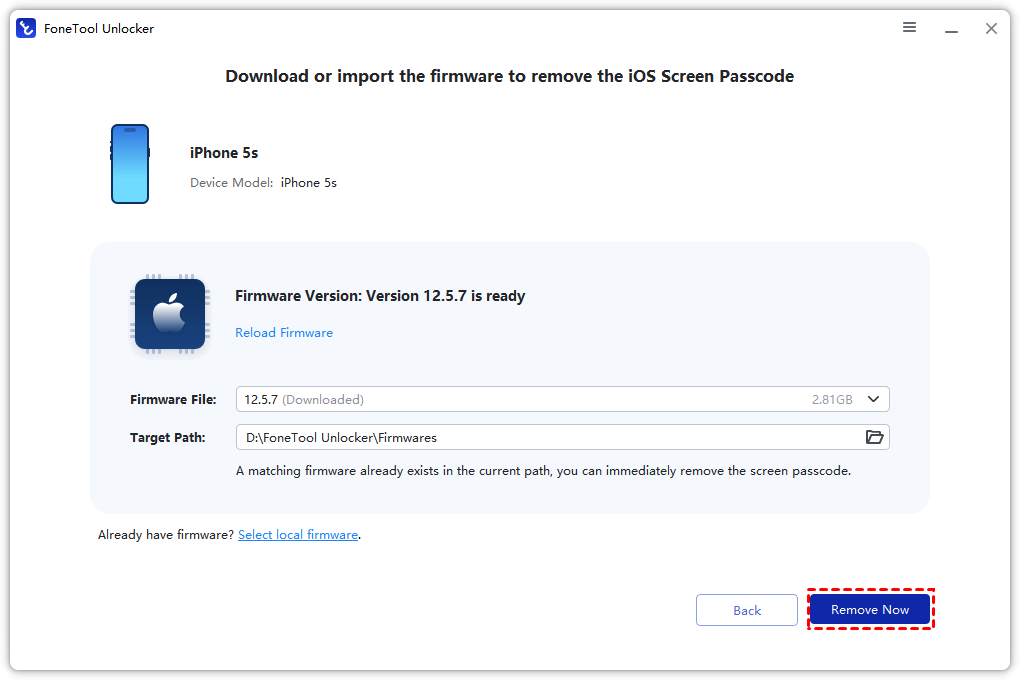
Step 1. Download and install FoneTool Unlocker on your computer. Launch the tool and select Remove iOS Screen Passcode.

Step 2. Connect your iPhone and follow on-screen instructions, click Next.
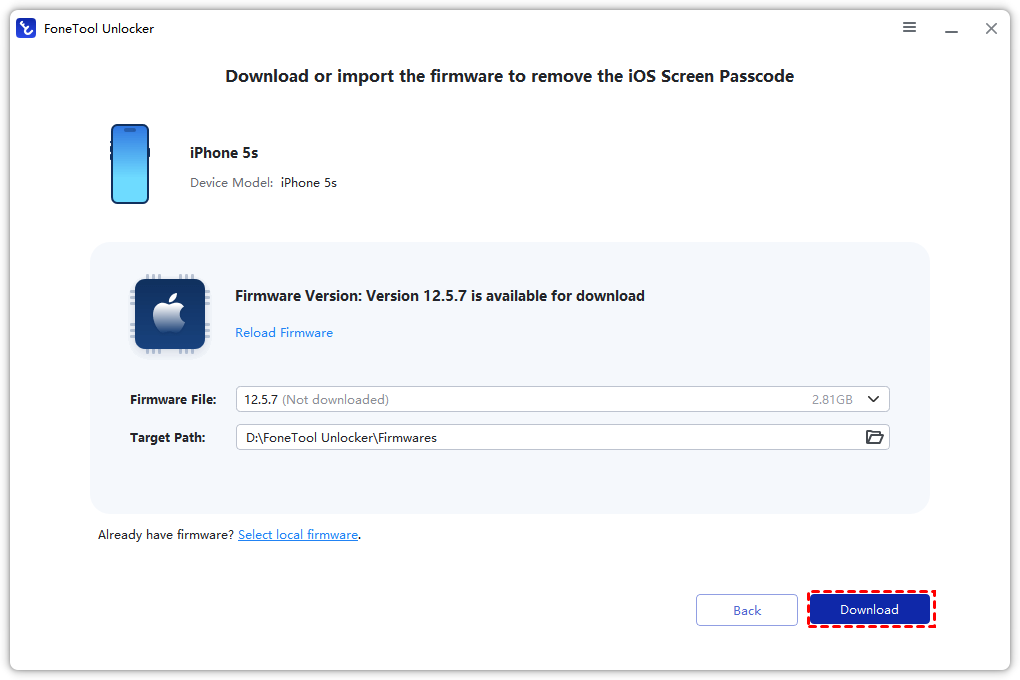
Step 3. Download the firmware package when prompted.
Step 4. Click Remove Now to remove the passcode and associated restrictions.
Way 7. Update iOS
Sometimes, a software bug in your current version of iOS can cause settings to behave incorrectly. Updating to the latest version of iOS can patch these bugs and restore normal functionality.
Step 1. Go to Settings > General > Software Update.
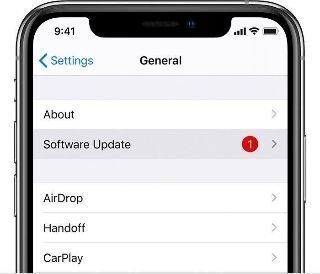
Step 2. Install any available updates and restart your device.
Frequently Asked Questions (FAQ)
Conclusion
A greyed-out "Turn Passcode Off" option is typically caused by enforced security settings like MDM profiles, Screen Time restrictions, or corporate email accounts. The solutions range from simple profile removal to using professional tools like FoneTool Unlocker for more stubborn cases.
For best results, start with the simplest methods outlined above. If one solution doesn't work, proceed to the next until you regain full control of your device settings.
FoneTool Unlocker - 1-Click iPhone Unlock Software
Easily unlock all passcodes and restrictions on your iPhone, iPad, and iPod Touch.
-
 iOS 27 Compatible
 iPhone 17 Supported
100% Secure

Kelsey is an English editor at FoneTool, passionate about helping users solve tech issues. She specializes in iPhone data management, backup, and recovery. In her free time, she enjoys learning IT skills and spending time with loved ones.
Read author info >>



 as a preferred
source on Google
as a preferred
source on Google