No Option for Forgot Screen Time Passcode? Here's the Real Fix
No option for forgot screen time passcode? From wrong menu to disabled iPhone. FoneTool Unlocker solves it fast. No Apple ID needed.


You tap "Change Screen Time Passcode".You scroll. Nothing. The "Forgot Passcode?" option just isn't there. This happens more often than you think. The good news? It's fixable. This guide shows you why the option disappears and how to reset your passcode without it.
Why the "Forgot Passcode"Option Is Missing
Understanding the cause helps you fix it faster. Here are the real reasons you're seeing a forgot screen time passcode option missing situation.
- You're in the wrong menu - The "Forgot Passcode?" link only appears after you tap Change Screen Time Passcode, not under Downtime, App Limits, or Content & Privacy.
- Family Sharing controls it - If a family organizer sets up Screen Time, the screen time passcode no forget option appears on your device. Only the organizer can reset it.
- iOS version is too old - The feature arrived in iOS 13.4. If you're on iOS 13.3 or earlier, you'll see forgot screen time passcode not an option until you update.
- Software glitch or Apple ID mismatch - A bug or a different Apple ID than the one used to set the passcode can also hide the option.
Method 1. Fastest Way When the Option Is Missing
When you see no option for forgot screen time passcode, the most reliable solution is a dedicated tool. FoneTool Unlocker removes the Screen Time passcode directly from your computer, no need to hunt for a missing button.
- ★Highlights:
-
Removes Screen Time passcode even when the option is completely gone.
Keeps your photos, apps, and messages safe.
Works on disabled iPhones you can't unlock.
No Apple ID or password required.
Safe, fast, and easy to use.
Supports all iPhone, iPad and iPod Touch models, and iOS versions.
Step 1. Download and install FoneTool Unlocker on a Windows PC and launch this tool. Connect your iPhone to the computer via USB.
Step 2. Select "Remove Screen Time Passcode" on the main interface.
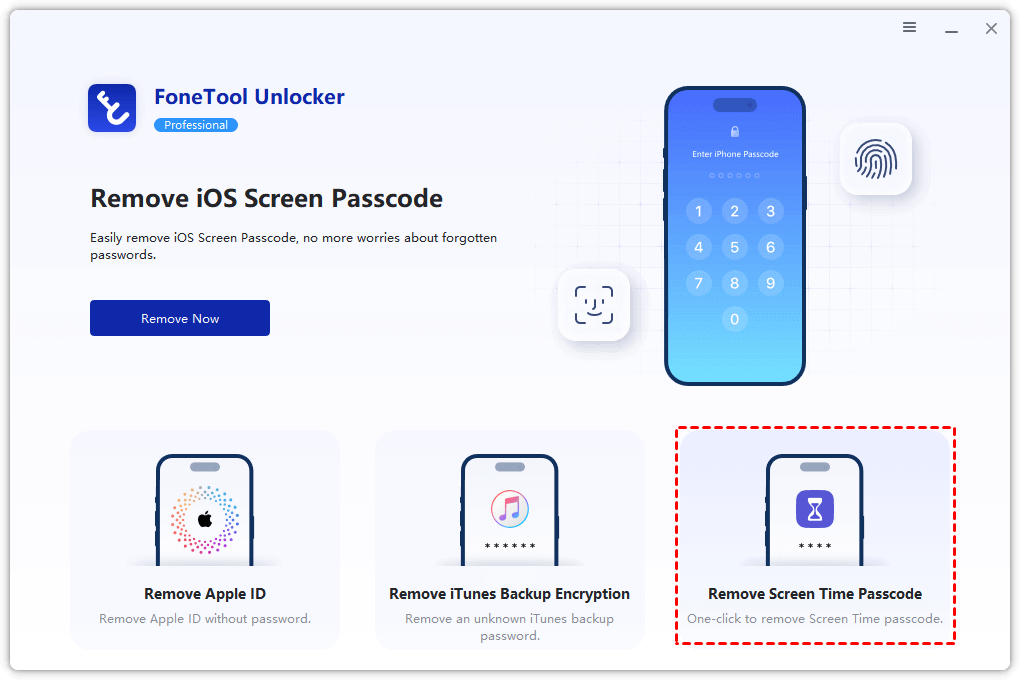
Step 3. Follow the on-screen prompt to disable Find My iPhone if needed.
Step 4. Click "Remove Now" and wait a few minutes.

Once done, your Screen Time passcode is gone. You can now set a new one, or turn off Screen Time entirely.
Method 2. Check You're in the Right Place
Before anything else, confirm you're looking in the correct spot. Many users see no forgot passcode option for screen time simply because they're in the wrong section.
Step 1. Open Settings > Screen Time.
Step 2. Scroll down and tap Change Screen Time Passcode.
Step 3. Tap it again. Now look below the passcode field, you should see Forgot Passcode?.
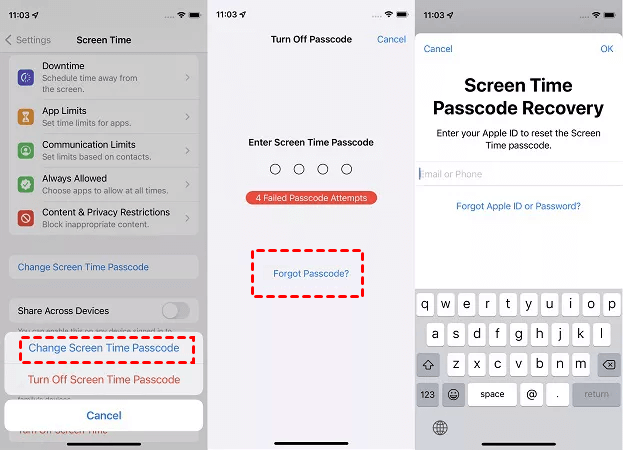
If you still don't see it, move to the next method.
Method 3. Ask the Family Organizer
If your device is in a Family Sharing group, the organizer controls Screen Time. You cannot reset it yourself.
- For a child's device: The organizer goes to Settings > Screen Time > tap child's name > Manage Screen Time > Change Screen Time Passcode > authenticate.
- For an adult's device: Ask the organizer to stop managing your device temporarily. Then the option reappears.
Method 4. Sign Out of Apple ID and Back In
Refreshing your Apple ID connection can restore the missing option.
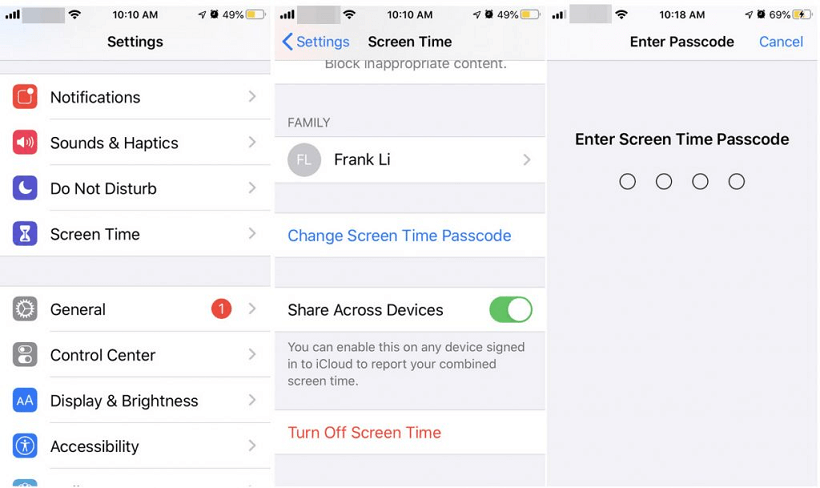
Step 1. Go to Settings > tap your name.
Step 2. Scroll down and tap Sign Out. Enter your Apple ID password to disable Find My iPhone.
Step 3. Tap Sign Out again.
Step 4. Restart your iPhone, then sign back in.
Now check Settings > Screen Time > Change Screen Time Passcode. The change screen time passcode without passcode option may reappear.
Method 5. Update iOS
Running an old iOS version? The forgot restrictions passcode feature wasn't added until iOS 13.4.
Step 1. Open Settings > General > Software Update.
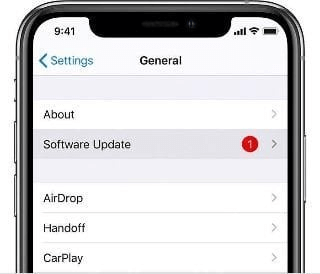
Step 2. If an update is available, tap Download and Install.
Step 3. Restart your iPhone after the update completes.
Then check for the "Forgot Passcode?" option again.
Method 6. Reset Screen Time via Mac
If you have a Mac signed into the same Apple ID, you can reset the passcode there.
Step 1. On your Mac, go to System Preferences > Screen Time.
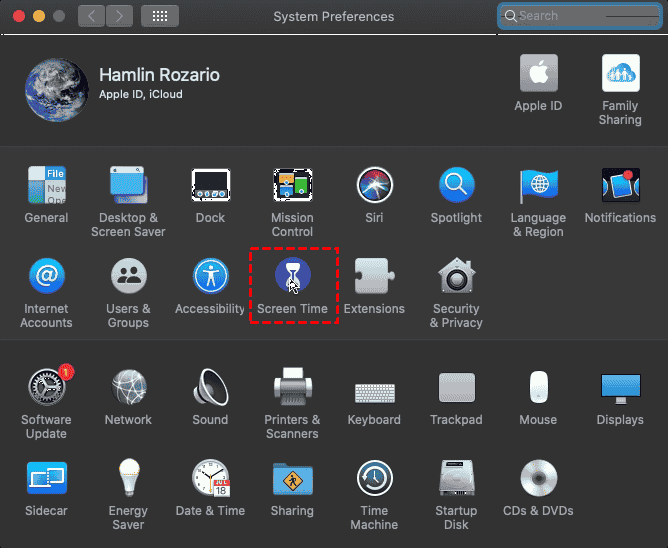
Step 2. Click Change Passcode, then Forgot Passcode.
Step 3. Enter your Apple ID and password.
Set a new passcode. It will sync across devices if Share Across Devices is enabled.
Method 7. Force Restart Your iPhone
A simple restart can clear glitches hiding the option.
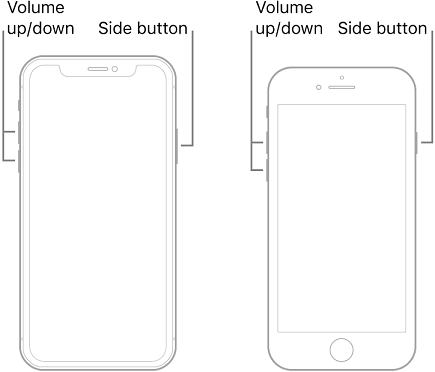
- iPhone X and later: Press Volume Up, release; Volume Down, release; hold Side button until Apple logo appears.
- iPhone 8/SE2/SE3/7: Hold the Side button until the power off slider, drag to off, wait 30 seconds, then hold the Side button again.

Method 8. Erase Your iPhone (Last Resort)
When nothing else works, and you must reset Screen Time immediately, erase your iPhone. This wipes all data, so back up first if possible.
Step 1. Settings > General > Transfer or Reset iPhone > Erase All Content and Settings.
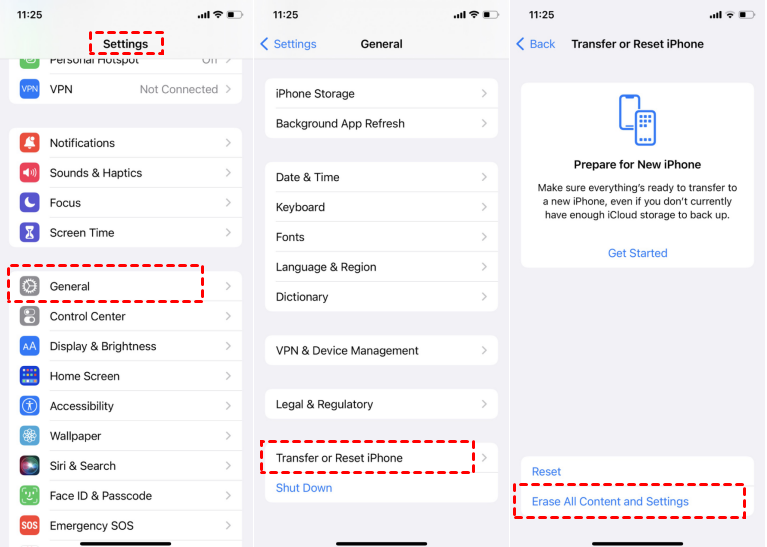
Step 2. Enter your device passcode and Apple ID password.
Step 3. Set up as new, do not restore a backup (the passcode may come back).
Then set a new Screen Time passcode and store it safely.
Method 9. Contact Apple Support
If the device is managed by an employer or school (MDM profile), the passcode is controlled by them. Contact your IT department or Apple Support.
For Family Sharing issues, the organizer should contact Apple Support for a child's locked device.
Frequently Asked Questions
After 6 failed attempts: wait 1 minute. After 7: 5 minutes. After 8: 15 minutes. After 9+: 60 minutes. No permanent lockout.
Only the family organizer can. A non-organizer cannot.
Your iOS version is too old. Update to iOS 13.4 or later if your device supports it. If not, use FoneTool Unlocker.
Yes, but you lose all data. FoneTool Unlocker removes only the passcode while keeping your data.
Yes, using FoneTool Unlocker or erasing the iPhone.
Summary
To fix no option for forgot screen time passcode, first check you're tapping "Change Screen Time Passcode". Then rule out Family Sharing, sign out of Apple ID, update iOS, or use a Mac. If the option is still missing, or you're locked out of your iPhone entirely, FoneTool Unlocker removes the Screen Time passcode directly from your computer. No Apple ID needed. No data loss.
FoneTool Unlocker - 1-Click iPhone Unlock Software
Easily unlock all passcodes and restrictions on your iPhone, iPad, and iPod Touch.
-
 iOS 27 Compatible
 iPhone 17 Supported
100% Secure

Kelsey is an English editor at FoneTool, passionate about helping users solve tech issues. She specializes in iPhone data management, backup, and recovery. In her free time, she enjoys learning IT skills and spending time with loved ones.
Read author info >>



 as a preferred
source on Google
as a preferred
source on Google