How to Remove Apple ID from AirPods Without Previous Owner
When you get a second-hand AirPods, how can you do to remove Apple ID from them? Find ways in this guide and you can regain full control of your AirPods in simple clicks!


How to remove AirPods Max from previous owners Apple ID?
Have just purchased a second-hand pair of AirPods Max & as I’ve got to connect/pair them to my phone for the first time, I’ve been greeted with the 'The owner of this item will be able to see its location' message. The last owner still has access to the location unsettles me. I have no way of contacting the owner. How do I remove the previous owner so I can connect them solely to my account? Thanks.
- Question from Reddit.com
If you buy used AirPods, they may still be associated with the former owner's Apple ID. And your AirPods bound by another Apple ID will cause:
Connecting to another Apple ID's AirPods may cause:
🔹Pairing Issue - For example, receiving an "Not Your AirPods" alert
🔹 Feature access is restricted - for example, there is no "Find mine" tracking
🔹Security Risks - Previous owners can track the location of your device
Don't worry, this guide provides a step-by-step solution to safely reset ownership and shows you how to remove Apple ID from AirPods without previous owner.
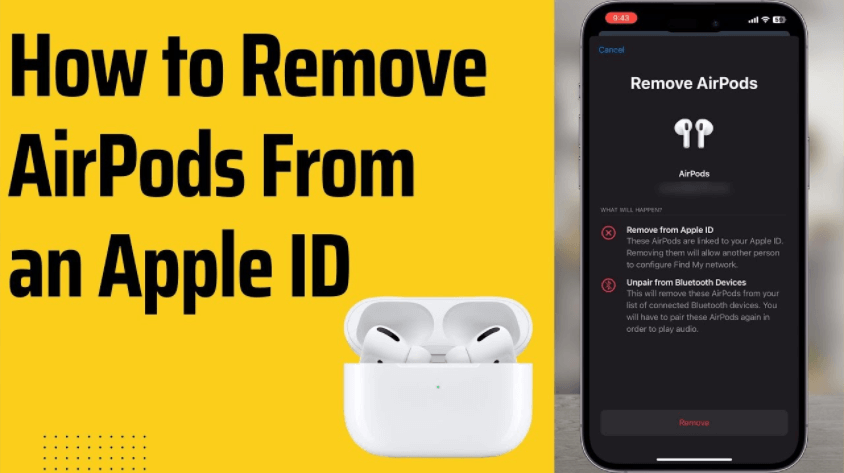
Method 1. Reset AirPods Without the Previous Owner
If you can't contact the previous owner of the AirPods, you can reset the AirPods to pair them with your device again. Resetting your AirPods is a simple process that takes just a few seconds. Follow these steps to reset them and pair them again with your iPhone.
Step 1. Open the Settings app on your iPhone > Tap Bluetooth and locate your AirPods in the list of paired devices > Tap the "i" icon next to your AirPods' name > Select Forget This Device to remove the connection.

Step 2. Open the AirPods case lid > Press and hold the button on the back of the case for 10 seconds until the status light flashes amber > When the AirPods enter pairing mode, tap Connect on your iPhone to re-establish the connection.
Method 2. Remove Apple ID from AirPods (With Previous Owner’s Help)
Once you get your AirPods, you need to set up to pair them with your iPhone. Here you will get a message on your device to tell you that they are already paired with another Apple ID. You can remove the Apple ID from your AirPods with assistance from the previous owner.
Step 1. Launch the Find My app on your iPhone/iPad or other iOS devices > Log in to the previous Apple ID that paired to your AirPods on your device.
Step 2. Click the Device to see all the details about the linked devices > Select your AirPods > Tap Remove This Device > Remove to delete your AirPods from this Apple ID.
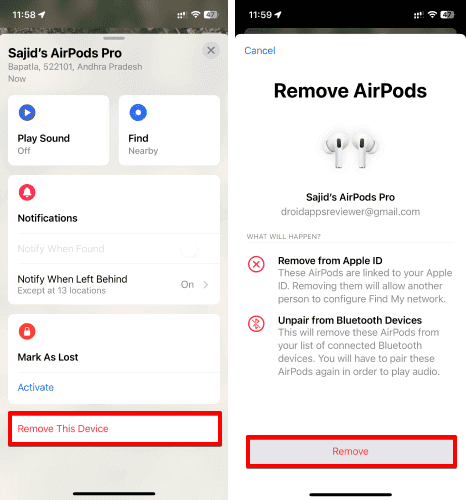
Then the Apple ID can be deleted, and you can regain full control of your AirPods and log in with your own Apple ID as you like.
Bonus: Remove Apple ID from iPhone without password
If you need to delete Apple ID from your iPhone, a professional iOS device unlocker named FoneTool Unlocker will be your best helper. With its powerful features, you can efficiently finish the process in simple clicks.
- Highlights:
- · Remove Apple ID from iPhone/iPad without entering a password to help you regain full control of your device.
- · When the Find My feature is not enabled on your device, all current data will be kept.
- · Stable and safe unlock process protects all your iPhone/iPad data from loss.
- · Various iOS devices (iPhone/iPad/iPod Touch) and iOS versions are supported, even the latest ones.
Now you can download FoneTool Unlocker on your computer and follow the guidance below to delete Apple ID from your iOS device.
Step 1. Install FoneTool Unlocker on your PC > Connect your iPhone to the computer via a USB cable > Tap Trust on your device to continue.
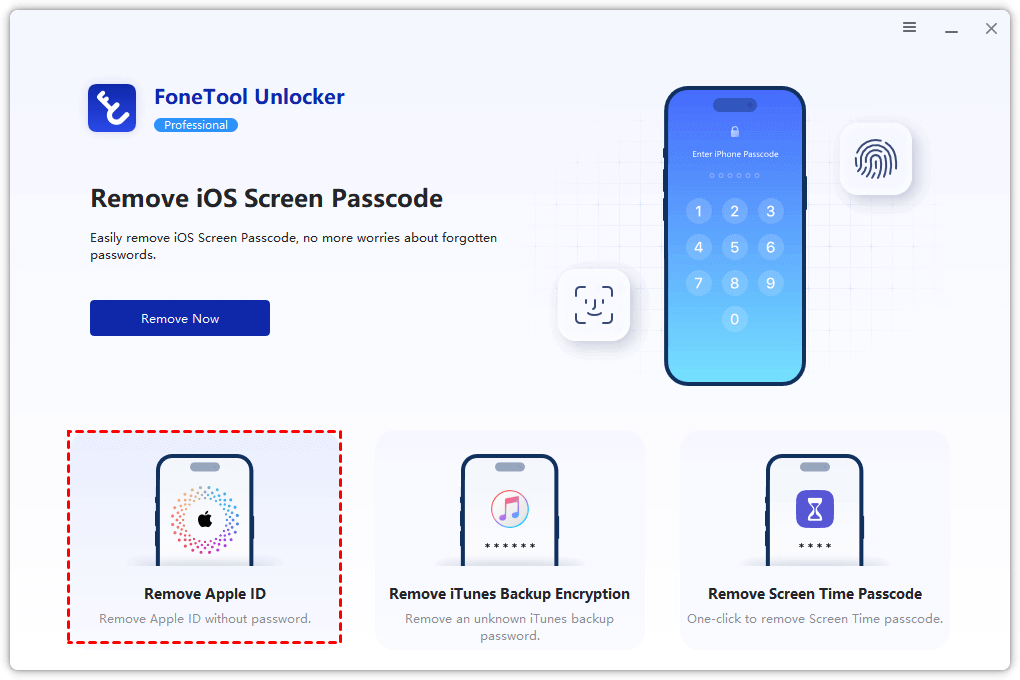
Step 2. Launch FoneTool Unlocker > Choose the Remove Apple ID option.
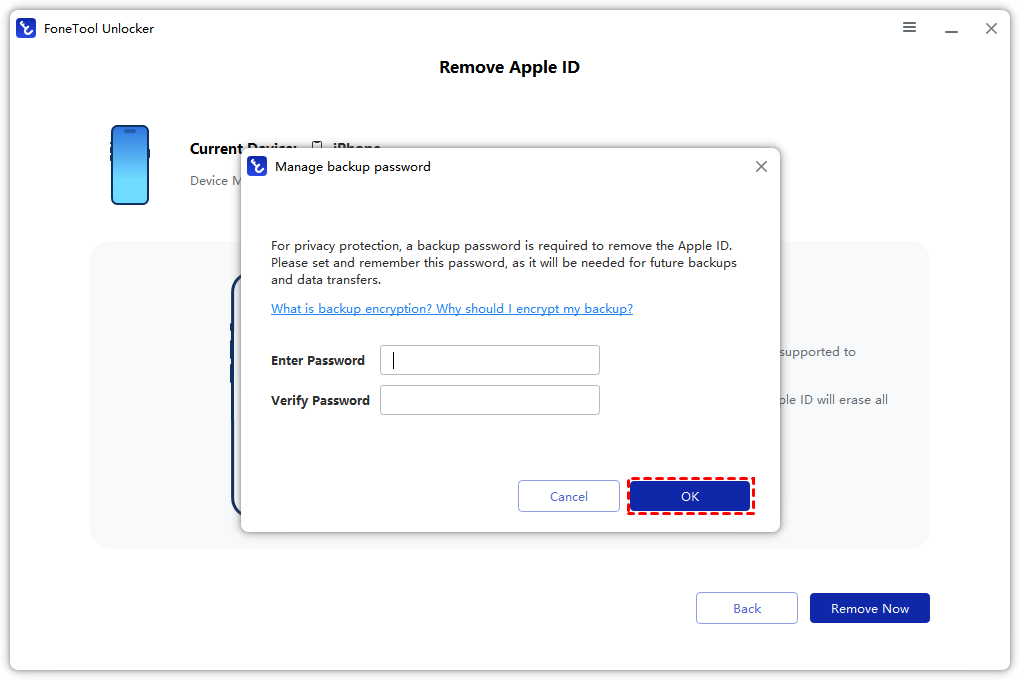
Step 3. Set a backup password as instructed > Click OK to continue.
Step 4. Confirm the on-screen instructions > Click Remove Now to unlink your Apple ID from the device.
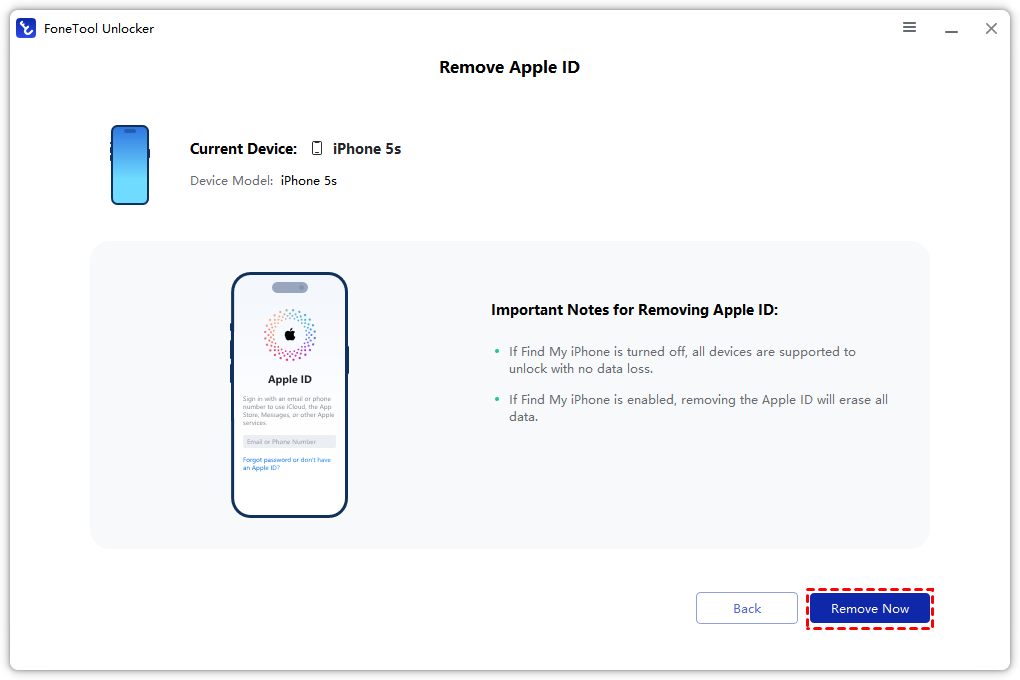
Once the process is finished, you can click Back to Home Page to use your iPhone freely.
FAQs about how to remove AirPods from Apple ID
Conclusion
Now you can know how to remove Apple ID from AirPods without previous owner. You can delete your AirPods from the account or reset them in simple clicks. If you need a way to remove Apple ID from your iPhone without password, you can choose FoneTool Unlocker to finish the process efficiently!
FoneTool Unlocker - 1-Click iPhone Unlock Software
Easily unlock all passcodes and restrictions on your iPhone, iPad, and iPod Touch.
-
 iOS 27 Compatible
 iPhone 17 Supported
100% Secure

Kathy is an editor of FoneTool, who prefers to help more users address a series of iOS-related problems. She likes traveling and being close to nature makes her relax. She is also keen to engage in social activities and spend much free time with her friends.
Read author info >>



 as a preferred
source on Google
as a preferred
source on Google