How to Backup iPhone Without iCloud - 4 Reliable Ways (2026)
How to backup iPhone without iCloud? This 2025 guide offers 5 working ways - FoneTool (recommended), iTunes, Google Drive, Finder for Mac. Complete steps included.


Why Backup iPhone Without iCloud?
While iCloud offers automatic backups and seamless synchronization across Apple devices, it has significant limitations for users with substantial data storage needs. When facing insufficient iCloud storage for large backups, you need alternatives for how to backup iPhone without iCloud.
Here are 4 effective methods to create iPhone backups without iCloud using USB connections or wireless solutions.
4 Ways to Backup iPhone Without iCloud (Compared)
| Method | Speed | Storage | Best For |
| FoneTool | ⚡ Fast | Unlimited | Full/selective backups |
| iTunes | 🐢 Slow | Computer space | Windows users |
| Google Drive | 🕒 Medium | 15GB free | Wireless option |
| Finder | ⚡ Fast | Mac storage | Mac users |
1. How to backup iPhone without iCloud to PC [recommended]
FoneTool provides the most flexible solution for backing up your entire iPhone or selected data to your computer without iCloud limitations, just simple clicks.
Best & Free iPhone Backup Software for Windows
- Fully or selectively back up iPhone data as you like
- Backup photos, videos, etc. without storage limitation
- Fast transfer speeds (46 GB in ~39 minutes)
- Total USB connections offer a safe and stable transfer process
- Customizable backup locations (PC/USB drives)
Windows 11/10/8/8.1/7

100% Secure
Step 1. Download and Install FoneTool > Connect iPhone via USB > Tap Trust when prompted.
Step 2. Go to Phone Backup > Choose Full Backup for complete data backup.
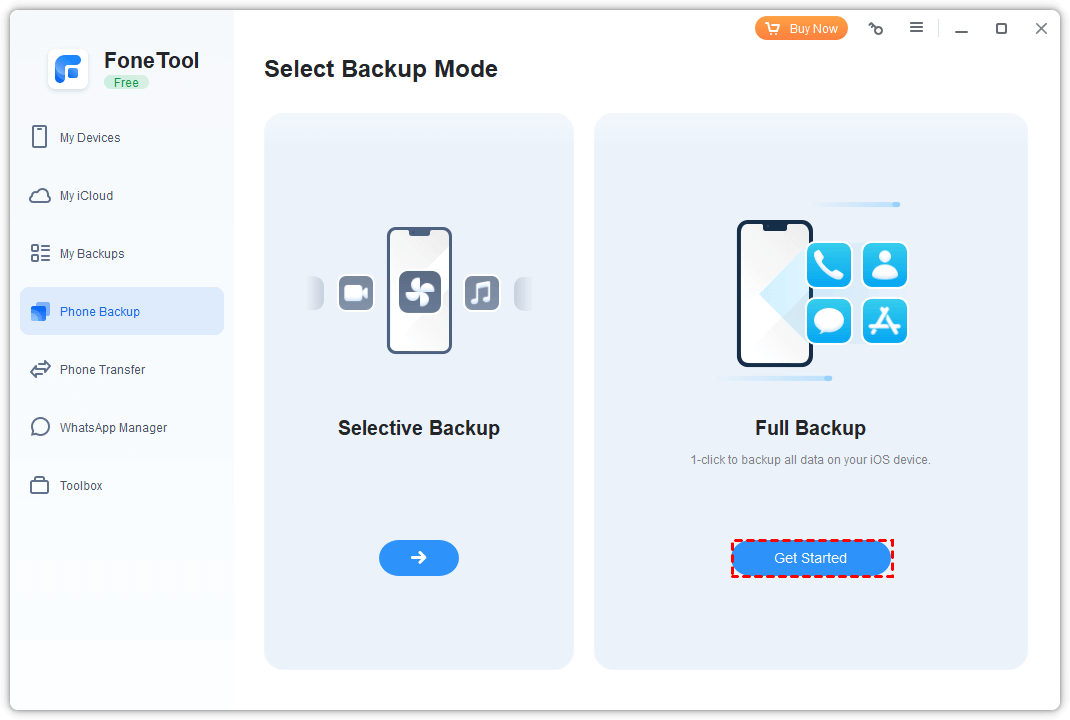
Step 3. Enable encryption if needed > Set storage location > Click Start Backup.
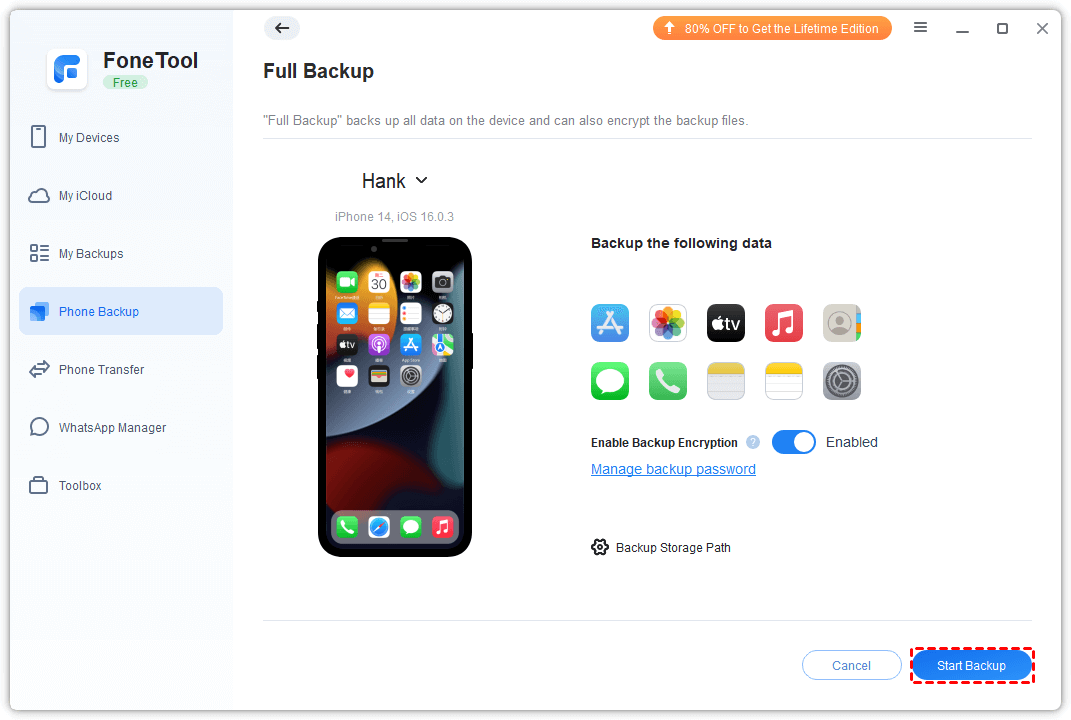
Choose Selective Backup to backup specific iPhone data like photos, videos, contacts, etc. or backup iPhone without photos.
2. How to backup iPhone to computer without iCloud - iTunes
If you prefer not to use a third-party tool, iTunes can be an alternative way to back up your iPhone to your PC. Here are steps about how to backup iPhone without iCloud storage using iTunes.
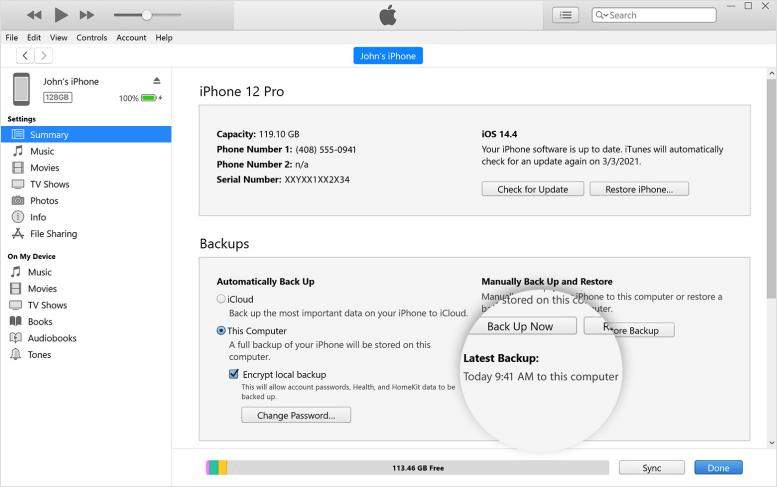
Step 1. Install latest iTunes > Connect iPhone to computer.
Step 2. Launch iTunes > Click device icon > Go to Summary.
Step 3. Under Backups, select This computer > Click Back Up Now.
- 🔒 Security Tip:
- Enable Encrypt local backup to protect sensitive data and include passwords.
3. How to backup iPhone without iCloud or computer - Google Drive
Google Drive offers 15GB of free cloud storage as an iCloud alternative for backing up photos, videos, contacts, and calendar events wirelessly. This way is also applied to transfer data from Android to iPhone after setup.
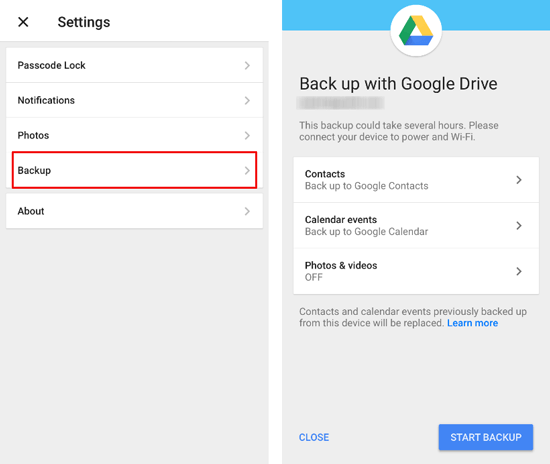
Step 1. Download Google Drive from App Store > Sign in to Google account.
Step 2. Tap Menu > Settings > Backup > Start Backup.
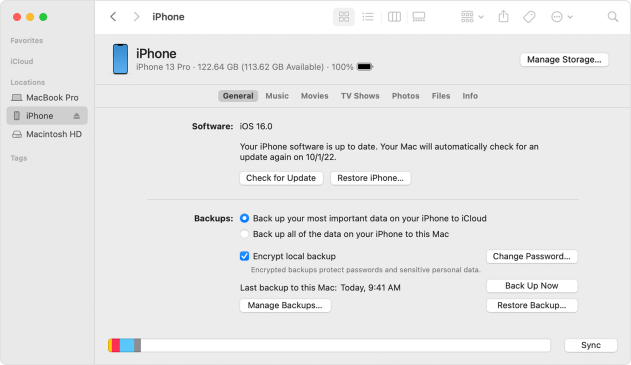
4. How to backup iPhone without storage to Mac - Finder
Mac users with macOS Catalina or later can use Finder to create encrypted local backups without iCloud.
Step 1. Connect iPhone to Mac via USB > Open Finder > Select your iPhone.
Step 2. Under General, choose Back up all data > Enable Encrypt local backup if desired.
Step 3. Click Back Up Now.
Conclusion
This passage gives you 4 ways about how to backup iPhone without iCloud. You can create an iPhone backup with a USB cable or wirelessly. And FoneTool might be a nice choice for Windows users to back up all or part of your iPhone data.
For people who need to transfer data from iPhone to iPhone without iCloud, FoneTool's powerful features can also help you a lot. Just go to Phone Transfer > Choose iPhone to iPhone and you can move all old iPhone data to new iPhone with one click. Why not download and try it now!
Frequently asked questions
FoneTool - All-in-one iPhone Data Manager
Transfer, backup and manage data on iPhone, iPad and iPod touch in an easy way.
-
 iOS 27 Compatible
 iPhone 17 Supported
Windows 11/10/8/8.1/7

100% Secure

Kelsey is an English editor at FoneTool, passionate about helping users solve tech issues. She specializes in iPhone data management, backup, and recovery. In her free time, she enjoys learning IT skills and spending time with loved ones.
Read author info >>



 as a preferred
source on Google
as a preferred
source on Google