How to Sign Into iCloud Without Verification Code | 2026 Guide
How to sign into iCloud without verification code when you've lost your phone or changed numbers. Covers official Apple paths plus FoneTool Unlocker for Activation Lock or passcode issues.


You enter your Apple ID and password. Then the screen freezes: "Enter the verification code sent to your trusted device".But you don't have that device anymore. Or you're traveling and can't receive texts. Or the code never arrives.
You're not alone. Thousands of people search for how to sign into iCloud without verification code every day. Apple's two-factor authentication is great for security, until you lose access to your trusted phone or device. This guide walks you through every legitimate way to regain access. No hacks. No shortcuts that break your account. Just real solutions that work.
Why You Can't Sign In iCloud Without Verification Code?
Before we fix the problem, let's be clear about what's happening.
Two-factor authentication (2FA) requires two things: your password and a verification code sent to a trusted device (like your iPhone) or a trusted phone number (where you receive an SMS or call). This system is designed to keep your account safe. Even if someone steals your password, they can't get in without the code.
So when you ask how to sign into iCloud without verification code, you're essentially asking Apple to bend its own security rules. It's possible, but only through official recovery paths that prove you're the real owner.
🔍Common reasons you can't get a verification code:
- Lost or stolen phone – your trusted device is gone
- Changed phone numbers – your trusted number is no longer yours
- Traveling abroad – no roaming service, or SMS won't come through
- Technical glitches – network issues or Apple server delays
- Second-hand devices – the previous owner's Apple ID is still attached
Method 1. Use Another Trusted Device Already Signed In
This is the fastest way to sign into iCloud without verification code, if you have another Apple device.
Any iPad, Mac, or even an older iPhone already logged into your Apple ID can generate a verification code on demand, even without an internet connection.
Step 1. On your trusted device (iPad, Mac, or other iPhone), open Settings (or System Settings on Mac).
Step 2. Tap your name at the top.
Step 3. Tap Password & Security.
Step 4. Tap Get Verification Code.
The six-digit code appears immediately. Use it to sign into iCloud without verification code on your new device.
Method 2. Request the Code via SMS or Phone Call
No other Apple device? Apple can still send the verification code to any trusted phone number on your account via text message or automated voice call.
This works even if that number is on a different phone or landline.
Step 1. At the verification code screen, tap or click "Didn't get a verification code?".
Step 2. Select "Use Phone Number".
Step 3. Choose the trusted phone number you have access to.
Step 4. Apple sends an SMS to that number. Enter the code.
If you prefer a voice call, tap "Other options" then "Call Me".
- ★Tip:
- Always keep at least two trusted phone numbers on your Apple ID. One backup can save you weeks of recovery hassle [14†L17-L18].
Method 3. Reset Your Apple ID Password via iforgot.apple.com
Can't get any verification code at all? Reset your password. This lets you bypass the code requirement entirely because you prove your identity through other means first.
Step 1. Go to iforgot.apple.com in any web browser.
Step 2. Enter your Apple ID (email address) and click Continue.
Step 3. Choose "I need to reset my password" or "Can't access your trusted devices?".
Step 4. Follow the prompts. Options may include:
- Receiving instructions at your rescue email address
- Answering pre-set security questions
- Using a recovery contact's device
Step 5. Once verified, create a new password and sign into iCloud without verification code using your new credentials.
Method 4. Apple's Account Recovery Process (No Trusted Devices at All)
This is Apple's last-resort path when you have no trusted devices, no trusted phone numbers, and no backup email [2†L10-L13]. It works, but it's slow by design, Apple intentionally delays recovery to prevent account theft [25†L34-L35].
Step 1. Go to iforgot.apple.com.
Step 2. Enter your Apple ID and click Continue.
Step 3. Select "Can't access your trusted devices?"
Step 4. Follow the on-screen instructions to start account recovery. You may be asked for:
- Proof of purchase (original invoice, box serial number)
- Government-issued ID photos
- Information about your devices (model, storage size)
Step 5. Wait. Apple's review typically takes 3-7 business days, but can extend to weeks depending on your information.
Step 6. Once approved, Apple sends instructions to regain access. You can then sign into iCloud without verification code using your recovered account.
Method 5. Locked Out of Your iPhone? Use FoneTool Unlocker First
This method is for a different, more frustrating situation: you can't even attempt to sign into iCloud without a verification code because you're completely locked out of your iPhone.
Two common lockout scenarios:
- Forgotten screen passcode – you can't unlock the device to access Settings or receive verification codes.
- iCloud Activation Lock – the device is stuck on the "Hello" screen asking for an Apple ID and password you don't have (common with second-hand iPhones).
In both cases, FoneTool Unlocker solves the device lock first, so you can then use official iCloud login methods.
- ★Highlights:
- Unlock iPhone/iPad screen without passcode in simple clicks, including 4-digit/6-digit codes, Touch ID, and Face ID.
- Remove iCloud Activation Lock without the original Apple ID password – regain access to a device stuck at the activation screen.
- Remove iTunes backup encryption so you can back up or restore without a forgotten password.
- Works on disabled iPhones and the latest iOS versions.
- Safe, stable process – high success rate, no data leakage.
Step 1. Download and install FoneTool Unlocker on a Windows PC, and you should connect your locked iPhone via USB cable.
Step 2. Launch the tool and select the appropriate mode:
- "Remove iOS Screen Passcode"– if you forgot your screen passcode.
- "Remove iCloud Activation Lock"– if your device is stuck on the Activation Lock screen.
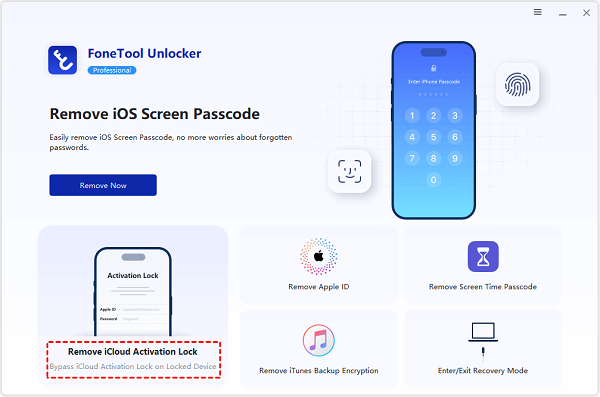
Step 3. Click "Remove Now" and follow the on-screen instructions to put your iPhone into Recovery Mode.
Step 4. Click "Download" to let the software fetch the latest firmware for your device.
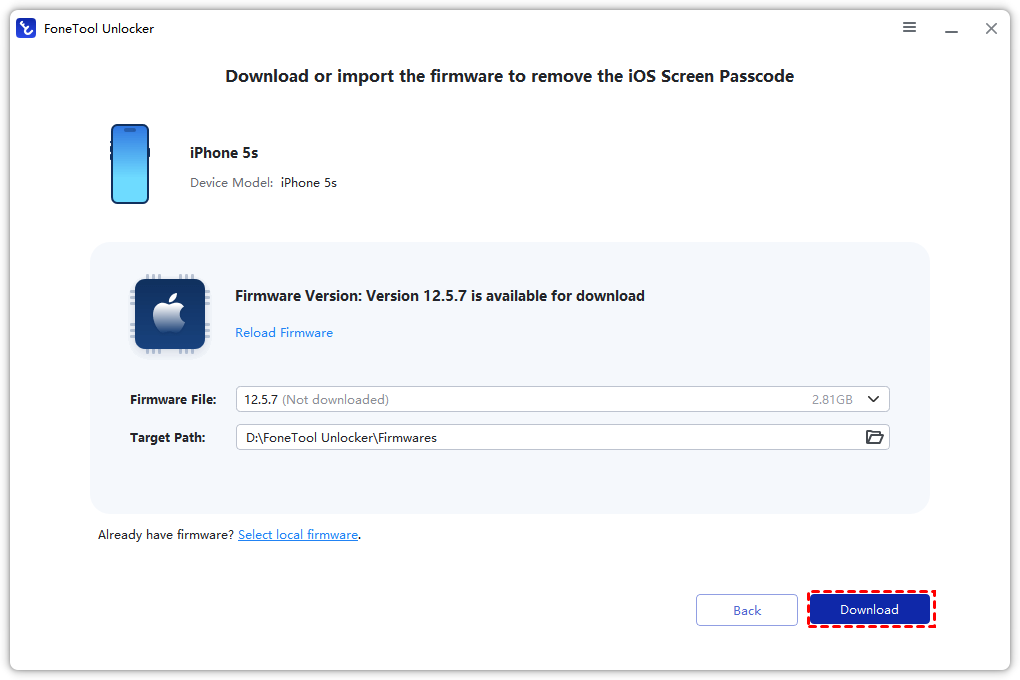
Step 5. Click "Remove Now" and wait about 5 minutes. Your iPhone restarts with no screen passcode.
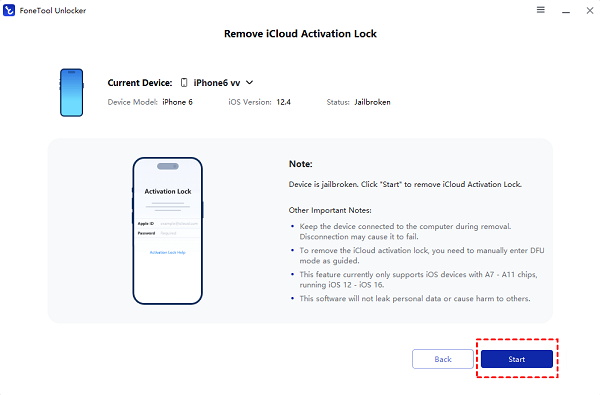
Once you're back inside your iPhone, you can add a new trusted phone number in Settings → [Your Name] → Password & Security → Trusted Phone Numbers. Then use Methods 1-4 above to sign into iCloud without verification code normally.
Method 6. Fix Verification Codes Not Arriving
Sometimes the problem isn't that you lack a trusted device, it's that the code never shows up. Try these quick fixes before assuming you're locked out.
Step 1. Restart your iPhone. This alone solves about 50% of code delivery issues.
Step 2. Toggle Airplane Mode on, wait 10 seconds, turn it off. This resets your cellular connection.
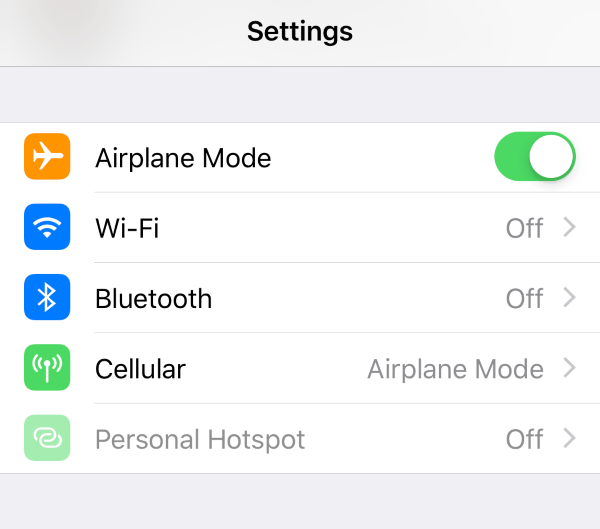
Step 3. Check your mobile signal. No bars? Move to a different location.
Step 4. Temporarily turn off Wi-Fi Calling. Some carriers route SMS differently when Wi-Fi Calling is active.
Step 5. Check if your number can receive SMS. Send yourself a test text from another phone.
Step 6. Verify your trusted phone number is correct. Go to Settings → [Your Name] → Password & Security → Trusted Phone Numbers.
Step 7. Check other Apple devices for the code. Verification codes often appear on all devices signed into the same Apple ID [18†L36-L38].
FAQs
Use Method 2 (SMS to a trusted phone number) if you have another phone number on file. If not, use Method 4 (Account Recovery) via iforgot.apple.com. The waiting period can be several days.
You can't receive codes on your old number. Start with Method 3 (reset password via iforgot.apple.com). Once you regain access, immediately update your trusted phone number in Settings.
For most personal Apple IDs created after 2016, no, Apple no longer allows 2FA to be turned off. It's a permanent security feature. The only workaround is to add multiple trusted devices and numbers to your account so you always have a backup.
You can't directly. But a friend can help you start Account Recovery (Method 4) from their browser, or they can lend you a phone to receive an SMS code if your trusted number is still active.
Apple states it can take "a few days to weeks".The exact timeline depends on how much verifiable information you provide. Contacting Apple Support will not speed it up.
If you've ever used Apple Pay, iCloud Keychain, or Find My iPhone, Apple may have automatically enabled 2FA for your account. Check your 2FA status at appleid.apple.com.
Summary
To sign into iCloud without verification code, your path depends on what you still have access to. If you have another trusted device, generate a code there instantly. If you have a trusted phone number, request an SMS or call. If you have nothing, start Account Recovery at iforgot.apple.com, it takes time but works. And if you're locked out of your iPhone itself (forgotten screen passcode or iCloud Activation Lock), FoneTool Unlocker removes the device lock first so you can then handle your iCloud login through official recovery.
FoneTool Unlocker - 1-Click iPhone Unlock Software
Easily unlock all passcodes and restrictions on your iPhone, iPad, and iPod Touch.
-
 iOS 27 Compatible
 iPhone 17 Supported
100% Secure

Kelsey is an English editor at FoneTool, passionate about helping users solve tech issues. She specializes in iPhone data management, backup, and recovery. In her free time, she enjoys learning IT skills and spending time with loved ones.
Read author info >>



 as a preferred
source on Google
as a preferred
source on Google