[Ultimate] Apple ID Password Requirements & Example & Reset
Don’t know Apple ID password requirements or how to reset your password when you forget it? Don’t worry. Strong password examples and 5 reset working methods are provided here.


When you get a new iPhone, you are struggling with Apple ID password rules, or forgot iPhone password? This guide covers Apple's official password requirements, strong password examples, and 5 proven reset methods – including step-by-step guidance for iPhone, Mac, and Apple Support.
What are Apple ID passcode requirements?
Apple password requirements are designed to protect your account and your privacy and security. If you want to create or change your Apple ID password, you must know Apple password criteria.
- Minimum 8 characters
- At least one uppercase + one lowercase letter + one number
- Special characters are allowed (!, @, #, $, %, etc)
- It can’t be a commonly used one, like password123
- Enter it twice to confirm the new passwords
- Different from your email username
If you reuse a previous password, Apple may prompt you to prevent the reuse of old passwords.
Strong Apple ID password list example
It is easy to understand the requirements for Apple ID password, but difficult to set a unique and strong password. Below are some examples that meet Apple’s requirements.
Password for Apple ID example:
| Password Examples | Construction Logic |
|---|---|
| Sun@2025!pineapple | Season + year + special character + random word |
| Coffee#Mug39!Secure | Phrase combination + number + separator |
| Tm3Tr@v31-Mars | Word transformation (Time Travel → T1m3Tr@v31) |
| Winter2024@Alps | Season + year + location |
These are some passwords for Apple ID examples. You can recreate a new and strong password after reading it. But never use these passwords directly.
5 methods to reset Apple ID password efficiently
If you want to reset your password or forget your password, you can read the following methods and choose one suitable for you.
Method 1. Remove Apple ID without password quickly
It is efficient for you to safely remove your Apple ID with FoneTool Unlocker, especially when you don’t remember your Apple ID and password. After removing your Apple ID in a few steps, you can reset your new Apple ID and password on your devices.
- ★Highlights of FoneTool Unlocker:
-
- Remove Apple ID without passcode, which helps you to link a new one.
- Stable and safe unlock process protects all your data from leakage.
- Powerful features offer a high success rate up to 99.9%.
- Delete all iPhone screen passcodes easily and quickly without entering.
- Remove Activation Lock without Apple ID.
- Wide compatibility for the latest iOS devices or iPhone/iPad
Now, free download FoneTool Unlocker and follow the steps below to make it.
Step 1. Launch FoneTool Unlocker > Connect your iPhone/iPad to PC via a USB cable.
Step 2. Select the Remove Apple ID option.
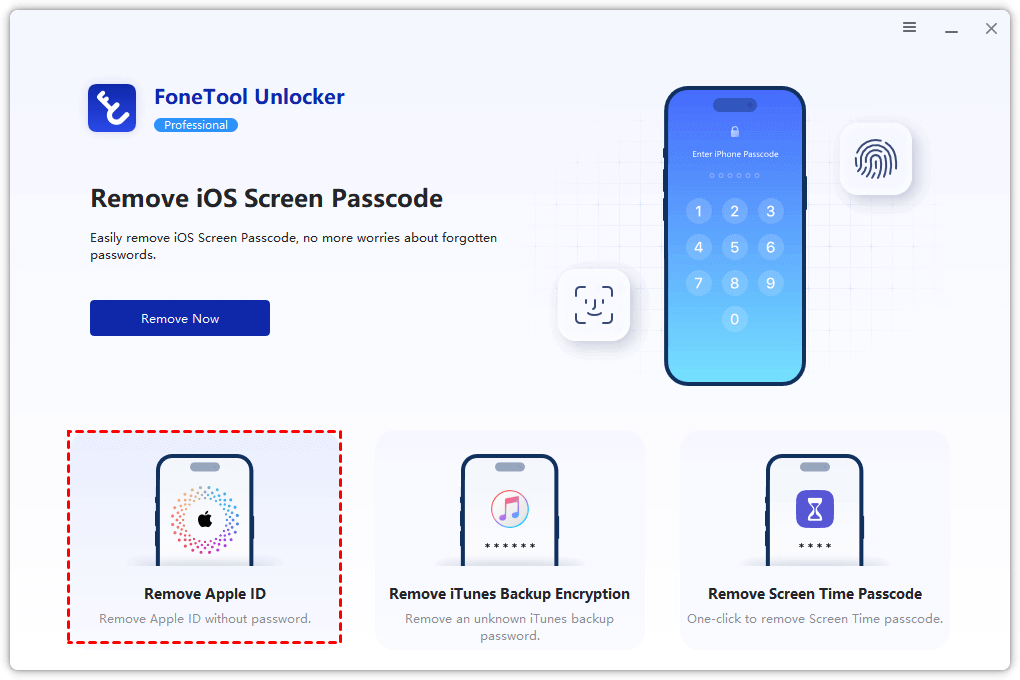
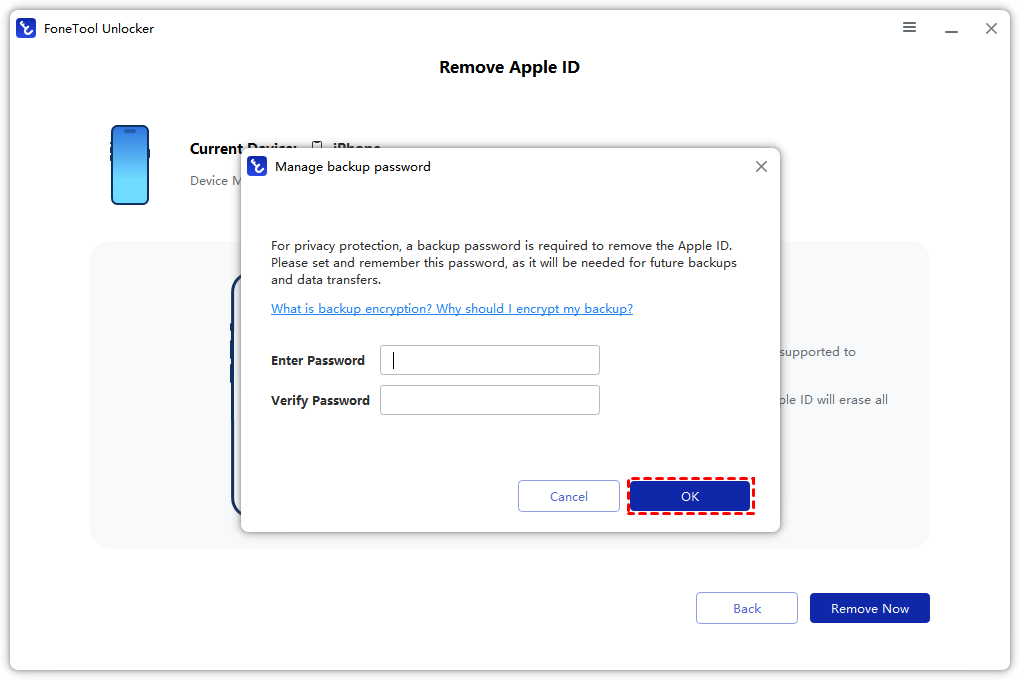
Step 3. Read the notes on screen > Set a backup password and remember it > Click OK.
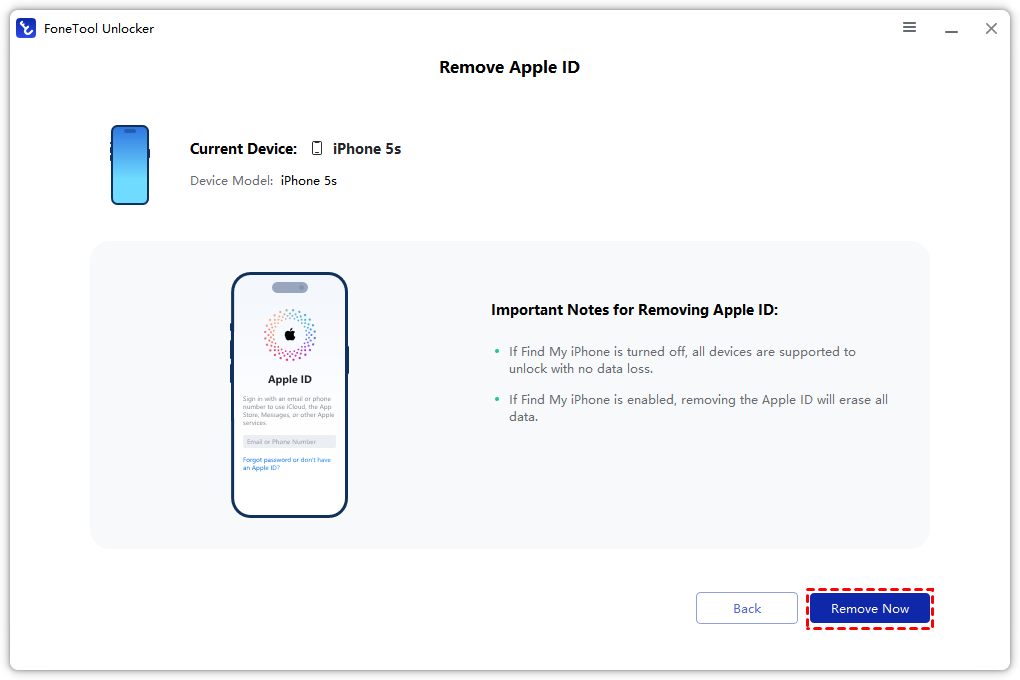
Step 4. Tap on Remove Now to remove the previous Apple ID without a password.
Method 2. Change Apple ID password via Apple website
You can change your password online if you remember your Apple ID. If you want to change your password and unlock your Apple device without Apple ID, you can check this guide. Follow the steps to reset your Apple ID password:
Step 1. Open a browser and go to Apple’s IForgot website.
Step 2. Enter your Apple ID or phone number when prompted.
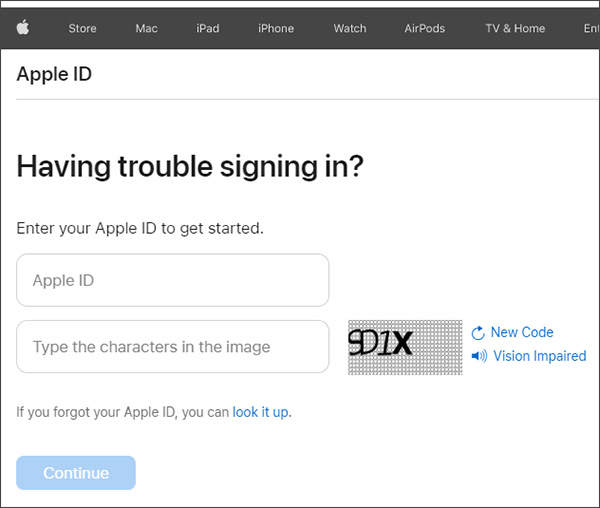
Step 3. Choose how to reset your password: receiving an email or answering security questions.
Step 4. Once verified, follow the instructions to create a new password.
Step 5. Make sure your new password meets Apple’s password requirements > Enter it twice to confirm it.
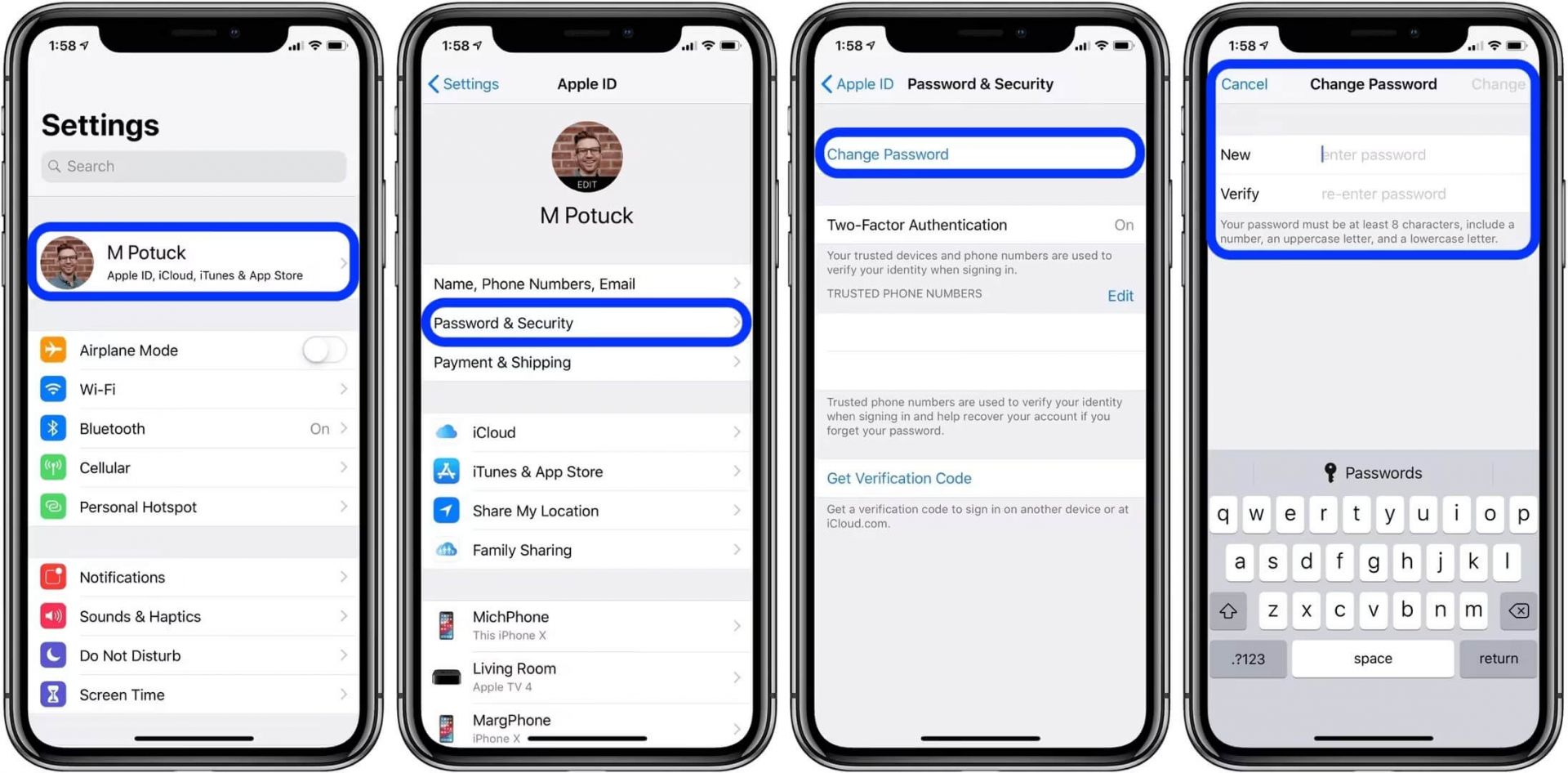
Method 3. Reset Apple ID password via Settings
If you can remember your previous password and have access to your device, you can reset your Apple ID password directly from your iOS device, such as an iPhone or iPad.
Step 1. Click Settings > User’s name.
Step 2. Tap on Password & Security > Choose Change Password.
Step 3. Follow the on-screen instructions to reset your password.
Method 4. Recover Apple ID password on Mac
If you can enter your Mac with a password, then you can easily recover your Apple ID password on your Mac.
Step 1. Tap on the Apple menu > Select System Settings.
Step 2. Sign in with your Apple ID.
Step 3. Click Sign-In & Security > Change Password.
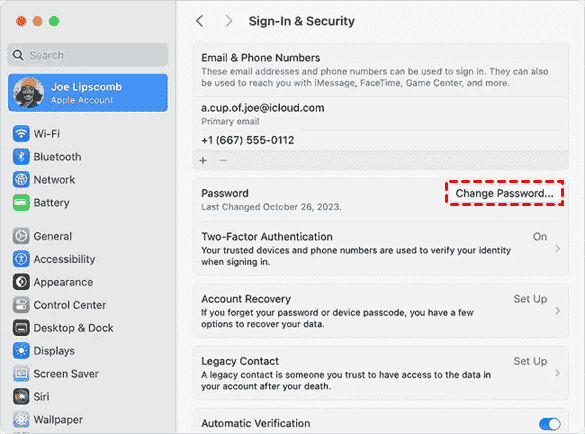
Step 4. Enter your Mac password and your new password. Reenter your new password to confirm it.
Method 5. Reset Apple ID password through Apple Support App
If the methods above can not change your Apple ID password, you can also use Apple Support for further assistance.
Step 1. Download the Apple Support App.
Step 2. Tap on Passwords & Security > Reset Apple ID password.
Step 3. Click Get Started > A different Apple ID.
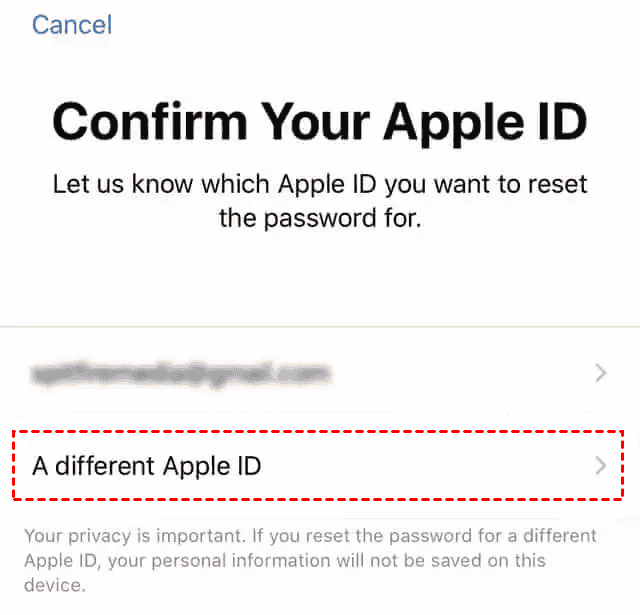
Step 4. Enter the Apple ID for which you want to change the password.
Step 5. Click Next and follow the instructions.
FAQs related to Apple ID password requirements
Conclusion
This full guide introduces what are the Apple ID password requirements and gives you some strong password examples. You can learn the methods to recreate a new password, but do not use the password in this guide. This guide also provides 5 password reset methods, like FoneTool Unlocker, Apple Web, Settings, Mac, and Apple Support app.
To easily remove Apple ID and reset your passcode on iPhone/iPad, you can try the professional FoneTool Unlocker.
FoneTool Unlocker - 1-Click iPhone Unlock Software
Easily unlock all passcodes and restrictions on your iPhone, iPad, and iPod Touch.
-
 iOS 27 Compatible
 iPhone 17 Supported
100% Secure

Scarlett is an editor of FoneTool, with years of experience in the field of mobile data backup, transfer, recovery, and data management in solving iOS-related issues. She hopes her writing can help people out of their current problems.
Read author info >>



 as a preferred
source on Google
as a preferred
source on Google