What to Do If Your iPhone Won't Go into DFU Mode
Encountering issues with your iPhone not entering DFU mode? Discover expert solutions and step-by-step troubleshooting tips in our comprehensive guide to resolve the problem effectively.


What Is DFU Mode and Why It Matters?
DFU (Device Firmware Update) mode allows your iPhone to communicate with iTunes or Finder without loading iOS. This makes it invaluable for:
-
Resolving severe software crashes and errors
-
Restoring your device when recovery mode fails
-
Installing clean firmware updates
Unlike recovery mode, DFU mode gives you deeper system access for tougher troubleshooting scenarios.
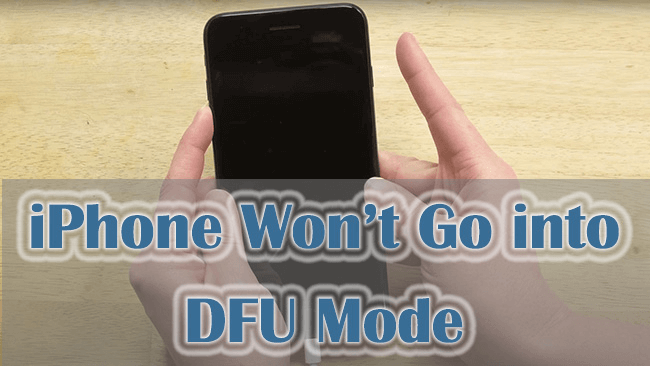
Common Reasons Your iPhone Won't Enter DFU Mode
Before diving into troubleshooting solutions, it's essential to understand the common reasons why your iPhone may be experiencing difficulty entering DFU mode. Some of the most common causes include:
-
Button problems - Malfunctioning Home, Side, or Volume buttons
-
Port issues - Damaged or dirty Lightning ports
-
Software glitches - iOS or iTunes conflicts
-
Wrong timing - Incorrect button press sequence or duration
-
Outdated software - Old iOS or iTunes versions
-
Physical damage - Liquid exposure or impact damage
Now that you know what might be causing the problem, let's look at how to fix it.
How to Fix iPhone DFU Mode Issues: Step-by-Step Guide
Follow these methods in order until you find what works for your situation.
Step 1. Inspect Physical Components
Start with the basics - inspect your iPhone's buttons and ports for damage or debris. Clean them gently with a dry, soft brush.
- ★Tip:
- Pay special attention to the Lightning port, where lint and dust often accumulate.
Step 2. Test Different Connectivity Options
Try another USB cable, different computer port, or alternate computer to rule out connection problems.
Step 3. Update Your Software
Ensure you're running the latest iOS on your iPhone and newest iTunes/Finder on your computer.
Step 4. Master the DFU Mode Sequence
Getting the button sequence right is crucial. Here's the proper technique:
iPhone 8 & Newer:
- Connect to computer and open iTunes/Finder
- Quickly press/release Volume Up, then Volume Down
- Hold Side button until screen goes black
- Immediately press/hold Volume Down + Side button for 5 seconds
- Release Side button but keep holding Volume Down
iPhone 7 & 7 Plus:
- Connect to iTunes/Finder
- Hold Side + Volume Down for 8 seconds
iPhone 6s & Earlier:
- Connect to iTunes/Finder
- Hold Home + Top buttons for 8 seconds
- Release Power button but keep holding Home
- ★Tip:
- iTunes should detect a device in recovery mode without showing the Apple logo.
Step 5. Seek Professional Help
If nothing works, contact Apple Support or visit an Apple Store. There might be a hardware issue needing expert repair.
Bonus: How to Protect iPhone Data from Loss
Are you concerned about the security of your iPhone data? FoneTool provides a reliable solution to protect your sensitive information from unauthorized access or loss. In this comprehensive guide, we'll walk you through the process of using FoneTool to safeguard your iPhone data effectively.
🚀 Lightning-Fast Backups - Enjoy local backup speeds 3x faster than iCloud, saving you time and storage space
🔒 Military-Grade Security - AES-256 encryption ensures your photos, messages, and files stay completely private
🎯 Smart Selective Backup - Choose exactly what to save - no more wasting space on unnecessary files
💫 Universal Compatibility - Works with all iPhone, iPad, iPod models and the latest iOS version
Step 1. Download and install FoneTool on your computer > Connect your iPhone via USB cable.
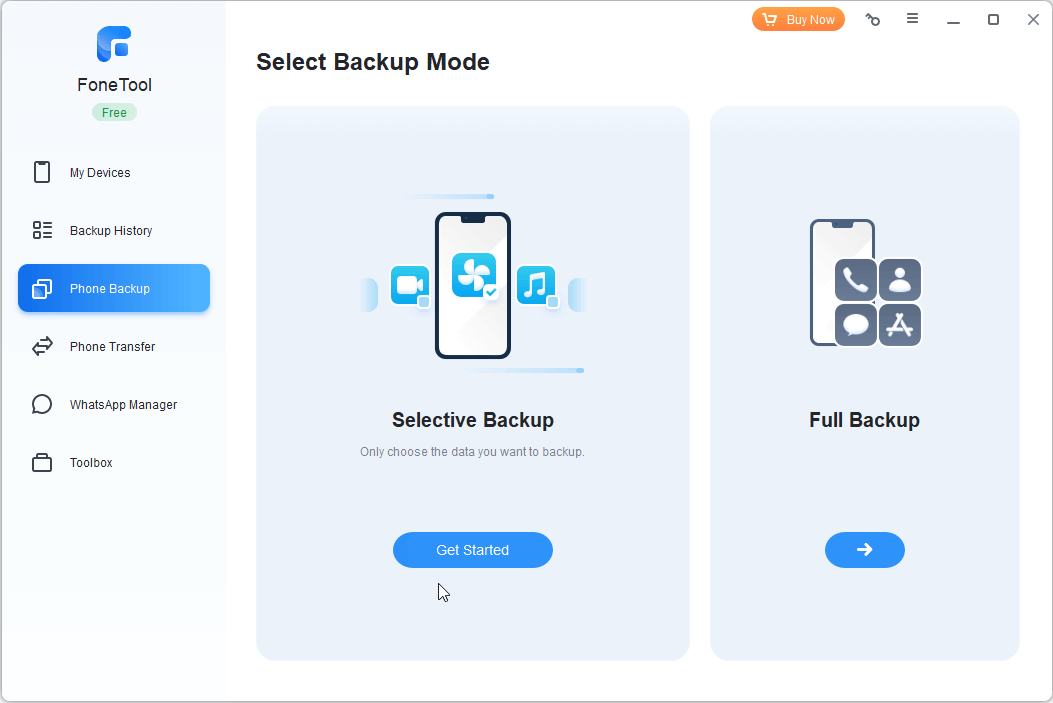
Step 2. Launch FoneTool and select Phone Backup > Selective Backup.
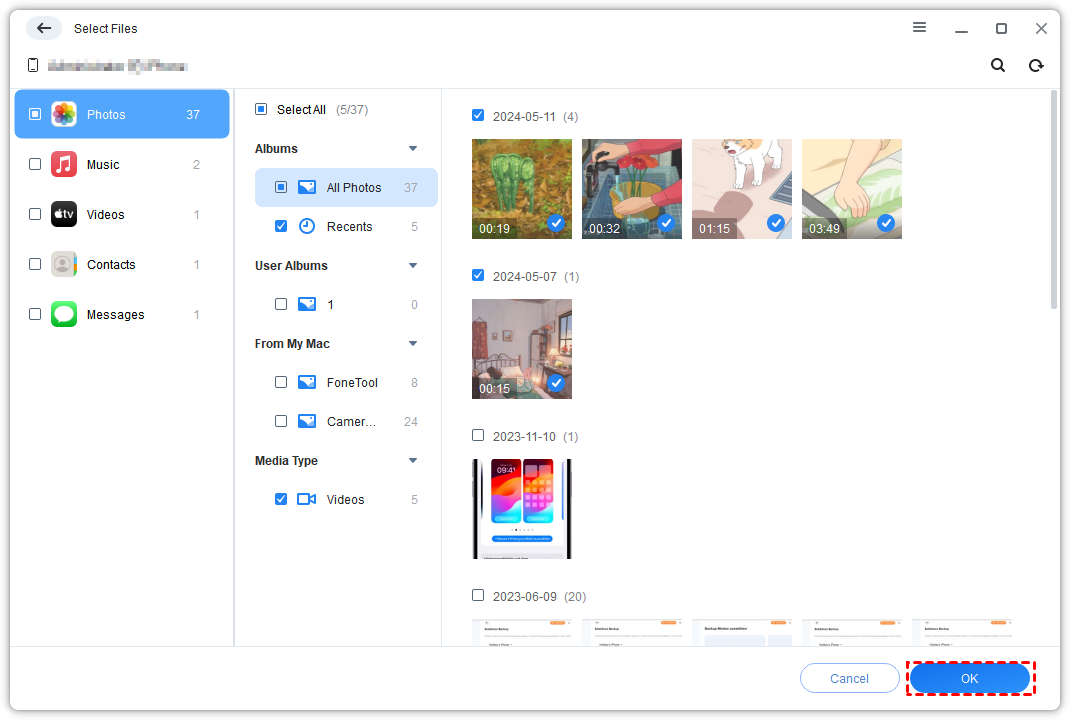
Step 3. Choose data types to protect > Tap OK.
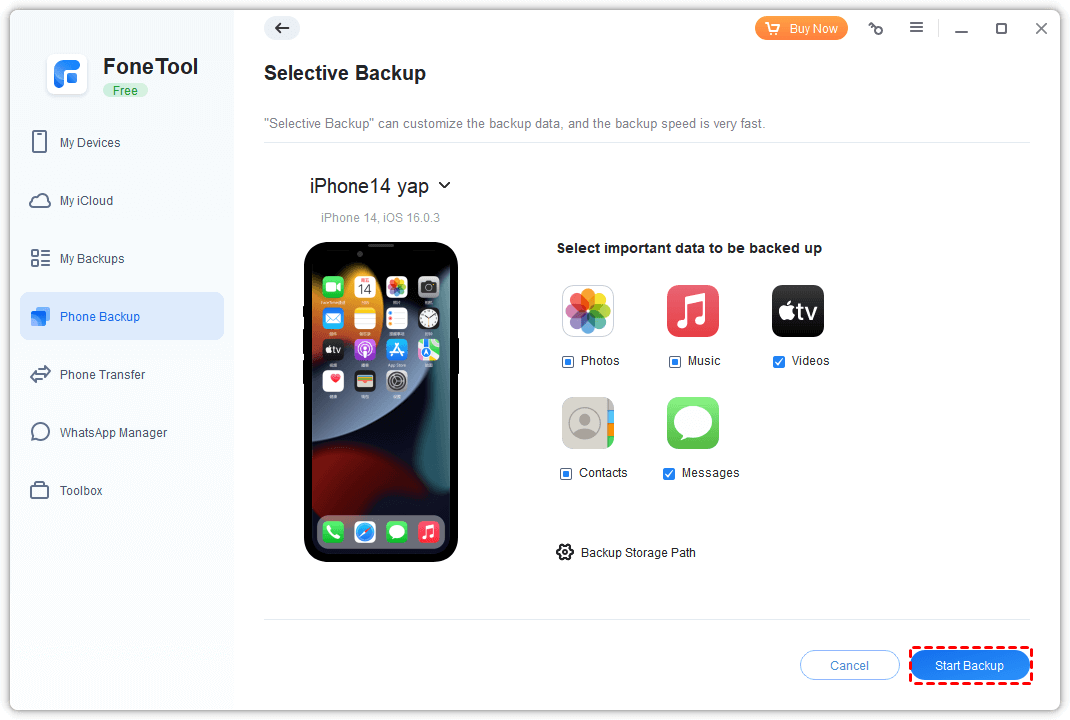
Step 4. Enable encryption and set a strong password > Click Start Backup.
- ★Tip:
- FoneTool provides local backup with military-grade encryption, perfect for pre-repair data protection.
Final Word
Dealing with an iPhone that won't enter DFU mode can be challenging, but these solutions typically resolve the issue. Start with basic hardware checks, ensure you're using the correct button sequence for your iPhone model, and don't hesitate to try different computers or cables. If all else fails, Apple Support can provide professional diagnostics. Remember to always backup your data before attempting any major repairs or system restores.
FoneTool - All-in-one iPhone Data Manager
Transfer, backup and manage data on iPhone, iPad and iPod touch in an easy way.
-
 iOS 27 Compatible
 iPhone 17 Supported
Windows 11/10/8/8.1/7

100% Secure

Kelsey is an English editor at FoneTool, passionate about helping users solve tech issues. She specializes in iPhone data management, backup, and recovery. In her free time, she enjoys learning IT skills and spending time with loved ones.
Read author info >>



 as a preferred
source on Google
as a preferred
source on Google