Custom Text Tone iPhone: 3 Easy Ways to Personalize Alerts
Learn how to create custom text tones for iPhone using 3 reliable methods, to stand out your notifications from the rest.


Want to make your iPhone truly yours? Custom text tones let you personalize your device, making it easy to identify specific contacts or simply express your style. This guide will show you exactly how to get and set custom text tones on your iPhone.
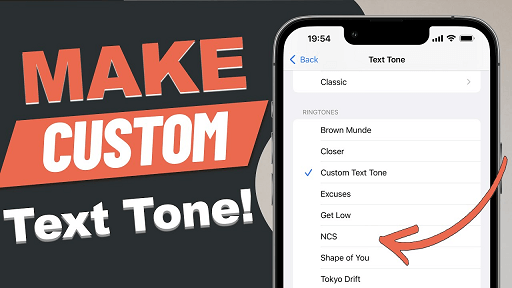
Part 1. Where to Get Custom Text Tones for iPhone
Looking for the perfect sound? You have several options for sourcing custom iPhone's text tones, from Apple's official store to free alternatives.
Option 1. Custom Text Tone for iPhone from Tone Store
Apple's Tone Store offers a wide selection of professional tones, including songs, movie sounds, and original creations. Here are the steps how you can buy a text message tone from Tone Store.
Step 1. Go to Settings > Sounds & Haptics > Text Tone.
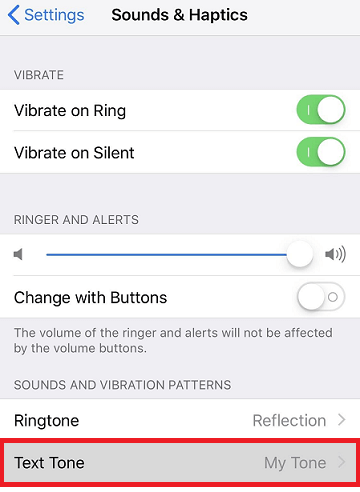
Step 2. Tap Tone Store > Continue (first-time users) > Tones.
Step 3. Preview tones by tapping them, then tap the price to purchase.
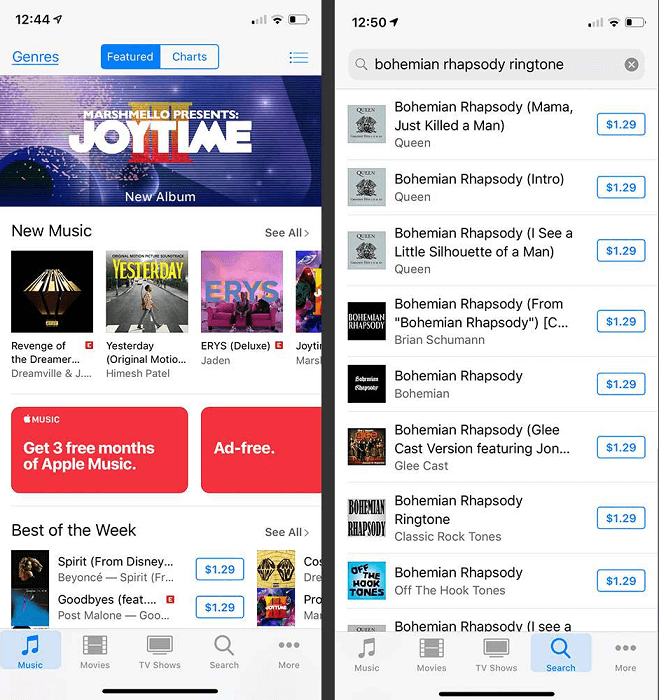
Step 4. Choose to set as default tone, assign to contact, or tap Done.
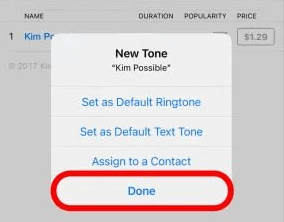
Note: If you tap Done, download purchased tones later via Settings > Sounds & Haptics > Text Tone > Download All Purchased Tones.
Option 2. Custom Text Tone for iPhone from iTunes
For those who want complete creative control, iTunes lets you turn any song into a custom text tone.
Make text tone in iTunes
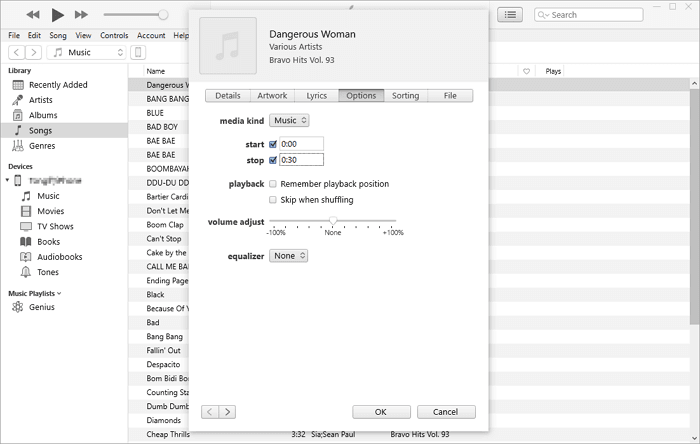
Step 1. In iTunes, right-click your chosen song > Song Info > Options.
Step 2. Set start/stop times (max 30 seconds) > OK.
Step 3. Select song > File > Convert > Create AAC Version.
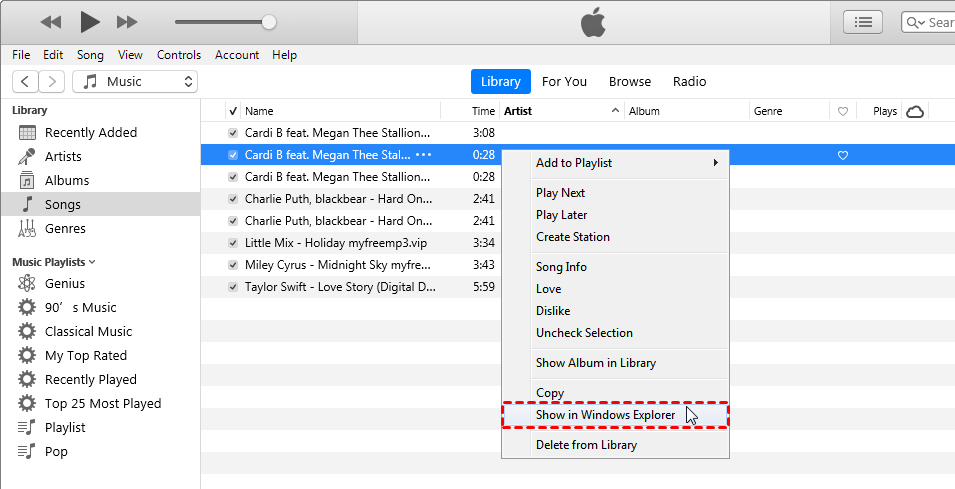
Step 4. Right-click the new AAC file > Show in Windows Explorer > Change .m4a to .m4r.
Sync text tone to iPhone
Step 1. Connect iPhone > Click device icon in iTunes.
Step 2. Go to Summary > Check Manually manage music and videos > Apply.
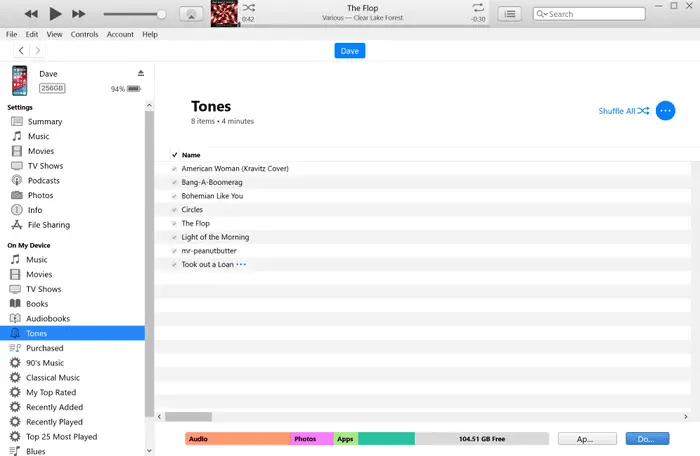
Step 3. Select Tones tab > Drag your .m4r file to iTunes.
Option 3. Custom Text Tone for iPhone via FoneTool (Easy & Free)
Want to avoid costs and complexity? FoneTool offers the easiest way to create custom tones from any audio file. It’s not only a professional data backup & transfer tool, but also a nice assistant to make text tone and ringtone with one click.
- Multiple sources: Use files from your iPhone or computer
- Simple process: One-click conversion and transfer
- File protection: Original audio files remain untouched
- Wide compatibility: Supports MP3, WAV, AAC files and all iOS devices

100% Secure
Click the download button to get this freeware on your Windows PC, and follow the steps to customize iPhone text tones.
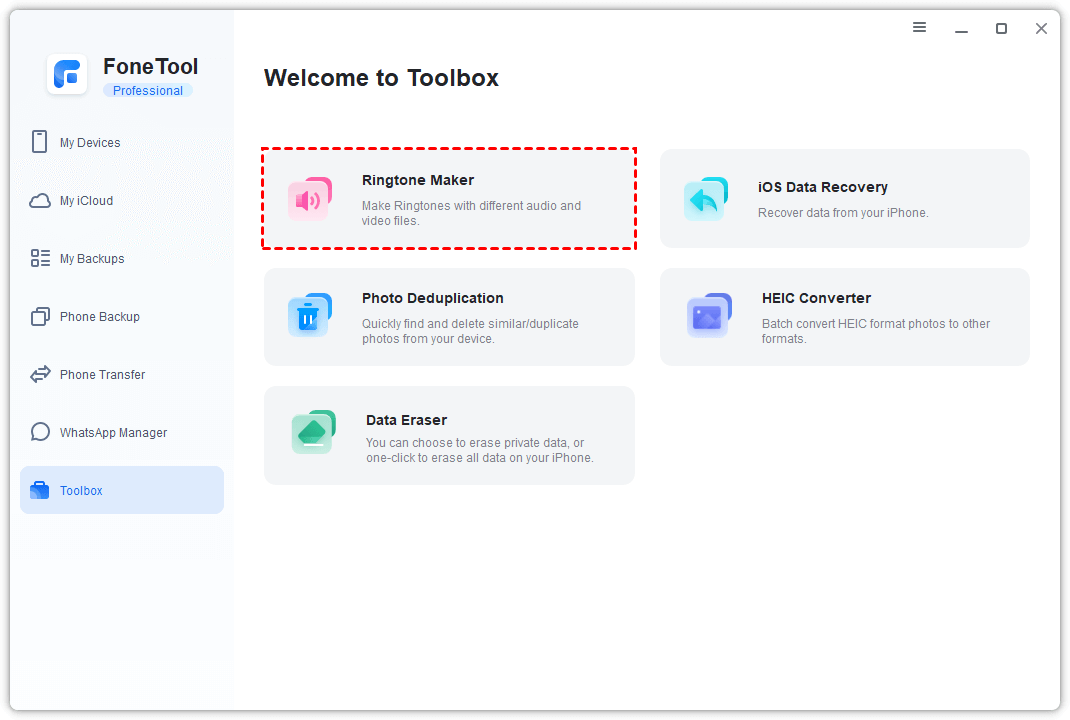
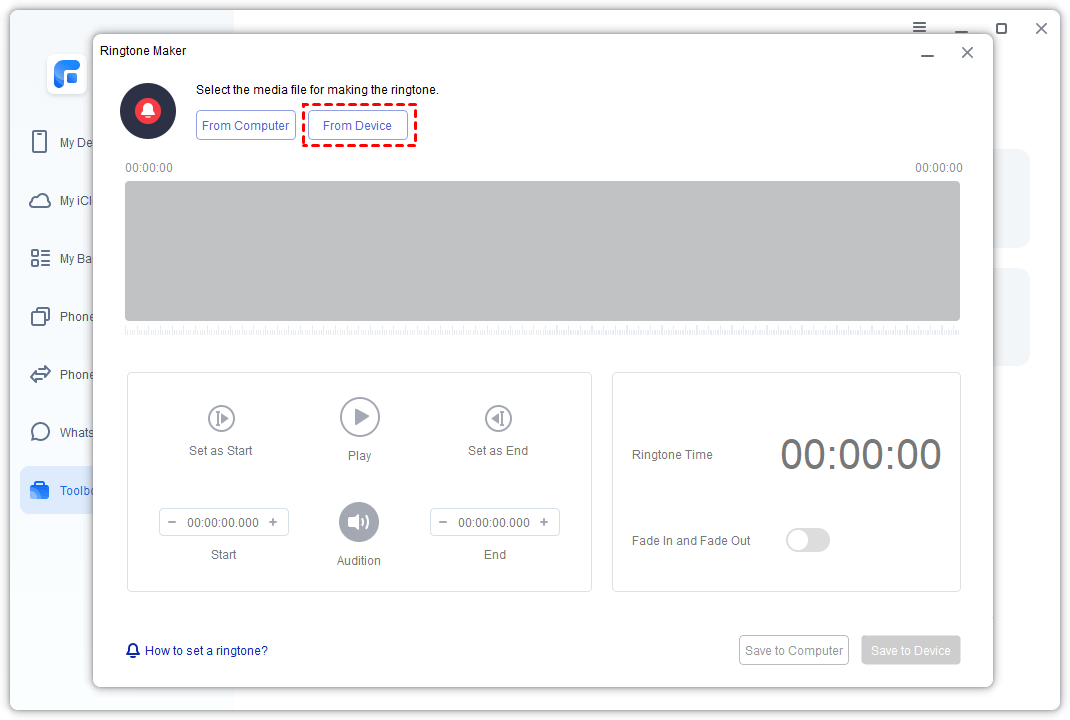
Step 1. Connect iPhone to computer > Open FoneTool > Toolbox > Ringtone Maker.
Step 2. Choose From Computer or From Device > Select your audio file > Select.
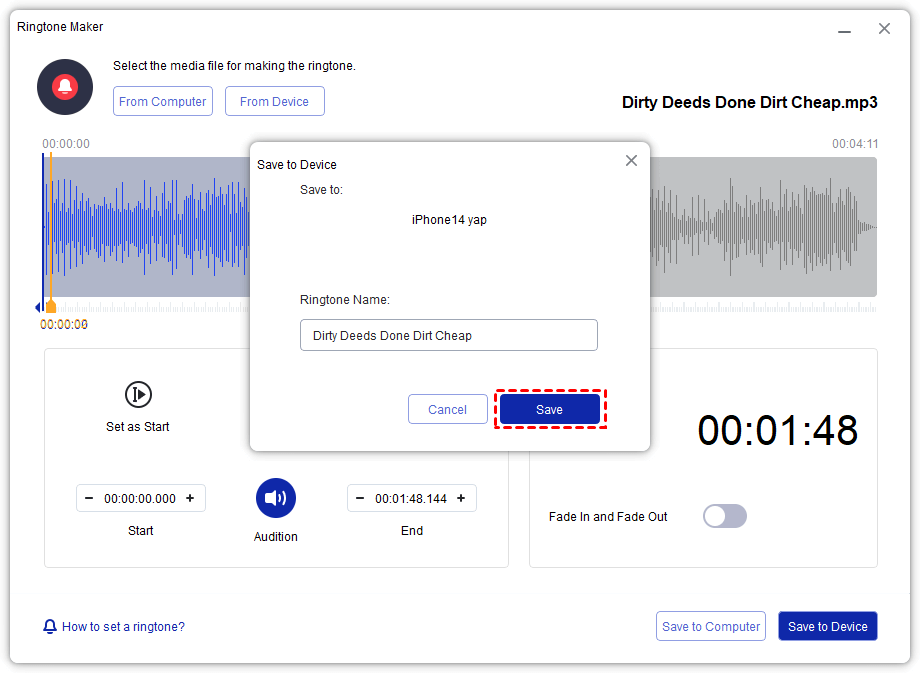
Step 3. Edit the audio segment > Save to Device > Save to confirm.
Part 2. How to Change Custom Text Tone on iPhone
Once you have your custom tones, here's how to assign them on your iPhone. Whether you’d like to change the default text tone for all or assign a custom text tone to individuals, this part gets you covered.
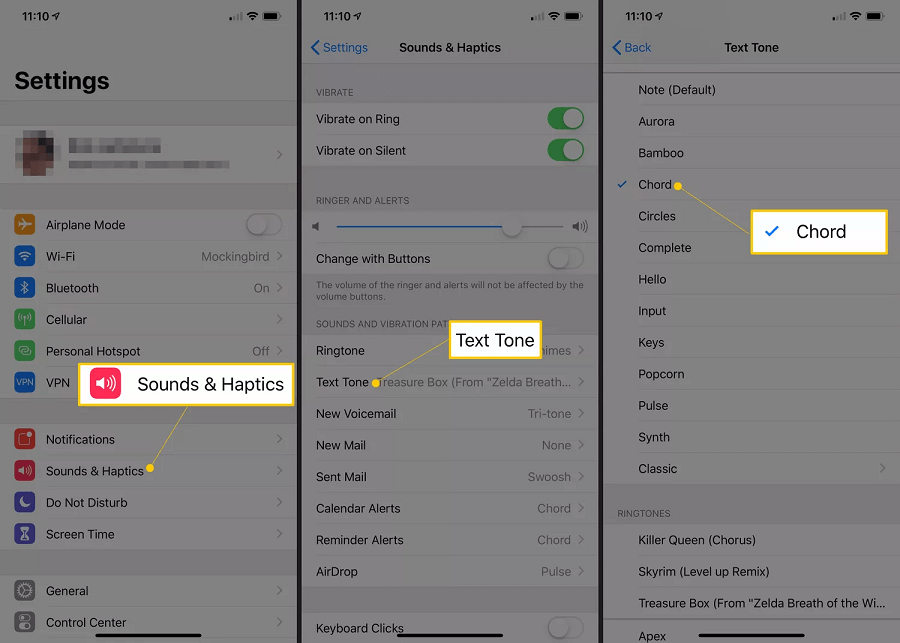
How to change the default text tone for iPhone
Step 1. Go to Settings > Sounds & Haptics > Text Tone.
Step 2. Browse available tones > Select your custom tone (it saves automatically).
How to assign custom text tone to individuals
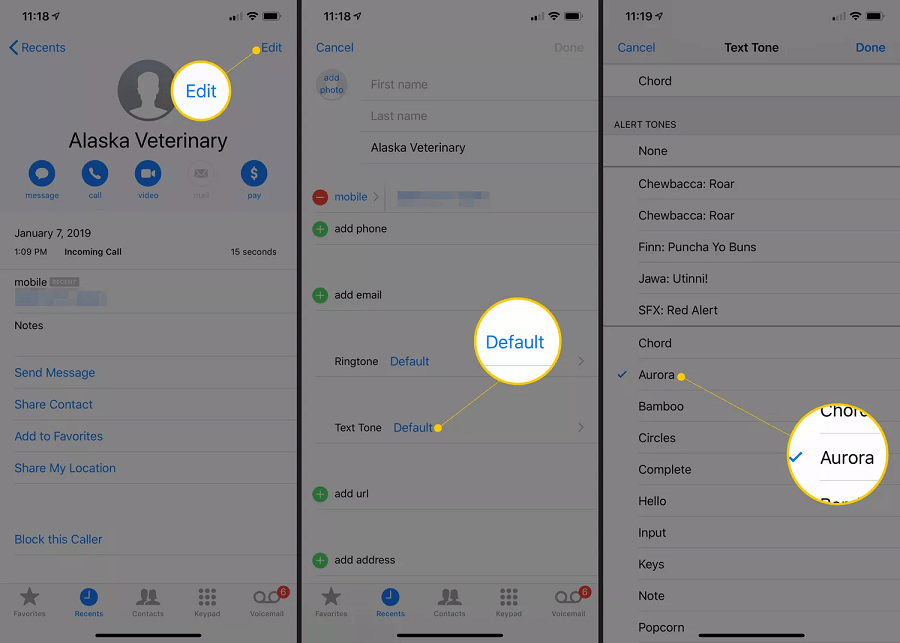
Step 1. Open Contacts app > Choose contact > Edit.
Step 2. Tap Text Tone > Select your preferred tone > Done.
Conclusion
Creating custom text tones for your iPhone doesn't need to be complicated or expensive. Whether you choose ready-made tones from Apple's store, craft your own through iTunes, or use the simplicity of FoneTool, you now have all the tools to personalize your device's sounds. For the easiest and most flexible experience, FoneTool lets you quickly convert any audio file into a perfect text tone without technical hassle.
FoneTool - All-in-one iPhone Data Manager
Transfer, backup and manage data on iPhone, iPad and iPod touch in an easy way.
-
 iOS 27 Compatible
 iPhone 17 Supported
Windows 11/10/8/8.1/7

100% Secure

Kelsey is an English editor at FoneTool, passionate about helping users solve tech issues. She specializes in iPhone data management, backup, and recovery. In her free time, she enjoys learning IT skills and spending time with loved ones.
Read author info >>



 as a preferred
source on Google
as a preferred
source on Google