[Solved] iOS 18/26 Not Enough Storage for Update but There Is
Discover 8 fixes for iOS 18/26 not enough storage when updating, even when space is available. This post give ways to clear data, backup iOS, and alternative updates.


Many users find that their phones seem to have enough space, but they still encounter the "iOS 18/26 not enough storage" prompt when upgrading to iOS 26. Why does this happen? This is usually caused by system cache, temporary files, or hidden data taking up storage space. In this article, we will show you 8 effective ways to quickly solve this problem and complete the update smoothly.
How to Fix iOS 18/26 Not Enough Storage on iPhone for Update - 8 Ways
In this section, you can learn 8 efficient ways to resolve the issue of “Not Enough Space iOS 18”, so you can free up necessary storage and successfully update your iPhone.
Way 1. Fix iOS Update Error with FoneTool Repair
When your iPhone insists there’s not enough storage for an update—even when it looks like there should be—it’s often due to hidden system glitches or cached files. While basic cleaning helps, sometimes you need a tool that goes deeper. That’s where FoneTool Repair comes in.
It’s a dedicated iOS system repair utility that tackles stubborn system errors preventing updates—even when storage seems available. Whether you're trying to upgrade, downgrade, or simply exit recovery mode, FoneTool Repair delivers a smooth and reliable fix without data loss.
This powerful iOS system repair tool is the best way to fix iOS/iPadOS issues without data loss
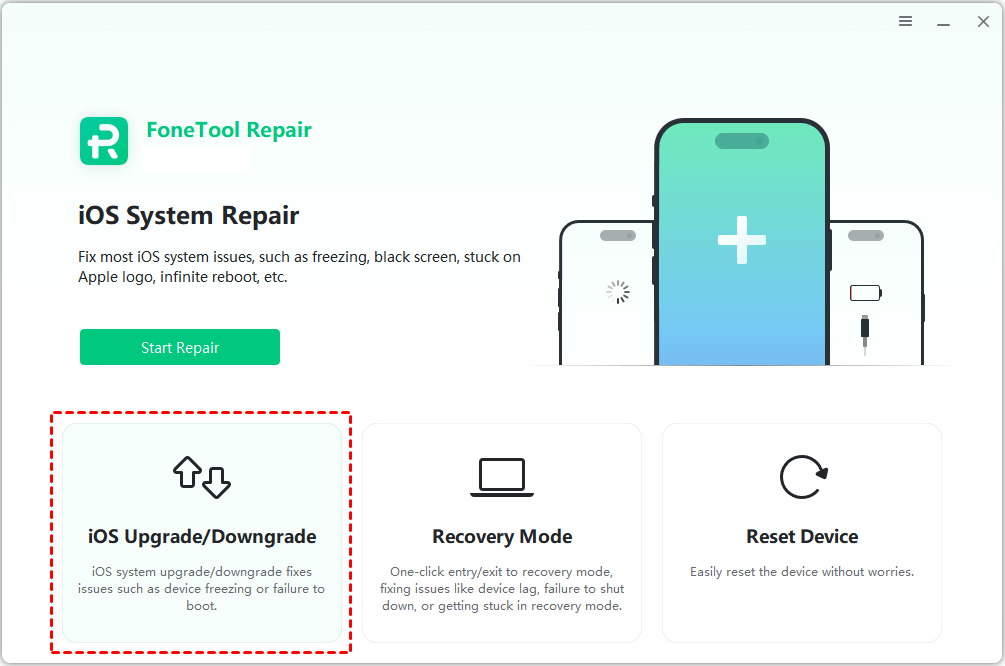
Step 1. Connect the iPhone to the computer > open FoneTool Repair > click iOS Upgrade/Downgrade.
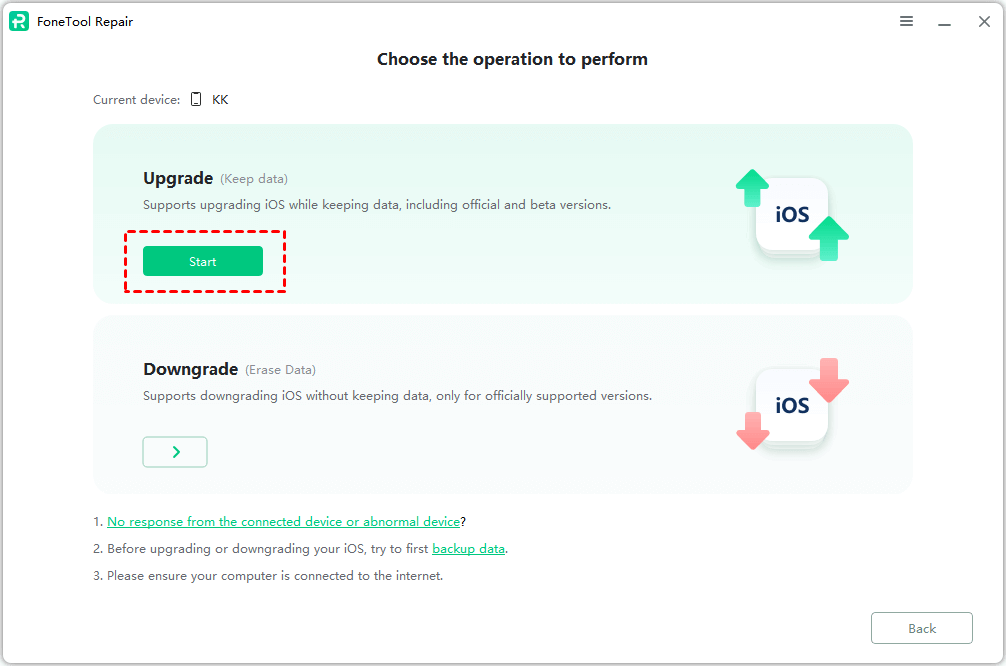
Step 2. We take updating an iPhone as an example, tap Upgrade, and tap Start.
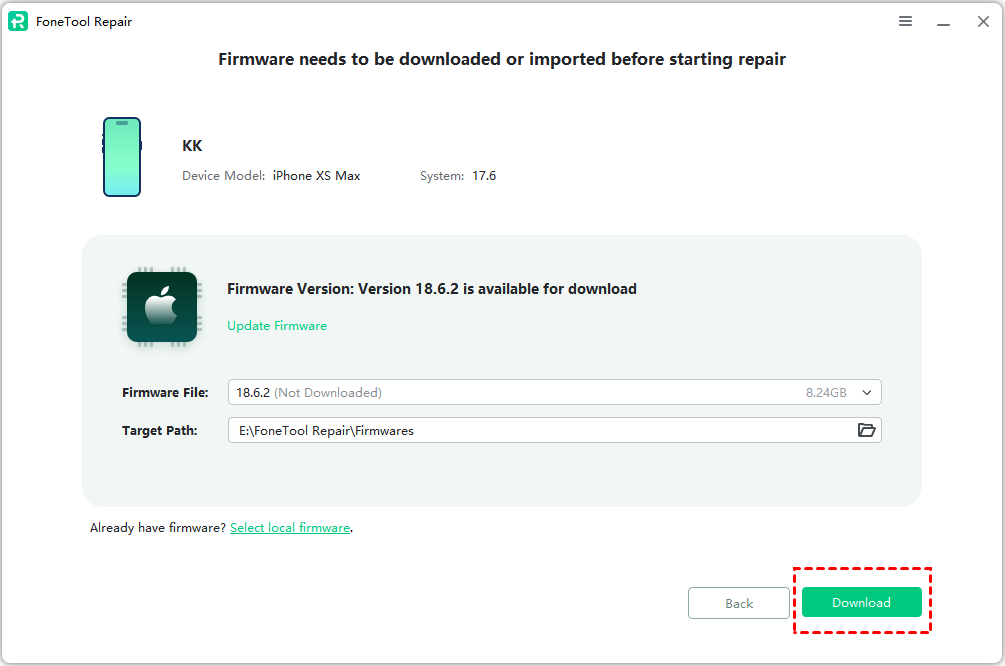
Step 3. Hit the Download section to download a new version of the firmware file.
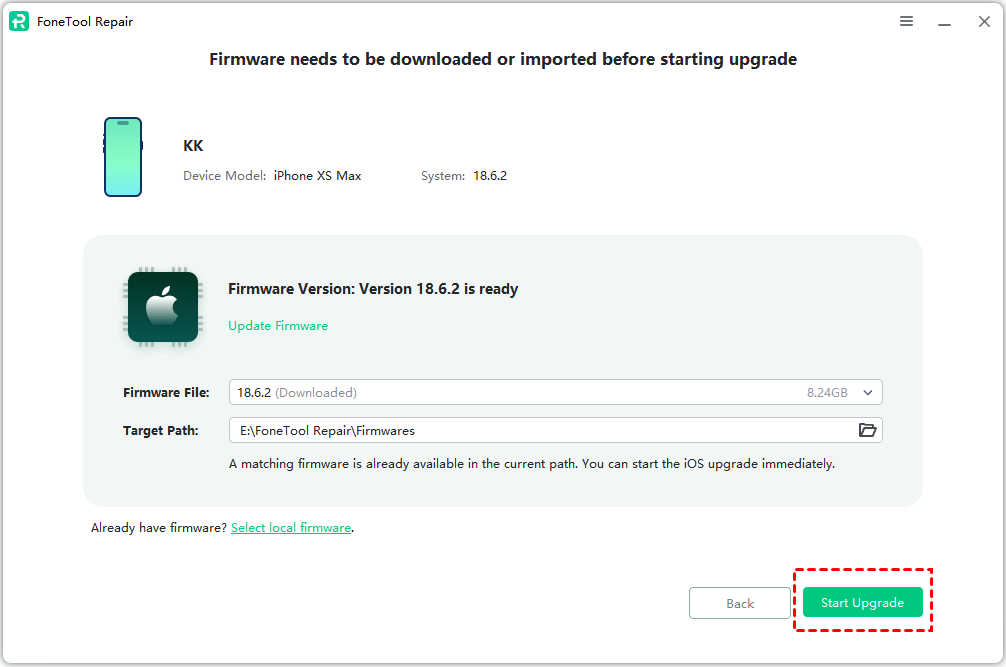
Step 3. Once it finished the download task > tap Start Upgrade to begin the task.
Way 2. Use FoneTool to Erase Unnecessary Data
Temporary cache files, unnecessary app data, and files required for system updates often take up a lot of space, causing iOS to lack sufficient storage space. FoneTool offers a one-click feature to erase iPhone unnecessary data, helping users instantly free up storage space needed for updates.
If iOS 18/26 not enough storage, you can follow the simple steps below to manage storage on iPhone:
Step 1. Connect your iPhone to the PC via USB > download and launch FoneTool > click Toolbox > choose Data Eraser.
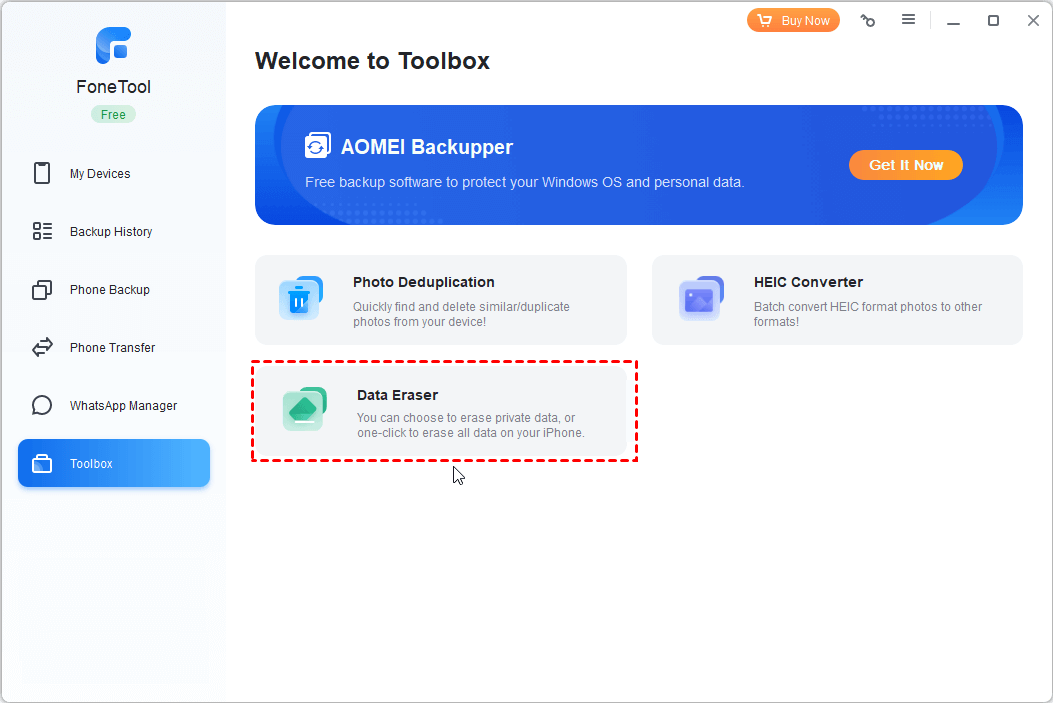
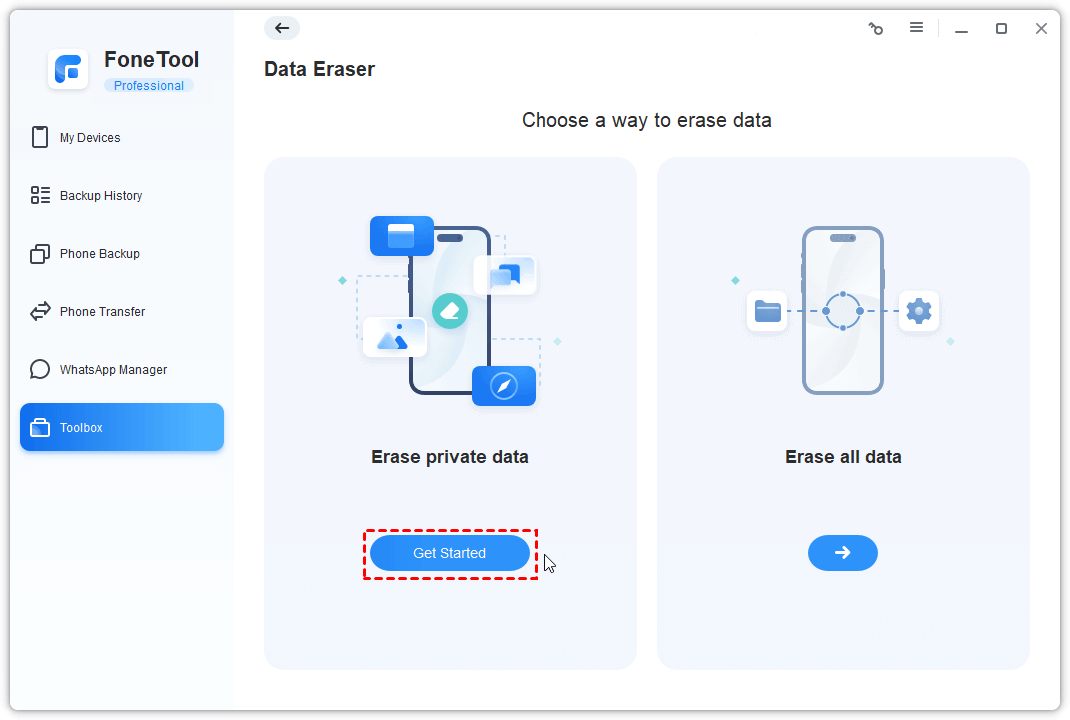
Step 2. From there, you can selectively delete data, or erase iPhone with 1-click > we select Erase private data > tap Get Started.
Step 3. Click the icon to choose the data as you like > check Enable Deep Erase Technology to ensure complete data erasure > tap Start Erase.
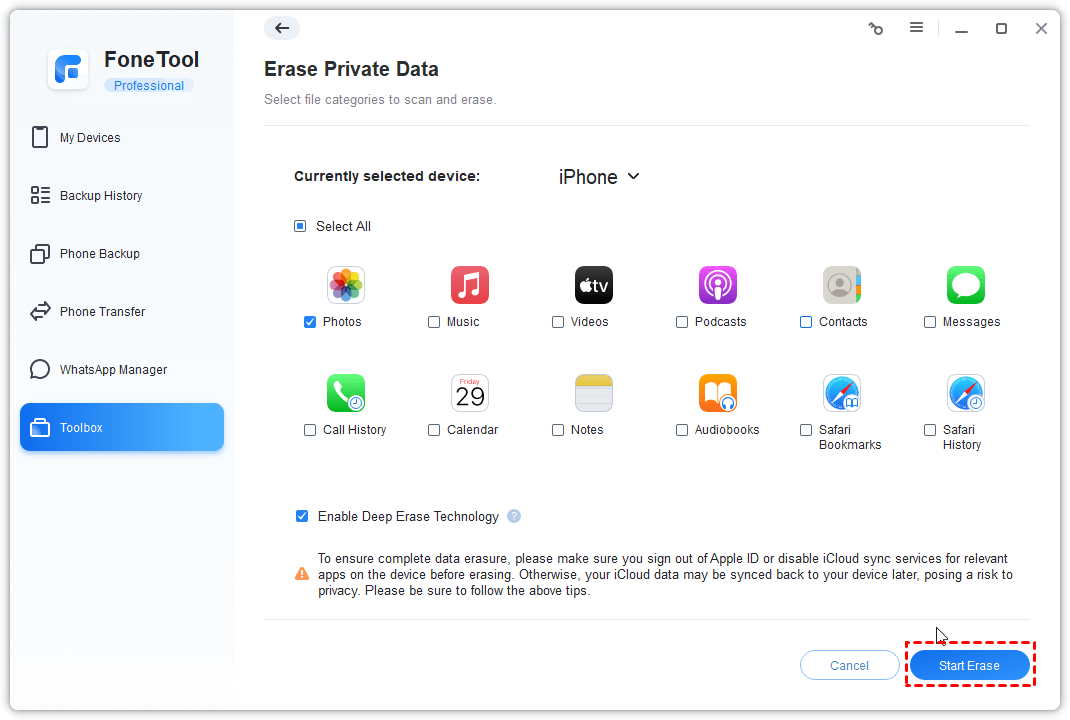
FoneTool supports you to deep clean up your iPhone private data, photos, videos, contacts, messages, music, call history, Safari history, notes, etc.
Way 3. Restart the iPhone to Refresh Temporary Storage
Restarting your iPhone is a simple yet effective solution that can help clear temporary data and cache from the system. If you encounter the situation of iPhone says not enough storage for update but there is, you can try this method.
For iPhone 8 Plus/8/X or later: Quickly press and release the Volume Up button > Press and release the Volume Down button > Then press and hold the side button until Apple logo does appear on your screen.
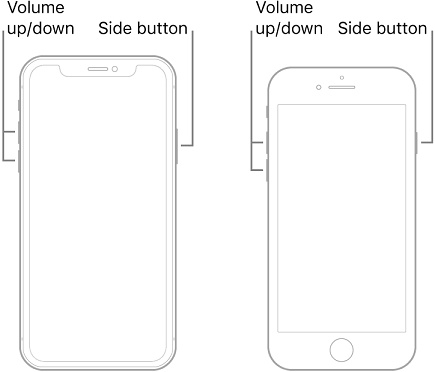
For iPhone 7 Plus or 7: Press and hold Sleep/Wake and Volume Down buttons > Maintain the pressure on them until the Apple logo appears on the iPhone screen.
For iPhone 6 or earlier: Press and hold the Home button and Sleep/Wake button > Keep holding on both buttons until the Apple logo shows on your screen.
Way 4. Reset All Settings on iPhone
Resetting all settings is another way to fix low storage issues and is good for space occupied by system cache and incorrect settings. This method allows users to restore their device to default settings without affecting their personal data.
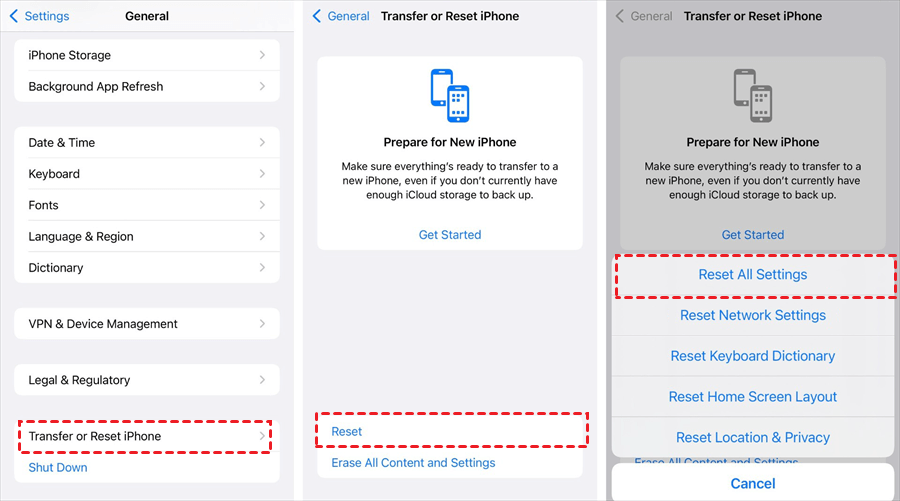
Step 1. Go to Settings app on iPhone > Scroll down and select General.
Step 2. Choose Transfer or Reset iPhone > Within this menu, selecting Reset > And then tap Reset All Settings.
Step 3. Enter the passcode of your iPhone > Once entered, click on Reset All Settings once again to confirm the reset.
Way 5. Clear Safari Cache and Website Data
Safari cache and website data can take up a lot of storage space, especially if you use the web browser frequently. However, over time, Safari cache data can accumulate, taking up storage space and affecting system updates.
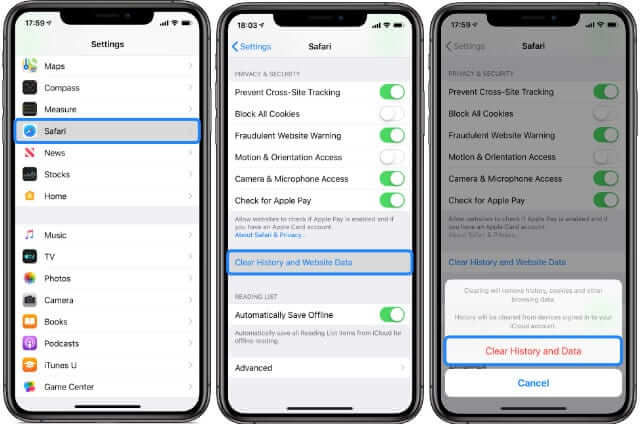
Step 1. Open the Settings app on the iPhone.
Step 2. Scroll down and find Safari.
Step 3. Tap Clear History and Website Data.
Step 4. When a pop-up menu, tap Clear History and Data.
Way 6. Offload Unused Apps to Clear Space
Uninstalling infrequently used apps is a great way to easily free up storage space, especially for apps that are large in size but rarely used. iPhone provides an option to offload unused apps, allowing users to delete apps but retain their data so that they can be restored later without losing any information.
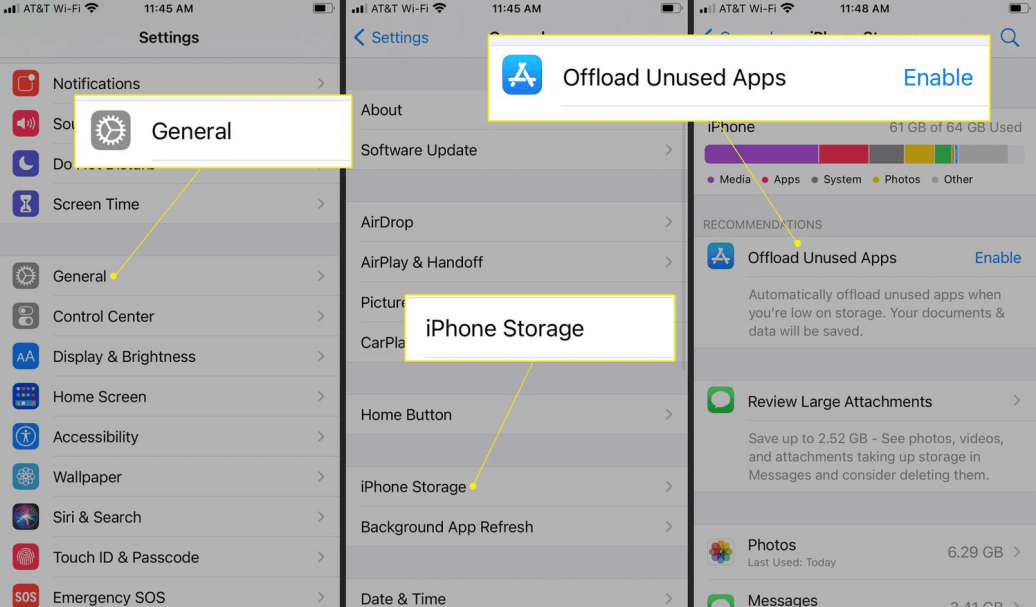
This method is very effective in optimizing daily storage and solving the problem of insufficient storage space for iOS updates.
Way 7. Delete Large iMessage Attachments and Conversations
Photos, videos, and other attachments stored in the Messages app can take up a lot of storage space, making your device appear to have less storage space. Messaging conversations, especially those with high-resolution images and videos, can fill up your device over time. Users can easily free up storage space by deleting unwanted iMessage attachments and old chat history.
Way 8. Close iCloud Photo Library Service
Turning off iCloud Photo Library service can effectively avoid duplication of local storage space. If you are running out of storage space, we recommend that you temporarily turn off iCloud Photo Library to reduce local storage usage.
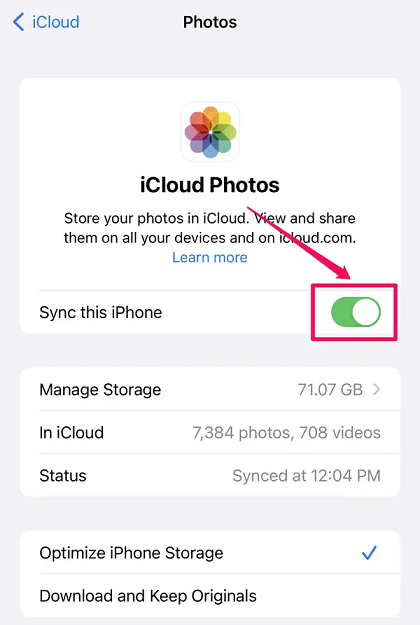
Step 1. Go to the Settings app.
Step 2. Tap [your name] > Choose iCloud > Photos.
Step 3. Toggle off the switch next to Sync This iPhone.
Conclusion
That’s all about how to fix iOS 18/26 not enough storage for update but there is. Whether it is the update failure caused by insufficient space or the system bug of iPhone, you can find the appropriate method in the article.
For basic cleaning, FoneTool helps clear unnecessary files. But for deeper system issues like update failures, recovery mode loops, or upgrade errors, FoneTool Repair offers a professional one-stop solution with minimal effort. It supports all iOS versions and devices—fixing what other methods can’t.
Fixes 160+ iOS/iPadOS issues, boot loops, crashes, failed updates, with no data loss.
-
 iOS 27 Compatible
 iPhone 17 Supported
100% Secure

Clara is an editor of FoneTool, she helps people with issues related to the area of iPhone, including iPhone data backup & restore & transfer & erase and so on. Helping people solute to their problems makes her happy. She loves her family and enjoys going to the movies.
Read author info >>



 as a preferred
source on Google
as a preferred
source on Google