How to Fix “iOS 26 Stuck on Preparing Update” Easily
After upgrading to iOS 18 version, some users are experiencing the issue of “iOS 18 stuck on preparing update”. If you find your iPhone in a similar state when updating to iOS 26/18, read this post to learn effective ways to fix it.


iOS updates always take a considerable amount of time to complete. As a result, iPhones usually prompt users to update during off-peak hours. Despite this, it's common for iPhone users to meet the issue of “iOS 18 stuck on preparing update”. Why does this happen and what's the remedy? Dig deeper into the subsequent guides to discover ways to quickly update iOS and avoid constant hang-ups.
What Is “Preparing Update”?
Preparing Update represents a critical stage in the iPhone update process, when you try to download an update and apply it to your device. Once downloaded, the update goes through a preparation task before it can be implemented on the phone.
The iOS “prepare for update” sequence is usually completed within a few minutes. However, due to various factors, it may take longer than that. Delays often stem from incomplete update downloads, network connectivity issues, or glitches in existing iOS settings that prevent the seamless installation of new updates.
In addition, physical damage to the device may disrupt its normal operation, affecting the download, preparation, and installation of updates on iPhone. In this case, it may be necessary to seek help from a repair service to correct the problem.
How to Fix iOS 26/18 Stuck on Preparing Update - 3 Simple Ways
Have you encountered the issue of “iOS 18 stuck on preparing update new iPhone”? Learn three practical ways to fix this issue, and choose one and solve your problem now!
Way 1. Remove Prior Update File
One potential reason why your iPhone may be stuck on the Ready to Update screen is because the downloaded update is corrupt. Errors during the download process can cause the update file to be incomplete or corrupted, which can impede the progress of the update on your device.
After eliminating the corrupted update, the next step is to re-download the update to your device. Although this method requires downloading the update again, it is still a viable solution to the problem. Here's how to perform this process:
Step 1: Navigate to the Settings app and select General > Tap iPhone Storage to access details about your device's storage.
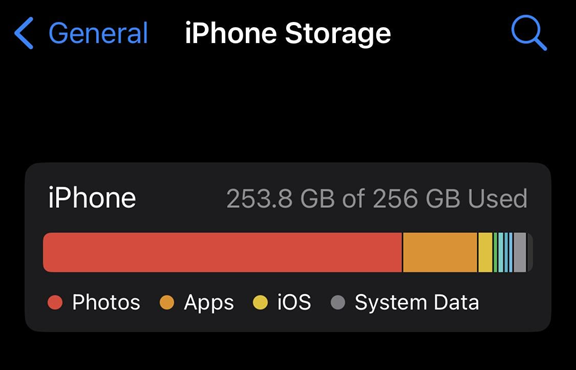
Step 2: Locate the iOS 26/18 update file, tap it, and then select Remove Update from the subsequent screen to remove the errant update from your iPhone.
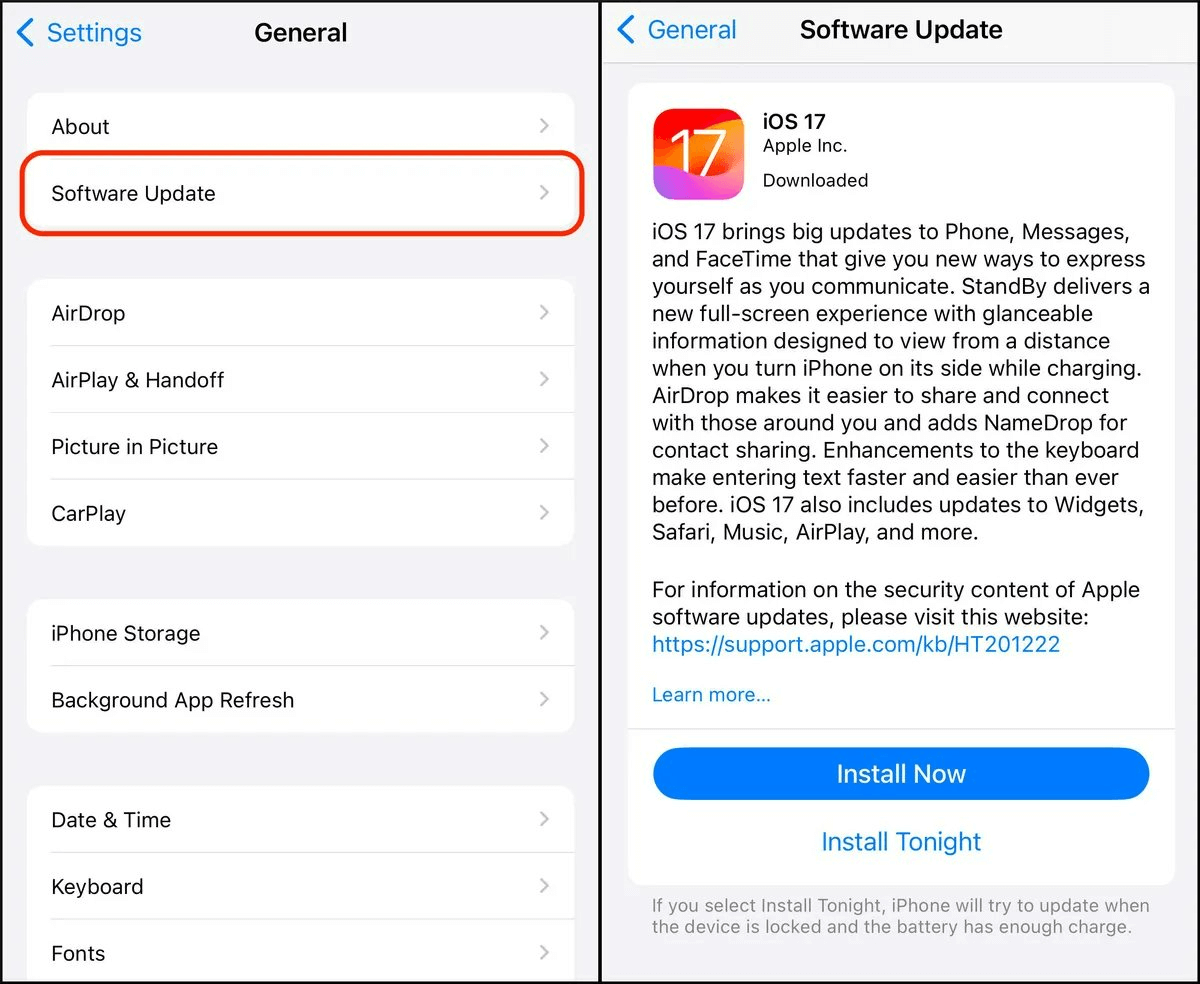
Step 3: Continue to Settings > General > Software Update to begin re-downloading the update to your iPhone.
Way 2. Resolve the “Preparing Update” Issue with FoneTool Repair
When basic troubleshooting like deleting update files doesn't work, the issue may lie deeper within your iOS system. FoneTool Repair specializes in fixing such system-level problems that can cause update failures, including being stuck on "Preparing Update."
This powerful iOS system repair tool is the best way to fix iOS/iPadOS issues without data loss
Step 1: Connect your iPhone to your computer > Launch FoneTool Repair and select iOS System Repair.

Step 2: Choose either Standard Mode or Deep Mode to initiate the repair process on your iPhone. Before selecting Deep Mode, ensure you have completed a full backup of your device.

Step 3: Retrieve the firmware file corresponding to your iPhone's model. Once the download is finalized, click Start Repair to begin troubleshooting.

After repair, your iPhone will restart and should be able to complete the update process normally.
Way 3. Verify Network Conditions
Another factor that could cause your new iPhone to get stuck during the preparation of the iOS 26/18 update is potential network-related issues. Such issues usually manifest themselves in the form of a dilemma you are currently experiencing on your device.
An easy way to bypass network-related obstacles on your iPhone is to reset your network settings. By performing this action, your device restores all network settings to their default configuration, eliminating any custom tweaks you may have previously implemented. This process helps eliminate problematic configurations, thus resolving issues on your iPhone.
Note that this reset will also eliminate beneficial settings. If you are willing to accept this tradeoff, follow the steps below to reset your settings:
Step 1: Visit the Settings app and navigate to General > Select the Reset option to access your device's reset settings.
Step 2: Select the Reset Network Settings feature to initiate a reset of all network configurations on your device.
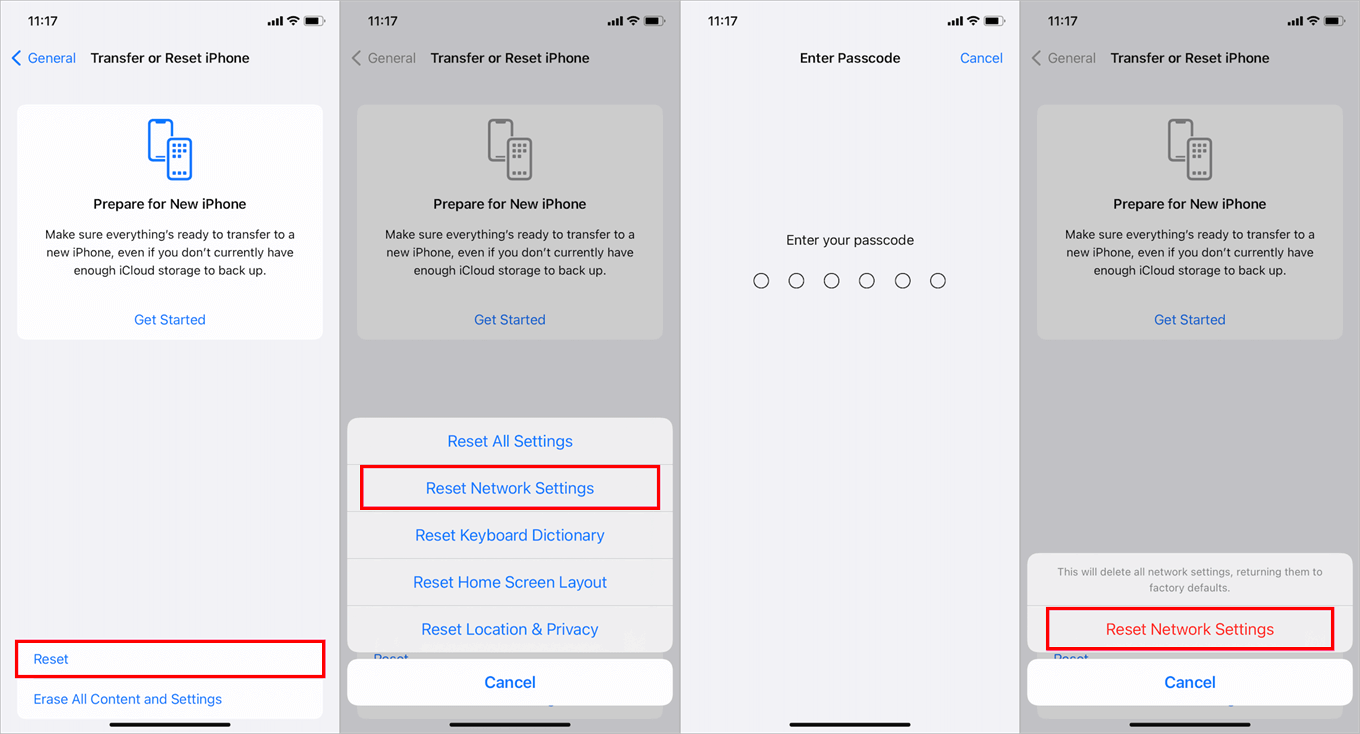
Once this process is complete, your iPhone should be able to seamlessly establish an Internet connection and download updates without any hiccups.
The Bottom Line
If you're experiencing the "iOS 18 stuck on preparing update" issue, try removing the update file first or resetting network settings. For persistent system-level issues, FoneTool Repair offers professional iOS system repair capabilities to resolve update problems efficiently while keeping your data safe.
Fixes 160+ iOS/iPadOS issues, boot loops, crashes, failed updates, with no data loss.
-
 iOS 27 Compatible
 iPhone 17 Supported
100% Secure

May is an editor who is passionate about sharing computer tips and providing reliable solutions, specializing in iOS/Android and file backup and recovery. In her spare time, May enjoys watching movies, going shopping, or chatting with friends.
Read author info >>



 as a preferred
source on Google
as a preferred
source on Google