What to Do When Songs Won't Download on iTunes? [Fixed]
Still struggling with the issue of “songs won't download on iTunes”? Learn about the many ways to fix this issue, including checking your Internet connection, updating iTunes, and more.


Are you experiencing the frustrating problem of “songs won't download on iTunes”? Don't worry, you are not alone. This guide is designed to help you tackle this issue head-on through a variety of effective methods. Whatever case you are in, you can follow this guide to fix the iTunes song won't download issue easily. Read on!
Why Won’t My Songs Download on iTunes?
There are several reasons why your songs may not be downloaded on iTunes. Here is a list of common factors that could be causing this issue:
- Internet Connection: A poor or unstable Internet connection may prevent the download from completing successfully.
- Outdated iTunes Version: Using an older version of iTunes may result in compatibility issues that may affect the download.
- Insufficient Storage Space: If your device has insufficient storage space, the download may fail due to insufficient space.
- Corrupted iTunes Cache: The cache in iTunes may be corrupted, resulting in download errors.
- ...
How to Fix Songs Won't Download on iTunes - 6 Simple Fixes
If you are experiencing the frustrating issue of “songs won't download from iTunes to iPhone”, you have come to the right place. This section will show you 6 effective fixes to help you download music successfully.
Fix 1. Check Your Internet Connection
The first way to fix the “songs won't download on iTunes” issue is to check your internet connection. iTunes requires a steady and reliable connection to download songs. Here is how to check:
- Test Your Connection: Open a web browser and try visiting some websites to see if they load quickly. If they don't load quickly, there may be a problem with your connection.
- Restart Your Router: Unplug your router, wait about 30 seconds, then plug it back in. This usually fixes temporary network problems.
- Switch to a Wired Connection: If you're using Wi-Fi, try connecting your device directly to the router using an Ethernet cable. Wired connections tend to be more stable.
Fix 2. Update iTunes to the Latest Version
Outdated software may cause compatibility issues, which can lead to problems such as songs not downloading. Make sure your iTunes is up to date. Follow the simple steps to update iTunes:
Step 1. Open iTunes, click Help in the menu bar and select Check for Updates.
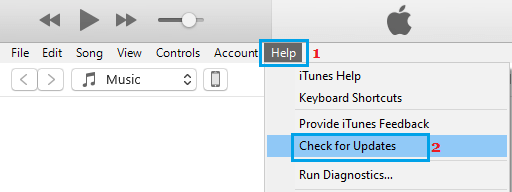
Step 2. Follow the prompts to install any available updates.
Keeping iTunes updated ensures you have the latest features and bug fixes, which might resolve the downloading issue.
💡 Tip: If you encounter errors during the update process or experience persistent system-related download failures, consider using FoneTool Repair to fix underlying iOS issues that may be interfering with iTunes functionality.
Fix 3. Check Available Storage on Your iPhone
Sometimes songs cannot be downloaded on iTunes to iPhone because iPhone storage is full. Here is a quick guide on how to check storage space:
Step 1. Go to Settings > General > iPhone Storage.
Step 2. Here you will see a breakdown of what's taking up space and what's available.
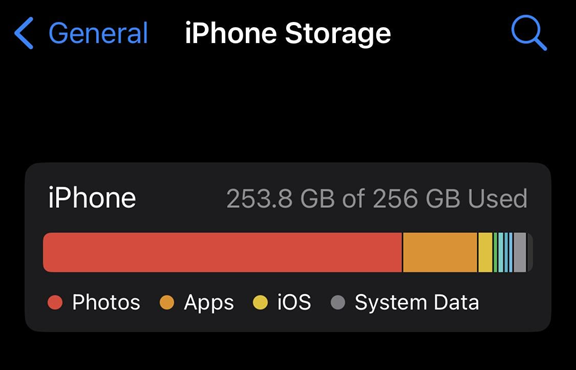
If you are running low on storage space, consider deleting unnecessary files or apps to free up space.
Fix 4. Sign Out and Sign Back into iTunes
Sometimes, logging out of your iTunes account and then logging back in can refresh your connection and resolve download issues. Try this simple step and see if it makes a difference in your download experience.
Step 1. Open iTunes and click on the Accounts tab > Select Sign Out.
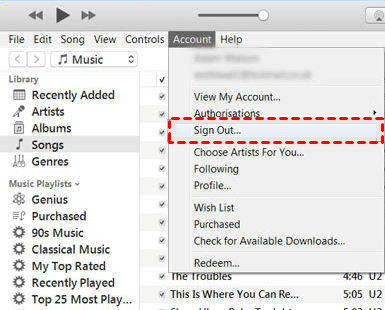
Step 2. Once you've signed out, restart iTunes and sign in again with your Apple ID.
Fix 5. Reset iTunes Store Cache
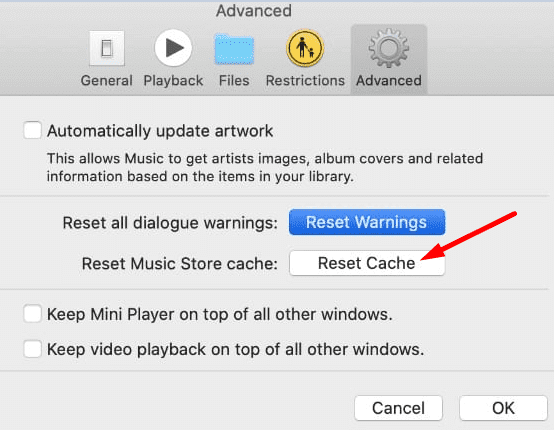
Clearing the iTunes Store cache can help fix various download-related issues. Follow these steps to reset the cache:
Step 1. Open iTunes and go to Edit > Preferences.
Step 2. Navigate to the Advanced tab > Click Reset Cache.
Fix 6. Contact Apple Support
If none of the above fixes work, it might be time to reach out to Apple Support. They can provide more in-depth troubleshooting or identify if there’s a broader issue affecting your account.
Step 1. Visit the Apple Support website and select iTunes & App Store to explore your options.
Step 2. Chat with a support representative, schedule a call, or visit an Apple Store for in-person assistance.
Bonus Tip: Repair iOS System Issues with FoneTool Repair
If you've tried all the above methods and still face issues with songs not downloading from iTunes—especially after updating to iOS 26/18—the problem might be deeper system corruption or software conflicts affecting iTunes operations.
FoneTool Repair is a dedicated iOS system repair tool designed to fix such underlying software issues without data loss. It can resolve update failures, system glitches, and other iOS errors that may be preventing iTunes from functioning properly.
This powerful iOS system repair tool is the best way to fix iOS/iPadOS issues without data loss
Step 1. Download, install, and open FoneTool Repair on your PC > Connect your iOS device to the computer.
Step 2. Locate the iOS System Repair section, and click the Start Repair button.

Step 3. Choose Standard Mode (no data loss).

Step 4. Download the firmware as prompted > Click Start Repair to begin.

The Bottom Line
It can be frustrating when songs won't download on iTunes, but by following these fixes you should be able to troubleshoot the problem. Remember to be patient and try each method carefully to determine which one works best for your situation.
For persistent system-related issues affecting iTunes or other iOS functions, FoneTool Repair provides a reliable solution to get your iPhone back to optimal performance quickly and safely.
Fixes 160+ iOS/iPadOS issues, boot loops, crashes, failed updates, with no data loss.
-
 iOS 27 Compatible
 iPhone 17 Supported
100% Secure

May is an editor who is passionate about sharing computer tips and providing reliable solutions, specializing in iOS/Android and file backup and recovery. In her spare time, May enjoys watching movies, going shopping, or chatting with friends.
Read author info >>



 as a preferred
source on Google
as a preferred
source on Google