RCS Not Working iOS 18/26? Try the 7 Fixes
Want to try the new feature RCS after updating to iOS but find RCS not working? You may need this guide to know why RCS is not working, and get effective solutions to fix RCS not working iOS 18/26.


RCS not working after iOS 26 update
I just updated to IOS 26 and turned on RCS, but when I try to message my friends with Android, it still shows SMS. I tried turning off SMS and leaving RCS on, but my messages still use SMS. I am not sure what to do.
- Question from Reddit
RCS (Rich Communication Services), a better communications protocol over SMS, is now accessible on iOS 18. It has various features, including read receipts, typing indications, and improved file sharing between Android and iPhone users. Unfortunately, RCS does not operate on some iPhones after upgrading to iOS 18/26.
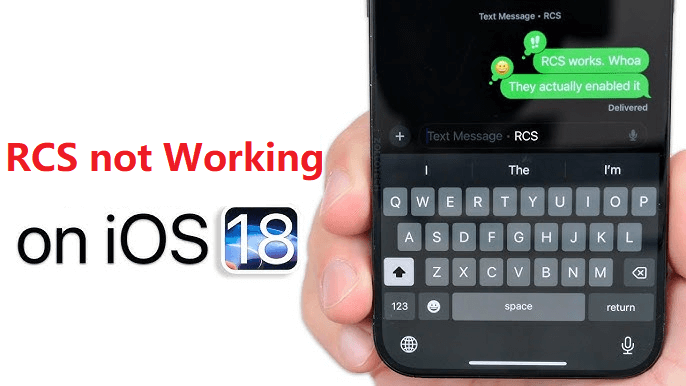
If you are experiencing a similar problem, you may need this guide, offering potential reasons why you cannot use RCS, and also solutions to fix RCS not working iOS 18/26 issue.
Why is the RCS Message not Working After iOS 18/26 Update?
You may have trouble sending or receiving RCS Messages on your iPhone for a variety of reasons. Some common reasons are listed below.
⛔ Incorrect settings.
⛔ Lack of support from the carrier or in your location.
⛔ Unpatched iOS problems.
⛔ Network-related difficulties.
⛔ Recipient-side issues.
After knowing the reasons that cause iOS 18/26 RCS not working, it’s time to fix the issue.
6 Fixes to RCS not Working iOS 18/26 (Beta)
Here are several detailed methods to troubleshoot and fix RCS not working on iOS 18/26 device. Try them one after another until your issue gets fixed.
1# Force Restart iPhone
Like many other software issues, you can get RCS working again by force restarting your iPhone. Here are how you can do.
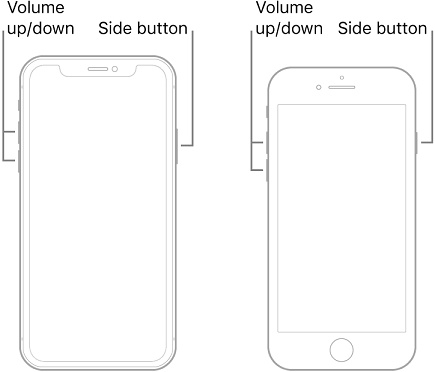
• For iPhone XR and later: Quickly press and release the Volume Up button > Quickly press and release the Volume Down button > Press and hold the Side button. When the Apple logo appears, release the button.
• For iPhone SE: Press and hold both the Sleep/Wake button and the Home button. When the Apple logo shows up, release both buttons.
2# Check If Your Region Supports RCS
While iOS 18/26 introduces various new features, many of them, such as Rich Communication Service (RCS), are only accessible in a few locations. RCS Messaging for iPhone is currently only accessible in the United States, Canada, and a few European nations. If you live elsewhere, you will be unable to utilize RCS on your iPhone.
3# Check If Your Carrier Supports RCS
If your carrier does not support RCS on iPhones, the RCS service will not function, either. Although the majority of US carriers, including Verizon, AT&T, and T-Mobile, enable RCS on iPhones, several have not yet done so.
To find out if your carrier supports RCS on iPhones, visit the Apple Support website or follow the instructions below.
Step 1. Go to the Settings app on your iPhone > Go to General > About.
Step 2. Scroll down and double-tap Carrier > Check whether the IMS Status says Voice, SMS & RCS.
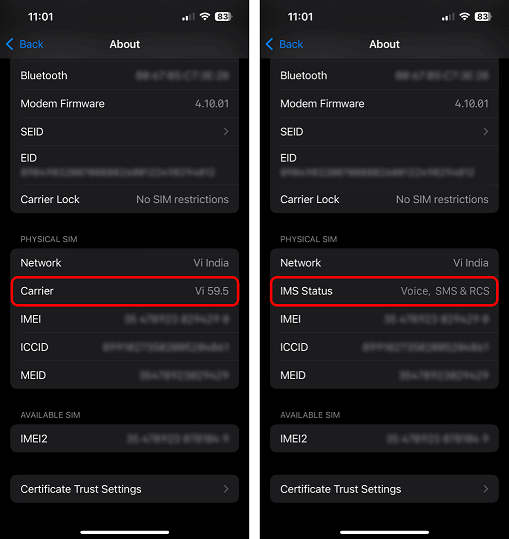
If your iPhone's IMS status says Voice, SMS & RCS, it indicates that your carrier supports RCS; all you have to do is turn it on in the Settings app.
In contrast, your carrier may not offer RCS or you may need to request that they enable it for your number if the IMS Status only states Voice & SMS.
4# Check RCS is Enabled
As what has been mentioned above, if your carrier supports RCS, you can use RCS as long as you turn it on in the Settings app. Thus, when RCS not working iOS 18/26, you meed to check whether you’ve enabled it.
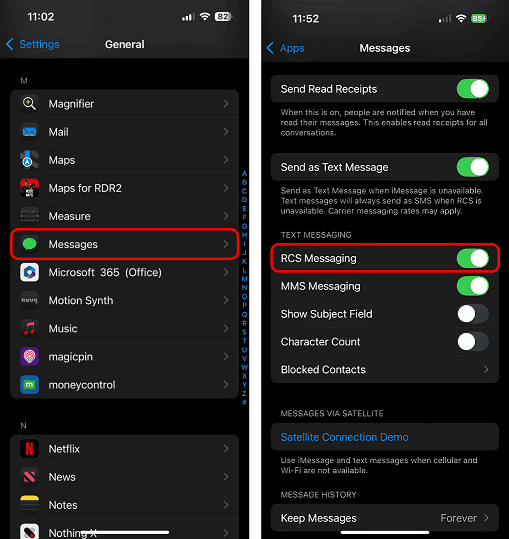
To check if RCS is enabled, go to the Settings app > Scroll down to tap Apps > Choose Messages > Toggle on the switch next to RCS Messaging.
5# Check & Reset Network Settings
Different from SMS, the RCS service works over mobile data and Wi-Fi. This implies that if you are not online, you will experience problems sending or receiving messages over RCS. Check to see if Wi-Fi and Cellular are enabled in the Control Center to make sure this isn't the case.
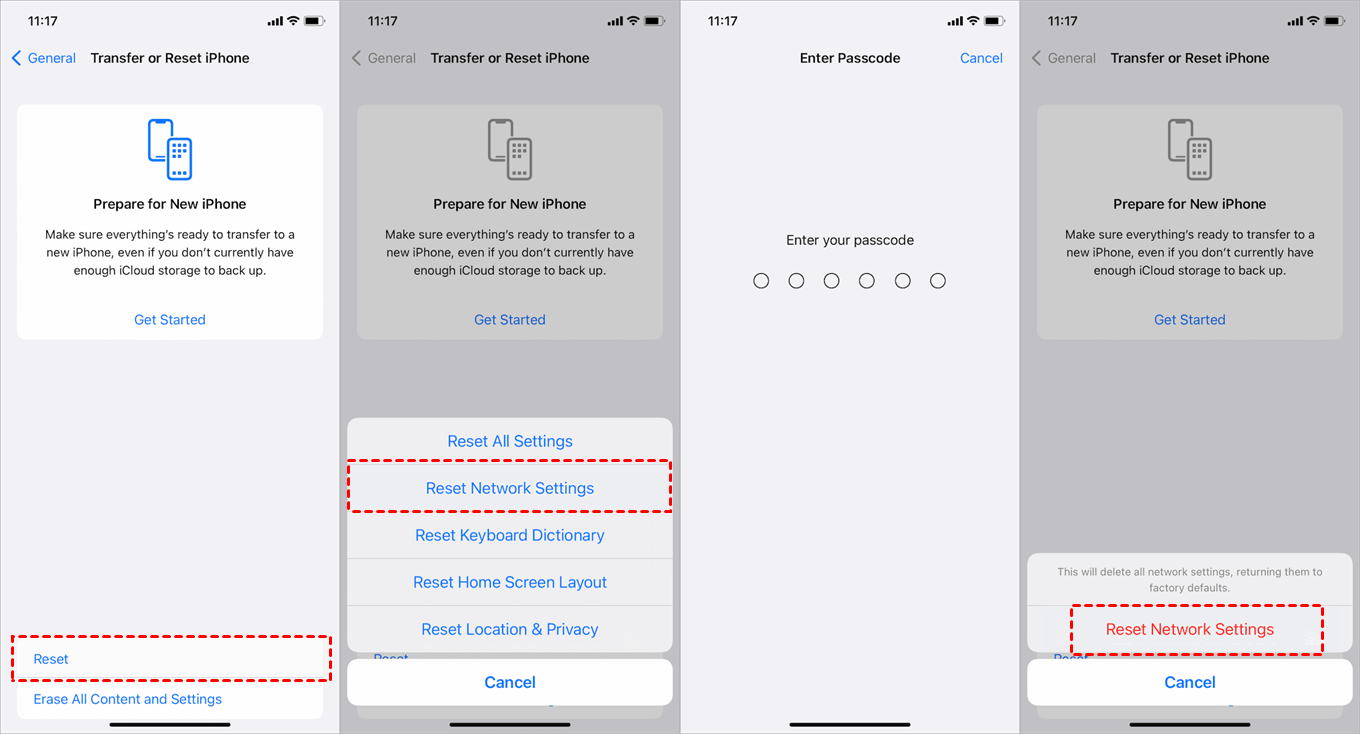
To prevent any network issues that lead to RCS not working after update iOS 18/26, you can consider resetting network settings by following steps below.
To reset all settings on your iPhone, go to the Settings app > General > Transfer or Reset iPhone > Reset > Choose Reset Network Settings to fix iOS 18/26 RCS issue.
6# Check the RCS of the Recipient Device is Enabled
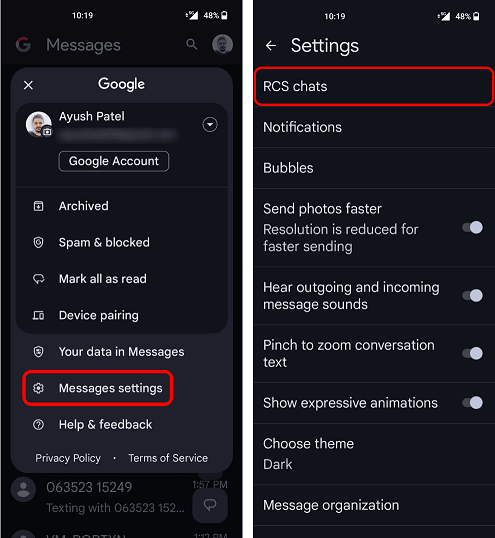
If you can send RCS messages to other contacts but are only having trouble with one, it might be a problem with the recipient rather than you. The recipient must also have RCS Chats activated on their Android smartphone in order to receive RCS messages. Here's how to go about it:
Step 1. Go to the Messages app on the Android phone > Tap the profile picture in the top-right corner > Choose Messages Settings > Tap RCS Chats.
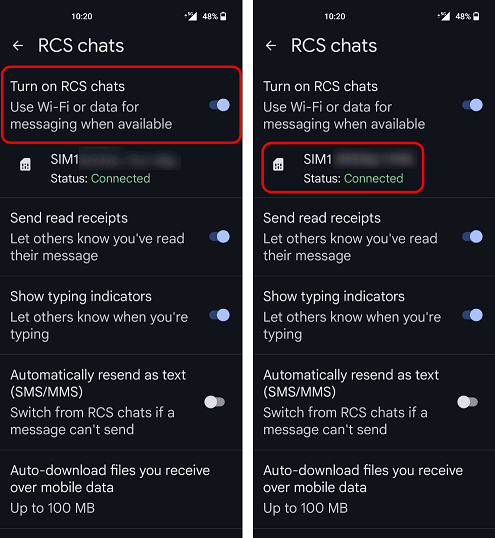
Step 2. Make sure the Turn on RCS Chats is enabled > Wait for a few seconds until the status says Connected.
7# Fix iOS System Issues with FoneTool Repair
If you've tried all the above methods and RCS is still not functioning, the issue might be deeper system-level corruption due to the iOS 18/26 update. In such cases, using a dedicated iOS repair tool like FoneTool Repair can help resolve underlying software glitches that affect RCS functionality.
This powerful iOS system repair tool is the best way to fix iOS/iPadOS issues without data loss
Step 1. Download and install FoneTool Repair on your PC, launch the tool, and connect your iPhone via USB.
Step 2. Select "iOS System Repair" and tap "Start Repair".

Step 3. Choose "Standard Repair" mode.

Step 4. Download the firmware and click "Start Repair".

Fix & Downgrade iOS Without Losing Data via FoneTool Repair
If you find that the RCS issues are too persistent and frustrating, you may consider downgrading to a more stable iOS version to resolve the compatibility glitch. FoneTool Repair is your all-in-one solution, designed not only to fix system errors but also to safely downgrade iOS without any data loss.
✅ One-click to downgrade iOS, no technical skills required.
✅ Guarantees zero data loss during the entire process.
✅ Fix iOS system issues while downgrading.
Step 1. Run FoneTool Repair > Choose iOS Upgrade/Downgrade > Click Start.
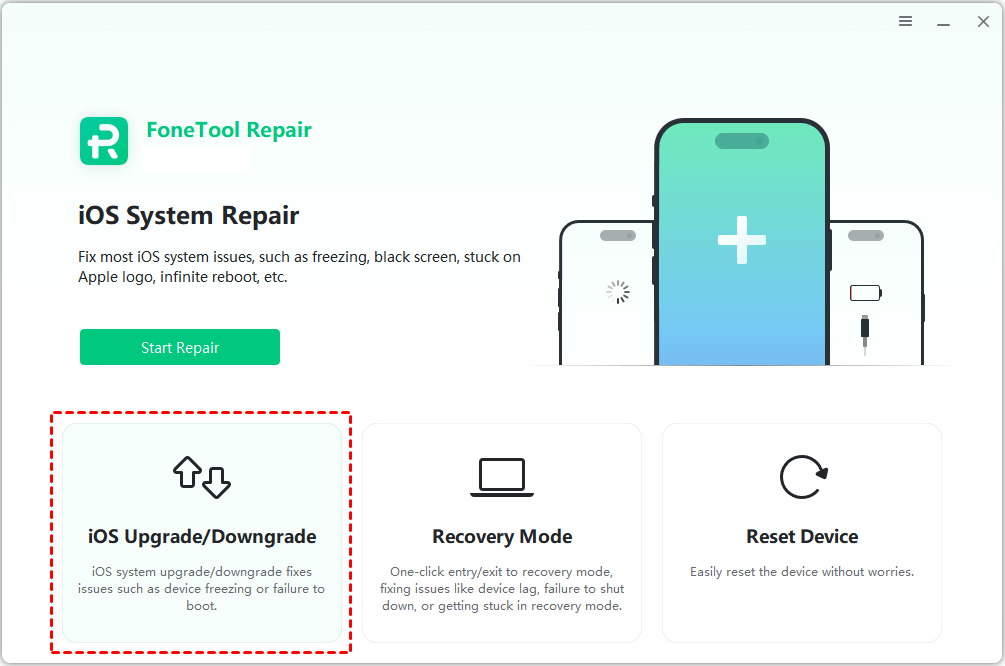
Step 2. Select the firmware version you need > Choose a storage path from the Target Path option > Then tap Download to get the firmware.
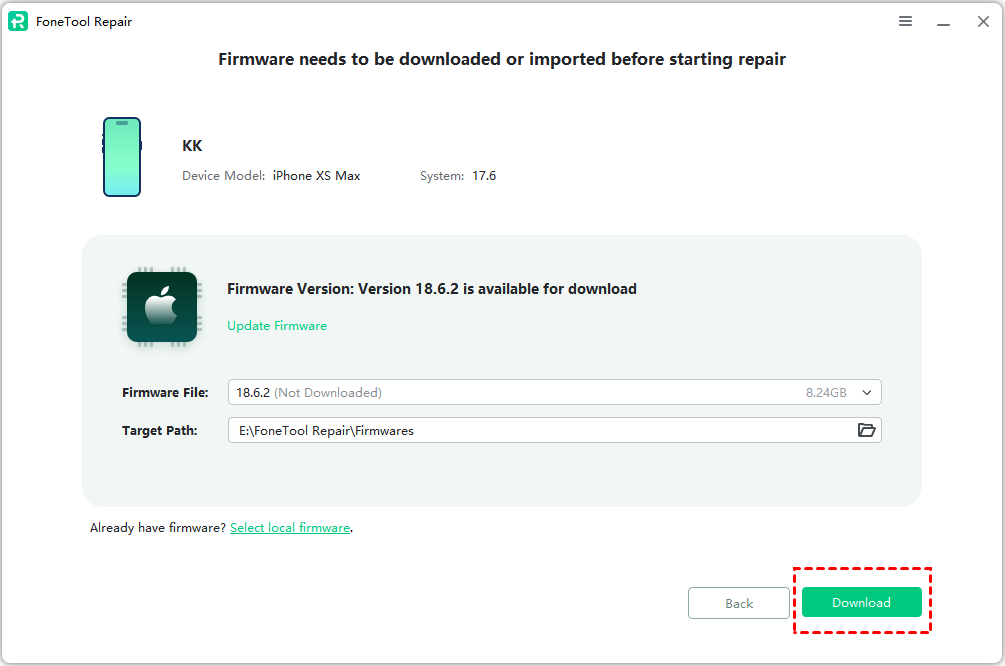
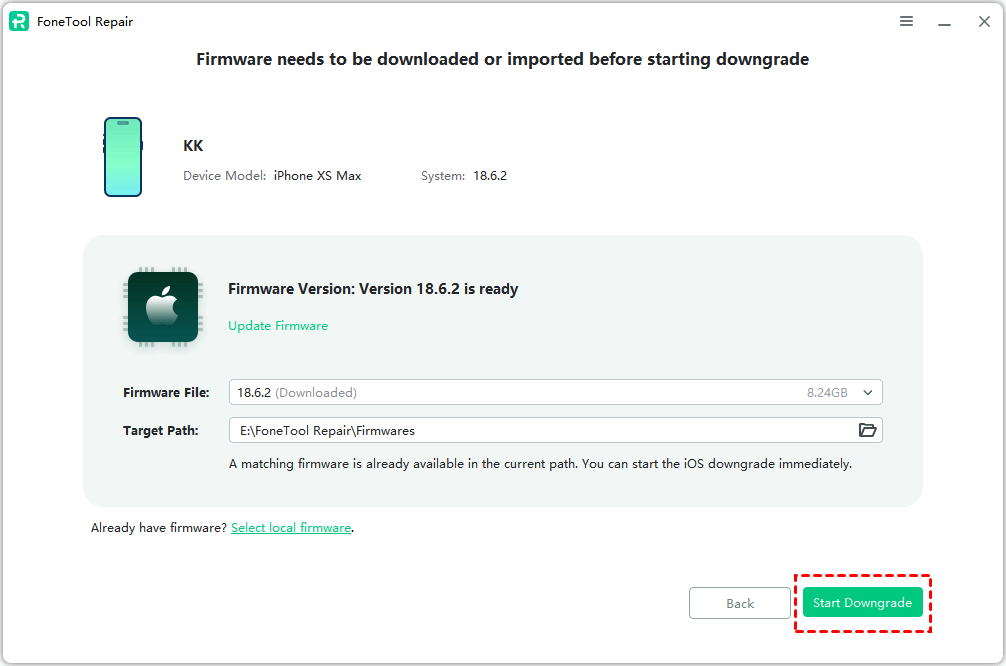
Step 4. Once the download process is finished, just click Start Downgrade to begin the task.
Summary
That's all for the solutions you can try to troubleshoot RCS not working iOS 18/26. From basic restarts to carrier checks, and if those don't work, FoneTool Repair provides a professional solution to fix system-level issues affecting RCS.
For persistent problems, you can also use FoneTool Repair to seamlessly downgrade your iOS version, effectively resolving underlying system incompatibilities. We hope that you and your Android friends may now enjoy the high-quality exchange media and read receipts. If this guide is helpful, please share it with others.
Fixes 160+ iOS/iPadOS issues, boot loops, crashes, failed updates, with no data loss.
-
 iOS 27 Compatible
 iPhone 17 Supported
100% Secure

Demi is an editor of FoneTool group as well as an good advisor in the area of iOS-related issues. She does well in finding solutions to people's problems. She enjoys traveling, gardening, and watching movies. She spends most of her free time with her pet and family.
Read author info >>



 as a preferred
source on Google
as a preferred
source on Google