Why is My StandBy Mode Red iOS 26/18 & How to Fix
When your StandBy mode turns to red, why does this issue occur and how to fix? Find solution in this passage and you can use the professional FoneTool mentioned in bonus part to avoid your iPhone data from loss.


Standby mode on the iPhone is a new and popular lock screen feature introduced in iOS 17 and later. It activates when the iPhone is charging and placed in landscape orientation, displaying the time along with widgets such as featured photos and reminders. Occasionally, the Standby mode may appear red on your iPhone. What causes this red display in iOS 26/18? Here are the explanations!
Why is my StandBy mode red iOS 26/18?
In short, Standby Mode appears with a red tint in low ambient light. When Night Mode is activated, the Standby display turns red in dim lighting or when the iPhone is in night mode. While Night Mode is typically enabled by default, you can switch to normal colors if preferred. Additionally, the red tint may signal that your device is in Low Power Mode or that there’s a battery performance alert.
How to solve Standby mode stuck in red on iOS 26/18
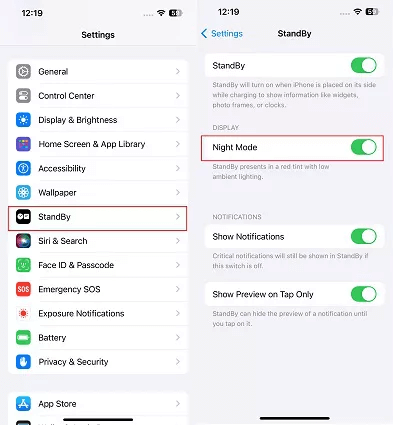
For people who wander to know: " How do I stop StandBy mode from turning red?" You can keep on reading to get answers. Go to the Settings app on iPhone > Choose StandBy. On the next page, under Display, you can see Night Mode. Toggle it off.
How to fix when StandBy mode won't turn on
If StandBy mode doesn’t activate automatically when you connect your iPhone to a power source, ensure it’s positioned on its side (horizontally or in landscape orientation) and at an upright angle (not lying flat on a desk).
If it still doesn’t turn on, check that StandBy mode is enabled in the Settings app (Settings > StandBy Mode). If the toggle next to StandBy is gray (OFF), tap it to switch it to green (ON), then try charging your iPhone again in the correct orientation.
Fix Persistent StandBy Issues with FoneTool Repair
If your StandBy mode continues to malfunction or display incorrectly after trying the above solutions, the problem might be related to deeper iOS system issues. In such cases, using a professional iOS repair tool like FoneTool Repair can help resolve underlying system glitches that may be affecting StandBy functionality.
Step 1: Download and install FoneTool Repair on your Windows PC. Connect your iPhone via USB cable.
Step 2: Launch the tool and select iOS System Repair.

Step 3: Choose Standard Mode (recommended for display issues).

Step 4: Follow instructions to download firmware, and then click Start Repair to fix the StandBy issue.

After completion, your iPhone will restart normally. Check if the StandBy mode issue is resolved. This method addresses system-level problems that may be causing persistent display abnormalities.
Bonus: How to protect iPhone data from loss
When you need to back up your iPhone, it’s recommended to use the professional iPhone data backup software - FoneTool. You can selectively or fully back up and transfer your iPhone data to iPhone, iPad, PC, or even an external drive.
With its super-fast transfer speed and easy-to-use interface, you can easily back up GBs of data to PC within minutes.
Step 1. Connect your iPhone to the PC with a USB cables > If prompts, click Trust.
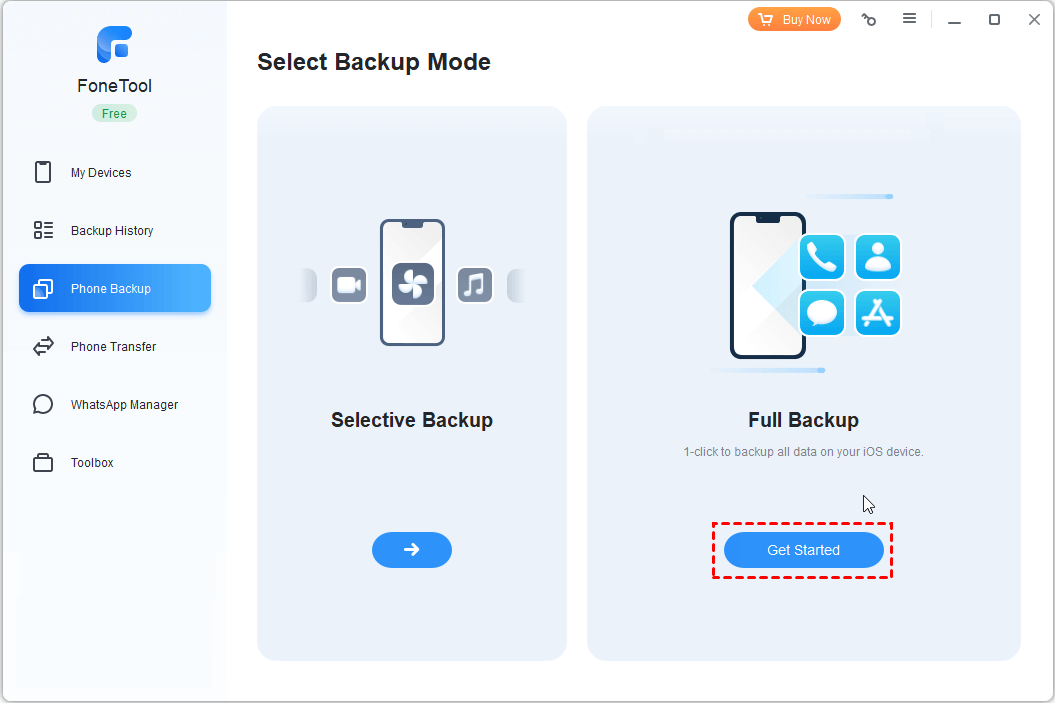
Step 2. Open FoneTool on your computer > Go to Phone Backup > Full Back > Click Get Started to continue.
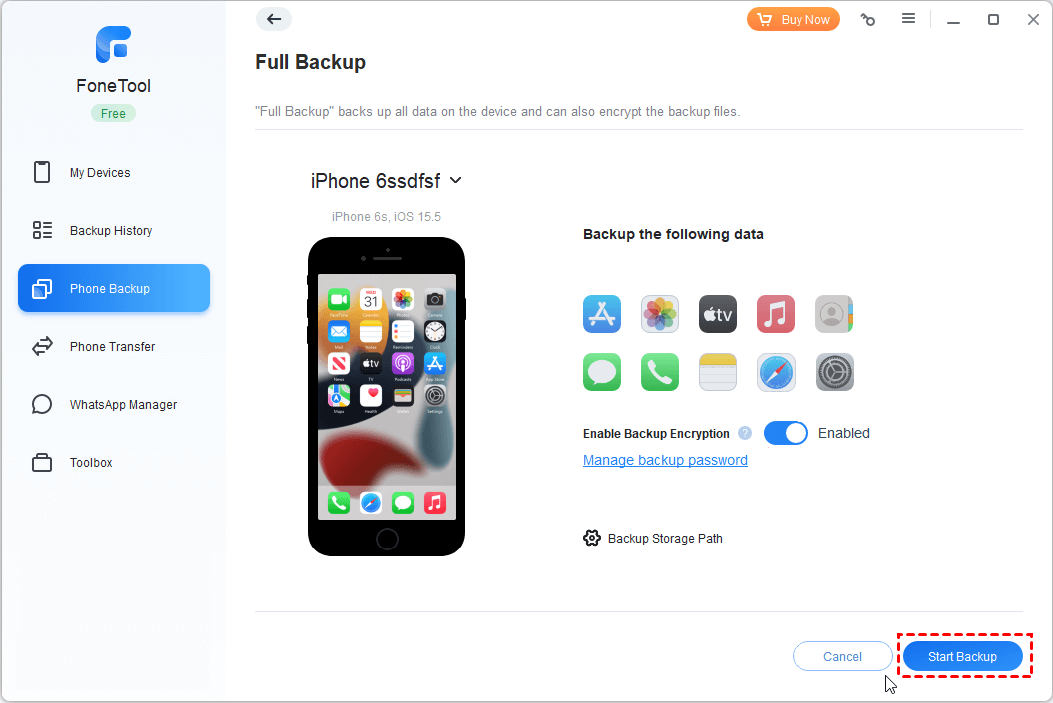
Step 3. Check Enable Backup Encryption to encrypt your private data if need > Choose a storage path > Click Start Backup to begin the task. (You can change the storage path to move backups to external drive.)
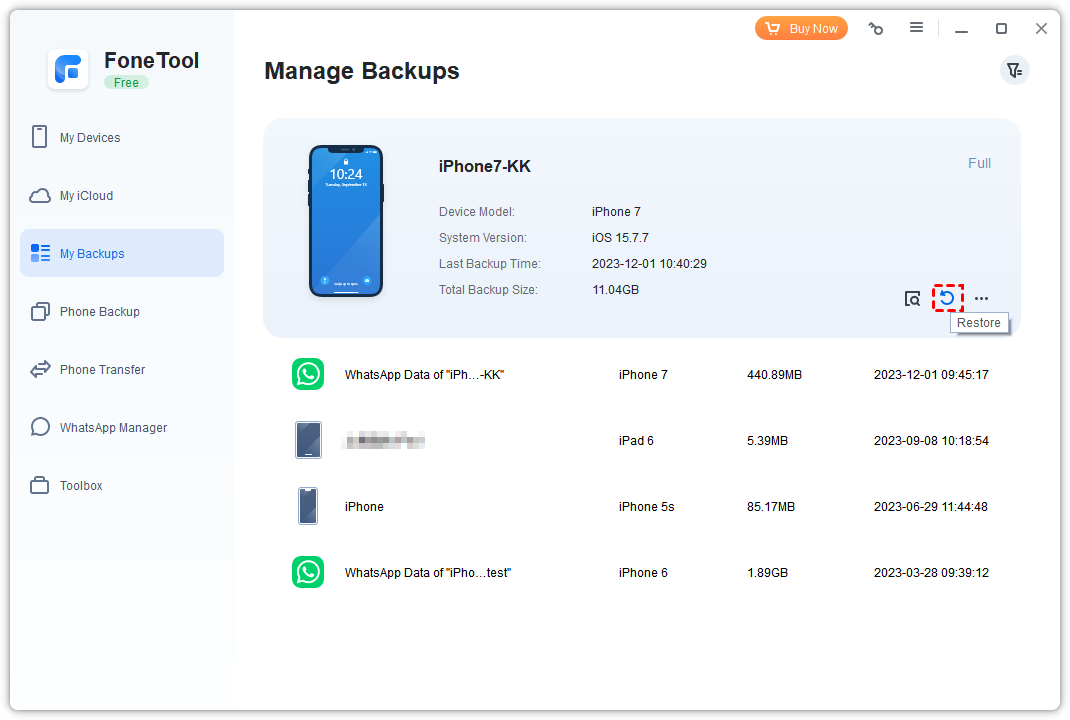
Once the process is finished, you can go to My Backups page to view, locate, delete or restore your backups to any iOS device, even if it doesn't use the same Apple ID with your source device.
Conclusion
This guide explains why your StandBy mode appears red on iOS 26/18/17 and how to fix it. If the issue persists due to system errors, FoneTool Repair provides an effective solution to fix iOS system problems. For data protection, FoneTool offers reliable backup options to prevent data loss during troubleshooting.
Fixes 160+ iOS/iPadOS issues, boot loops, crashes, failed updates, with no data loss.
-
 iOS 27 Compatible
 iPhone 17 Supported
100% Secure

Kathy is an editor of FoneTool, who prefers to help more users address a series of iOS-related problems. She likes traveling and being close to nature makes her relax. She is also keen to engage in social activities and spend much free time with her friends.
Read author info >>



 as a preferred
source on Google
as a preferred
source on Google