9 Proven Fixes | iTunes Purchased Music Not Showing in Library
Have you found that iTunes purchased music does not display in the iPhone library? Try these 9 fixes - from checking for hidden purchases to resetting iCloud sync to quickly retrieve your iTunes music.


Purchased Songs Not Showing Up on iPhone After Update
I usually use my iPad to buy songs, and I noticed that when I use iTunes on my iPhone, the songs I buy show on iTunes that they have been purchased but still don't show up in the iPhone's music library. How should I do it? Any ideas or suggestions would be greatly appreciated! Thanks!
- Question from Apple Community
Why Are My iTunes Purchases Not Showing Up?
Many users report that songs and albums they purchased on iTunes did not appear in their library after purchase. Several reasons usually cause this problem:
- Apple ID Mismatch: You are signed into a different Apple ID on your iPhone than the one used to make the purchase.
- Hidden Purchases: The song or album was accidentally hidden in your purchase history.
- Sync Library Glitch: iCloud Music Library (or Sync Library) has a temporary conflict preventing updates across devices.
- Outdated Software: Running old versions of iOS, iPadOS, or iTunes/macOS can break compatibility with Apple's purchase servers.
- Authorization Issues: Your computer is not authorized to play content from your Apple ID, or you've hit the 5-computer authorization limit.
No matter what the reason, the iTunes-purchased music is not showing in Library on iPhone, don't worry, next we'll introduce 8 proven fixes, from the fastest to the most advanced, you'll surely find a suitable way to solve the problem.
How to Fix iTunes Purchased Music Not Showing in Library
If your iTunes shows that it has been purchased but is not on the iPhone library, please start by confirming it with the easiest Apple ID, music settings, etc.
Fix 1. Check Your Apple ID
iTunes only shows purchases associated with the Apple ID that you are signed into, so you first need to confirm that you are signed in to the same Apple ID.
On iPhone:
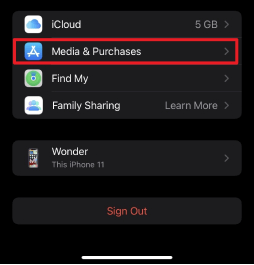
- Go to Settings > [Your Name] > Media & Purchases.
- Check that the correct Apple ID is listed.
On PC/Mac:
- Go to iTunes > tap Account > check My Account.
- If the Apple ID is incorrect, log out and log in again.
✨Tip: If you're using Family Sharing, make sure that purchases aren't limited by Screen Time > Content & Privacy Restrictions.
Fix 2. Unhide your purchased music
You or your family members may have accidentally hidden the music they purchased, and you can unhide it by following these steps.
Step 1. Go to iTunes and tap Account.
Step 2. Click All to view all available items, and click Not on This [Device] to view hidden items.
Step 3. Click the download button next to any project you want to unhide and download to recover.
Fix 3. Toggle iCloud Music Library syncing
If you enable iCloud Music Library to sync music across devices, sync conflicts may cause the music you purchased to not display, which you can resolve by quickly refreshing.
On iPhone:
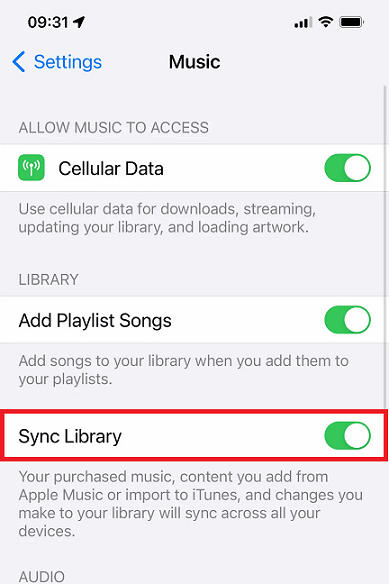
- Go to Settings > Music > Close the sync library, wait for 10 seconds, and turn it on.
On PC/Mac:
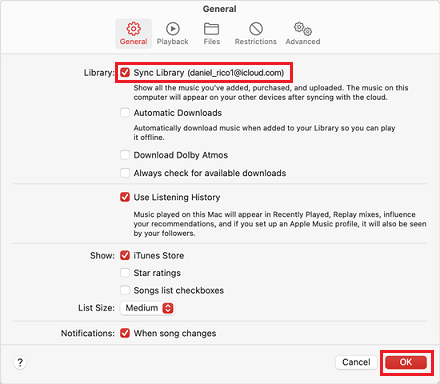
- In iTunes, go to Preferences > General > Cancel/Recheck iCloud Music Library.
If the above methods do not solve the iTunes says purchased but not in library on iPhone issue, you can try the following three methods, and the operation is also very simple.
Fix 4. Restart your iPhone and iTunes
Sometimes, a simple reboot can clear up a temporary glitch, and you can try.
On iPhone:
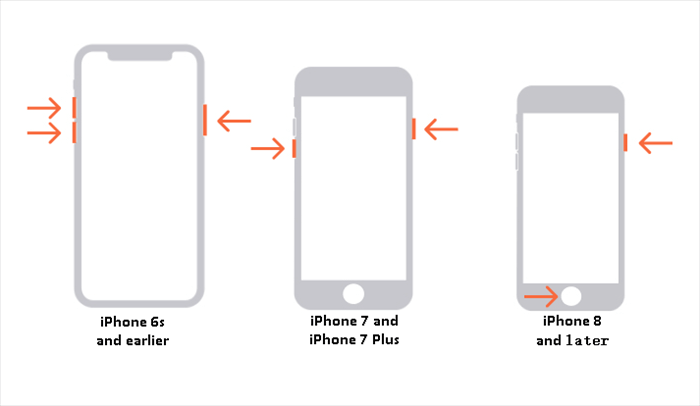
- Press and hold the "Power" + "Volume" keys (or "Home" on older models) until the Apple logo appears.
On PC/Mac:
- Restart iTunes or Windows PC/Mac OS.
Fix 5. Update iTunes and iOS
The official software and system are constantly updated to fix some bugs, and we recommend that you update your iTunes and iOS versions to the latest to fix compatibility issues.
On iPhone:
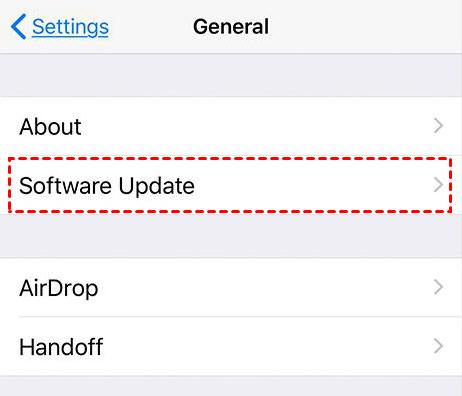
- Go to Settings > tap General > Software Update.
On Mac:
- Go to App Store > click Updates.
On PC:
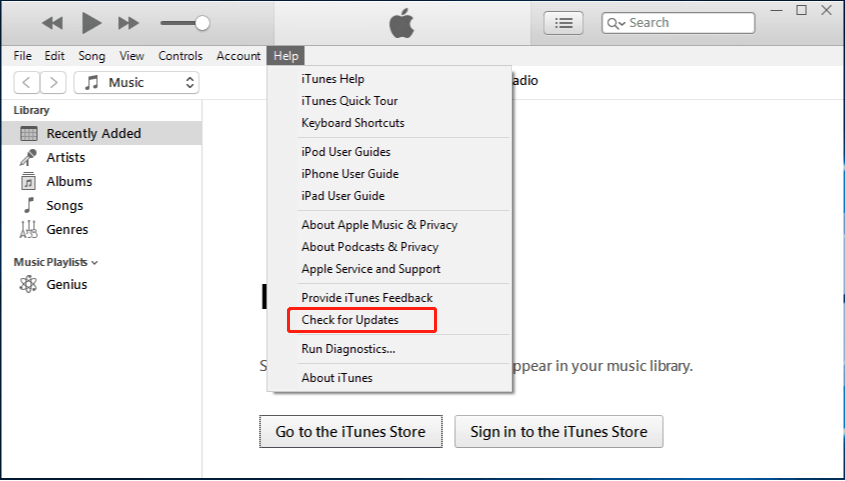
- Go to iTunes > tap Help > Check for Updates.
✨Tip: Is the iTunes update not working? There may be a software error or a failure. Please go fix it.
Fix 6. Re-download the purchased music
If your purchased music still doesn't appear in your iTunes library, you can redownload the music to make sure your purchases are resynced with your iTunes library.
Step 1. Launch iTunes on your computer, click Account > Purchased
Step 2. Click on the music and view all the music you have bought.
Step 3. Select the missing tracks in the main library and click the cloud icon to re-download the music to the iTunes library.
To help all users solve the problem, here are 3 other methods you can try, all of which are effective.
Fix 7. One-click fix iPhone issue with FoneTool Repair
If the problem started after a major iOS update and no standard fix works, underlying system corruption may be the cause.
For such deep-seated software issues, a professional iOS system repair tool can be effective. FoneTool Repair, for example, is designed to fix system-level errors without data loss in its "Standard Mode". It can resolve the kind of software conflicts that break core services like purchase syncing and iCloud Music Library.
This powerful iOS system repair tool is the best way to fix iOS/iPadOS issues without data loss
Step 1. Download FoneTool Repair from the official website on your Windows PC.
Step 2. Connect your iPhone via a USB cable and launch FoneTool Repair, tap iOS System Repair > Start Repair.

Step 3. Select Standard Mode to save data while fixing system issues.

Step 4. Follow the on-screen intuitive instructions to download the necessary firmware.
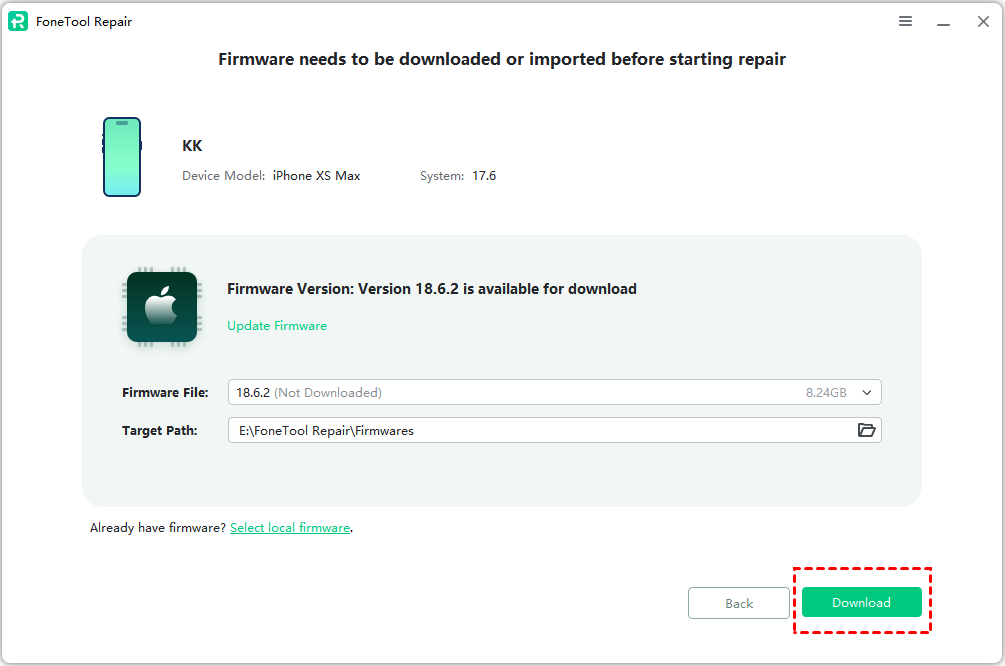
Step 5. Click Start Repair to start the repair process and wait for the repair to complete.

Fix 8. Reauthorize your PC
iTunes has restrictions on content access, only five authorized devices and requires each device to be authorized by an Apple ID. Authorize your computer by following the steps below
Step 1. Go to Open iTunes and click Account.
Step 2. Select Authorizations from the drop-down menu and click Authorization This Computer.
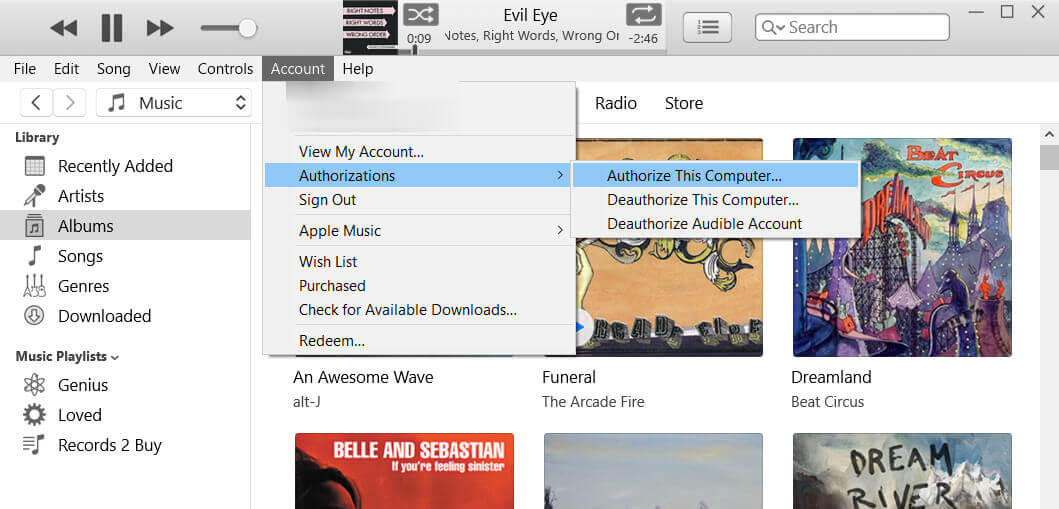
Step 3. Enter your Apple ID and password in the prompt box that appears and click Authorize.
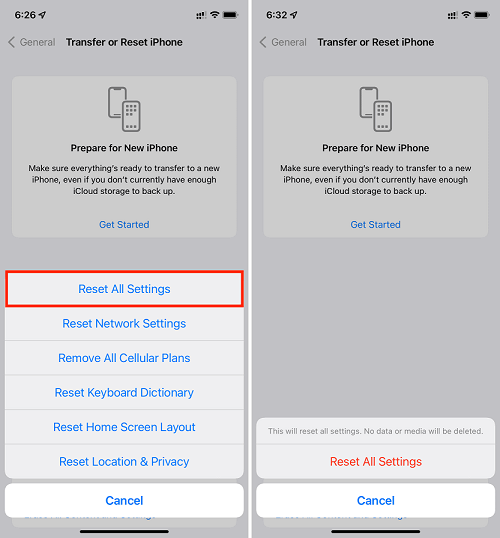
Fix 9. Reset iPhone all settings
We recommend that you try to reset your network, Apple ID, and sync preferences at the end. Don't worry, this operation will not delete data.
Step 1. Go to Settings > General on iPhone.
Step 2. Slide the screen and click Reset.
Step 3. Select Reset All Settings in the options. If prompted, you need to enter a password to confirm the operation.
- Note:✎...
- You will need to rejoin Wi-Fi networks and reconfigure some preferences.
Bonus tip: Easier to transfer music between computer and iPhone
If you are tired of finding ways to deal with iTunes errors, you might consider trying an iTunes alternative that makes it easier and more stable to transfer music between your computer and iOS devices. We highly recommend that you use FoneTool, a free professional iOS data backup and transfer tool.
- ★All-in-One iPhone Backup and Transfer:
- No internet connection required, transfer in the fastest and most secure way.
- Transfer all songs in one click or only selected songs.
- Supports purchased and non-purchased songs.
- Easy to use, the transfer is completed in just a few clicks.
Step 1. Connect iPhone and PC with a data cable, and after authorization access, go to Phone Transfer > PC to iPhone on FoneTool.

Step 2. Add music from the iTunes library under Music options.
✨Tip: Your iTunes music is stored in: C:\users\[username]\My Music\iTunes\iTunes Media.
Step 3. Click Start Transfer to confirm the transfer of songs from the computer to the iPhone without iTunes.
FAQ Section (Schema Optimized)
Final Words
If the iTunes purchased music not showing in Library on iPhone, from this post, you can start trying out quick fixes such as Apple ID and Hide Buy. If the problem is tied to a recent system update and persists, a system repair tool may address the underlying corruption. As a permanent alternative for non-purchased files, a direct transfer tool can bypass iTunes sync entirely.
By following this structured guide, you can systematically eliminate each possible cause and restore access to your purchased iTunes music library.
FoneTool - All-in-one iPhone Data Manager
Transfer, backup and manage data on iPhone, iPad and iPod touch in an easy way.
-
 iOS 27 Compatible
 iPhone 17 Supported
Windows 11/10/8/8.1/7

100% Secure

Kelsey is an English editor at FoneTool, passionate about helping users solve tech issues. She specializes in iPhone data management, backup, and recovery. In her free time, she enjoys learning IT skills and spending time with loved ones.
Read author info >>



 as a preferred
source on Google
as a preferred
source on Google