7 Best Software to Transfer Photos from iPhone to PC [2026]
Need software to transfer photos from iPhone to PC? This 2025 guide compares 7 top tools by speed, ease of use and storage limits. Discover the best solution for you.


Choosing Your Photo Transfer Solution
When you need to browse, edit, or share iPhone photos on your computer, choosing reliable software to transfer photos from iPhone to PC is essential. Key considerations include transfer speed for large files, available storage space, and preference for wired or wireless connections.
This guide details the top 7 software choices for 2025 to help you select the best tool for your needs.
| Software | Connection | Storage Limitation | Transfer Speed | Effectiveness |
| FoneTool🔥 | Wired | × | Super-Fast | High - 3 Steps |
| Photos App | Wired | × | Medium | Medium |
| File Explorer | Wired | × | Medium | Medium |
| iTunes | Wired | × | Slow | low |
| iCloud | Wireless | 5 GB for Free | Depends on Internet | Medium |
| Google Photos | Wireless | 15 GB for Free | Depends on Internet | Medium |
| Dropbox | Wireless | 16 GB for Free | Depends on Internet | Medium |
1. Best free software to transfer photos from iPhone to PC - Professional FoneTool
When it comes to free iPhone to PC photo transfer software, the professional & safe iPhone data transfer tool named FoneTool will help you a lot.
Best Free iPhone to PC Transfer Software
- Transfer unlimited iPhone photos to PC and vice versa.
- 100 high-quality images can be moved within seconds.
- All photos will not be compressed in quality during transmission.
- Preview and select pictures on iPhone you need to transfer.
- Various file formats are OK (jpg, jpeg, png, bmp, gif, tif, tiff, heic, raw, etc.).
- Easily change the storage location to save photos anywhere you like.
Windows 11/10/8/8.1/7

100% Secure
How to Use FoneTool to transfer photos from iPhone to PC
Step 1. Connect your iPhone to your PC via USB (tap "Trust" if prompted). Launch FoneTool and go to Phone Transfer > iPhone to PC.
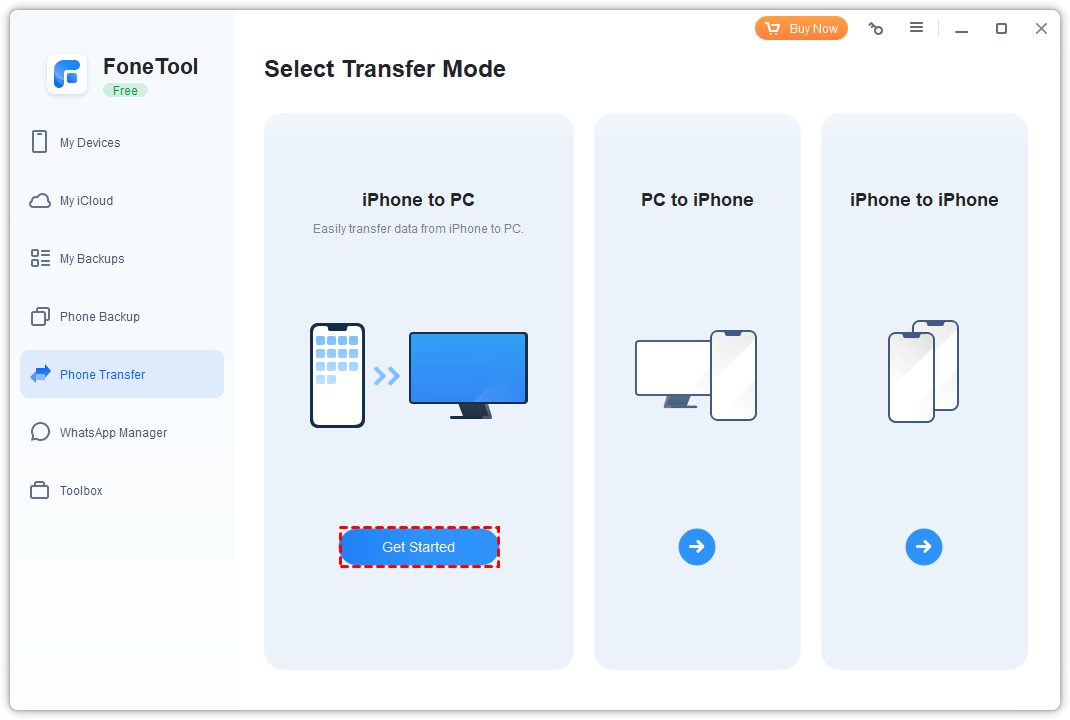
Step 2. Click the Photos icon, select the specific images or videos you need, and click OK.
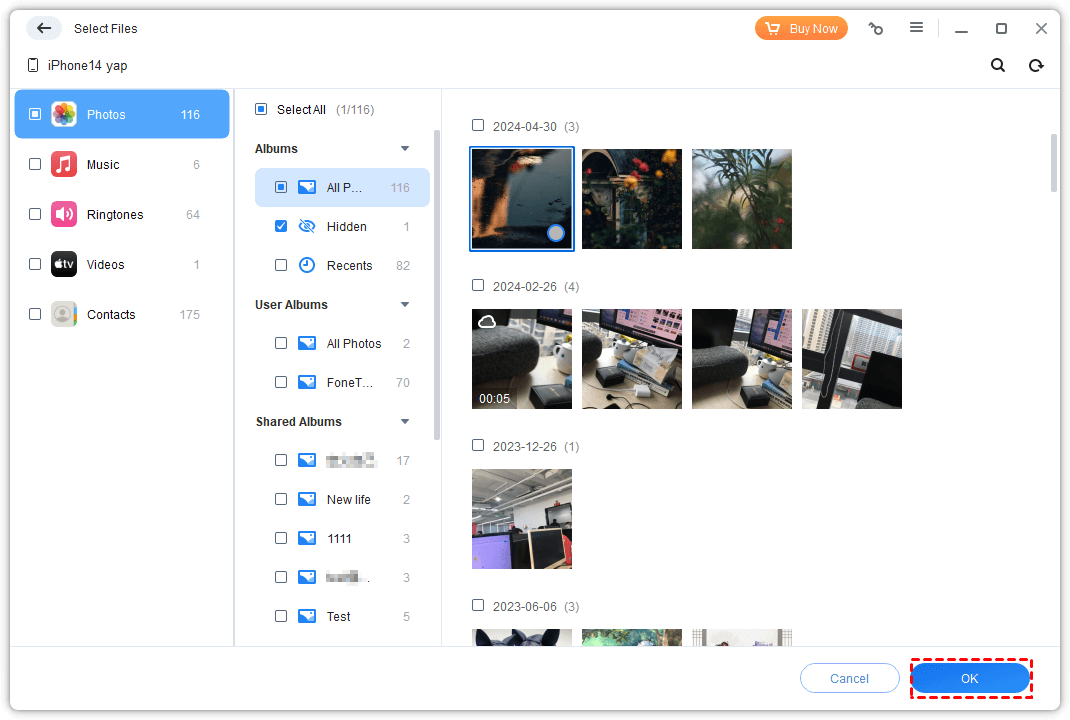
Step 3. In Transfer Settings, choose a destination folder on your PC. Click Start Transfer.
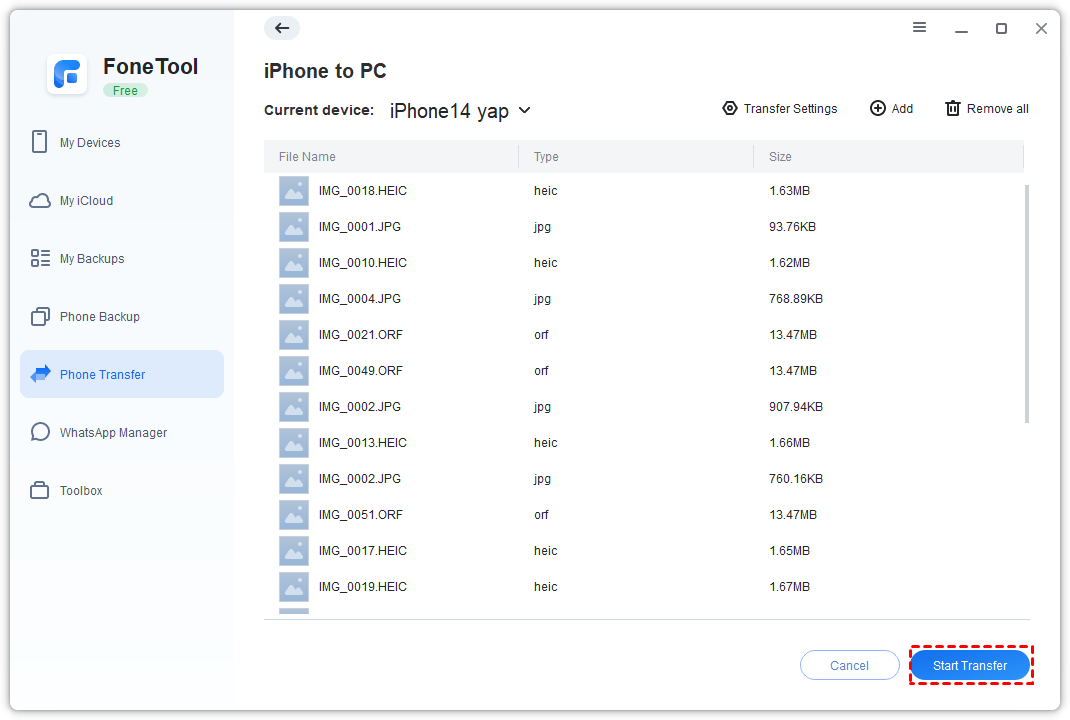
You can also go to Phone Transfer > Choose PC to iPhone to transfer photos from PC to iPhone without iTunes via a wired way.
2. iPhone to computer photo transfer free software - Windows Photos
For Windows 11, 10 or 8 users, you can rely on the built-in Photos app to transfer photos from iPhone to PC free with a USB cable. And you don’t need to install any third-party software.
Step 1. Connect your iPhone via USB, unlock it, and tap "Trust" to authorize the connection.
Step 2. Open the Photos app from the Start menu. Click Import > From a connected device. The app will automatically detect your photos.
Step 3. After detection, select the photos you want. Click Import settings to change the destination folder. Finally, click Import Selected.
3. App to transfer photos from iPhone to laptop/desktop - File Explorer
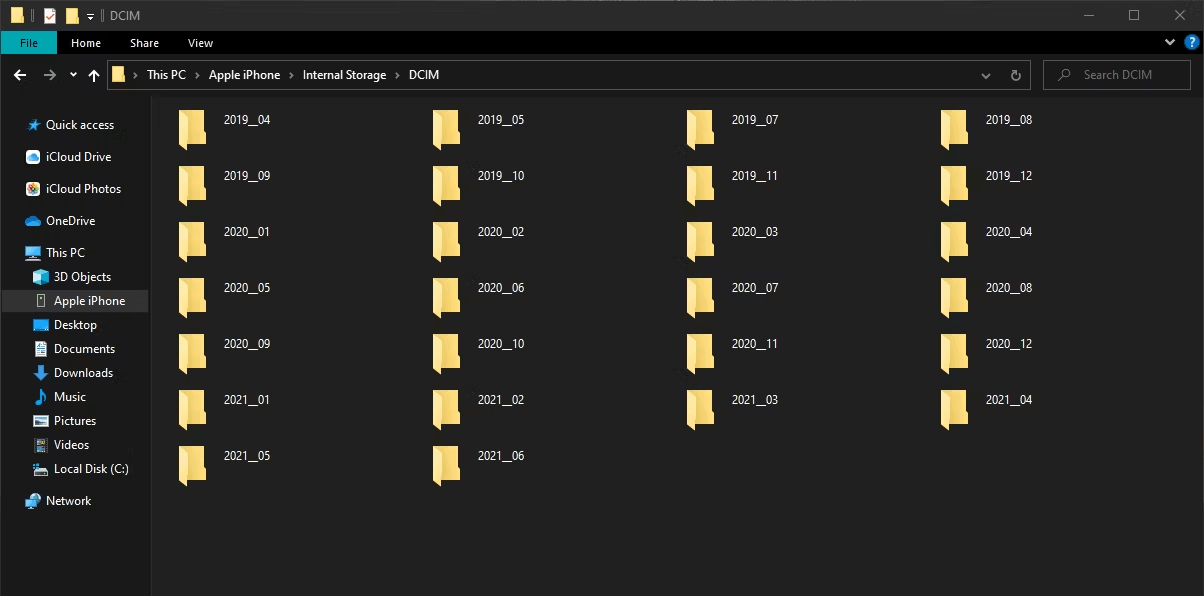
Windows Explorer or File Explorer is software offered by Windows to help you access and manage iPhone photos/videos stored in the DCIM folder.
Step 1. Connect your iPhone via USB, unlock it, and tap "Trust".
Step 2. Open This PC from the desktop or Start menu. Your iPhone will appear as a portable device.
Step 3. Double-click your iPhone, open Internal Storage > DCIM. Here, you can preview, select, and copy photos to your PC.
4. Free iPhone to PC photo transfer app - iTunes
As the official transfer and synchronization software provided by Apple for Windows users, iTunes can also help you transfer photos from your iPhone to a Windows PC.
However, for most users, the iTunes interface is quite complex, the steps can be cumbersome, and unknown errors often occur during the process, like iTunes error 8003. Therefore, we do not recommend using this method for transfer.
Step 1. Download the latest iTunes and install it on your PC.
Step 2. Launch iTunes and connect your iPhone via USB. Click the device icon when it appears.
Step 3. Go to the Photos tab, check Sync Photos, choose to sync all or selected albums, and click Apply.
5. Software to transfer photos from iPhone to PC for free - iCloud
For people who need to free transfer photos from iPhone to PC, you can also rely on iCloud to finish the process wirelessly.
Step 1. On your iPhone, go to Settings > [Your Name] > iCloud > Photos and toggle on Sync this iPhone.
Step 2. Go to https://www.icloud.com/ on your PC and log in with your Apple ID.
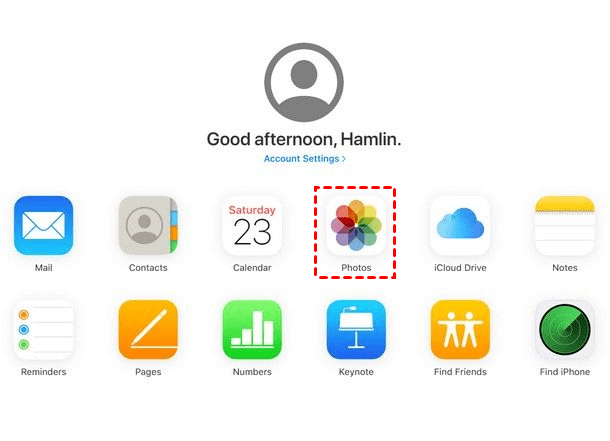
6. Transfer photos from iPhone to PC software free - Google Photos
Google Photos is another viable option for wireless transfer. Unlike iCloud's 5 GB, it offers 15 GB of space for free users. You can follow the guidance below to upload and download photos from Google Photos.
Step 1. On your iPhone, go to https://photos.google.com/ in a browser or use the app. Log in and upload your photos.
Step 2. On your PC, go to photos.google.com, log in, select photos, click the three-dots menu, and choose Download.

7. Free program to transfer photos from iPhone to PC - Dropbox
Dropbox is a free cloud storage service that provides users with up to 16 GB of free storage space. Due to its high compatibility, users widely use it to transfer photos from iPhone to PC.
Step 1. Install Dropbox from the App Store. Go to Settings > Camera Upload and enable Background Uploading.
Step 2. Once uploaded, access your photos via the Dropbox desktop app or by visiting https://www.dropbox.com/ on your PC.
Conclusion
Here you can know 7 free software to transfer photos from iPhone to PC. What is the best program to view iPhone photos on PC? If you need to move a large number of images, the answer is FoneTool. Its fast transfer speed allows you to transfer 1,000 photos from iPhone to PC within 10 minutes. If you need a wireless way, then you can choose iCloud, Google Photos or Dropbox to make it efficiently.
FAQs on transferring iPhone photos to PC
FoneTool - All-in-one iPhone Data Manager
Transfer, backup and manage data on iPhone, iPad and iPod touch in an easy way.
-
 iOS 27 Compatible
 iPhone 17 Supported
Windows 11/10/8/8.1/7

100% Secure

Kelsey is an English editor at FoneTool, passionate about helping users solve tech issues. She specializes in iPhone data management, backup, and recovery. In her free time, she enjoys learning IT skills and spending time with loved ones.
Read author info >>



 as a preferred
source on Google
as a preferred
source on Google