How to Transfer Music from iPad to Computer [5 Simple Ways]
In this article, you will learn 5 methods on how to transfer music from iPad to computer to easily free up space on your iPad and store music.


Transferring music from an old iPad to a new one using PC backup
I have a ton of music which I copied from CD's on to iTunes/iPad. When doing a backup Ipad to my PC these items are not synced. Can anybody help pls?
- Question from Apple Discussions
Can I transfer music from my iPad to my computer?
Yes, this common frustration from Apple Discussions reflects a widespread need: transferring music from iPad to computer isn't always straightforward. Whether you're backing up CD imports, freeing up space, or moving songs for editing, this guide covers five working solutions.
Why Transfer Music from iPad to Computer?
Before we dive into methods, let's explore why you might need to move your music:
🎵 Music Backup - Protect your valuable music collection from accidental loss or device damage
📱 Storage Freedom - Reclaim space on your iPad by moving music to your computer
🎧 Editing Flexibility - Use computer software for advanced audio editing
🔄 Cross-Device Access - Enjoy your music anywhere, on any device
| Method | Speed | Selective Transfer | Data Safety | Difficulty |
| FoneTool | ⚡⚡⚡⚡⚡ | ✅ Yes (specific songs) | ✅ No data loss | Very Easy |
| iTunes/Finder | ⚡⚡⚡ | ❌ No | ❌ May overwrite | Complex |
| iCloud Library | ⚡⚡ | ❌ No | ✅ Safe | Medium |
| ⚡ | ✅ Yes (per email) | ✅ Safe | Easy | |
| Manual USB Transfer | ⚡⚡⚡⚡ | ✅ Yes | ✅ Safe | Medium |
Now let's explore each method in detail, starting with the most user-friendly option.
Method 1. Directly transfer music from iPad to PC
FoneTool simplifies iPad-to-computer music transfer with a clean, intuitive interface, quickly transfer music from iPad to PC without iTunes, no data loss and compression.
- Transfer music in original quality, no compression
- Select specific songs instead of your entire library
- Works with both purchased and personal music
- Support iPad to PC, PC to iPad, iPd to iPad transfer.
- No technical knowledge required
Windows 11/10/8/8.1/7

100% Secure
Learn how to transfer music from iPad to computer without iTunes.
Step 1. Download and install FoneTool, then connect your iPad via USB cable.
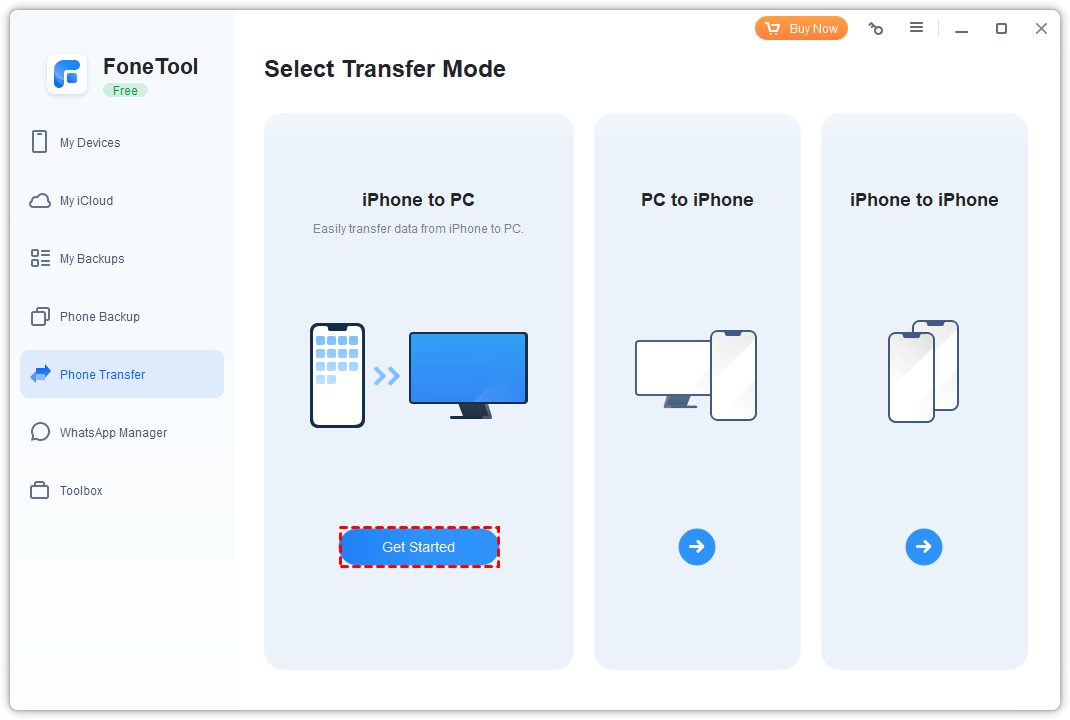
Step 2. Select "Phone Transfer" and choose "iPhone to PC".
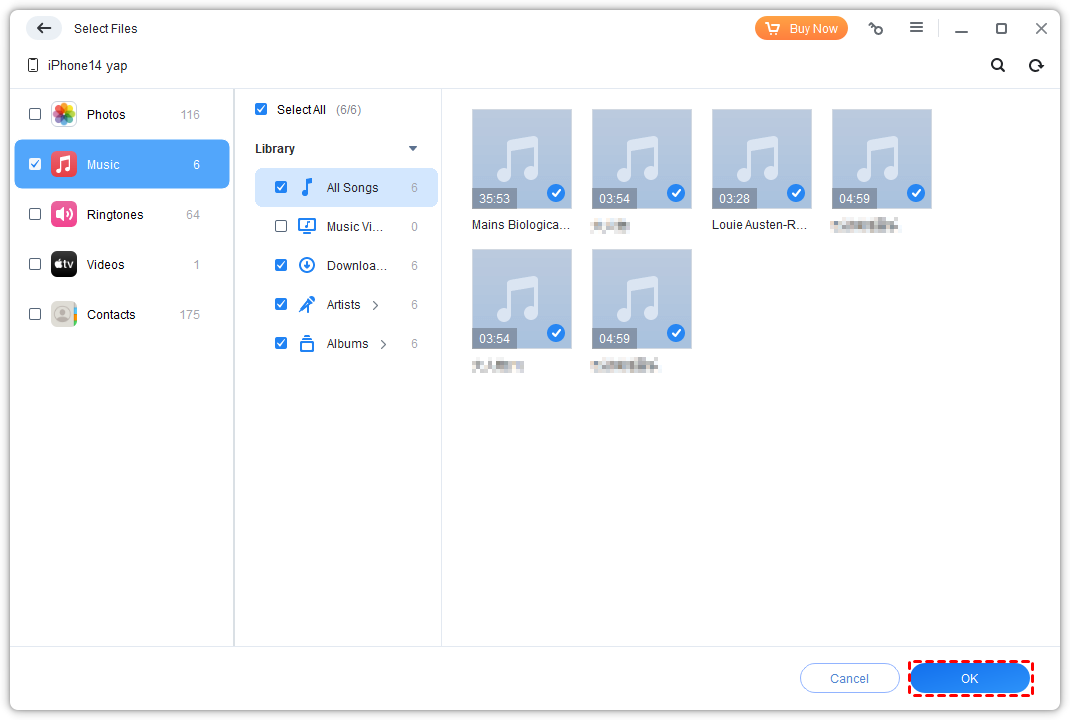
Step 3. Click the music icon, then check the songs you want to transfer.
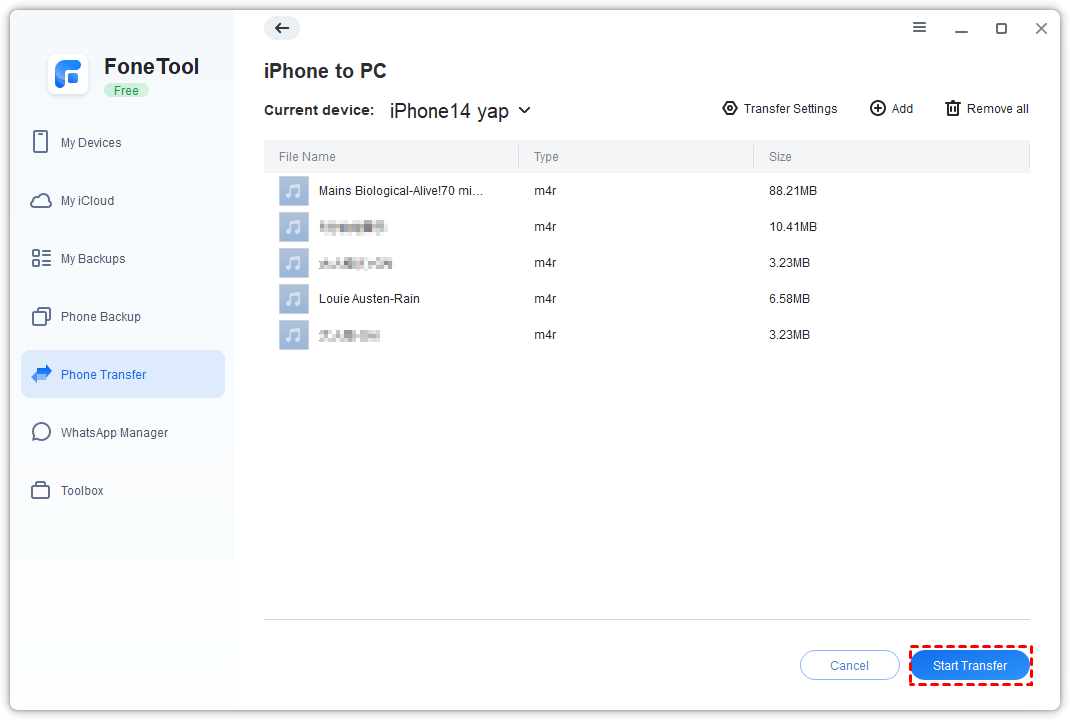
Step 4. Choose your destination folder and click "Start Transfer".
- ★Tip:
- You can preview all music files before transferring, making it easy to select exactly what you need.
Method 2. Sync iPad music to computer with iTunes/Finder
Apple's official tool iTunes works if you previously synced music from iTunes to your iPad.
Step 1. Connect iPad to computer and open iTunes (or Finder on Mac).
Step 2. Click your device icon and go to Music settings.
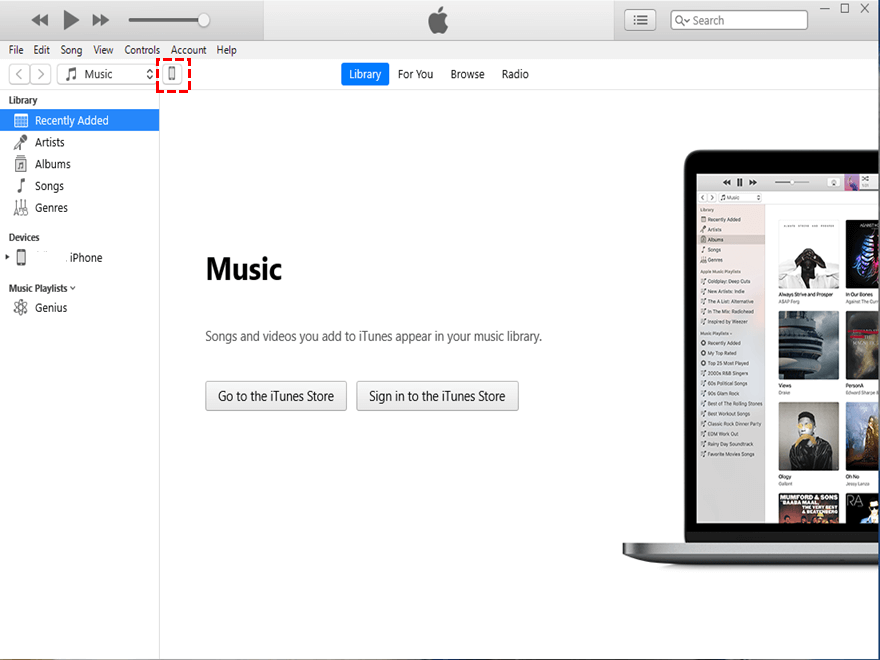
Step 3. Check "Sync Music" and select specific content to transfer.
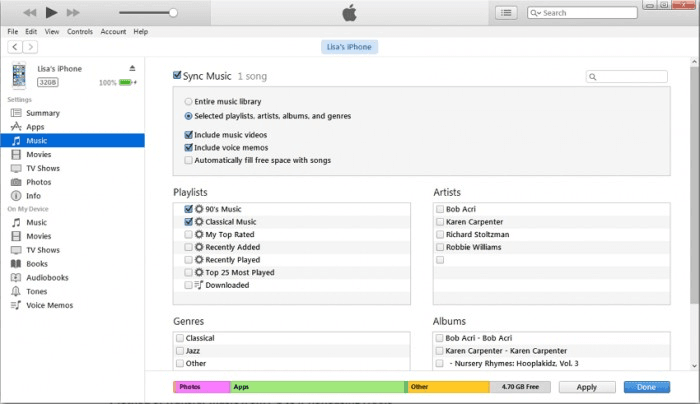
Step 4. Click "Apply" to start sync iPad music to your computer.
Method 3. Move music from iPad to computer via iCloud Library
For Apple Music or iTunes Match subscribers, iCloud keeps your music available everywhere.
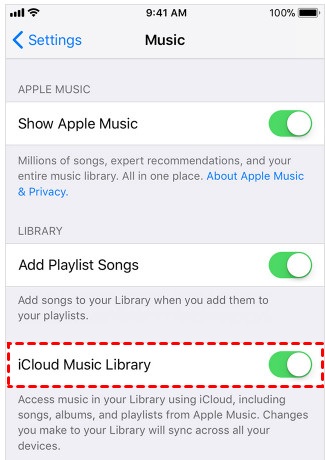
Step 1.On iPad, go to "Settings" > [your name] > "Music" and turn on "Sync Library".
Step 2. On computer, open iTunes/Apple Music with the same Apple ID.
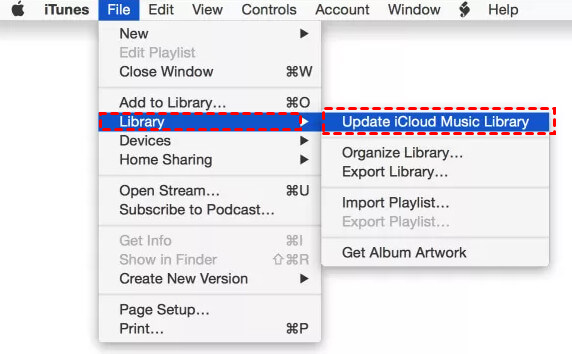
Step 3. Go to "File" > "Library" > Update "iCloud Music Library".
Step 4. Wait for music to download to your computer.
Method 4. Send music from iPad to computer using Email
Perfect for transferring a few songs quickly, though limited by file size restrictions. Go ahead to learn how to transfer A small amount of music from iPad to computer.
Step 1. Locate music file in Files app or music application:
--If you download MP3 and other music files in the file application: Open File > Browse to Music File;
--If the song is in a music application (for example, GarageBand, Voice Memos): Open the application, find the song, and click Export.
Step 2. Tap Share or 📤 button and select Mail.
Step 3. Email the file to yourself.
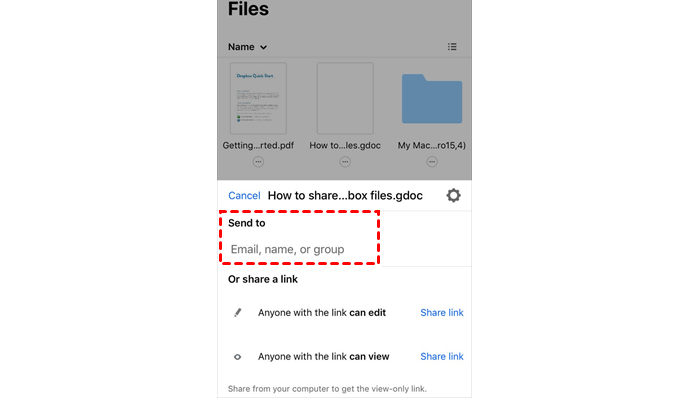
Step 4. Open email on computer and download attachment.
Method 5. Manually transfer music from iPad to computer
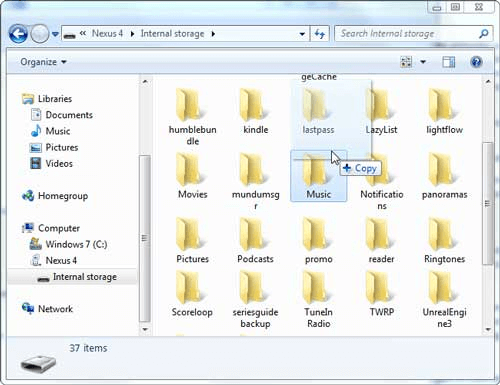
Direct file access works for non-DRM music files stored in your iPad's Files app. The steps of how to transfer music from iPad to PC Windows 10/11 are as follows:
Step 1. Connect iPad to computer via USB cable.
Step 2. Open File Explorer (Windows) or Finder (Mac).
Step 3. Select your iPad and navigate to music files.
Step 4. Copy files to your computer.
FAQs on transferring music from iPad to computer
Final words
The above is all about how to transfer music from iPad to computer, 5 methods are effective; you can choose the most suitable way to transfer iPad music according to their characteristics. Among them, FoneTool is the easiest and most stable method. This powerful iOS transfer software can help you quickly transfer data between iPad and PC without iTunes and data loss. Download it and give it a try.
FoneTool - All-in-one iPhone Data Manager
Transfer, backup and manage data on iPhone, iPad and iPod touch in an easy way.
-
 iOS 27 Compatible
 iPhone 17 Supported
Windows 11/10/8/8.1/7

100% Secure

Kelsey is an English editor at FoneTool, passionate about helping users solve tech issues. She specializes in iPhone data management, backup, and recovery. In her free time, she enjoys learning IT skills and spending time with loved ones.
Read author info >>



 as a preferred
source on Google
as a preferred
source on Google