Cash App Unable to Sign In on This Device? Fixed!
Stuck with "Cash App unable to sign in on this device"? Learn causes like network issues, outdated apps, or account conflicts. Our step-by-step fixes cover basic to advanced solutions for iOS & Android.


Encountering the "Cash App unable to sign in on this device" error can be a frustrating experience, especially when you need quick access to your funds. This common issue affects both iPhone and Android users, but the good news is that it's often resolvable with some straightforward troubleshooting. This guide will walk you through the primary causes and provide a clear, step-by-step path to regain access to your Cash App account.
Why Are You Seeing the "Unable to Sign In" Error?
Before diving into the solutions, it's helpful to understand what might be causing this login barrier. Identifying the root cause can make the fixing process faster:
- Network Problems: Weak Wi-Fi or cellular signal prevents server connection
- Wrong Credentials: Incorrect email, phone number, or password
- Multiple Logins: Your account is active on another device
- Outdated App: Old version with bugs or compatibility issues
- Server Outages: Cash App systems are down
- Device Issues: Corrupted cache or system errors
6 Proven Methods to Fix Cash App Login
Try these methods in sequence, starting with the simplest and most common fixes.
Tip: If you don't want to waste time trying the basic methods one by one, we highly recommend that you prefer method 3. If the Cash app still crashes after reinstallation, or if there are issues with multiple apps, FoneTool Repair can fix the underlying system issues that are causing all the trouble.
Method 1. Check Your Internet Connection
A stable network is crucial. Ensure you are connected to a reliable Wi-Fi network or have a strong cellular data signal.
Step 1. Turn Airplane mode on for 10 seconds, then off.
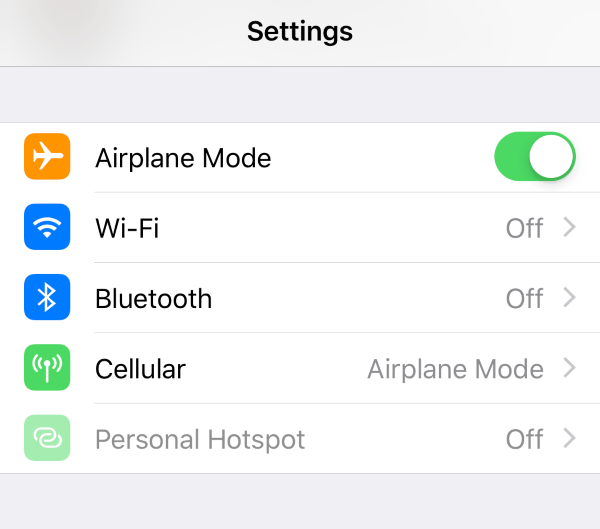
Step 2. Switch between Wi-Fi and cellular data to test both.
Step 3. Restart or replug your router if using Wi-Fi.

Step 4. Try loading other websites to confirm your connection works.
Method 2. Verify Cash App Server Status
Before troubleshooting your device, confirm the problem isn't on Cash App's end.
Step 1. Visit Cash App's official status page for real-time system status..
Step 2. Check Downdetector for user reports and outage patterns.
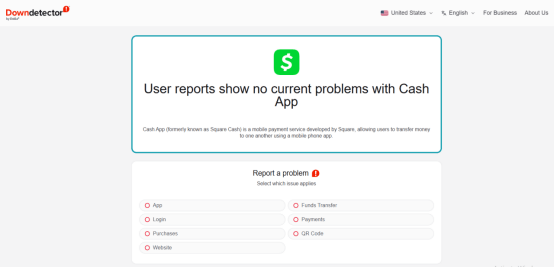
Step 3. Look for outage notifications on Cash App's social media.
Step 4. Wait for resolution if servers are down.
Method 3. Update and Reinstall Cash App
An outdated or corrupted app installation often causes login failures.
Step 1. Update the app: Visit App Store (iPhone) or Google Play Store (Android).
Step 2. Clear cache: Go to Settings > Apps > Cash App > Storage > Clear Cache.
Step 3. Reinstall app: Delete Cash App, restart device, then reinstall.
Step 4. Login fresh: Use the correct credentials in the new installation.
Method 4. Reset Account Access
Security features may block access if unusual activity is detected.
Step 1. Log out from all devices in Cash App settings (if accessible).
Step 2. Reset your Cash App PIN for security.
Step 3. Verify your email and phone number are correct.
Step 4. Use "Forgot Password" if needed to reset credentials.
Method 5. Fix Device Conflicts
When nothing else works, the problem might be deeper than just Cash App. If you've tried every basic fix and still face the "unable to sign in" error, your iOS system itself might need repair. This is where FoneTool Repair becomes your secret weapon - it's the professional-grade solution that goes beyond basic troubleshooting to fix the root cause, including issues like the device has either stopped responding or is disconnected during file transfers.
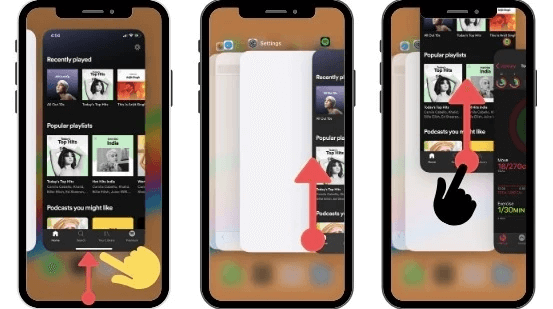
Step 1. Close all background applications.
Step 2. Check for device software updates.
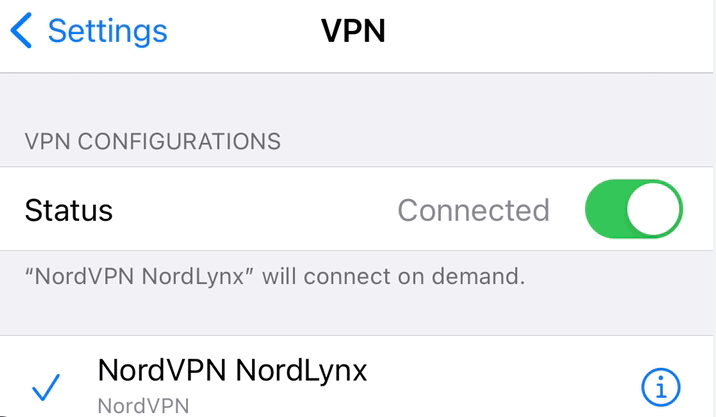
Step 3. Disable VPN services temporarily.
Step 4. Restart your device completely.
Method 6. The Ultimate iOS Solution - FoneTool Repair
When nothing else works, the problem might be deeper than just Cash App. If you've tried every basic fix and still face the "unable to sign in" error, your iOS system itself might need repair. This is where FoneTool Repair becomes your secret weapon - it's the professional-grade solution that goes beyond basic troubleshooting to fix the root cause.
This powerful iOS system repair tool is the best way to fix iOS/iPadOS issues without data loss
Step 1. Download FoneTool Repair on Windows PC, and connect the iPhone via USB cable.
Step 2. Choose the iOS System Repair feature on the main interface.

Step 3. Select Standard Mode or Deep Mode to fix issue.

Step 4. Download firmware, and then tap Start Repair to start the repair process.

Frequently Asked Questions
Summary
Fixing "Cash App unable to sign in on this device" is usually straightforward. Start with network checks and app updates. For account issues, reset your credentials and log out of other devices. iPhone users with persistent problems can use FoneTool Repair for system-level fixes. Most login issues resolve within minutes using these proven methods.
Fixes 160+ iOS/iPadOS issues, boot loops, crashes, failed updates, with no data loss.
-
 iOS 27 Compatible
 iPhone 17 Supported
100% Secure

Kelsey is an English editor at FoneTool, passionate about helping users solve tech issues. She specializes in iPhone data management, backup, and recovery. In her free time, she enjoys learning IT skills and spending time with loved ones.
Read author info >>



 as a preferred
source on Google
as a preferred
source on Google