7 Best Free Password Managers for iOS to Lock and Manage Your Logins
Discover a free password manager for iOS to find the best free option to lock and manage your logins. Compare Apple Passwords, Bitwarden, Proton Pass, RoboForm & more.


You have too many passwords to remember, such as email, social media, banking, streaming, shopping, work tools, and more. Reusing them is risky. Writing them down in Notes is a security nightmare. You need the best password manager for iPhone, but with so many free options for iPhone, which one should you actually trust?
🧩Here's the problem: Most free password managers come with hidden catches. Sync limits, missing features, or no way to recover if you get locked out of your own device.
🙆♀️What to do: We’ll walk you through the best free iOS password managers one by one, compare their features, pros & cons, and help you pick the right fit. Plus, we'll show you what to do when you're locked out of your own accounts (because password managers can't fix that).
Keep reading. By the end of this guide, you'll know exactly which app to install and what to do if you ever get locked out.
Apple Passwords – The Built-In Free Option
🔥 Best For: Users deeply embedded in the Apple ecosystem looking for seamless, cost-free solutions.
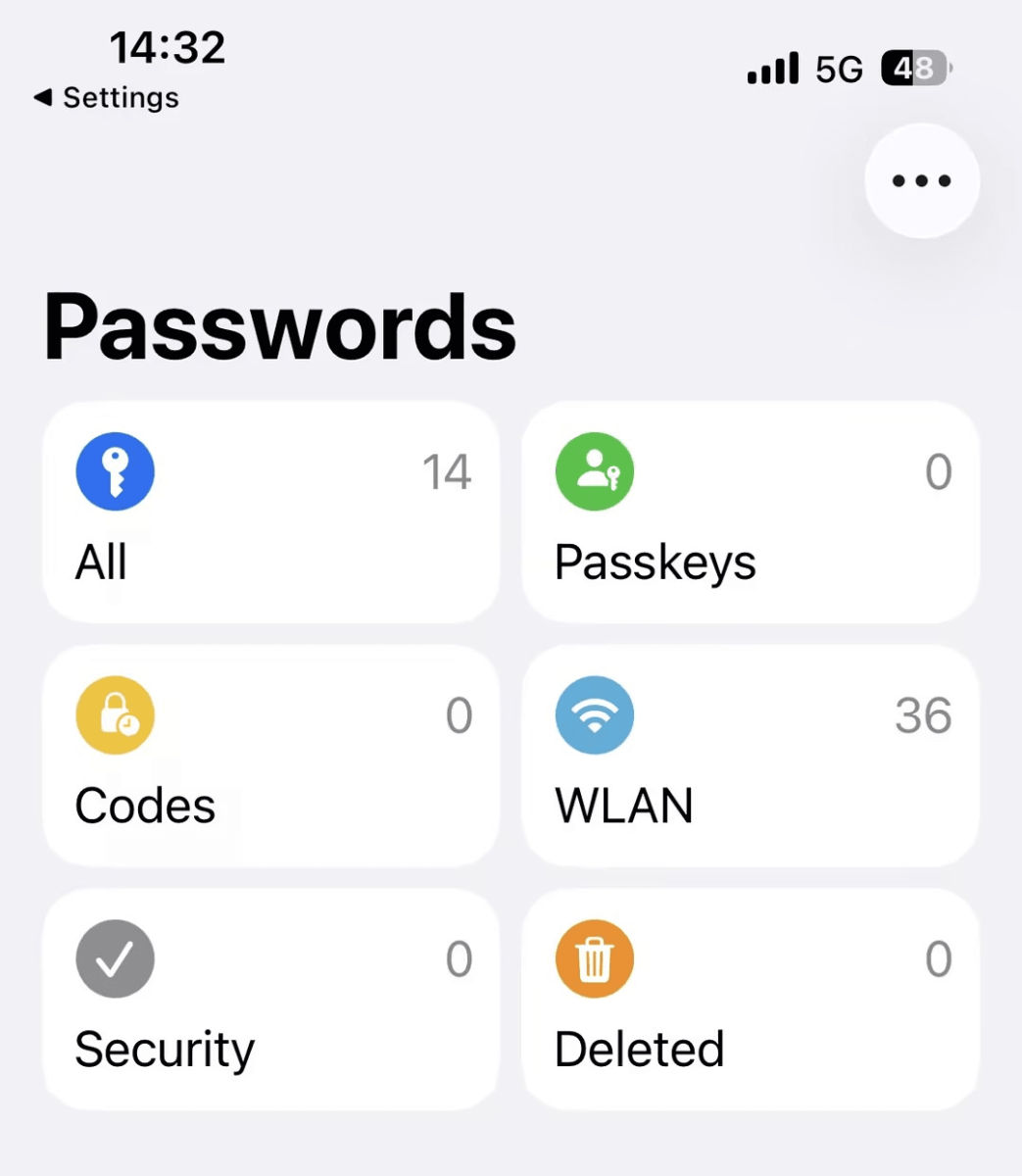
Apple Passwords is the default password manager built directly into iOS, iPadOS, and macOS. Formerly part of iCloud Keychain, it became a standalone "Passwords" app in iOS 18. It's completely free, requires no installation, and offers deep system-level integration that third-party apps cannot match. For users already living in the Apple ecosystem, it's the most seamless option available.
📚 What Apple Passwords Offers (Free with Your iPhone)
- Deep integration with iOS, iPadOS, and macOS
- Syncs securely via iCloud with end-to-end encryption
- Generates strong passwords, saves passkeys, and stores 2FA codes
- Alerts you to weak, reused, or compromised passwords
📃 Specs & Configurations
- Security: AES-256 encryption, end-to-end encryption (using iCloud Keychain)
- Storage: Passwords, passkeys, WiFi credentials, standard TOTP codes
- Platforms: iOS, iPadOS, macOS, Windows (using iCloud app, limited)
- Password Generation: Autofill and generate strong passwords in Safari and apps
- Price: Free (requires Apple ID and iCloud)
📌Pros & Cons:
✅ Pros:
- Completely free and preinstalled on every iPhone
- Deep system integration – autofill works in apps and Safari without extra setup
- Alerts for weak, reused, or compromised passwords
- Supports passkeys and built-in 2FA code generator
❌ Cons:
- Cannot store secure notes, credit cards, or file attachments
- Cross-platform support (Windows) is clunky compared to dedicated apps
- Tied to iCloud – migrating away is not straightforward
- No native Android or Linux support
FoneTool Unlocker – Your Emergency Unlock Backup
🔥 Best For: Users who want a password manager for daily use plus an emergency unlock tool for lockouts

FoneTool Unlocker - your password manager handles daily credential storage, primarily on iPhone and Safari browser. But if you're locked out of your iPhone, such as a forgotten screen code, disabled Apple ID, or broken Face ID, you can't reach those passwords.
FoneTool Unlocker plays a supporting role: it restores access to your device without data loss, so you can get back into your password manager. Think of it as a spare key, not a replacement.
📚 What FoneTool Unlocker Offers:
- Retrieve and export existing Wi-Fi passwords, iTunes backup encryption, Apple ID, Safari and app account credentials stored on your iOS device
- Removes screen passcode (4digit/6digit), Touch ID, Face ID, and custom alphanumeric codes, giving you a fresh start without losing data
- Removes Apple ID and iCloud activation lock when you're locked out of a second-hand device or forgotten your credentials
- Bypasses Screen Time passcode without losing data
- Enter or exit recovery mode for emergency use
- Fully compatible with all iOS versions, iOS 12.0 and later, including iOS 18/19; all iPhone and iPad models
💰 Price: free
📌Pros & Cons:
✅ Pros:
- Straightforward, one-click process to regain device access
- Preserves all existing data, including your password vault
- Versatile-solves passcode, Apple ID, and Screen Time lockouts
❌ Cons:
- Requires a Windows PC to run the unlocking process
- Paid software (free version has feature limits)
Bitwarden – The Open Source Powerhouse
🔥 Best For: Users who want a completely free, cross-platform solution without sacrificing core features.
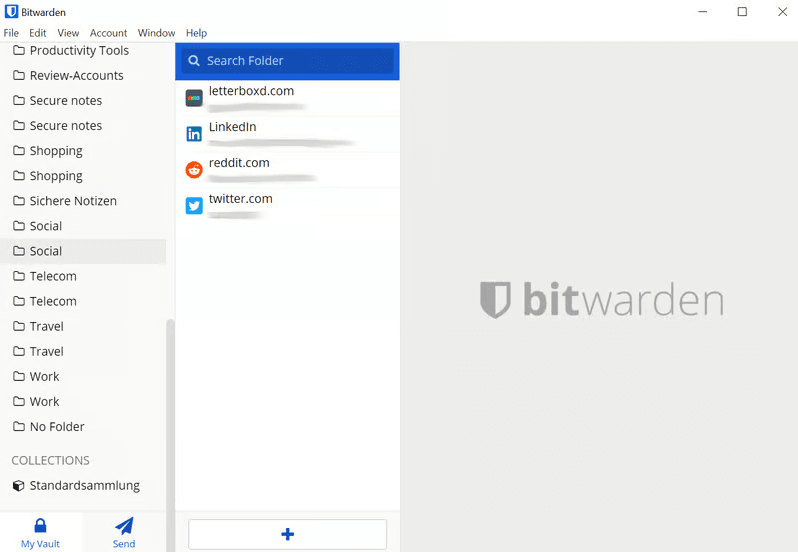
Bitwarden is an open-source password manager trusted by security professionals and millions of users worldwide. Its free plan is famously generous – offering unlimited passwords and unlimited device sync with no artificial restrictions.
Unlike many competitors, Bitwarden is fully transparent: its code is publicly auditable, and you can even host your own server. For users who want a truly free, cross-platform solution without compromise, Bitwarden is a top contender.
📚 Bitwarden Free - What You Get
- Core features - password generator, zero-knowledge encryption, secure sharing, vault storage, up to 10 email aliases, etc
- Completely free for personal use with no time limits
- Unlimited passwords and unlimited device syncing
- Available on iOS, Android, Windows, macOS, Linux, and all major browsers
- Open source and independently audited for security
💰 Paid vs Free - What's Missing?
- The free plan includes all core features
- Premium ($19.8/year) adds a built-in TOTP authenticator, file attachments, emergency access, phishing blocker, sharing vault items, and more
- The free version is genuinely usable for most people – no artificial device limits
📃 Specs & Configurations:
- Security: Opensource, AES-256, zeroknowledge, regularly audited
- Free Features: Unlimited passwords/devices, password generator and autofill, secure notes, secure password sharing
- Platforms: iOS, Android, Windows, macOS, Linux, all browsers, CLI
- Selfhosting: Yes (optional, open-source server)
- Price: Free (Premium: $19.8/year)
📌Pros & Cons:
✅ Pros:
- Truly unlimited cross-device sync
- Open source and transparent – anyone can audit the code
- Supports selfhosting for maximum control
- Up to 10 email aliases
- Clean, functional interface with no ads
❌ Cons:
- Lack of TOTP 2FA and authenticator
- No file attachments
- User interface is less polished than 1Password or NordPass
Proton Pass – The PrivacyFirst Alternative
🔥 Best For: Privacy-conscious users who want a generous free plan with unlimited devices and email alias protection.
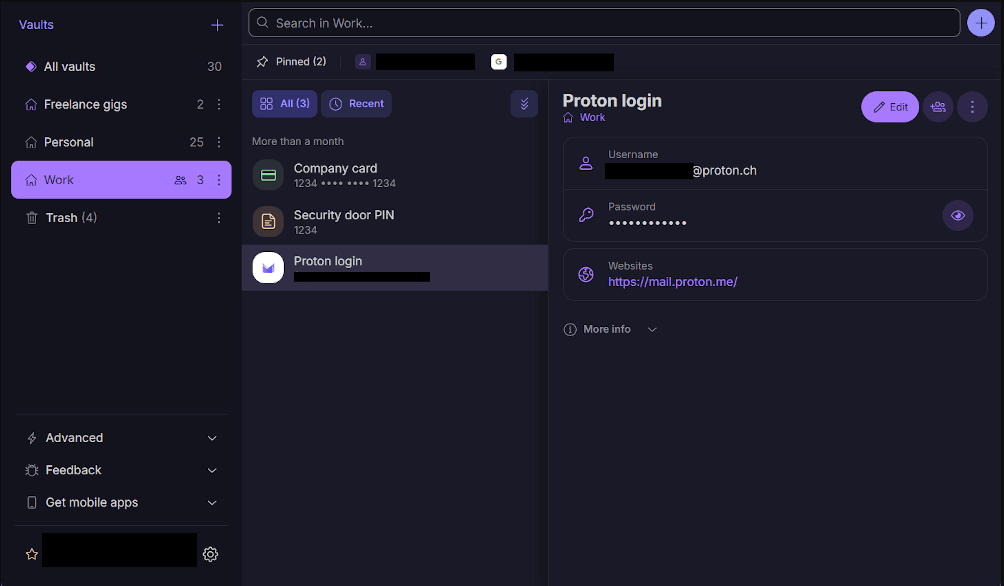
Proton Pass comes from the team behind Proton Mail, a company built on a foundation of privacy and end-to-end encryption. Based in Switzerland (strong privacy laws), Proton Pass offers a generous free tier to protect your real inbox, including unlimited logins, unlimited device sync, secure notes,10 email aliases, built-in 2FA authenticator, etc., that most free applications lack.
🧩 Key Differentiators:
- Offers up to 10 free email aliases to protect their real inbox from spam and tracking
- End-to-end encryption by default, with zero access to user data
- No ads, no data collection
📃Specs & Configurations:
- Security: End-to-end encrypted, zero access, Swiss privacy laws (no data sharing)
- Free Features: Unlimited logins, notes and credit cards, unlimited devices, password generator, 10 hide-my-email aliases, password import
- Platforms: iOS, Android, web, browser extensions (Chrome, Firefox, Edge, Brave)
- Price: Free (Proton Pass Plus: $2.99/month or bundled with Proton Unlimited)
📌Pros & Cons:
✅ Pros:
- Supports unlimited logins, notes, and credit cards
- Unlimited device sync
- 10 hide-my-email aliases
- Strong privacy protections – no data collection, based in Switzerland
- Easy to import passwords
- 1 GB of encrypted document storage
- Clean, modern interface
- 2 others securely share vaults
❌ Cons:
- Newer product with fewer third-party security audits than Bitwarden
- Paid plan required for file uploads and "Sentinel" advanced security
- Lack of multi-factor authentication
RoboForm – The Veteran with a Generous Free Tier
🔥 Best For: Users who only need a password manager on their iPhone and don't require syncing with other devices.
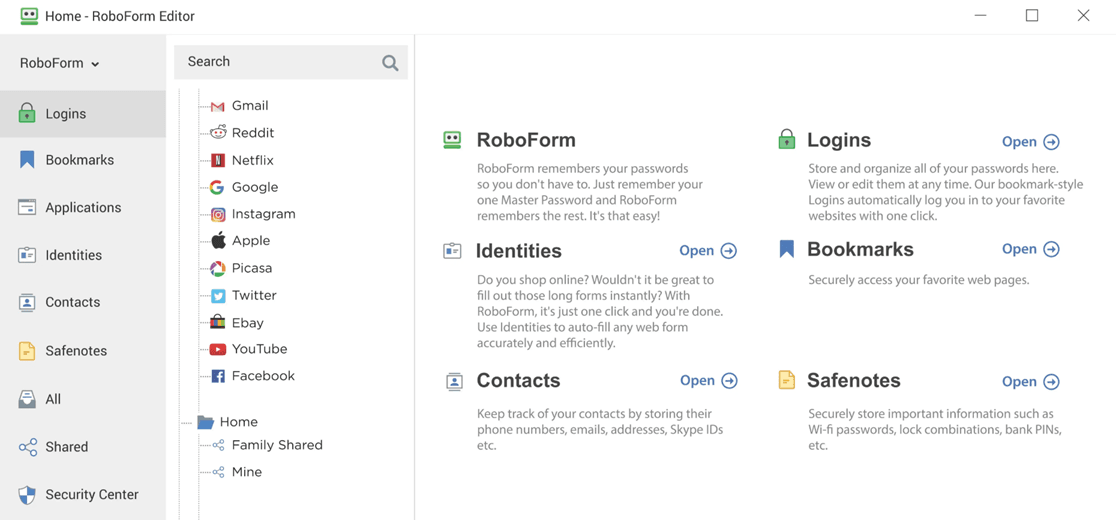
RoboForm is one of the oldest password managers on the market, known for its powerful form-filling capabilities and longstanding security reputation. Its free tier is surprisingly generous, including a built-in TOTP authenticator, which most free plans lack.
However, the free version is strictly limited to one device. If you only use a password manager on your iPhone and don't need sync, RoboForm is a strong contender.
🧩RoboForm Free Features:
- Unlimited password storage and form filling
- Built-in TOTP authenticator (2FA code generation)
- AES-256-bit encryption and zero-knowledge architecture
- Password generator and security audit tools.
⛔ The One Major Restriction:
- The free plan is limited to one device at a time
- You can use RoboForm on your iPhone, but you cannot sync to another device (e.g., iPad or PC) without upgrading
- Cross-device sync requires the Premium plan
💰Paid Upgrade Benefits:
- Premium starts at around$1.66/month (billed annually) – very competitive
- Unlocks unlimited device sync, encrypted file storage, and emergency access
📃Specs & Configurations:
- Security: AES-256, two-factor authentication, zero-knowledge, passkey support
- Free Features: Unlimited passwords, form-filling, security audit, built-in TOTP authenticator
- Platforms: iOS, Android, Windows, macOS, browser extensions
- Price: Free (1 device); RoboForm Everywhere starts at ~$1.66/month (billed annually)
📌Pros & Cons:
✅ Pros:
- Support for integrated TOTP authenticator (most free tiers lack)
- Excellent form-filling for long checkout and registration pages
- Security audit checks passwords against known breach databases
- Very competitive upgrade price
❌ Cons:
- Free version is strictly limited to one device
- Dated user interface
- No file attachments or emergency access
NordPass – The User-Friendly Option (with a Catch)
🔥 Best For: Users who only need a password manager on their iPhone and rarely use other devices.
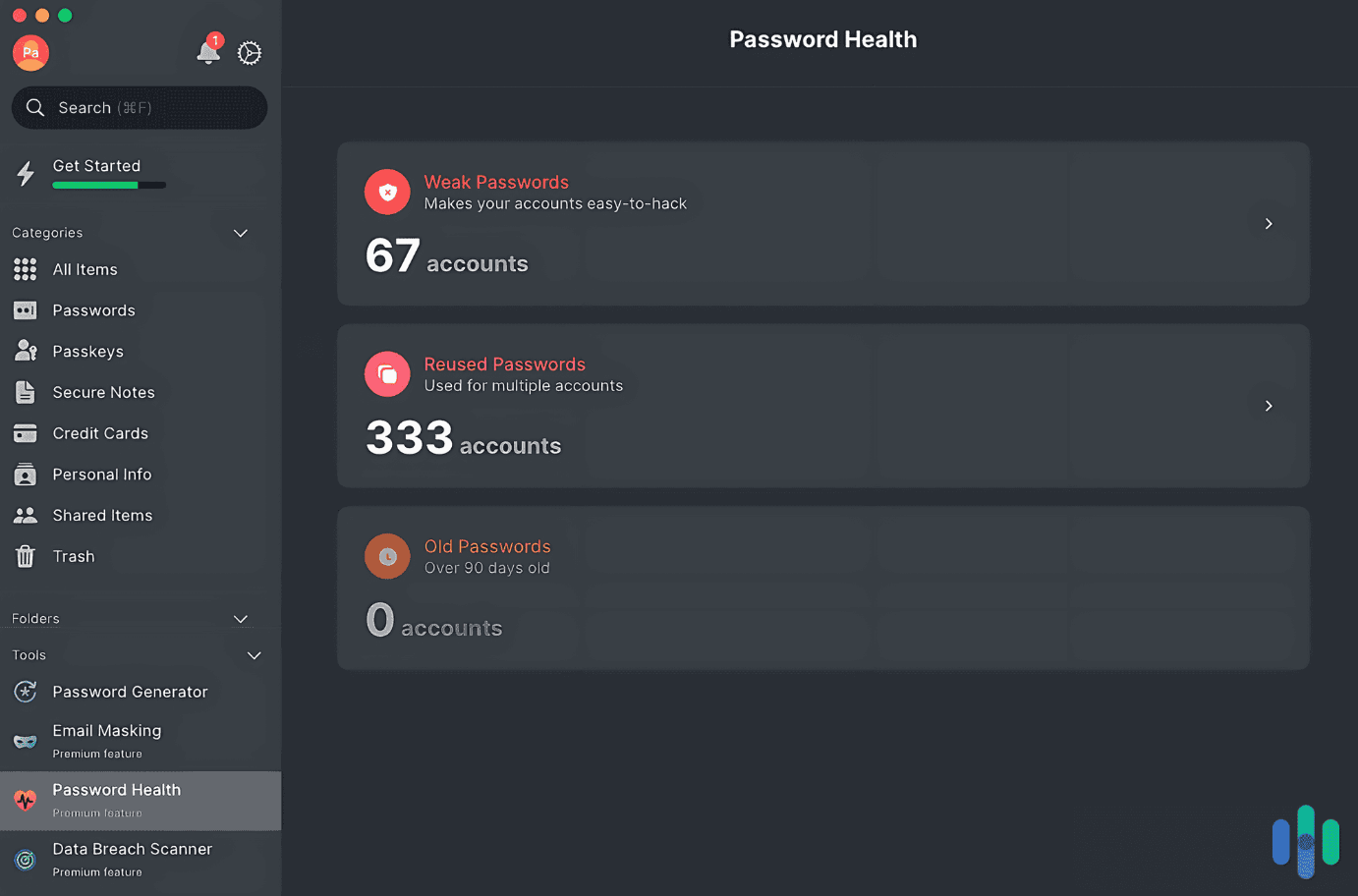
NordPass is built by the team behind NordVPN, known for their focus on user experience and modern design. The free tier is clean, fast, and supports unlimited passwords and secure notes.
However, like RoboForm, it restricts free users to logging in on only one device at a time. This makes it less convenient for multi-device households but still a solid choice for single-device users.
🧩 NordPass Free Features:
- Unlimited password storage and autofill
- XChaCha20 encryption & zero-knowledge architecture
- Supports secure notes for storing ID numbers and credit card details
⛔ The One Major Restriction:
- The free plan only allows you to be logged into one device at a time
- You can sync across multiple devices, but you must log out of one to use another – a significant inconvenience
📃Specs & Configurations:
- Security: XChaCha20 encryption (modern, high-performance), zero-knowledge
- Free Features: Unlimited passwords, autosave/autofill, secure notes
- Platforms: iOS, Android, Windows, macOS, Linux, browser extensions
💰 Price: Free (1 device); Premium: ~$1.49/month
📌Pros & Cons:
✅ Pros:
- Clean, modern, and intuitive interface
- Supports secure notes for storing IDs, credit cards, and personal info
- Built-in data breach scanner (checks if your email has been compromised)
❌ Cons:
- Only one device allows login at a time – switching devices is cumbersome
- Lacks password health & sharing and file attachments
- Some autofill issues with lesser-known apps
- No Apple Watch compatibility
KeePass – The Local, Offline Free Option
🔥 Best For: Tech-savvy users who want complete control over their password data and don't trust cloud storage.
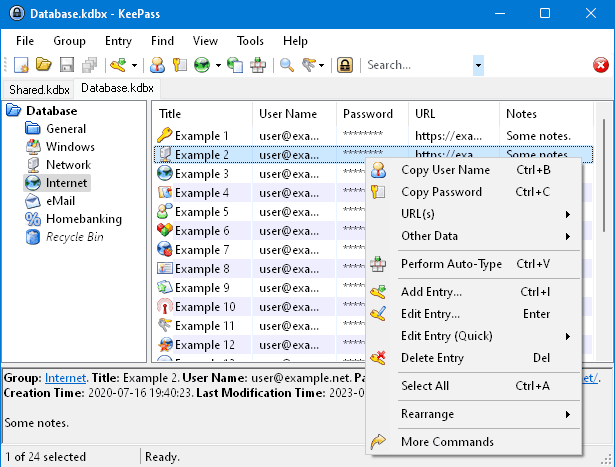
KeePass is not a typical password manager. It's an open-source, offline-first tool that stores your passwords in an encrypted local database file, not in the cloud. There's no company to trust, no subscription, and no device limits.
However, sync is manual, and the iOS experience relies on third-party clients. For tech-savvy users who want complete control, KeePass is unbeatable.
🧩What Makes KeePass Different:
- Completely free, open-source, and offline-first – your password database stays on your device, not in the cloud
- Supports strong AES256 encryption
- Compatible with multiple iOS apps (KeePass Touch, KeePassium, Strongbox)
The Trade-Off – No Automatic Sync:
- You must manually sync your database across devices (using iCloud, Dropbox, or USB)
- Requires more technical setup than mainstream options
- iOS apps are third-party clients, not official releases
📃 Specs & Configurations:
- Security: AES-256, Twofish, ChaCha20; offline storage; fully opensource
- Free Features: Totally free, unlimited entries, local encrypted database, password generator, plugins
- Platforms: Windows, Linux, macOS (official); iOS via third-party clients (KeePass Touch, KeePassium, Strongbox)
💰 Price: Free (donationware)
📌Pros & Cons:
✅ Pros:
- Maximum security and control – no cloud vendor to hack or shut down
- No device limits, no subscription, no tracking
- Highly extensible with community plugins (e.g., sync via Dropbox, WebDAV)
❌ Cons:
- No built-in cloud sync – requires manual file syncing (iCloud, Google Drive, USB)
- iOS experience depends on third-party clients, each with different features
- Steeper learning curve; not ideal for nontechnical users
Download Two-in-onePassword Manager to Keep Your iOS Always Accessible
Step 1. Open FoneTool Unlocker on your Windows PC. On the main interface, click Password Management.
Secure Download
Step 2. Click Start Scan to find Wi-Fi passwords, credentials saved in Safari and other apps, check Apple ID info, and back up scan history.
Step 3. For a smooth scan, connect your iPhone, unlock it, tap Trust This Computer, and confirm it's trusted in FoneTool Unlocker.
Step 4. Click Continue Scan and wait for the process to be complete.
Step 5. Then, click View Password to check all passwords and credentials it finds.
Step 6. Click Screen Time Passcode, Wi-Fi Account, Web & App Passwords, etc., to check all available passwords and credentials.
To remove screen passcode, Touch ID, etc., click Remove Now under Remove iOS screen Passcode and follow the on-screen instructions.
Conclusion
Apple Passwords works best inside Apple's ecosystem. Bitwarden offers unlimited cross-platform sync. Proton Pass adds privacy and email aliases. RoboForm and NordPass are good for single-device users. KeePass gives full offline control.
Final Recommendation:
- Most users: Bitwarden Free(unlimited sync, opensource)
- Apple users: Apple Passwords(builtin, seamless)
- Privacy first: roton Pass Free(aliases, 2FA included)
- One device only: RoboForm Free (includes TOTP)
- Emergency Backup: FoneTool Unlocker- retrieves existing passwords and unlocks locked iPhones without data loss.
Your best strategy is to use a dedicated free password manager for iOS to start saving your logins.FoneTool Unlocker gives you peace of mind and ensures you're always ready for emergencies.
FoneTool Unlocker - 1-Click iPhone Unlock Software
Easily unlock all passcodes and restrictions on your iPhone, iPad, and iPod Touch.
-
 iOS 27 Compatible
 iPhone 17 Supported
100% Secure

Ivey is passionate about teaching users how to easily protect mobile device data. With the FoneTool series of iPhone management, unlocking, and repair software, even beginners can perform data backup, iPhone unlocking, and troubleshooting like a pro.
Read author info >>



 as a preferred
source on Google
as a preferred
source on Google