How Many Attempts to Unlock iPhone? 2026 Ultimate Guide
Learn how many attempts to unlock iPhone you get before it disables (10 tries) and discover proven step-by-step methods to fix a disabled iPhone and regain access quickly.


iPhone disabled after incorrect passcode attempts
Recently I had forgot my password and I had gotten the usual disabling time each time someone gets them incorrectly : 1 min, 5 mins, 15mins, 1 hour. My only concern is that it keeps going. It was 3 hours and now it’s 8? I searched it up and haven’t seen this happen. Will it ever stop?
- Question from Apple Discussion
How Many Attempts Do You Actually Get? The Breakdown
If you enter the wrong password multiple times, you will see the cold "iPhone is disabled" prompt on the screen. This not only means that the device is not available, but also makes people worry about the loss of precious photos, important contacts and other data. This article will thoroughly analyze the iPhone's security locking mechanism, answer all your questions about the number of attempts in detail, and provide a series of proven and effective unlocking methods to help you revisit your device.
You may be wondering, how many opportunities are there to try to unlock your iPhone? The iPhone’s security locking mechanism is hierarchical and designed to protect your data from brute force. The basic rules are as follows:
- Attempts 1-5: No penalty. You can continue trying to enter your correct passcode.
- 6th Failed Attempt: Your iPhone will be disabled for 1 minute.
- 7th Failed Attempt: Disabled for 5 minutes.
- 8th Failed Attempt: Disabled for 15 minutes.
- 9th Failed Attempt: Disabled for 60 minutes (1 hour).
- 10th Failed Attempt: This is the critical point. Your iPhone will now display "iPhone is disabled" and, crucially, the only way to regain access is by connecting to a computer and erasing the device. You can no longer try to enter the passcode.
🔍 Important Note for iOS 15.2 and Newer:
Apple has launched the "fail-safe" option. After multiple attempts failed, you may see an "Erase iPhone" option at the bottom of the screen. If you click on it and confirm, it will immediately clear all content and settings, allowing you to reset it. If you don't have a backup and cannot access your computer, this is the last option.
Effective Ways to Unlock Your Disabled iPhone
Waiting for an iPhone to be locked for a long time can be a hassle, and you may still not be able to enter the correct passcode. You can use the following methods to unlock a securely locked iPhone even if you forget the passcode.
Way 1. Recommended Tool - Using FoneTool Unlocker to Bypass Lock Screen
oncern for many users is the complexity of data loss and unlocking operations. Professional iOS unlocking software - FoneTool Unlocker can dispel all your concerns. You can easily unlock disabled iPhones without password and data loss.
- ★Features:
- Bypass screen lock: Remove various types of screen passcodes (4-digit/6-digit passcode, custom numeric passcode, face ID, touch ID) to allow you to regain access to your device.
- Powerful unlock function: It can also remove Screen Time passcode, Apple ID lock and forgotten iTunes backup encryption.
- High success rate: The software is constantly updated to handle the latest iOS version and iPhone, iPad, iPod Touch models.
- User-friendly: The process is straightforward, with a clear guidance interface that doesn't require technical expertise.
- Safe and secure: The software is sourced from recognized developers and does not contain malware. It performs local operations on your computer.
Step 1. Download and install FoneTool Unlocker to connect your deactivated iPhone to the computer with a USB cable.
Step 2. Launch the software, select the Remove iOS Screen Passcode module on the main interface and tap Remove Now.

Step 3. Follow the detailed graphic instructions provided to put your iPhone into recovery mode.
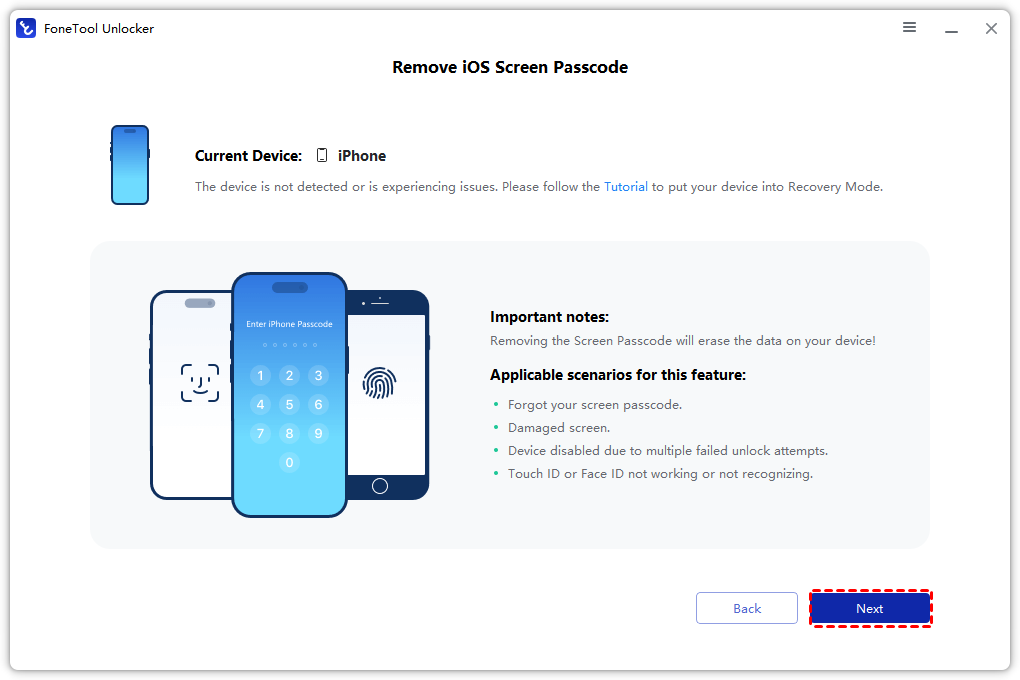
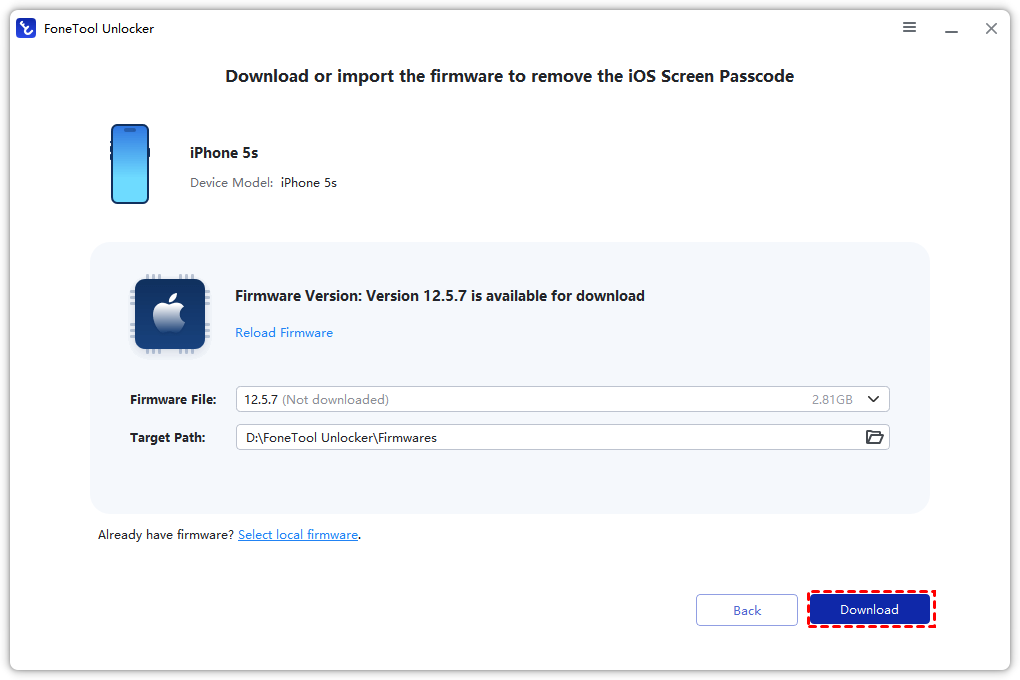
Step 4. Once FoneTool Unlocker detects your device model, it will automatically match and prompt you to download the corresponding firmware package.
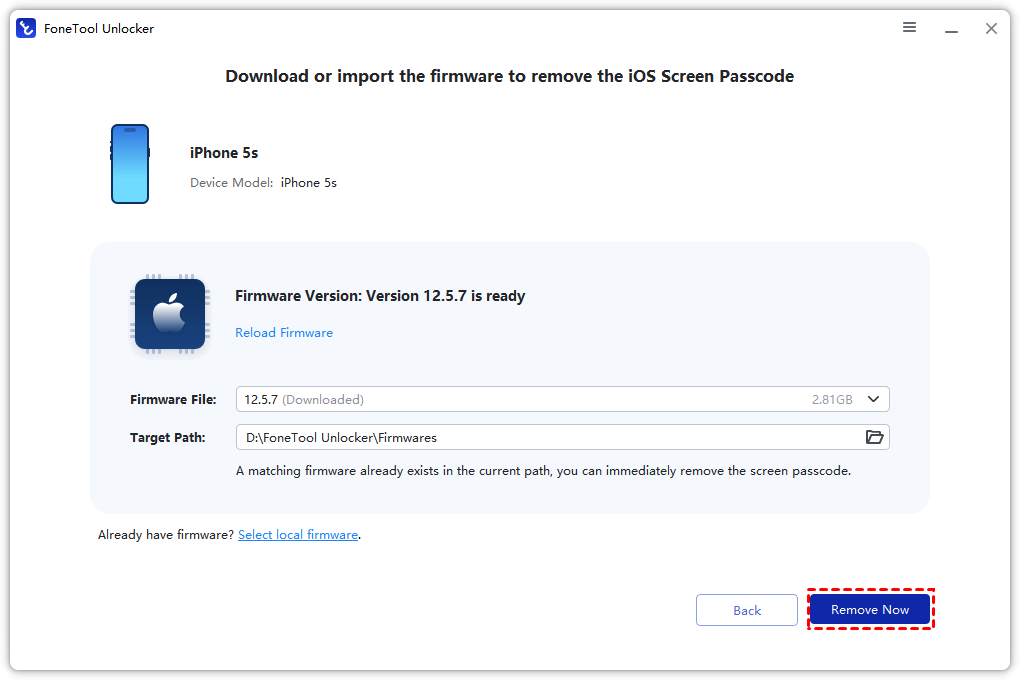
Step 5. After confirming the information, click the Remove Now button and wait for the screen passcode on your iPhone to be removed.
Way 2. Official Solution Erase via Recovery Mode (Using iTunes/Finder)
Apple officially recommends users to use iTunes or Finder to solve the iPhone disabled problem, but its core is recovery, not bypassing the passcode. This method will erase all data and settings on your device and restore your iPhone to the latest version of iOS. If you have an iTunes or iCloud backup, you can reload the data from the backup after restoring.
Step 1. Put iPhone into recovery mode:
- iPhone with Face ID: Press and quickly release the volume up button, then press and quickly release the volume down button. Then, long press the side power button until you see the recovery mode screen (showing the cable and iTunes logo).
- iPhone with a Home button: Press and hold the Home button and the side (or top) power button at the same time. Don't let go when you see the Apple logo either until the recovery mode screen appears.
Step 2. Use the data cable to connect your iPhone to a computer with iTunes or Finder installed.
Step 3. iTunes or Finder will detect a device in recovery mode. A pop-up window will prompt you to select "Update" or "Restore". Select "Restore".
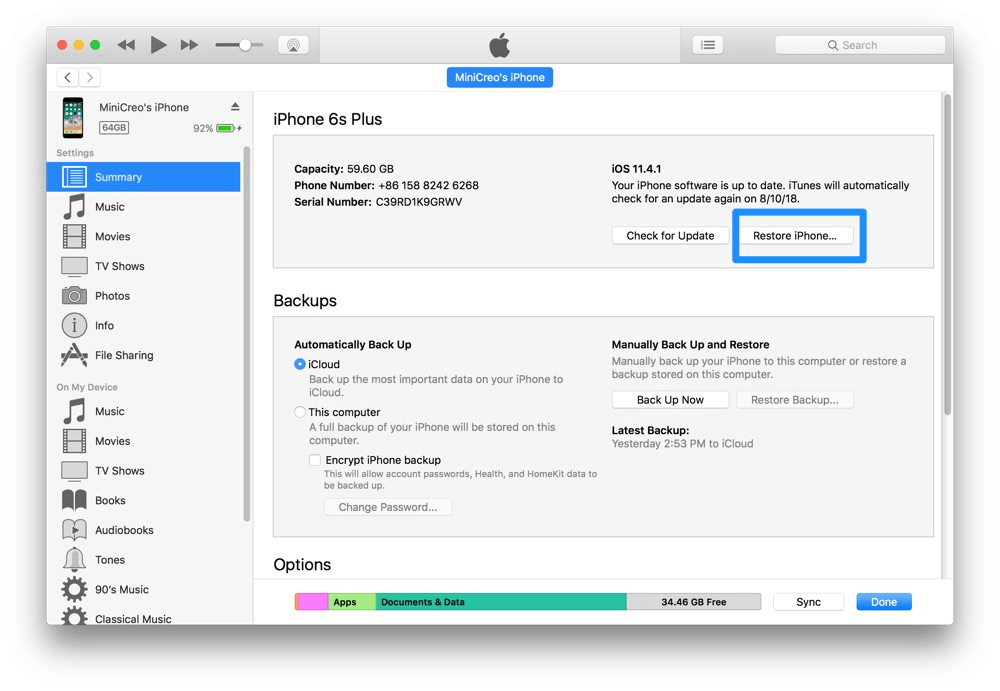
Step 4. The computer will start downloading the firmware and recovering the iPhone. This process takes some time, please make sure that the computer network is stable and not disconnected.
Step 5. After the recovery is complete, the iPhone will restart. You can set it as a new device or restore data from a previous iTunes/iCloud backup.
Way 3. Remote Wipe iPhone to Unlock via iCloud.com
If you have turned on Find My iPhone on your iPhone before and have access to iCloud.com or another Apple device, you can also easily unlock a disabled iPhone with iCloud Erase Device.
📝Note:
- Please make sure the Find My iPhone feature is enabled on this deactivated iPhone.
- You need to remember your Apple ID and password.
- Make sure iCloud can be accessed through a computer or other device.
Step 1. Access the www.icloud.com/find on a computer browser, or use the Find My app on another Apple device.
Step 2. Sign in with your Apple ID and password and tap "Find iPhone".
Step 3. In the "All Devices" list at the top of the page, select the iPhone that has been deactivated.
Step 4. Tap "Erase iPhone" and confirm the operation.
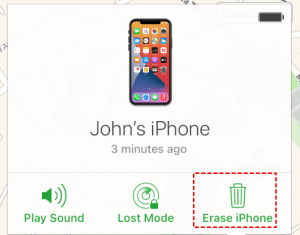
Step 5. Once the erasing is complete, you can reactivate your iPhone and set a passcode, or you can restore data from iCloud backup.
FAQs on Disabled iPhone
Conclusion
Faced with the thorny problem of "iPhone has been disabled", understanding the mechanism of "how many attempts to unlock iPhone" is the first step. Your device will be completely locked after ten wrong attempts. You can unlock disabled iPhones through 3 solutions provided in this guide.
Among them, FoneTool Unlocker, which can easily unlock your iPhone and keep your device data, is undoubtedly your first choice. No matter which method you choose, please be sure to remember your Apple ID password and keep the habit of backing up your iPhone regularly.
FoneTool Unlocker - 1-Click iPhone Unlock Software
Easily unlock all passcodes and restrictions on your iPhone, iPad, and iPod Touch.
-
 iOS 27 Compatible
 iPhone 17 Supported
100% Secure

Kelsey is an English editor at FoneTool, passionate about helping users solve tech issues. She specializes in iPhone data management, backup, and recovery. In her free time, she enjoys learning IT skills and spending time with loved ones.
Read author info >>



 as a preferred
source on Google
as a preferred
source on Google