Unlock iPad Without Apple ID - 4 Proven Methods [2026 Guide]
How to unlock iPad without Apple ID? This guide shows 4 solutions: FoneTool (no data loss), iTunes reset, iCloud erase & DNS bypass. Works on all iPadOS versions.


Regain Access to Your Locked iPad
Welcome, iPad users! You may set your Apple ID or a passcode but fail to recall them or just purchase a secondhand iPad and can’t contact the previous owner. You may be wondering how to unlock iPad without Apple ID or password. This guide provides 4 easy ways to factory reset iPad without Apple ID password.
Important Notice Before Unlocking.
- 📱 Data loss: Most methods will erase data when resetting iPad, so you need to back it up
- 🔒 iCloud Activation Lock: If Find My iPad is enabled, the original Apple ID is required
- ✅ Legal ownership: Only proceed if you legally own the iPad
Method 1. Unlock iPad without Apple ID or Passcode [Powerful & Easy]
FoneTool Unlocker provides the most comprehensive solution for unlocking iPad without Apple ID and password, even bypassing Activation Lock with high success rates and no data privacy concerns.
- ★Highlights of FoneTool Unlocker:
-
✅ Remove Apple ID without technical knowledge
✅ Bypass screen passcodes with simple clicks
✅ Wide compatibility with latest iPad models and iOS versions
✅ Remove Screen Time restrictions
✅ Eliminate iTunes backup encryption
Now you can download the FoneTool Unlocker and follow the guide to know how to unlock iPad locked to owner without Apple ID in simple clicks.
Step 1. Install and launch FoneTool Unlocker > Connect iPad via USB cable.
Step 2. Find Remove Apple ID option on the interface.
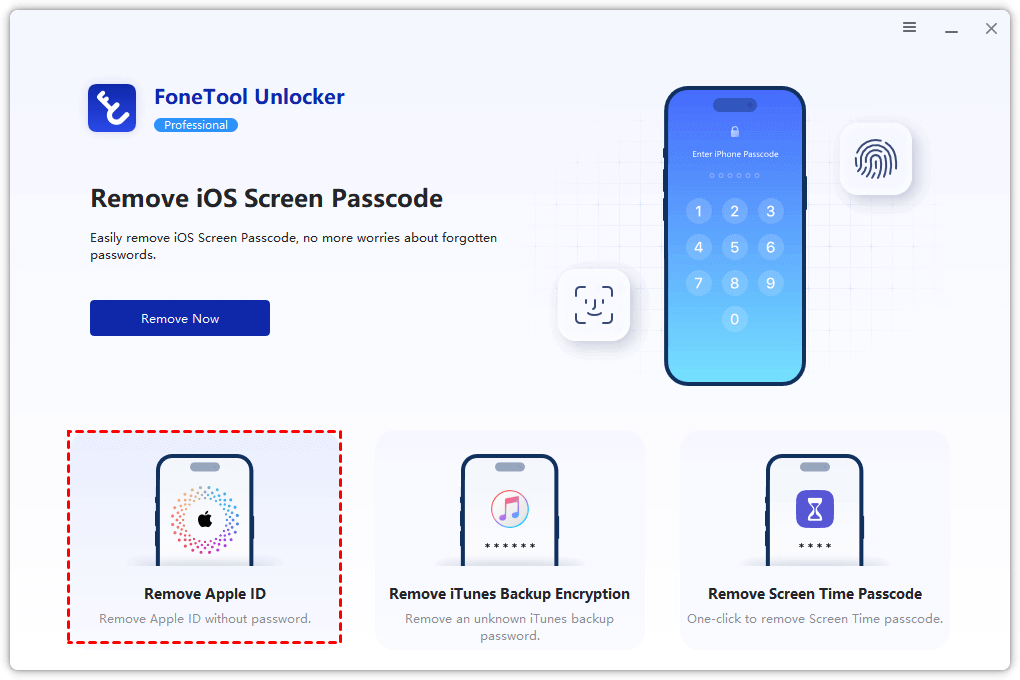
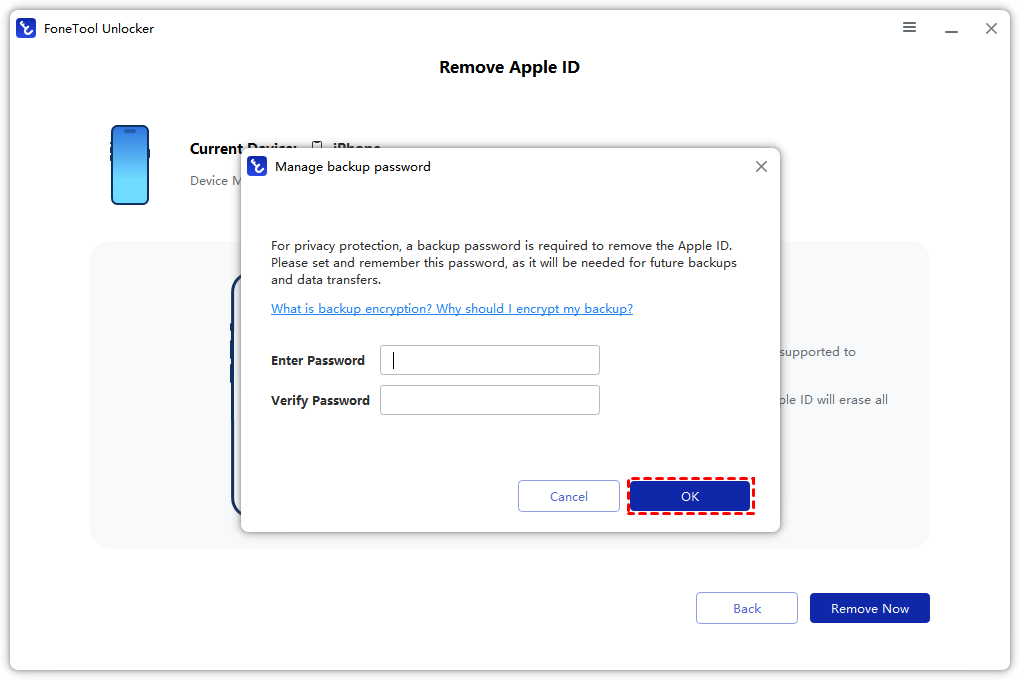
Step 3. Set and remember a backup password.
Step 4. Click Remove Now to complete the process.
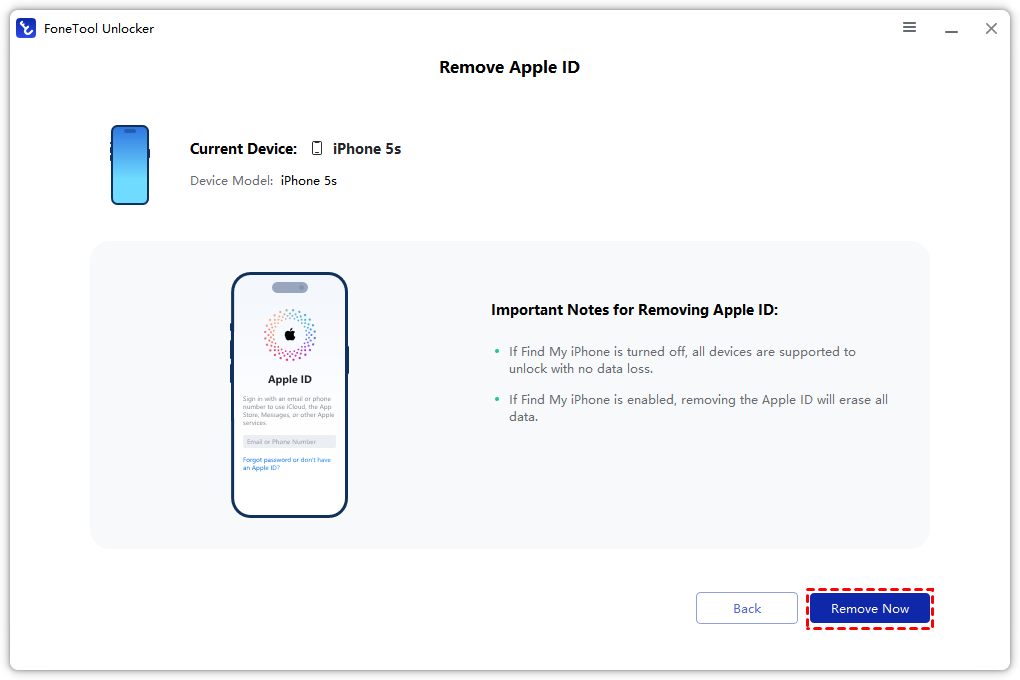
💡 Data Preservation: If the Find My feature is turned off on your device, the process of removing your Apple ID will not erase any data on iPad.
Method 2. Factory reset iPad without Apple ID using iTunes
iTunes offers a traditional recovery method for unlocking disabled iPad without Apple ID, but requires a computer and results in complete data loss.
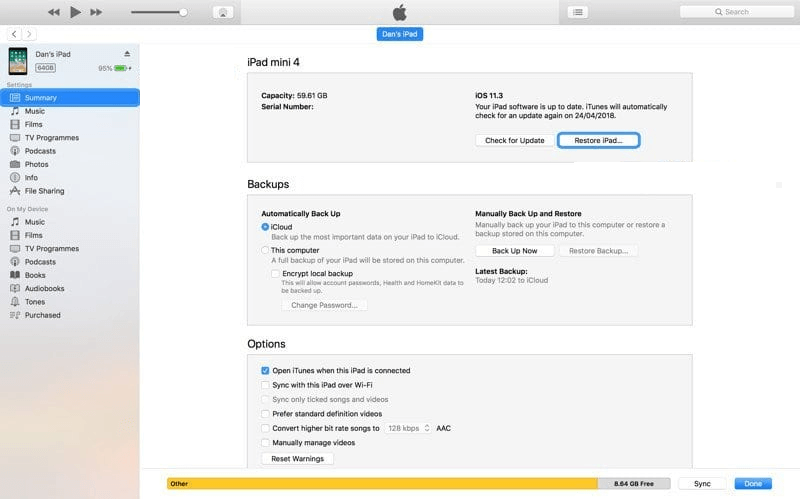
Step 1. Download the latest iTunes > Connect iPad via USB > Launch iTunes.
Step 2. Keep holding the Home button until Recovery Mode screen appears.
Step 3. Your computer will prompt. Click the device icon > Summary >Restored iPad.
😥Encounter iTunes error 3503? Please check:
1Try another USB port and cable.
2Force restart iPad.
3Update iTunes to the latest version.
4Put iPad into recovery mode.
- Limitations:✎...
- Cannot bypass iCloud Activation Lock and causes complete data loss.
Method 3. Factory reset iPad without Apple ID using iCloud
iCloud is useful if you have access to the iCloud account associated with the iPad. The following is the step-by-step guide for you to factory reset iPad in this way.
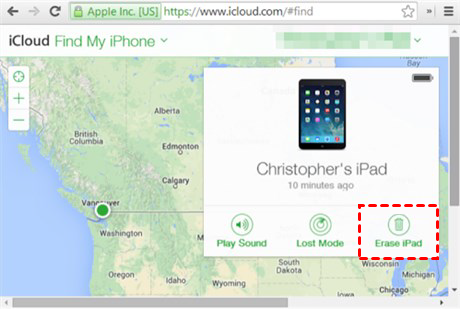
Step 1. Go to iCloud website > Sign in with associated Apple ID.
Step 2. Click Find iPhone > All Devices > Select target iPad.
Step 3. Click on the Erase iPad option and confirm again.
Method 4. Unlock iPad without Apple ID using DNS
NS method provides limited access bypass for older iPads (iOS 8-10) but doesn't remove Apple ID permanently.
Step 1. Start iPad setup > Choose language/country > Reach WiFi settings.
Step 2. Tap i icon next to network > Forget This Network.
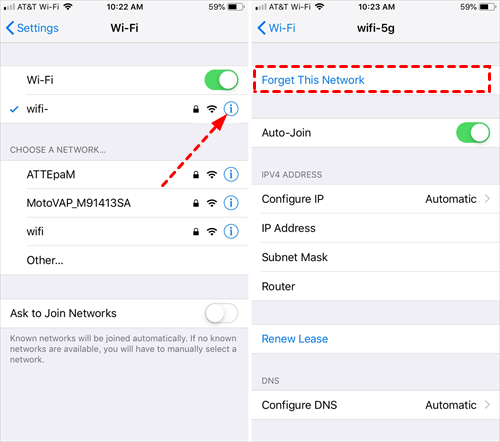
Step 3. Tap the i icon again > More WiFi Settings.
Step 4. Find the DNS field under IP Address and select the following DNS server IP address based on your location.
- USA/North America: 104.154.51.7
- Europe: 104.155.28.90
- Asia: 104.155.220.58
- South America: 35.199.88.219
- Rest of the world: 78.109.17.60
Step 5. Save changes > Return to activation screen.
🔄 Permanent Solution: For complete Apple ID removal, use FoneTool Unlocker after DNS bypass.
FAQS on unlocking an iPad
Conclusion
Unlocking an iPad without an Apple ID can be a challenging task, but with the right methods and tools, it is possible to regain access to your device. In this guide, we have explored 4 different methods to help you unlock your iPad without needing the original Apple ID: FoneTool Unlocker > iTunes > iCloud > DNS.
| Method | Ease od Use | Data Loss | Works on Latest iOS |
|---|---|---|---|
| FoneTool Unlocker | ✭✭✭✭ | ❌ (If Find My is off) | ✅ Yes |
| iTunes Reset | ✭✭✭ | ✅ Yes | ✅ Yes |
| iCloud Erase | ✭✭✭✭ | ✅ Yes | ✅ Yes |
| DNS Bypass | ✭✭ | ❌ No | ❌ (iOS 8-10 only) |
Each method has pros, but FoneTool Unlocker is highly recommended for its user-friendly interface, data safety and compatibility with multiple iOS devices and versions.
FoneTool Unlocker - 1-Click iPhone Unlock Software
Easily unlock all passcodes and restrictions on your iPhone, iPad, and iPod Touch.
-
 iOS 27 Compatible
 iPhone 17 Supported
100% Secure

Kelsey is an English editor at FoneTool, passionate about helping users solve tech issues. She specializes in iPhone data management, backup, and recovery. In her free time, she enjoys learning IT skills and spending time with loved ones.
Read author info >>



 as a preferred
source on Google
as a preferred
source on Google