How to Add Face ID in iPhone| 2026 Setup Guide
How to add Face ID in iPhone in under 60 seconds. Alternate appearance, troubleshooting tips, and what to do when you're locked out of your device.


You just got a new iPhone. Or maybe you've had one for a while but never set up facial recognition. Every time you pick up your phone, you're still typing that passcode.Face ID is faster. It's more secure. And once you learn how to add face id in iphone, you'll wonder why you waited so long.
This guide walks you through everything: initial setup, alternate appearances, troubleshooting, and what to do if you're completely locked out of your device.
What Is Face ID and Which iPhones Support It?
Face ID is Apple's facial recognition technology. It uses the TrueDepth camera system to map your face with over 30,000 invisible dots, creating a mathematical model that unlocks your device in milliseconds. It works in the dark, adapts to physical changes over time, and is more secure than Touch ID.
Face ID is available on:
- iPhone X, XS, XS Max, XR
- iPhone 11, 11 Pro, 11 Pro Max
- iPhone 12, 12 mini, 12 Pro, 12 Pro Max
- iPhone 13, 13 mini, 13 Pro, 13 Pro Max
- iPhone 14, 14 Plus, 14 Pro, 14 Pro Max
- iPhone 15, 15 Plus, 15 Pro, 15 Pro Max
- iPhone 16, 16 Plus, 16 Pro, 16 Pro Max
- iPhone 17, 17 Plus, 17 Pro, 17 Pro Max
- iPhone SE (none, SE models use Touch ID)
If your iPhone has a notch or Dynamic Island, it supports Face ID. If it has a home button, you're using Touch ID instead.
Part 1. How to Add Face ID for the First Time
Turning on Face ID takes less than 60 seconds. Here's how to set up Face ID on a brand‑new device or if you're enabling it for the first time.
Step 1. Open Settings > Face ID & Passcode. If asked, enter your device passcode.
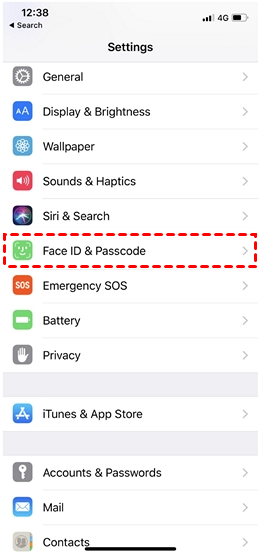
Step 2. Tap Set Up Face ID.
Step 3. Hold your iPhone in portrait orientation, about 10-20 inches from your face. Position your face directly in front of the device, then tap Get Started..
Step 4. Move your head in a slow circle to complete the first scan. The white outline expands as the camera captures your face from different angles.
Step 5. Tap Continue. When the first scan finishes.
Step 6. Perform the second scan. This time, move your head slightly differently, allowing Face ID to capture a wider range of angles.
Step 7. Tap Done. Once the second scan completes. Face ID is now ready to use.
To unlock your iPhone, simply raise it and glance at the screen. The padlock icon at the top opens automatically.
Part 2. Choose Which Features Use Face ID
Once you've enabled Face ID, decide where you want to use it. This is part of learning how to add Face ID in iphone for real‑world use.
Step 1. Go to Settings > Face ID & Passcode. Enter your passcode.
Step 2. Under Use Face ID For, toggle on any of these options:
- iPhone Unlock, unlock your device by glancing at it.
- Apple Pay, authorize payments with a double‑click of the side button and a glance.
- App Store & iTunes Store, make purchases and downloads without typing your password.
- AutoFill Passwords, automatically fill saved passwords when you glance at the screen.
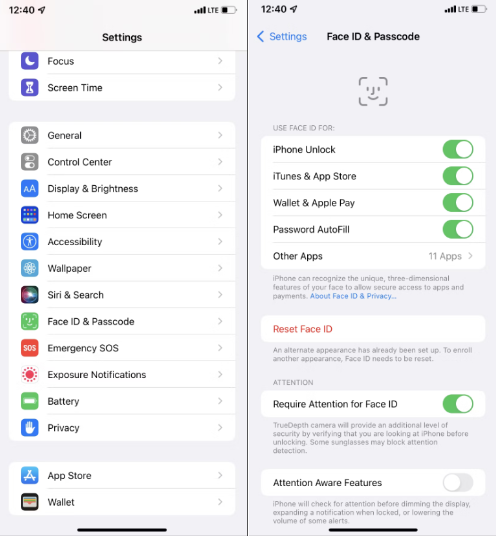
You can also control Face ID access for individual third‑party apps. Many banking apps, password managers, and social media apps offer an option in their own settings to enable Face ID login.
Part 3. How to Add Another Face to Face ID (Alternate Appearance)
Need a second person to unlock your iPhone? Or maybe you want to register a different look, glasses, a beard, or a dramatic hairstyle change. iOS allows up to two facial appearances.
Step 1. Open Settings > Face ID & Passcode. Enter your passcode.
Step 2. Tap Set Up an Alternate Appearance.
Step 3. Follow the same scanning process as before, hold your device 10-20 inches from the second person's face or your own new look, then move your head in a slow circle.
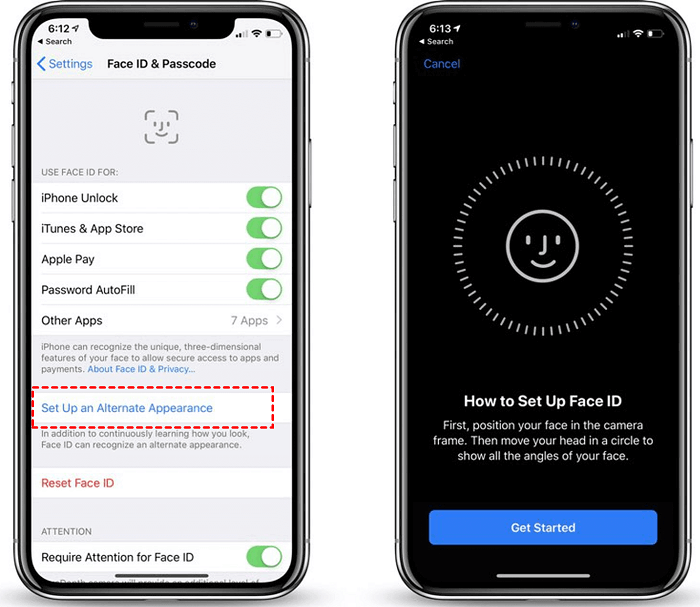
Step 4. Repeat for the second scan, then tap Done.
Face ID now recognizes both faces (or both versions of you). This feature is perfect for sharing an iPhone with a partner or family member in an emergency, but remember, both people will have full access to your device.
📝Note: iOS does not support a third appearance. If you need to replace both appearances, you'll need to reset Face ID and start over.
Part 4. Can't Set Up Face ID Because You're Locked Out? Unlock Now
Here's a situation that surprises a lot of people: you want to set up Face ID on iphone, but you can't even get into your phone. Forgotten passcode. Disabled device. Maybe you bought a used iPhone and the previous owner left their screen lock on.
Face ID requires you to be inside the device to set it up. If a screen passcode is blocking you, FoneTool Unlocker removes that passcode directly from your computer, no password needed. Once the screen lock is gone, you can access Settings and add Face ID to iphone normally.
Highlights:
✅Removes 4-digit/6-digit passcodes, Touch ID, and Face ID locks.
✅Works on disabled iPhones you can't unlock at all.
✅Bypass Activation Lock easily without Apple ID.
✅No technical skills required, simple step-by-step interface.
✅Safe and secure, no data leakage.
✅Supports all iPhone models and iOS versions.
Step 1. Download and install FoneTool Unlocker on a Windows PC, and connect your locked iPhone to the computer via USB cable.
Step 2. Launch the tool and select "Remove iOS Screen Passcode".

Step 3. Follow the on-screen instructions, tap "Enter/Exit Recovery Mode" to enter your iPhone into Recovery Mode.
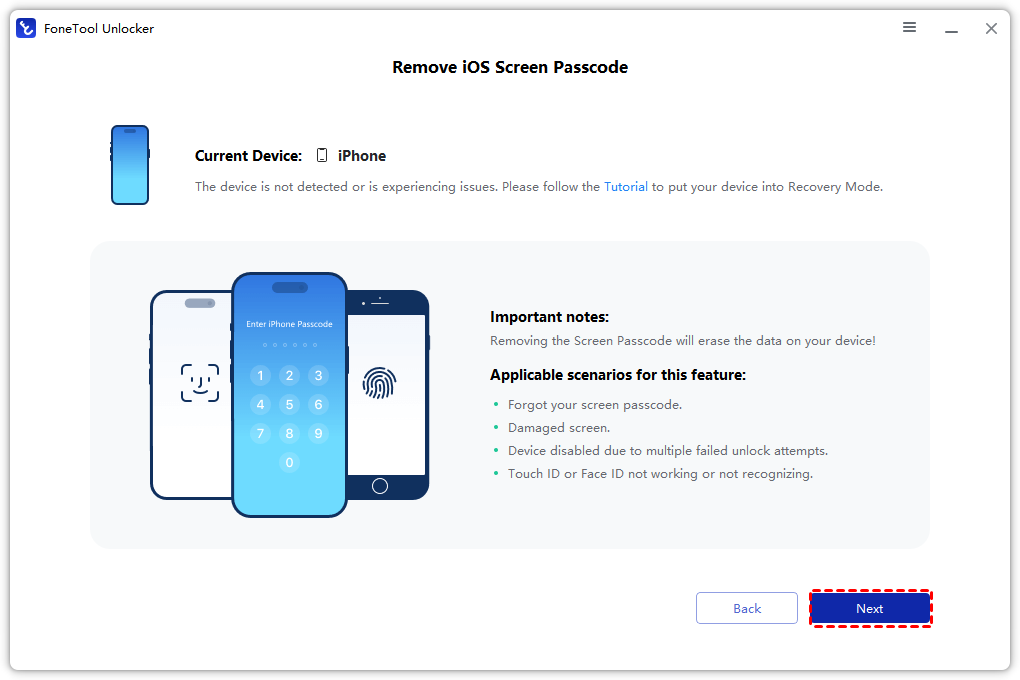
Step 4. Click "Download" to let the software fetch the latest firmware.
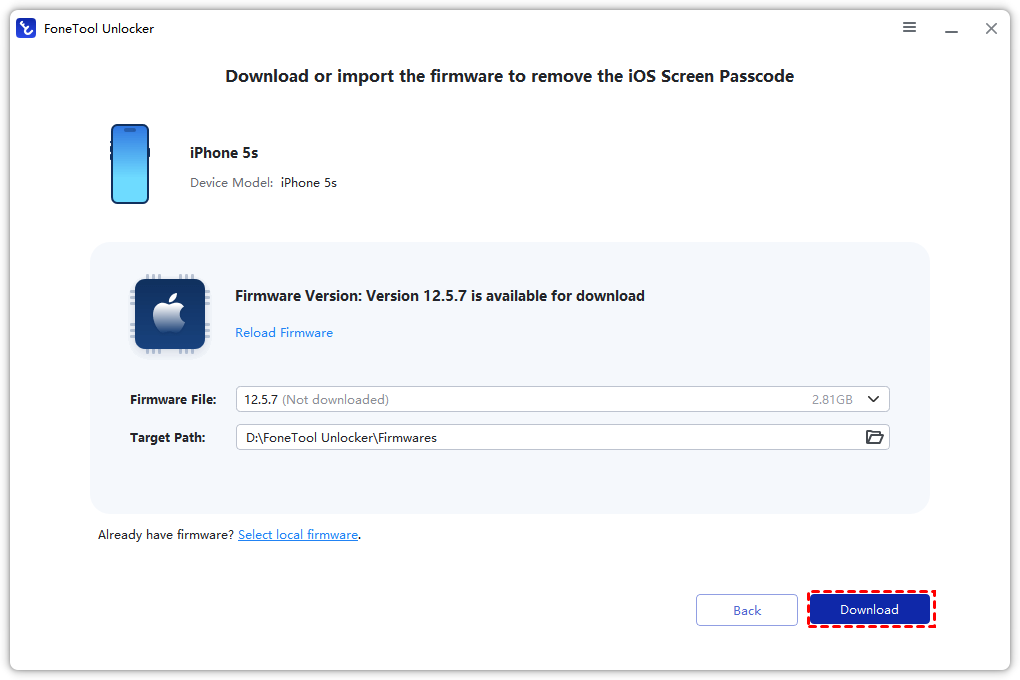
Step 5. Click "Remove Now" and wait about 5 minutes.

Your iPhone restarts with no screen passcode. Now you can go to Settings, add Face ID to iphone, and enjoy biometric unlocking.
Part 5. Face ID Not Working? Common Fixes
Face ID is reliable, but it occasionally fails. Here's what to check when it's not working properly.
#1. Check Face ID Settings
Go to Settings > Face ID & Passcode. Make sure the features you want,iPhone Unlock, Apple Pay, and App Store, are all toggled on.
#2. Clean the TrueDepth Camera
The camera array at the top of your screen (the notch or Dynamic Island) needs to be clean. Wipe it gently with a soft, dry cloth. Even a small smudge can interfere with facial recognition.
#3. Restart Your iPhone
A simple restart clears temporary software glitches. Press and hold the Side button and either Volume button until the power off slider appears. Drag to turn off, wait 30 seconds, then turn back on.
#4. Reset Face ID and Set It Up Again
If basic fixes don't work, resetting Face ID often solves persistent problems.
Step 1. Go to Settings > Face ID & Passcode. Enter your passcode.
Step 2. Tap Reset Face ID.
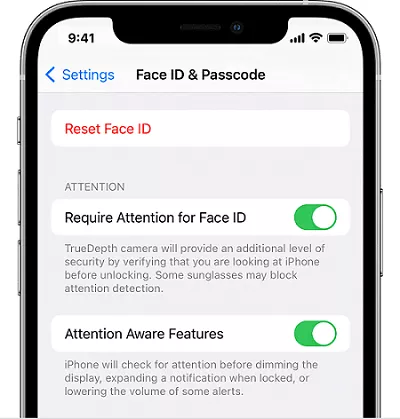
Step 3. Tap Set Up Face ID and follow the setup process again.
#5. Remove Obstructions
Face ID won't work if your mouth, nose, or eyes are covered, unless you've enabled Face ID with a Mask on compatible models (iPhone 12 and later). If you're wearing sunglasses, try removing them or turning off Require Attention for Face ID in Settings.
#6. Check for iPhone Too High or Too Low Error
If Face ID keeps telling you to "Move iPhone Lower" or "Move iPhone Higher", the TrueDepth camera isn't getting a clear angle. Hold the phone directly in front of your face, 10-20 inches away, in good lighting.
#7. Hardware Failure
If none of the above works after multiple attempts, the TrueDepth camera system may have failed. This is a repair issue. Contact Apple Support or visit an Apple Store for a diagnostic.
Part 6. Adjust Attention Settings for Better Performance
Face ID includes an attention‑aware feature that requires you to look at the device before unlocking. Disabling it can improve speed and make Face ID work while wearing sunglasses.
Step 1. Go to Settings > Face ID & Passcode. Enter your passcode.
Step 2. Turn off Require Attention for Face ID.
This makes Face ID slightly less secure but more convenient in certain situations. Apple still requires attention for high‑security actions like viewing saved passwords.
Part 7. Reset or Change Face ID Completely
If you want to remove all facial data and start fresh, maybe you're handing your iPhone to someone else, or your device isn't recognizing your current face. Resetting Face ID is straightforward.
Step 1. Open Settings > Face ID & Passcode. Enter your passcode.
Step 2. Tap Reset Face ID. This removes all saved facial data.
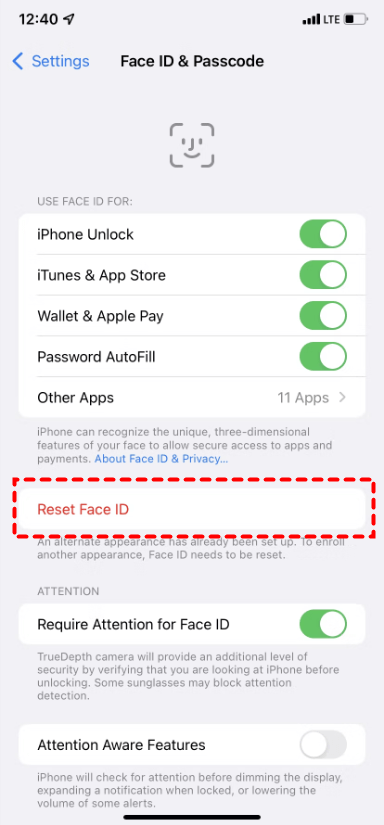
Step 3. The screen returns to the setup view, showing *Set Up Face ID*. Tap that to add Face ID to iphone again from scratch.
This is different from simply disabling Face ID, which leaves your facial data on the device. Resetting removes everything and forces you to complete the full scan again.
Summary
To add face id in iphone, go to Settings > Face ID & Passcode > Set Up Face ID and complete two scans. For a second person, use Set Up an Alternate Appearance. If Face ID isn't working, clean the camera, restart your device, or reset Face ID and set it up again. And if a forgotten passcode is blocking you from accessing your device entirely, FoneTool Unlocker removes the screen lock first so you can set up Face ID without waiting for Apple.
FoneTool Unlocker - 1-Click iPhone Unlock Software
Easily unlock all passcodes and restrictions on your iPhone, iPad, and iPod Touch.
-
 iOS 27 Compatible
 iPhone 17 Supported
100% Secure

Kelsey is an English editor at FoneTool, passionate about helping users solve tech issues. She specializes in iPhone data management, backup, and recovery. In her free time, she enjoys learning IT skills and spending time with loved ones.
Read author info >>



 as a preferred
source on Google
as a preferred
source on Google