How to Find iCloud Password: 5 Ways on Different Devices
Forgot your iCloud password? Learn five ways to find it on iPhone, iPad, Mac, or PC – plus essential tips to keep your Apple account secure.


When You Need Your iCloud Password
Your iCloud password is the same password used for your Apple ID, making it one of the most important credentials for accessing Apple services. While many users stay signed in on their devices and rarely enter it, there are several situations where you may need to find or recover your iCloud password.
- Signing in to a new iPhone, iPad, or Mac: When setting up a new Apple device, you'll need your iCloud password to log in and sync your photos, contacts, messages, and other data.
- Accessing iCloud.com: If you want to view your iCloud files, photos, notes, or backups from a web browser, you'll need to enter your Apple ID and password.
- Turning off Find My iPhone: Apple requires your iCloud password before disabling Find My iPhone, a security feature designed to protect your device from unauthorized access.
- Downloading apps or making purchases: Some App Store purchases, subscriptions, and account changes require password verification.
- Restoring an iCloud backup: If you're restoring data to a new or reset device, you'll need your iCloud credentials to access the backup.
🌟 To check more scenarios about finding or recovering Apple ID password, please refer to this complete guide: How to Find Apple ID Password.
How to Find iCloud Password on iPhone or iPad
Apple does not allow you to directly view your iCloud password from the Apple ID settings for security reasons. However, if you previously saved your Apple ID credentials on your iPhone or iPad, you may be able to view them through the Passwords app.
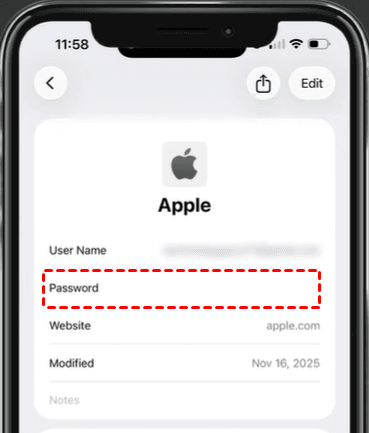
1. Open the Passwords app on your iPhone or iPad. Authenticate with Face ID, Touch ID, or your device passcode.
2. Use the search bar to look for apple.com, icloud.com, or your Apple ID email address.
3. Tap the matching entry. Then select the password field to reveal the saved password.
How to Find iCloud Password on Mac
If you're signed in to your Apple account on a Mac, you may wonder, “How do I find my iCloud password on Mac?” Just keep reading.
Method 1: View iCloud Password in Keychain Access
Keychain Access is Apple's built-in password management utility that stores website logins, Wi-Fi passwords, certificates, and other credentials. If your Apple ID password has been saved, you may be able to view it here.
1. Open Finder and go to Applications > Utilities > Keychain Access.
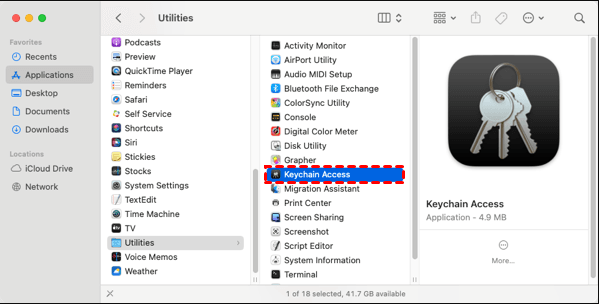
2. In the search box, type Apple ID, iCloud, or your Apple ID email address. Double-click the matching entry from the search results.
3. In the network details window, check the box next to Show Password.
4. Enter your Mac administrator password or use Touch ID when prompted. The saved password will be displayed if it is stored in Keychain.
Method 2: Check Passwords in Safari Settings
Safari includes a built-in password manager that syncs with iCloud Keychain. If your Apple ID credentials have been saved, you may be able to view them through Safari's Passwords settings.
1. Open Safari on your Mac. Then click Safari in the top menu bar and choose Settings (or Preferences on older macOS versions).
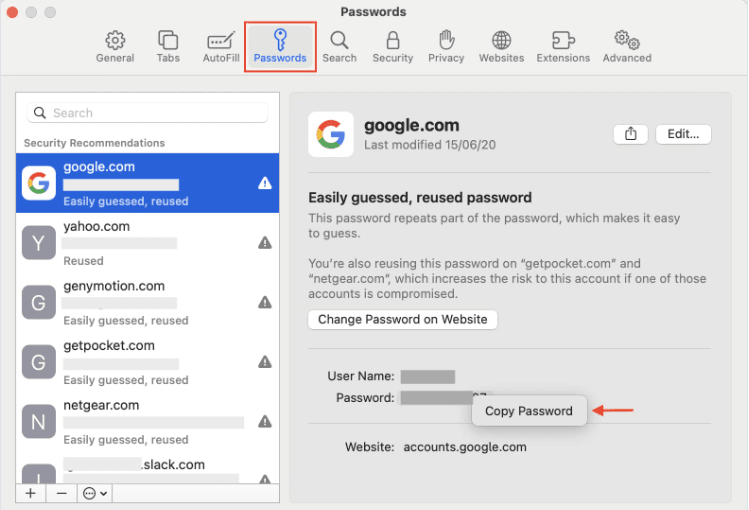
2. Select the Passwords tab. Authenticate using your Mac password or Touch ID.
3. Search for apple.com, icloud.com, or your Apple ID email address.
4. Click the matching entry to view the saved username and password. You can also right-click on the password and choose Copy Password.
How to Find iCloud Password on Windows PC
If you use iCloud services on a Windows computer, you can try the following methods to find iCloud password on your Windows PC.
Method 1: Use a Professional iOS Password Manager
FoneTool Unlocker is a trusted desktop software that can help identify and display passwords stored on an iOS device after establishing a secure connection.
- Key Features:
- ⭐Deep scanning for connected iOS devices – Compatible with all iPhone and iPad models, up to the latest release.
- ⭐Extract and view saved passwords – Recover and display Wi-Fi passwords, Safari login credentials, and account passwords from other apps.
- ⭐Reveal Apple ID information – Display the Apple ID credentials currently active on the connected iOS device.
- ⭐Remove screen locks – Remove 4-digit/6-digit passcodes, Touch ID, and Face ID to factory reset your device.
Follow the instructions below to find your iCloud password using FoneTool Unlocker:
1. Download, install, and open FoneTool Unlocker on your Windows PC. On the main screen, click Password Management (bottom-right corner).
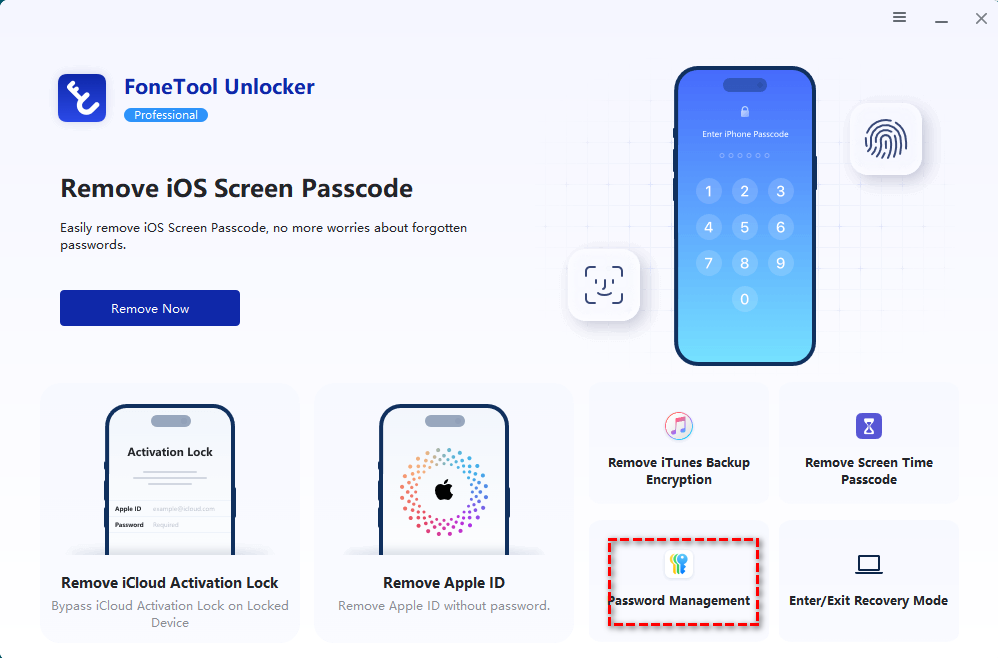
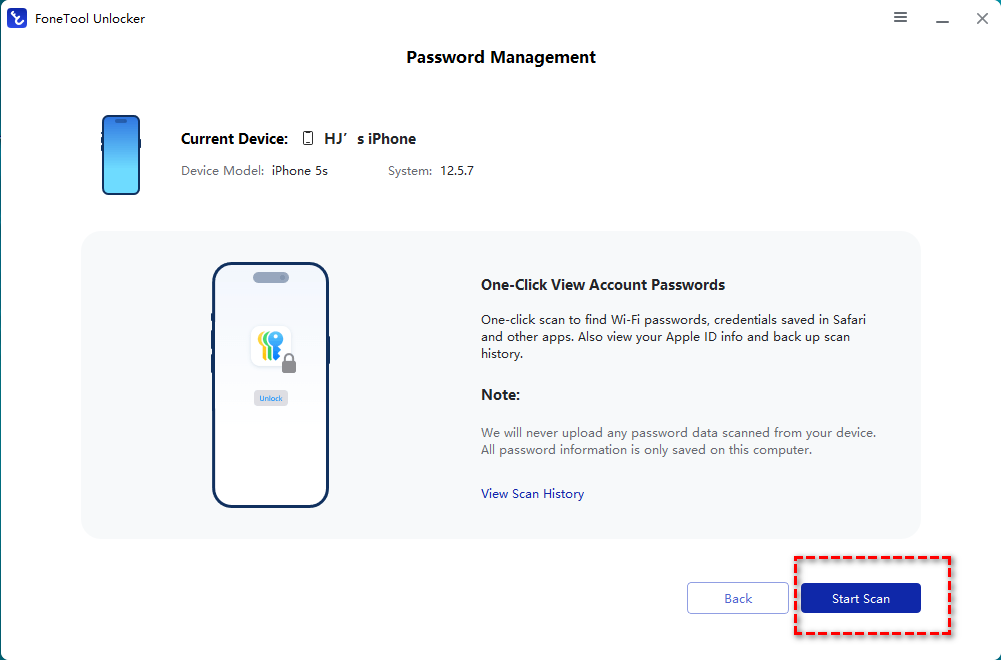
2. In the next window, click Start Scan.
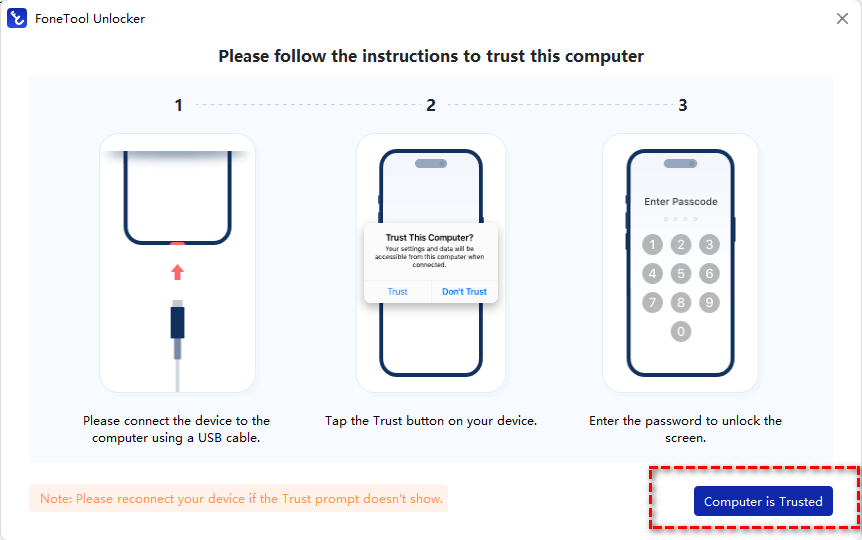
3. Connect your iPhone to the computer via USB, then unlock your iPhone and tap Trust This Computer when prompted.
4. Go back to FoneTool Unlocker and click Computer is Trusted.
5. Click Continue Scan to begin scanning. The scan time depends on the number of passwords saved on your device, usually taking a few minutes.
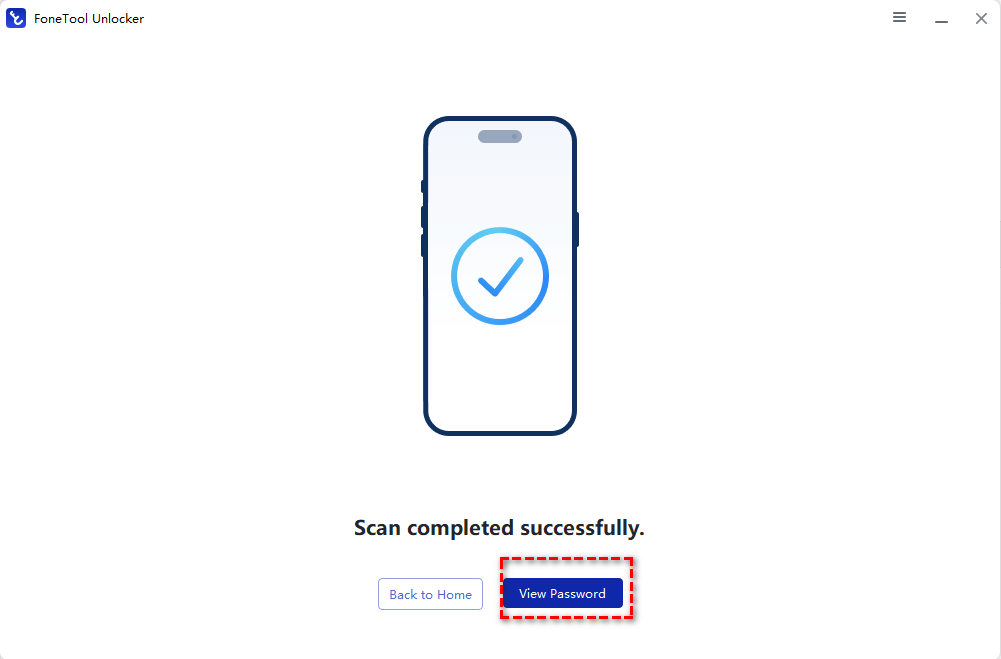
6. Once the scan is complete, select View Password. Finally, click Apple ID from the left panel to reveal your iCloud password.
Method 2: Check Saved Passwords in Browsers
If you've signed in to iCloud through a web browser, your password may be stored in the browser's built-in password manager.
👉 Google Chrome
1. Open Chrome. Click the three-dot menu and select Settings.
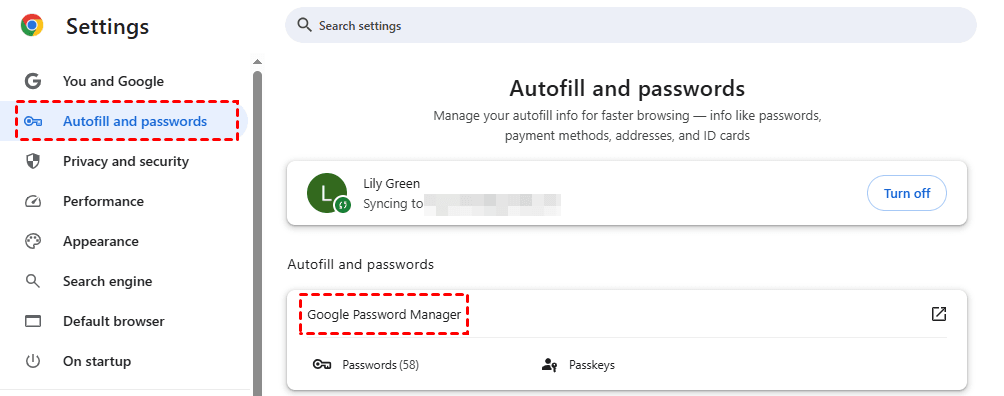
2. Go to Autofill and passwords > Google Password Manager.
3. Search for icloud.com, apple.com, or your Apple ID email address.
4. Select the entry and authenticate to view the password.
👉 Microsoft Edge
1. Open Edge. Click the three-dot menu and select Settings.
2. Navigate to Passwords and autofill > Microsoft Password Manager.
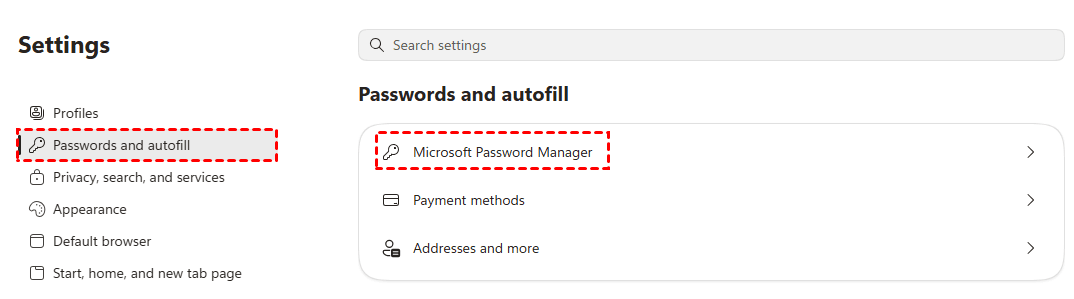
3. Search for your Apple ID or iCloud account. Verify your identity and reveal the saved password.
👉 Mozilla Firefox
1. Open Firefox. Click the menu button and choose Passwords.
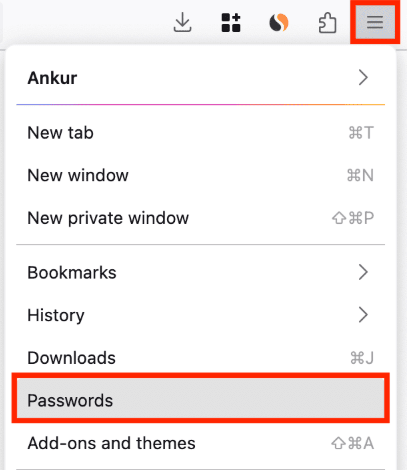
2. Search for icloud.com or your Apple ID email address.
3. Select the matching entry to view saved login details.
Tips to Keep Your iCloud Password Secure
Here are some practical tips to keep your iCloud password secure:
✅ Enable iCloud Keychain
Apple's built-in password manager that securely stores passwords, credit cards, and Wi-Fi credentials across all your Apple devices. Benefits include end-to-end encryption, automatic password suggestions, and breach alerts—all accessible only by you.
✅ Turn On Two-Factor Authentication (2FA)
One of the most effective account protections. Even if your password is stolen, the attacker cannot log in without the second factor (a six-digit code sent to a trusted device). Enable it in Settings > [your name] > Password & Security.
✅ Create a Strong, Unique Password
Use at least 8–12 characters with uppercase, lowercase, numbers, and symbols. Avoid obvious choices like birthdays or common words. Never reuse passwords across sites—attackers will try stolen credentials on your iCloud account. Apple's built-in password suggestions help generate and store strong, unique passwords without memorization.
Conclusion
Finding your iCloud password can be straightforward if it has been saved on a trusted device. You have learned how to find iCloud password on iPhone, iPad, Mac, and PC using different methods. If you need a professional iOS password manager, try FoneTool Unlocker. It helps you extract and view various sensitive information stored on iOS devices. Download it now!
FoneTool Unlocker - 1-Click iPhone Unlock Software
Easily unlock all passcodes and restrictions on your iPhone, iPad, and iPod Touch.
-
 iOS 27 Compatible
 iPhone 17 Supported
100% Secure

Lily Green is dedicated to helping users protect their valuable mobile data and addressing issues that arise on mobile devices. She consistently stays vigilant about the latest trends in technology, guaranteeing that the given information aligns with the ongoing advancements in the field.
Read author info >>



 as a preferred
source on Google
as a preferred
source on Google