How to See Wi-Fi Password on iPhone (with Mac or Not)
Forgot Wi-Fi password on iPhone? Learn 4 effective ways to find your Wi-Fi password – directly on the device or using a Mac or PC.


Can You See Wi-Fi Passwords Directly on an iPhone?
Yes, you can see Wi-Fi passwords directly on an iPhone, but the feature depends on your iOS version. Starting with iOS 16, Apple allows users to view saved Wi-Fi passwords from the Settings app after authenticating with Face ID, Touch ID, or a device passcode. This makes it much easier to connect new devices to a network or share credentials with family members and colleagues.
Before iOS 16, iPhones stored Wi-Fi passwords securely but did not display them directly. Users had to rely on iCloud Keychain and a linked Mac to retrieve saved network credentials. While effective, that method was less convenient and required access to another Apple device.
How Can I Check Wi-Fi Password on My iPhone?
In this part, you’ll learn how to view Wi-Fi password on iPhone with 4 effective ways.
Method 1: See Wi-Fi Password Through Wi-Fi Settings
If you’re using a modern iPhone running iOS 16 or later, checking your Wi-Fi password can be done directly from the Settings app without any third-party tools.
👉 How to see currently connected Wi-Fi password
1. Go to your iPhone’s Settings app. Select Wi-Fi to view available and connected networks.
2. Tap the information (i) icon next to the Wi-Fi network you’re using. You will see a hidden password field labeled “Password.”
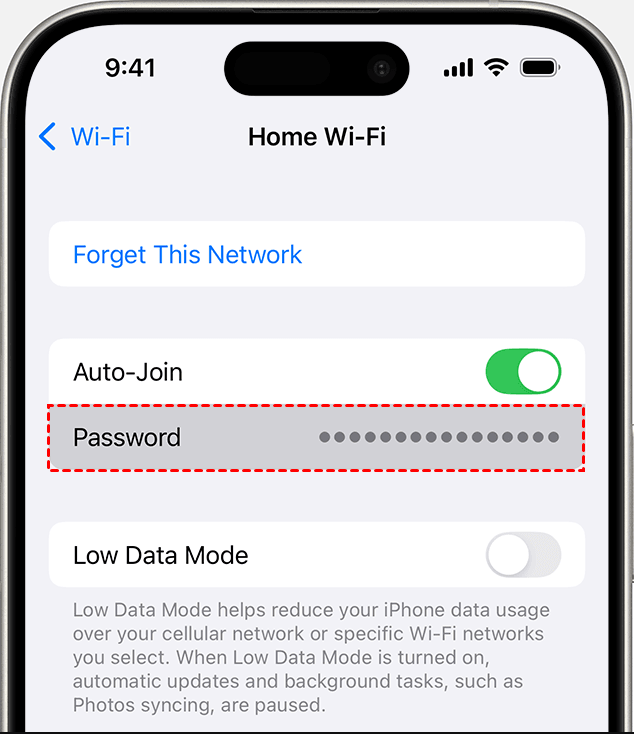
3. Use Face ID, Touch ID, or your passcode to verify your identity. Once authenticated, the Wi-Fi password will be revealed.
4. (Optional) You can tap Copy to save the password or share it with another device or person securely.
👉 How to find old Wi-Fi password on iPhone
1. In the Settings app, tap Wi-Fi. Then tab Edit in the upper-right corner.
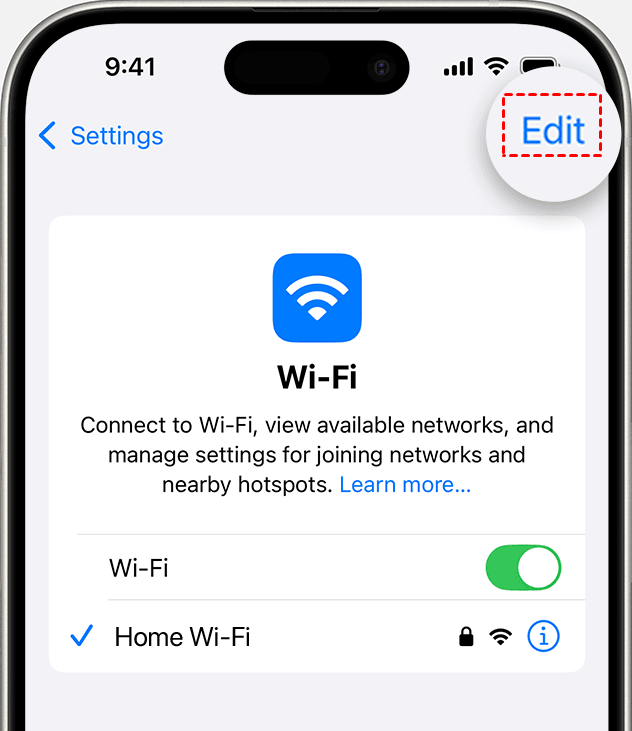
2. Use your passcode, Face ID, or Touch ID to unlock and reveal networks that your device previously joined.
3. Tap the Info button next to a network with a lock icon.
4. Tap the Password field to reveal it.
Method 2: View Saved Wi-Fi Password on iPhone via Passwords App
If your iPhone runs iOS 18 or later, you can also use the dedicated Passwords app to find saved Wi-Fi credentials.
1. Locate and open the Passwords app on your iPhone. Authenticate using Face ID, Touch ID, or your device passcode.
2. In the Passwords app, tap Wi-Fi to view a list of saved wireless networks.
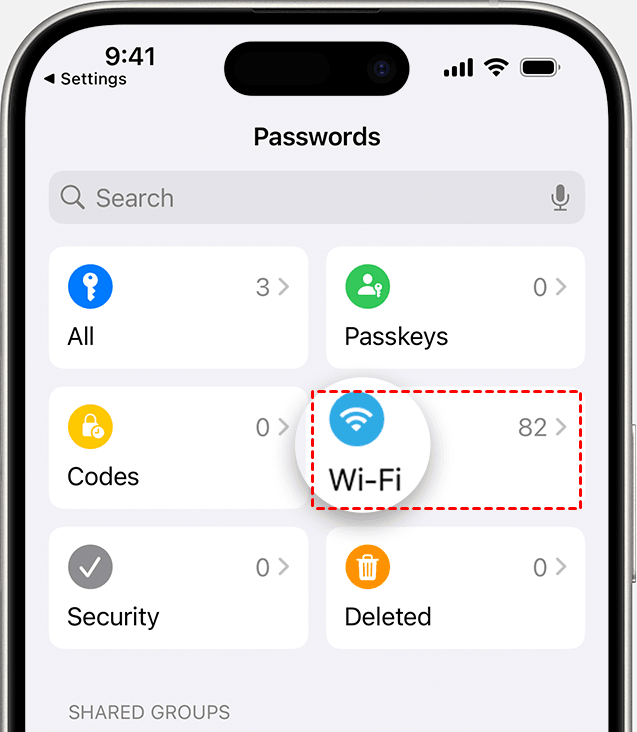
3. Browse the list and tap the Wi-Fi network that you want to find the password for.
4. Tap the Password field to reveal the password.
Method 3: Find Wi-Fi Password on Mac Using iCloud Keychain
If you can't view the Wi-Fi password directly on your iPhone, you can retrieve it from a Mac through iCloud Keychain. Before you begin, make sure:
- iCloud Keychain is enabled on both your iPhone and Mac.
- You're signed in with the same Apple ID on both devices.
- The Wi-Fi network has been saved on your iPhone or Mac.
Then follow the instructions below:
1. On your Mac, press Command + Space to open Spotlight Search. Then type Keychain Access and press Return to launch the Keychain Access application.
2. In the sidebar, make sure you click on iCloud, followed by the Passwords tab.
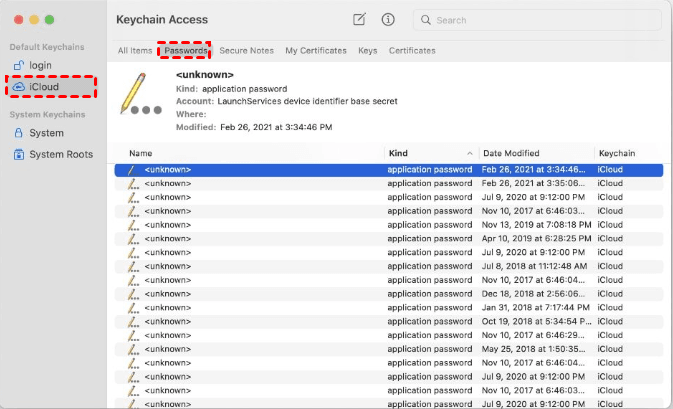
3. Search for the network you want the password for by typing parts of this network’s name. Double-click on that network.
4. In the network details window, check the box next to Show Password.
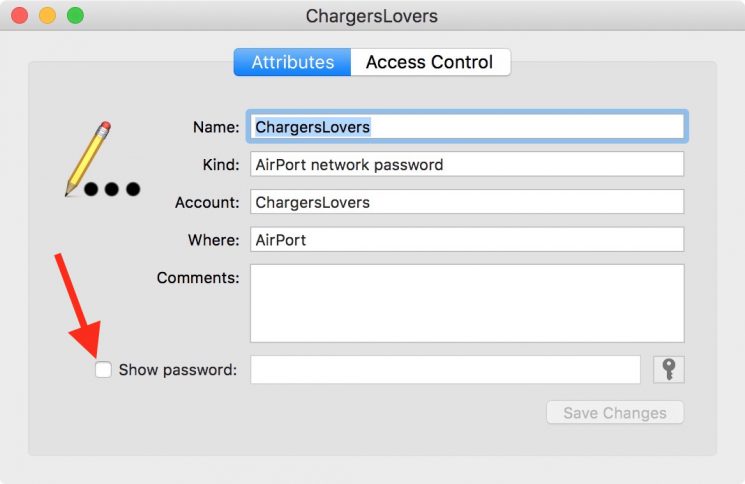
5. Enter your Mac administrator password or use Touch ID when prompted. The saved Wi-Fi password will be displayed in plain text.
Method 4: Check Wi-Fi Password on PC with FoneTool Unlocker
If you prefer managing your iPhone data from a Windows PC, you can try a dedicated iOS password management tool - FoneTool Unlocker.
- Key Features:
- ⭐ Manage and recover key credentials on iOS devices so you don’t need to worry about forgetting passwords anymore.
- ⭐ Remove all types of screen locks, including 4-digit/6-digit passcodes, Touch ID, Face ID, and custom alphanumeric codes.
- ⭐ Delete Apple ID without a password to unlink your device from a forgotten Apple ID securely.
- ⭐ Unlock Screen Time passcode without erasing any data.
- ⭐ Fully compatible with all iOS versions and all iPhone models, up to the latest release.
Follow the steps below to check iPhone Wi-Fi password on PC:
1. Connect your iPhone to the computer using a USB cable and tap Trust in the “Trust This Computer?” prompt. Then unlock your iPhone.
2. Download, install, and launch FoneTool Unlocker on your Windows PC. On the main interface, click Password Management in the bottom right.
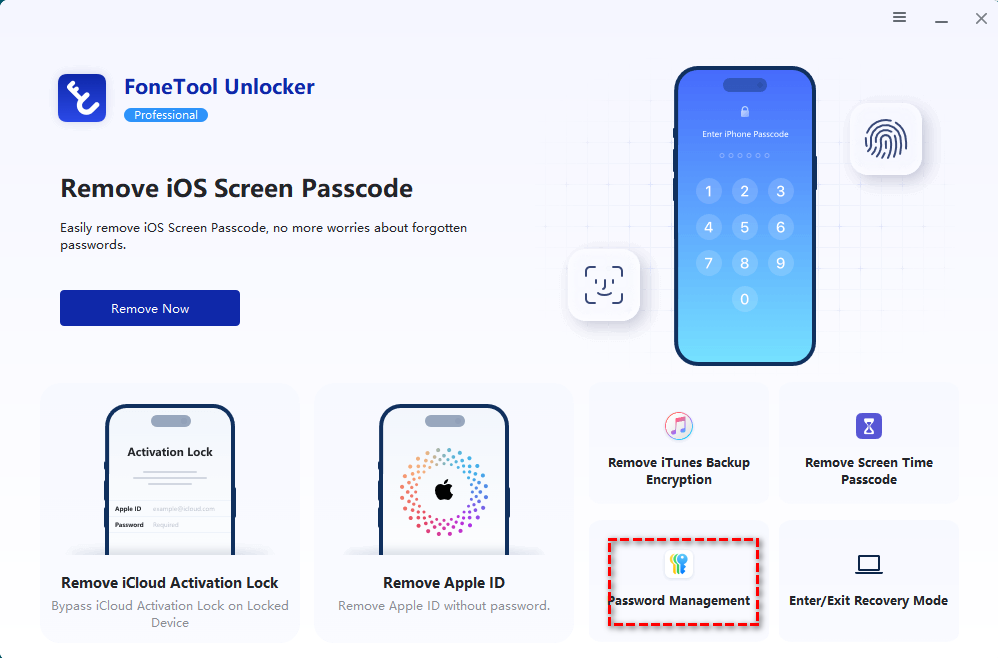
3. In the next window, click the Start Scan button.
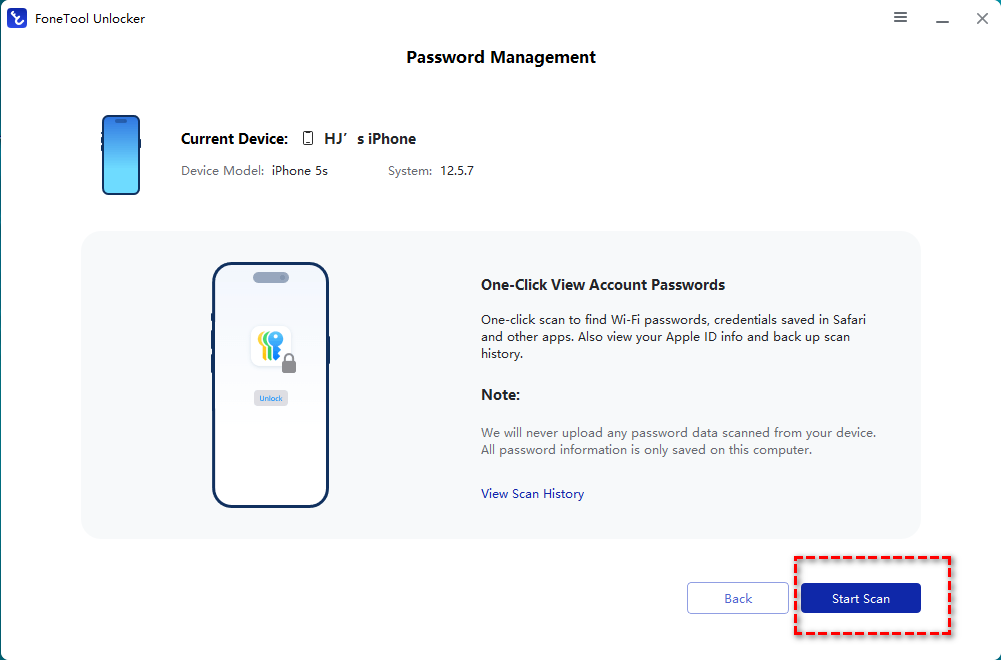
4. Confirm the temporary backup password and click the Continue Scan button to start the scanning process. The scan time depends on the number of passwords saved on your device, usually taking a few minutes.
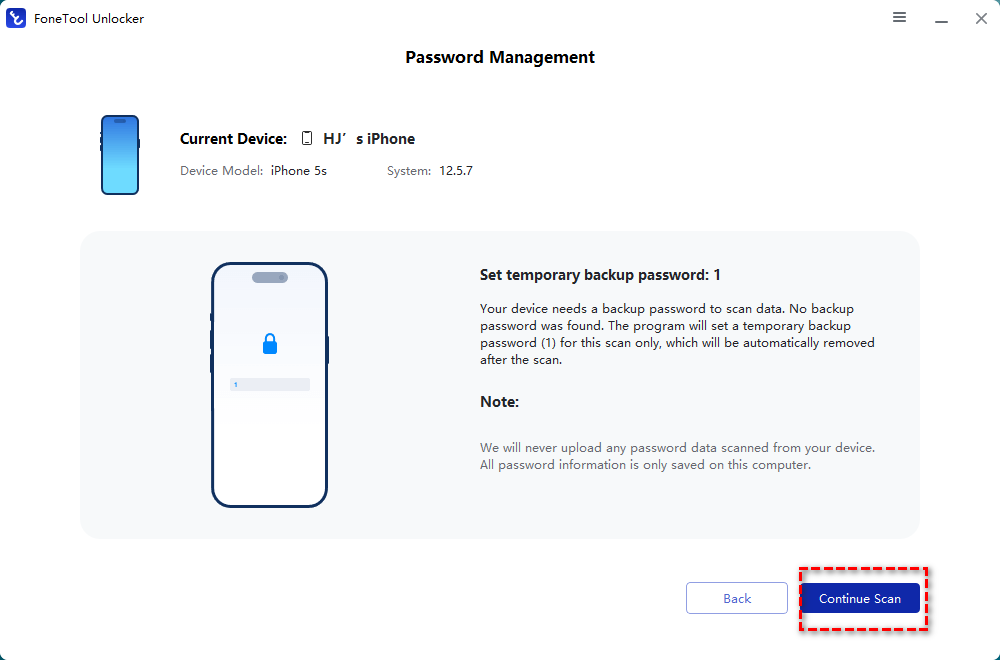
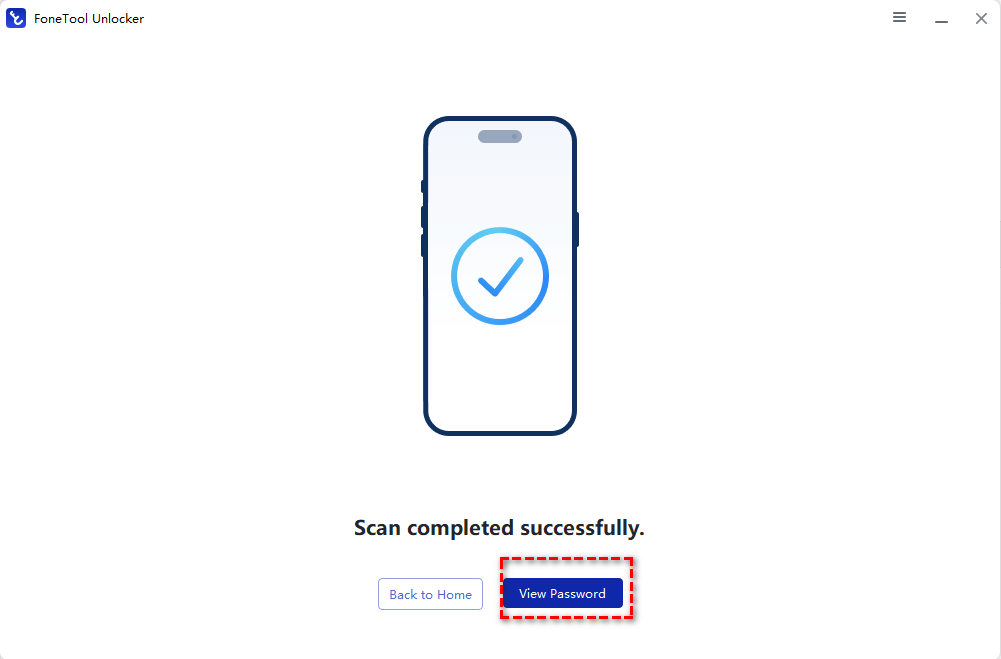
5. After the scan is complete, choose View Password.
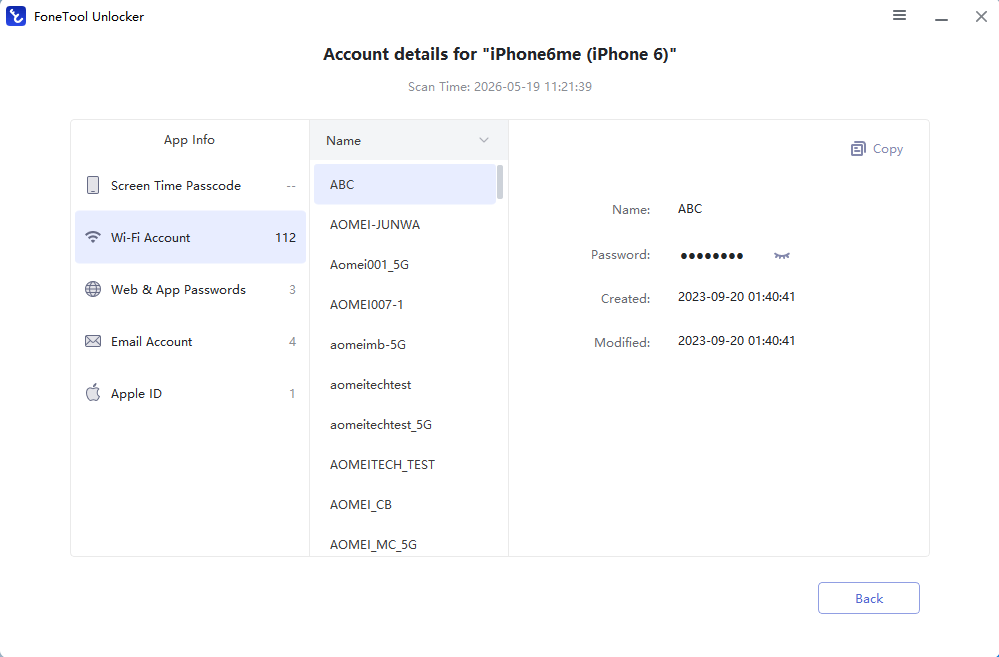
6. Go to Wi-Fi Account and find the Wi-Fi password you need.
Related Guides to Seeing Wi-Fi Password on iPhone
Finding a Wi-Fi password on an iPhone isn't always the same process for every situation. The following guides cover some specific scenarios and can help you choose the most suitable method for your needs.
🎯 How to Find Wi-Fi Password on iPhone Without Jailbreak
Many users worry that viewing saved Wi-Fi passwords requires jailbreaking their iPhone. Fortunately, modern versions of iOS provide built-in ways to access saved network credentials. You can also use router settings or a reliable third-party password manager. Read our guide on how to find Wi-Fi password on iPhone without jailbreak.
🎯 How to Find Network Security Key for iPhone Hotspot
When using Personal Hotspot, the hotspot password acts as the network security key that other devices need to connect. If you're setting up tethering for a laptop, tablet, or another smartphone, knowing where to find and change this password is essential. Check out our detailed tutorial on how to find network security key for iPhone hotspot.
🎯 Best App to Find Wi-Fi Password on iPhone
While Apple offers native tools for viewing saved Wi-Fi passwords, some users prefer third-party applications that provide additional password management features. These apps may help organize credentials, sync passwords across devices, or export saved data. Our guide to the best app to find Wi-Fi password on iPhone compares popular solutions and highlights their features.
🎯 Forgot Wi-Fi Password on iPhone? Here's What to Do
Forgetting a Wi-Fi password can be frustrating, especially when connecting a new device or troubleshooting network issues. Depending on your iOS version and available devices, you may be able to recover the password through Settings, iCloud Keychain on a Mac, etc. Read forgot Wi-Fi password on iPhone for step-by-step recovery methods and troubleshooting tips.
FAQs about Finding Wi-Fi Password on iPhone
1. Why can’t I see my Wi-Fi password on my iPhone?
If you don’t see the password option, your device may be running an older iOS version, or the network may not be saved on your device. In older versions of iOS, passwords are stored in iCloud Keychain but cannot be viewed directly without a Mac.
2. How to see Wi-Fi password on iPhone without Mac?
To see Wi-Fi password on iPhone without Mac, you can directly go to Settings > Wi-Fi on iOS 16 and later or use the Passwords app on iOS 18 and later.
3. How to enable Wi-Fi password keychain on iPhone?
To enable Wi-Fi password keychain on iPhone, go to Settings > [your name] > iCloud > Passwords and Keychain.
4. How to transfer Wi-Fi password from iPhone to PC?
To transfer Wi-Fi password from iPhone to PC, you can:
- Manually copy it from Wi-Fi Settings or the Passwords app and enter it on your Windows PC.
- Use FoneTool Unlocker to view and copy iPhone Wi-Fi password on PC.
Summary
Learning how to see Wi-Fi password on iPhone has become much easier with recent iOS updates. On iOS 16 and later, you can go to Settings to see a Wi-Fi password after authentication, while iOS 18 adds a Passwords app for central access. For older iOS versions or advanced needs, you can use iCloud Keychain with a Mac.
If you're already using a PC for iPhone management, you can use FoneTool Unlocker to check your Wi-Fi password on iPhone. What’s more, FoneTool Unlocker allows you to unlock iPad without passcode.Try it now to discover more!
FoneTool Unlocker - 1-Click iPhone Unlock Software
Easily unlock all passcodes and restrictions on your iPhone, iPad, and iPod Touch.
-
 iOS 27 Compatible
 iPhone 17 Supported
100% Secure

Lily Green is dedicated to helping users protect their valuable mobile data and addressing issues that arise on mobile devices. She consistently stays vigilant about the latest trends in technology, guaranteeing that the given information aligns with the ongoing advancements in the field.
Read author info >>



 as a preferred
source on Google
as a preferred
source on Google