Unlock Disabled iPhone Without Losing Data | 7 Proven Ways
How to unlock a disabled iPhone without losing data? Discover 7 working solutions, including no-data-loss methods with/without a backup. Step-by-step guides for all scenarios.


Can You Unlock a Disabled iPhone Without Losing Data?
Yes, you can. When you forget your iPhone or iPad password and there is too much important data on the device, such as photos, movies, or other files, you may want to know how to unlock a disabled iPhone without losing data. Don’t worry! In this guide, we will introduce 7 proven ways for you, whether you have or don’t have a backup.
| Method | Ease of Use | Data Loss | Best For |
|---|---|---|---|
| FoneTool Unlocker | ★★★★★ | No (If Find My off) | Quick and seamless unlocking |
| Previous Passcode | ★★★★★ | No | iOS 17+, changed password within the past 72 hours |
| Apple Support | ★★ | No | Have proof of ownership |
| Erase iPhone | ★★★ | Yes | iOS 15.2+, have Apple ID, have a backup |
| iTunes | ★★ | Yes | With computer, have a backup |
| iCloud | ★★ | Yes | Have a backup, have Apple ID |
| Find My | ★★★ | Yes | Have a backup, Find My feature enabled, have Apple ID |
Unlock Disabled iPhone Without Losing Data | 3 Ways No Backup Needed
Are you searching for “security lockout iPhone how to unlock without losing data”? There are 3 easy ways for you. When you don’t have a full backup, the best way is to use FoneTool Unlocker.
Way 1. Unlock Disabled iPhone Without iTunes & iCloud
When your iPhone is disabled, you can use FoneTool Unlocker to unlock your device. If your Find My is off, the process will not delete all your data. You can also use FoneTool Unlocker to remove your Apple ID when you forget password and can’t log out.
- ★Highlights of FoneTool Unlocker:
-
-
- Unlock all iPhone screen passcode easily and quickly.
- When Find My is off, all data will be kept.
- The safe unlock process protects all your iPhone data.
- Remove Screen Time passcode and iTunes backup encryption.
- Support various iOS devices and versions.
Please download the FoneTool Unlocker and follow the steps below to learn how to unlock iPhone without erasing data:
Step 1. Launch FoneTool Unlocker > Connect your iPhone to PC with a USB cable.
Step 2. Go to Remove iOS Screen Passcode > Remove Now.

Step 3. Read the instructions and tap on Next.
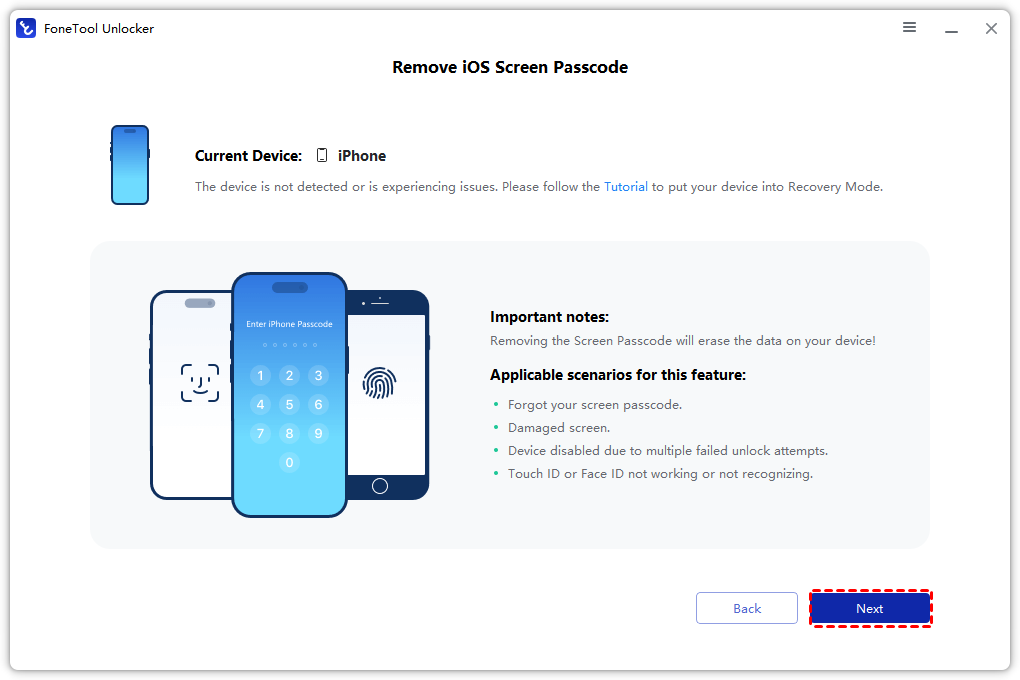
Step 4. Choose the Firmware you need and tap on Download.
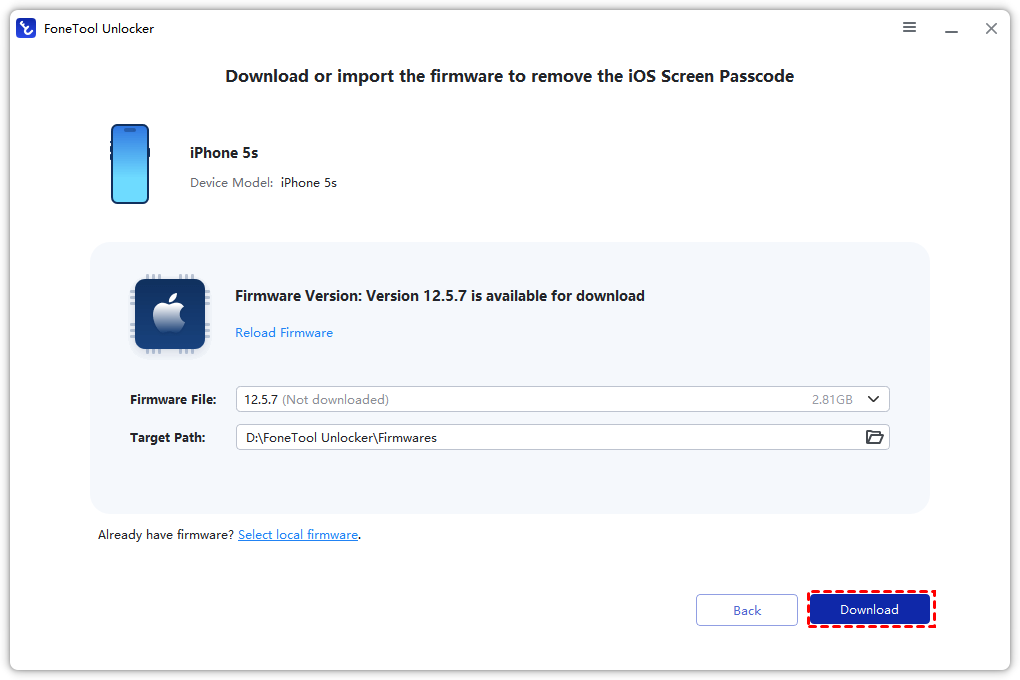
Step 5. Tap on Remove Now until the firmware files are downloaded > Click Remove Now.
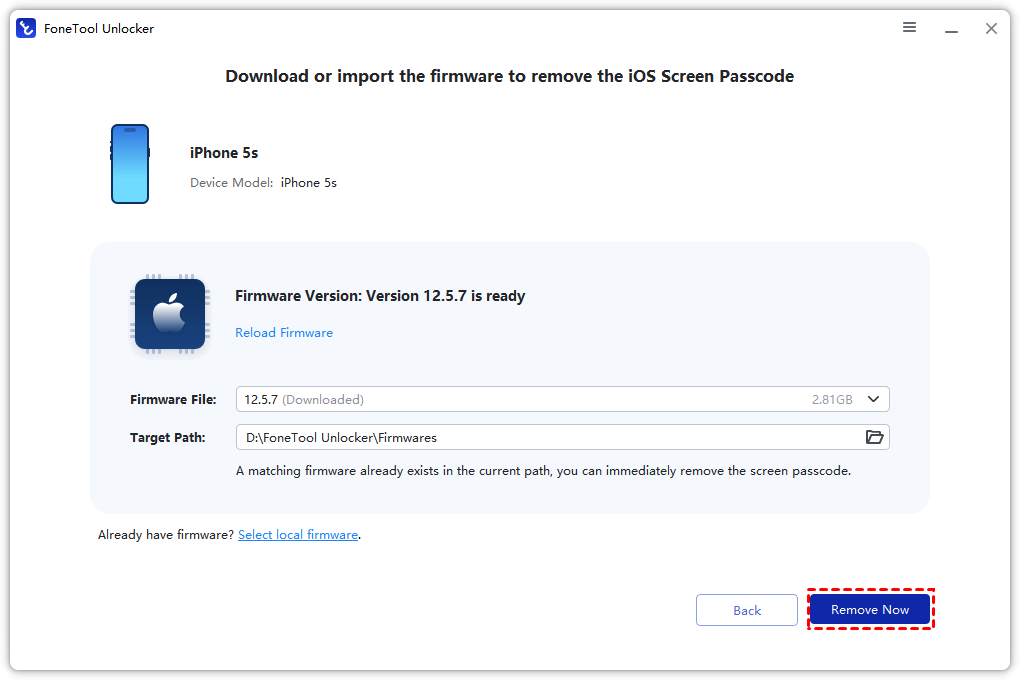
Once the process is finished, you can unlock your disabled iPhone without losing data.
Way 2. Bypass Disabled iPhone Without Losing Data with Previous Passcode
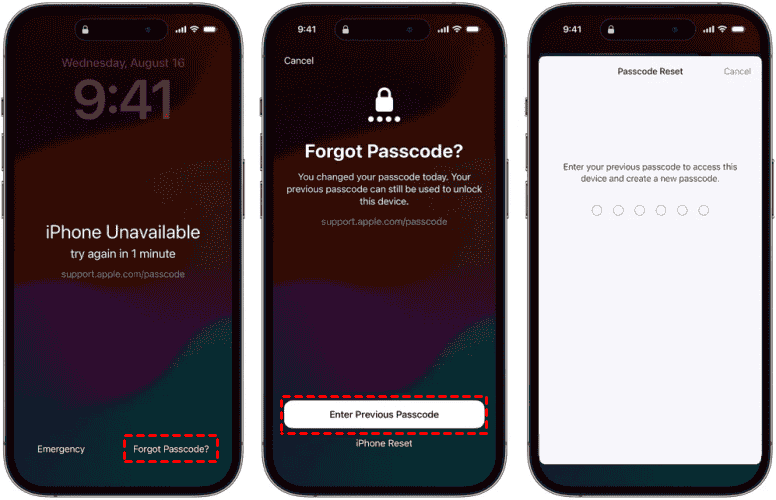
You can also use your previous passcode to unlock your disabled iPhone when you change your passcode within 72 hours.
Step 1. When your iPhone screen shows iPhone Unavailable, you can tap on Forget Password on your iPhone.
Step 2. Then tap on Enter Previous Passcode > Enter your old passcode.
Step 3. Follow the instructions to set a new password.
👉🏻Tip: When you see iPhone says passcode expired, please:
Way 3. Fix Disabled iPhone Without Losing Data via Apple Support
Apple's official support can help verify ownership and unlock your device.
-
Visit Apple Store or contact Apple Support.
-
Provide proof of device ownership.
-
Follow their unlocking procedure.
😃Advantage:
- Provide professional help.
🙁Disadvantages:
- Need to wait for a long time.
- The solutions may not be flexible or innovative.
Unlock Disabled iPhone If You Have a Backup | 4 Ways
When you have a recent backup, it’s easier for you to unlock your iPhone without passcode and without losing data. But you need to erase your iPhone first and then restore the data.
Way 1. Unlock A Disabled iPhone with Erase iPhone
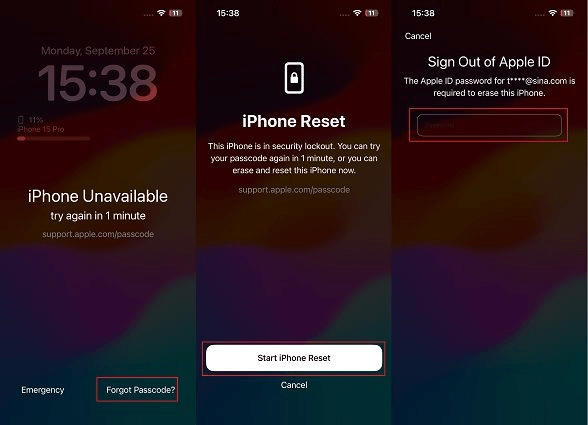
When you have a backup and want to unlock your iPhone, the easiest way is to tap on Erase iPhone option on your iPhone.
🔹Requirements:
- Turn off your Find My feature.
- Remember your Apple ID and password.
- Running your iPhone on iOS 15.2+.
Step 1. Tap on the Forget Password/Erase iPhone option on your iPhone.
Step 2. Check the information on your screen and click Start iPhone Restart/Erase iPhone again.
Step 3. Enter your Apple ID to unlock your iPhone.
Way 2. Bypass A Disabled iPhone with iTunes
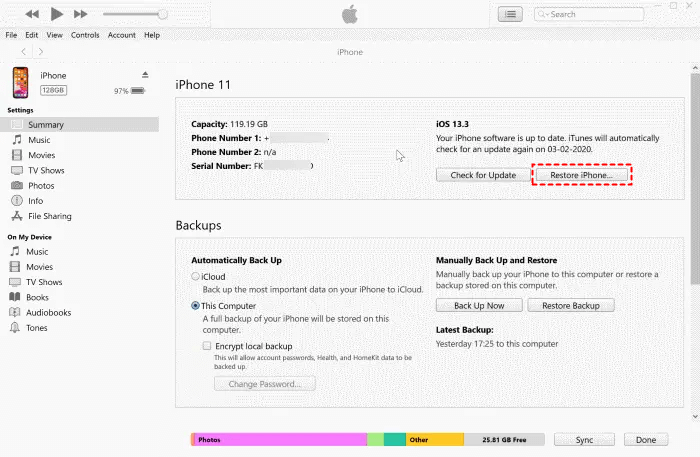
It’s also possible for you to unlock your iPhone with iTunes, but you also need to have a full backup first.
Step 1. Launch iTunes on your PC and connect it to your iPhone.
Step 2. Keep holding the Home button until you see the Recovery Mode screen.
Step 3. Click the device icon > Summary > Restore iPhone.
Way 3. Unlock A Disabled iPhone via iCloud
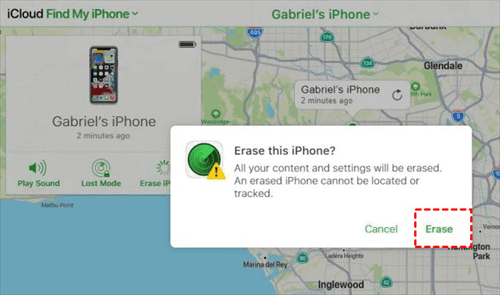
If you have enabled Find My feature, you can also use iCloud to fix iPhone. iCloud is useful when you want to back up or reset your iPhone. You can follow the steps below to unlock your iPhone.
Step 1. Go to iCloud and log in with your Apple ID.
Step 2. Click on Find iPhone > All Devices > Choose your disabled iPhone.
Step 3. Click on Erase iPhone and confirm again.
Way 4. Unlock A Disabled iPhone with Find My
When you don’t have a computer but remember your Apple ID associated with the disabled iPhone, you can use Find My app to restore your device on another mobile device.
Step 1. Install and launch Find My app and sign in with your Apple ID.
Step 2. Select Devices > Select your disabled iPhone.
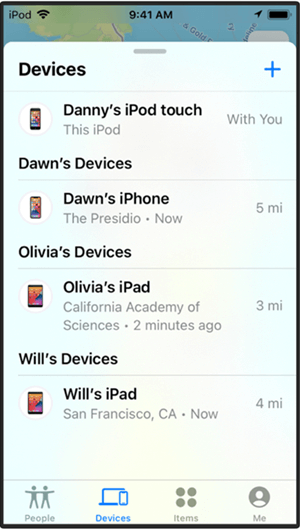
Step 3. Tap on Erase This Device.
More iPhone Unlock & System Fix Solutions
Depending on your situation, one of these guides might be exactly what you need.
No computer nearby?
You don't always need a PC or Mac to unlock a disabled iPhone. This guide walks you through 4 no‑computer methods – using iCloud's Find My, Finder on another Mac, the Find My app on another iOS device, and even an old Siri trick on older iOS versions.
- How to unlock a disabled iPhone without a computer – 4 ways to get back in, no PC required.
Stuck on “iPhone unavailable – try again in 1 hour”?
After 8 wrong passcode attempts, your iPhone shows a 1‑hour lockout. You can wait, but if you need it right now, there are 3 working methods: use FoneTool Unlocker (keeps your data if Find My is off), restore with iTunes, or wipe it remotely with iCloud. The article also explains the exact lockout times for different numbers of failed attempts.
- Fix “iPhone unavailable – try again in 1 hour” – 3 fast solutions.
“iPhone unavailable” – no timer, no erase option?
If your iPhone is permanently disabled and the lock screen doesn't even show an “Erase iPhone” button, don't panic. You have 4 options: FoneTool Unlocker (easiest), iTunes restore, Finder on a Mac, or iCloud remote wipe. The guide also covers what to do if there's still a timer but you want to erase immediately (works on iOS 15.2+).
- Fix “iPhone unavailable” with no timer or erase option – 4 ways to unlock a permanently locked iPhone.
Broken screen? Can't tap the passcode?
A cracked screen that doesn't respond to touch doesn't mean you're locked out forever. Try these 5 methods: FoneTool Unlocker (simplest), use Siri to turn on VoiceOver and navigate by voice, iCloud remote erase, connect a USB keyboard (iOS 11.4.1 or earlier), or iTunes restore. One of them will get you back in.
- How to unlock an iPhone with a broken screen (no touch working) – 5 real‑world solutions.
“iPhone is disabled – connect to iTunes” – what now?
That message usually appears after 10+ wrong passcode attempts. Good news: you can still fix it. If you've synced with iTunes before, just restore from there. No sync? Put the phone into recovery mode and restore. And if Find My is on, you can also erase it remotely via iCloud.com. The guide also shows how to use FoneTool to back up first so you don't lose everything.
- Fix “iPhone is disabled – connect to iTunes” – 3 methods to get your iPhone working again.
What is that “support.apple.com/passcode” screen?
That screen means your iPhone is disabled and locked for security reasons. No password will unlock it – the only way out is to erase the device. This guide explains exactly what that screen means and gives you 3 ways to erase it: recovery mode (official Apple method), iCloud remote erase (if Find My is on), and – if you run into Activation Lock afterward – FoneTool Unlocker to remove the old Apple ID.
- Unlock the “support.apple.com/passcode” screen on your iPhone – full walkthrough, including bypassing Activation Lock.
FAQs on Unlocking a Disabled iPhone
Conclusion
Now you know how to unlock a disabled iPhone without losing data. You can learn 7 useful ways from this guide. When you don’t have a backup, you can check the 3 ways in this guide for help. It’s easier for you to unlock your iPhone when you have a backup. You can use the 4 ways in this guide to reset your iPhone.
But the best way to protect your data and unlock your disabled iPhone is to use FoneTool Unlocker, which can remove your screen passcode with ease.
FoneTool Unlocker - 1-Click iPhone Unlock Software
Easily unlock all passcodes and restrictions on your iPhone, iPad, and iPod Touch.
-
 iOS 27 Compatible
 iPhone 17 Supported
100% Secure

Kelsey is an English editor at FoneTool, passionate about helping users solve tech issues. She specializes in iPhone data management, backup, and recovery. In her free time, she enjoys learning IT skills and spending time with loved ones.
Read author info >>



 as a preferred
source on Google
as a preferred
source on Google