View & Manage Saved Passwords in Safari on iPhone
Learn how to access, edit, and use passwords saved in Safari on your iPhone. Our guide covers the built-in method, plus solutions for when you're locked out. Manage your credentials easily.


Forgetting a password is frustrating. Thankfully, your iPhone and Safari work together as a secure vault, automatically saving and filling in your login credentials using iCloud Keychain. But how do you actually view, manage, or use these saved passwords?
This guide will walk you through exactly how to find and manage your saved passwords in Safari on your iPhone, and what to do if you run into common access issues.
Part 1.How to View & Manage Saved Passwords on iPhone
Your saved passwords are managed through your iPhone's Settings, not directly in the Safari app. This centralizes all your passwords for both websites and apps.
View Passwords on iPhone
Step 1. Open the Settings app on your iPhone.
Step 2. Scroll down and tap on "Passwords& Accounts”.
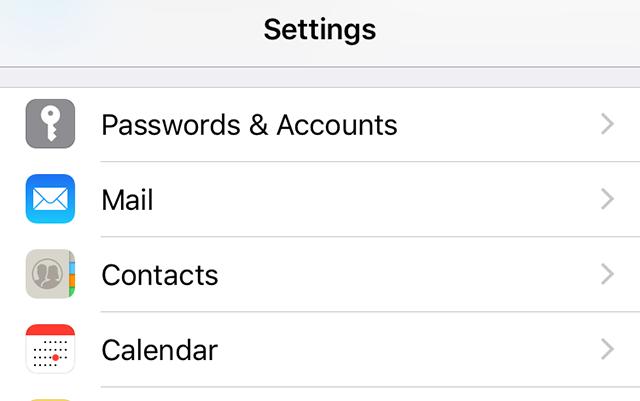
Step 3. You will be prompted to authenticate using Face ID, Touch ID, or your device passcode for security.
Step 4. You will now see an alphabetical list of all saved website and app logins.
Step 5. Tap on any entry to view the username and password or to edit/delete it.
Use a Saved Password in Safari
When visiting a login page, Safari's AutoFill feature will suggest the saved credentials. Simply tap the suggestion above the keyboard and authenticate with Face ID or Touch ID to fill it in instantly.
- ★Pro Tip:
- Ensure iCloud Keychain is enabled in Settings > [Your Name] > iCloud > Passwords and Keychain to sync your passwords securely across all your Apple devices.
Part 2. What If You're Locked Out? A Different Kind of "Password" Problem
What if the problem is not a forgotten website password, but forgetting your iPhone's own passcode or Apple ID password? Being locked out of your device also blocks access to your saved passwords in Settings.
FoneTool Unlocker addresses this different, yet related, access issue. It is a tool designed to remove the device-level locks (like a forgotten screen passcode or Activation Lock) that prevent you from using your iPhone and, consequently, your password manager.
🔍Consider this tool if you are in one of these situations:
- Your iPhone is disabled due to too many incorrect passcode attempts.
- You need to remove a previous owner's Apple ID (Activation Lock) from a used device.
- You are locked out and need to regain device access to then restore your saved passwords from an iCloud backup.
Step 1. Download FoneTool Unlocker on a Windows computer from its official site.
Step 2. Launch the tool, connect your locked iPhone, and select the appropriate unlock mode (e.g., "Remove iOS Screen Passcode").

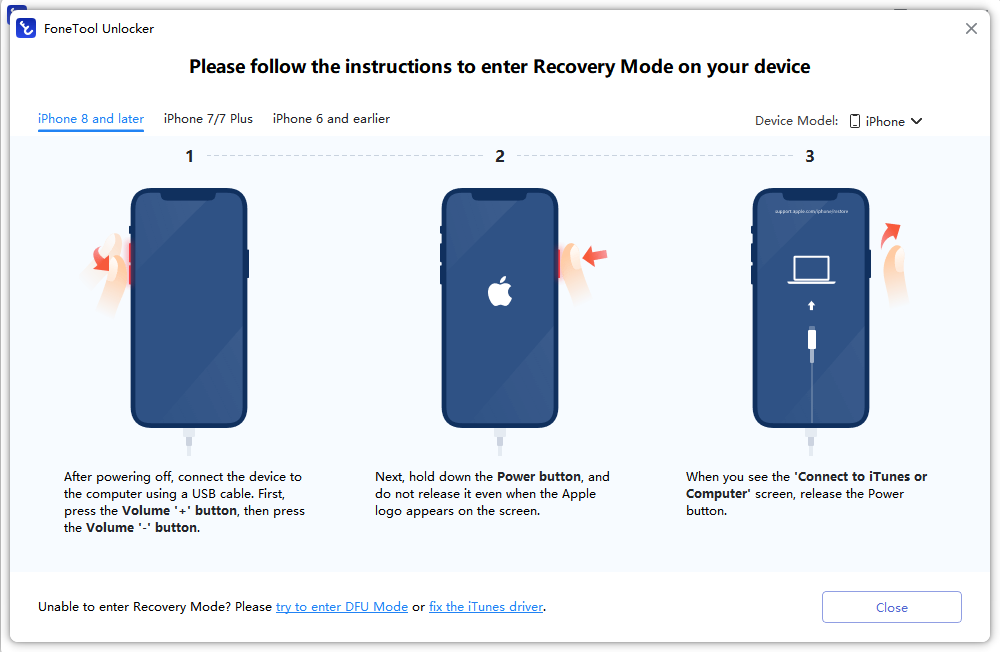
Step 3. Follow the guide to put your iPhone into Recovery Mode.
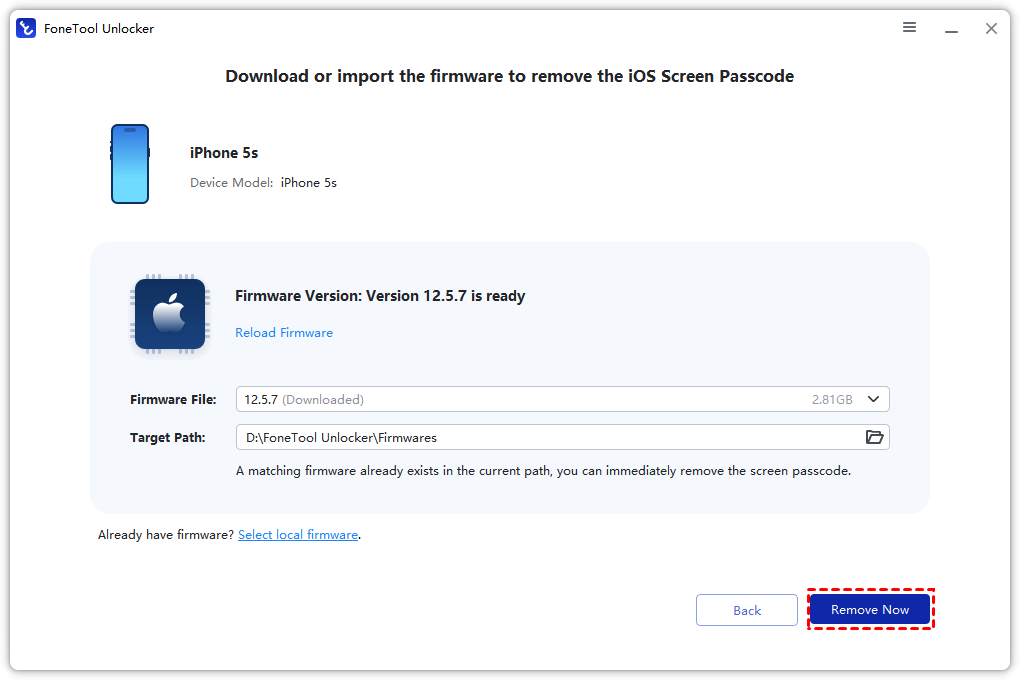
Step 4. The program will download the necessary firmware and click “Remove Now”to unlock iPhone, allowing you to set up your iPhone again.
Frequently Asked Questionson iPhone Passwords
Conclusion
Managing your saved passwords in Safari on your iPhone is straightforward through the Settings > Passwords menu. This system, powered by iCloud Keychain, offers a secure and convenient way to auto-fill logins.
If your problem is being locked out of your iPhone itself—preventing access to your iOS datamanager- tools like FoneTool Unlocker can help you regain device access as a last resort. For daily use, trust the built-in password manager; for device recovery, know your options.
FoneTool Unlocker - 1-Click iPhone Unlock Software
Easily unlock all passcodes and restrictions on your iPhone, iPad, and iPod Touch.
-
 iOS 27 Compatible
 iPhone 17 Supported
100% Secure

Kelsey is an English editor at FoneTool, passionate about helping users solve tech issues. She specializes in iPhone data management, backup, and recovery. In her free time, she enjoys learning IT skills and spending time with loved ones.
Read author info >>



 as a preferred
source on Google
as a preferred
source on Google