3 Proven Ways to Turn Off Find My iPhone Without Password
Forgot your Apple ID password and need to disable Find My iPhone? This guide provides clear methods: using FoneTool Unlocker software, erasing via iCloud.com, or resetting your password. Get your iPhone ready for a new owner or repair.


You’re locked out. Maybe you’re preparing to sell your iPhone, but you’ve forgotten the Apple ID password needed to turn off Find My iPhone. This essential security feature suddenly becomes a frustrating barrier. This guide cuts through the confusion, providing clear, actionable methods to resolve this issue, even when the password is lost.

Why You Might Need to Disable Find My iPhone?
Find My iPhone (now part of the Find My network) is a critical security tool that helps you locate, lock, or erase a lost device. However, Apple requires you to turn it off before another person can activate and use the device. Common scenarios include:
- Selling, trading in, or giving away your iPhone or iPad.
- Sending the device to Apple for repair.
- Performing a factory reset when you've forgotten your Apple ID credentials.
- Setting up a second-hand iPhone that is still linked to the previous owner's account.
Method 1.Use iCloud.com to Erase and Remove (Account Access Required)
This is the most effective official workaround if you can still log into your iCloud account but don’t remember the password to enter on the phone itself. Instead of “turning off”the feature, you remotely erase the device and remove it from your account, which also removes Activation Lock.
- Prerequisites:
- You must know the Apple ID and password to sign in to iCloud.com.
- The iPhone must be connected to the internet (Wi-Fi or cellular).
Step 1. On any computer or smartphone browser, go to icloud.com/find.
Step 2. Sign in with the Apple ID linked to the locked iPhone.
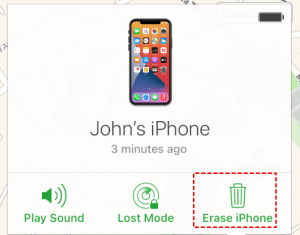
Step 3. Click “All Devices” at the top and select the target iPhone.
Step 4. Click “Erase iPhone”, and confirm to remotely wipe all data and settings. This step is crucial.
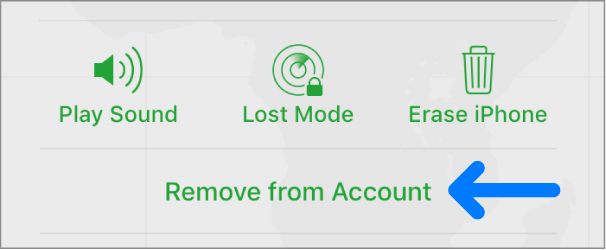
Step 5. After the erase completes, click “Remove from Account”. This officially removes the Activation Lock, allowing the iPhone to be activated anew.
Method 2.Reset Your Apple ID Password (Regain Access)
If your goal is to regain full control, the best course is to reset your forgotten Apple ID password through Apple’s official recovery. Once reset, you can use the new password to turn off Find My iPhone normally.
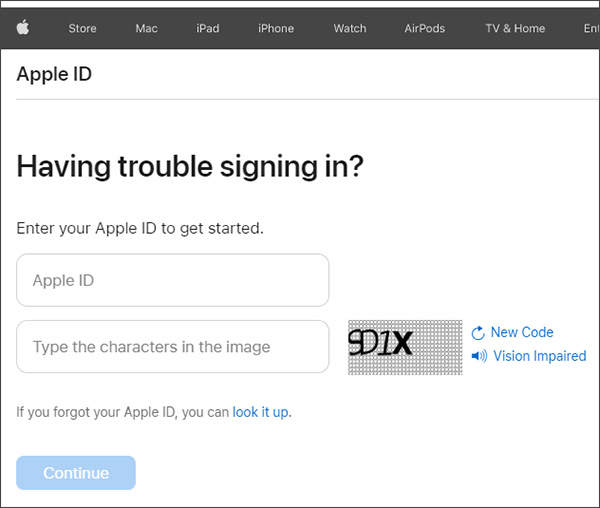
Step 1. Visit Apple’spassword recovery page: iforgot.apple.com.
Step 2. Enter your Apple ID (email address) and click “Continue”.
Step 3. Choose your recovery method:
- Email Authentication: Get a reset link at your rescue email.
- Answer Security Questions: If you set them up.
- Two-Factor Authentication: Use a trusted phone number to get a verification code.
Step 4. Follow the on-screen instructions to create a new, strong password.
Step 5. On the iPhone, go to Settings > [Your Name] > Find My > Find My iPhone, enter your new password, and toggle it off.
Bonus Tip: When All Else Fails - Using FoneTool Unlocker
The methods above require access to your Apple ID account. But what if you have no access to the account at all? Common scenarios include buying a used iPhone still linked to a previous owner’s account, or losing all account recovery options.
In these cases, a professional tool like FoneTool Unlocker can provide a solution. By removing the unknown Apple ID from the device, it effectively clears the way for a fresh setup.
- ★Highlights of FoneTool Unlocker:
-
Easily remove Apple ID and forgotten screen passcodewithout technical skills
Safe and stable process protects your device from damage
A higher success rate for unlocking compared to other software
Compatible with the latest iOS devices and versions
Step 1. On a Windows PC, download and install FoneTool Unlocker, connect the locked iPhone to your computer via a USB cable.
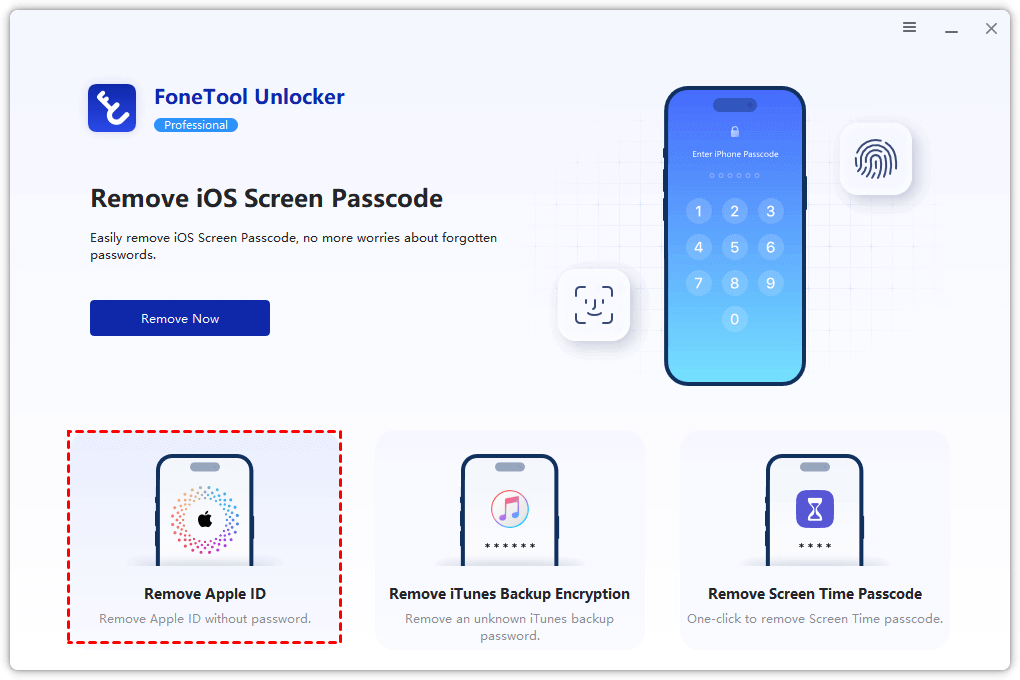
Step 2. Launch the tool and select the “Remove Apple ID” mode.
Step 3. The software will guide you to put the device into the correct mode (typically Recovery Mode). Follow the on-screen instructions.
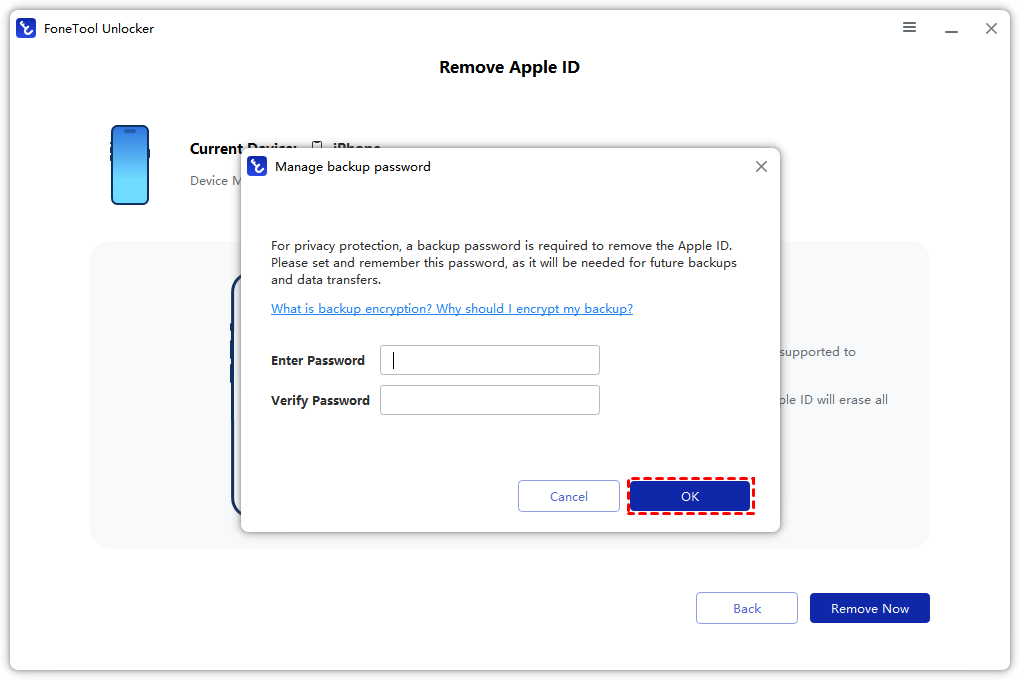
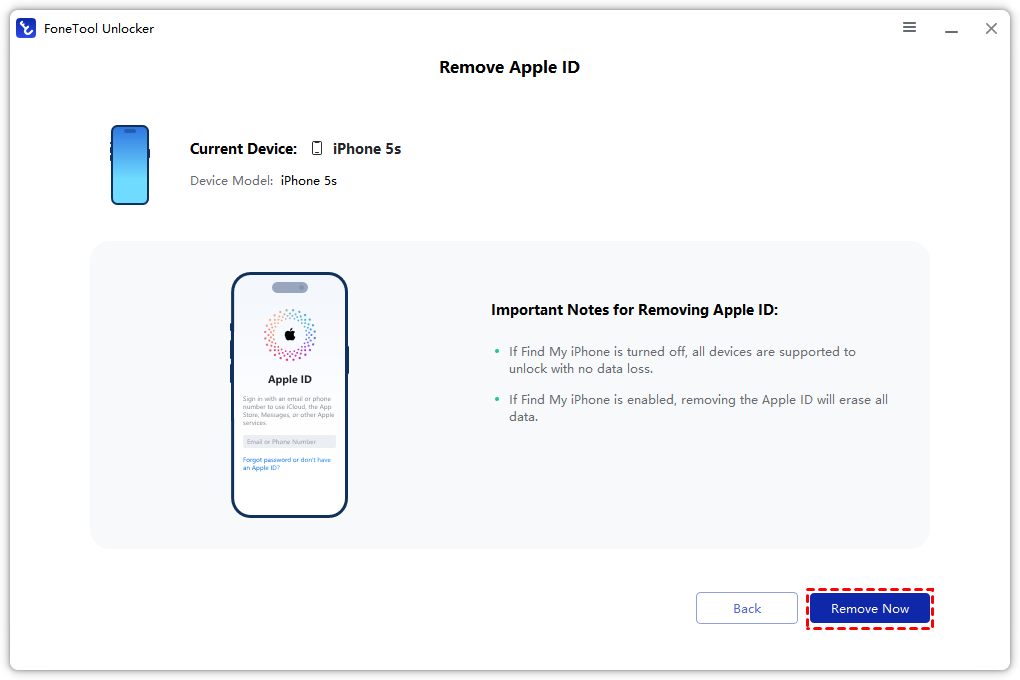
Step 4. Once ready, click “Remove Now”. The tool will clean the Apple ID and Activation Lock from the device.
Frequently Asked Questions
Conclusion
To turn off Find My iPhone without a password, choose your path based on account access. If you can sign in to iCloud.com, use the erase method. If you've just forgotten your password, reset it via Apple's official recovery. For situations where you have no access to the account at all, such as with a used device- a tool like FoneTool Unlocker provides a reliable solution to remove Apple ID.
Take control of your device. Explore your unlock options and find the right solution today.
FoneTool Unlocker - 1-Click iPhone Unlock Software
Easily unlock all passcodes and restrictions on your iPhone, iPad, and iPod Touch.
-
 iOS 27 Compatible
 iPhone 17 Supported
100% Secure

Kelsey is an English editor at FoneTool, passionate about helping users solve tech issues. She specializes in iPhone data management, backup, and recovery. In her free time, she enjoys learning IT skills and spending time with loved ones.
Read author info >>



 as a preferred
source on Google
as a preferred
source on Google