How to Unlock iPhone Without Passcode [8 Ways Without Resetting]
How to unlock iPhone without passcode without resetting? This guide reveals 8 proven methods - 4 keep your data, 4 require backup. Step-by-step instructions included.


Why You Can’t Unlock iPhone Without Passcode?
Locked out of your iPhone and don’t want to lose your data? You are not alone. Many users search for how to unlock iPhone without passcode without resetting when they forget their screen lock, face iPhone disabled errors, or buy second-hand devices. This guide explains all working methods in 2026, including Apple official solutions, iOS built-in features, iCloud options, and professional unlocking tools.
Before unlocking your iPhone, let’s learn why your iPhone cannot be unlocked.
-
Frequent password changes leading to confusion
-
Repeated wrong passcode attempts trigger security lockout
-
iPhone disables itself for protection
-
Face ID / Touch ID fallback still requires passcode
-
Children or others accidentally locking the device
-
Screen damage may prevent input
😃If you don't want to wait for a long time and be limited by various conditions, I highly recommend a safe unlocking tool, FoneTool Unlocker here.
Quick Overview: All iPhone Unlock Methods
| Method | Keeps Data | Require Computers | Best For | Difficulty |
|---|---|---|---|---|
| Forget Passcode (iOS 17+) | ✅ | ❌ | Users who remember old passcode and changed it within 72 hours | Easy |
| FoneTool Unlocker | ✅ | ✅ | Fastest solution, any iOS version, no data loss | Medium |
| Apple Support | Depends | ❌ | Users with proof of purchase | Easy |
| Voice Control (iOS 13+) | ✅ | ❌ | Users who enabled the feature before lock | Medium |
| All Alternative Ways | ❌ | Internet + Apple ID | Users who have a recent backup | Easy |
4 Ways to Unlock iPhone Without Passcode Without Resetting
Don’t worry if you forget your passcode and want to know how to unlock iPhone without passcode without losing data. There are 4 proven ways to help you.
Way 1. Unlock iPhone via Forget Passcode (iOS 17+)
You can easily unlock your iPhone without erasing it using the previous passcode when you change your iPhone passcode within 72 hours.
Step 1. Try the wrong passcode, and iPhone Unavailable will pop up on your iPhone > Tap Forget Password.
Step 2. Tap on Enter Previous Passcode > Enter your old passcode.
Step 3. Follow the on-screen instructions to set a new passcode.
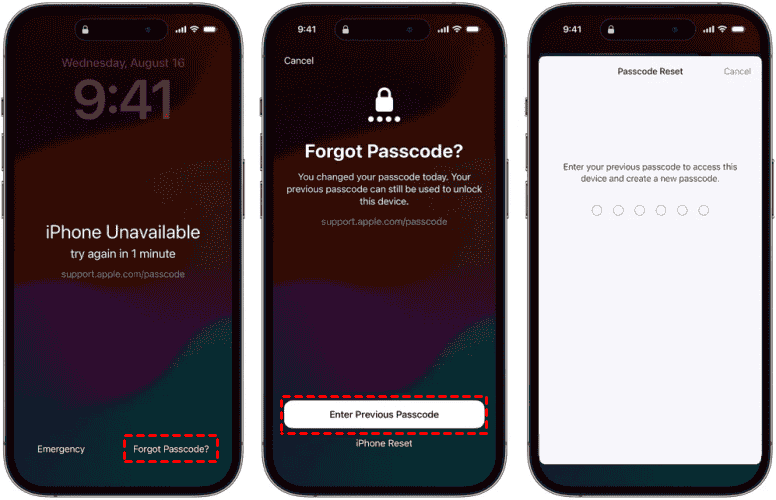
Step 4. After the process, you can enter your iPhone with your new passcode.
✅ Pros: No data loss, official Apple method
❌ Cons: Only works on iOS 17+, must remember old passcode
Way 2. Use Apple Support for Official Unlocking
Apple's official support can help verify ownership and unlock your device. They will need proof that you own the device, so prepare it beforehand.

Step 1. Visit Apple Store or use Apple Support App.
Step 2. Provide proof of device ownership.
Step 3. Follow their unlocking procedure.
✅ Pros: No data loss, official Apple method
❌ Cons: Only works on iOS 17+, must remember old passcode
Way 3. Fastest Solution - Use Professional Unlock Tool
Don't want to wait for a long time? Want to unlock iPhone without losing data? We highly recommend a safe and efficient unlocking tool, FoneTool Unlocker, because the tool is faster than Apple Official. You can skip the waiting process and unlock your iPhone quickly. You can also use it to remove Apple ID and unlock various passcodes without erasing data (if Find My off).
- ★Highlights:
-
- Unlock iPhone screen passcodes with simple clicks.
- Powerful features offer a high success rate.
- Safe and stable process prevents your data from leakage.
- Remove Apple ID from iPhone, no tech knowledge is required.
- Wide compatibility with the latest iOS devices/versions.
Now, please free download the FoneTool Unlocker and follow the steps:
Step 1. Launch the FoneTool Unlocker on your computer > Connect iPhone to PC via a USB cable.
Step 2. Go to Remove iOS Screen Passcode > Click Remove Now.

Step 3. Read the on-screen instructions > Click Next.
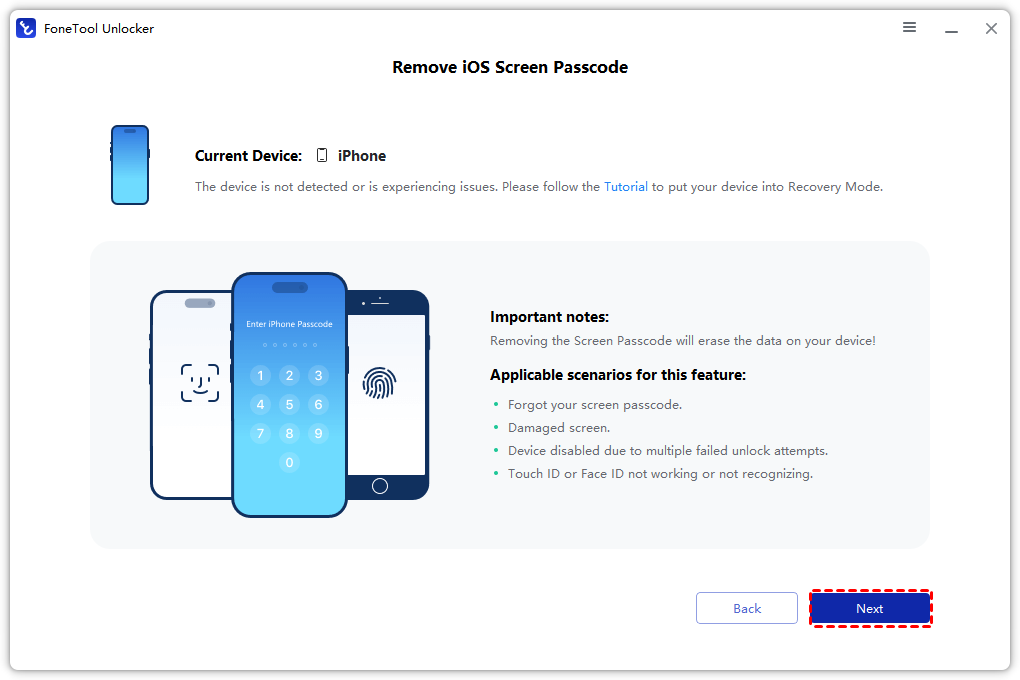
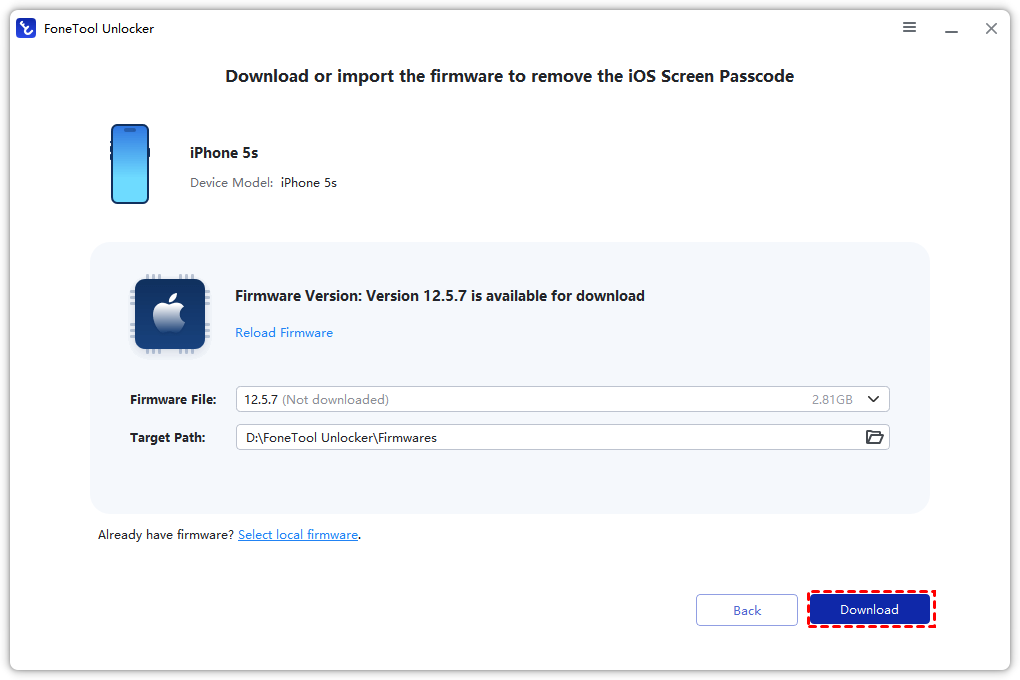
Step 4. Choose the Firmware File you need > Click Download.
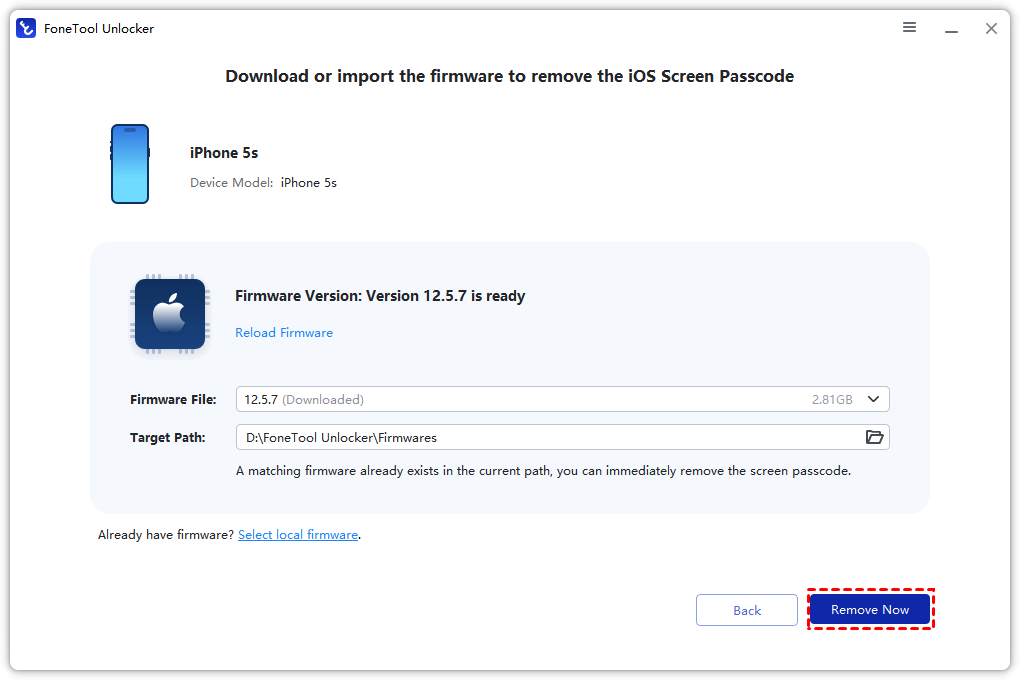
Step 5. Click Remove Now until the Firmware Files are downloaded.
🤩You can also use it in the following scenarios:
- Forget your password
- The screen is damaged and can’t input
- The previous owner of the second-hand device has not logged out of the account
✅ Pros: No data loss, high success rate, fast
❌ Cons: Need to turn off Find My first
Way 4. Unlock iPhone via the Voice Control (iOS 13+)
Voice Control is a feature in iOS 13 and later that allows you to control your iPhone using voice commands. This can be used to unlock your iPhone without passcode or Face ID. To use the Voice Control feature to unlock iPhone, you need to enable it first.
Step 1. Ensure Voice Control is enabled: Settings > Accessibility > Voice Control.
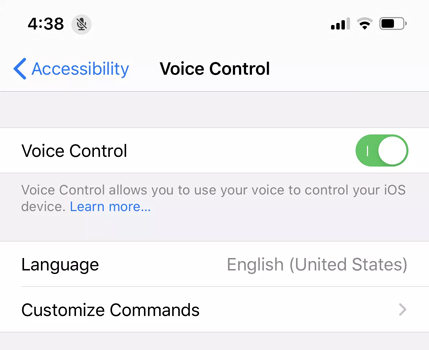
Step 2. Say "Hey Siri" followed by "Unlock my iPhone" to unlock your iPhone without passcode.
✅ Pros: No data loss, convenient
❌ Cons: Must enable the feature beforehand, iOS 13+ only
4 Alternative Ways to Unlock iPhone with Recent Backup
If you are limited by your iOS versions, didn’t enable the Voice Control feature, and don’t want to wait for a long time, what can you do to fix the issue? Don’t worry. Don’t worry. Try the 4 ways below if you have created a recent backup before your iPhone screen passcode was locked.
Way 1. Reset iPhone with DFU
DFU mode allows you to restore your iPhone to its factory settings. This way can put your iPhone in a state where it can be restored or updated directly from iTunes. You can unlock your iPhone after restoring it.
- Tip:✎...
- Please back up your iPhone for free if you don’t want to lose your data.
Step 1. Download and launch the latest iTunes on your computer > Connect your iPhone to your computer.
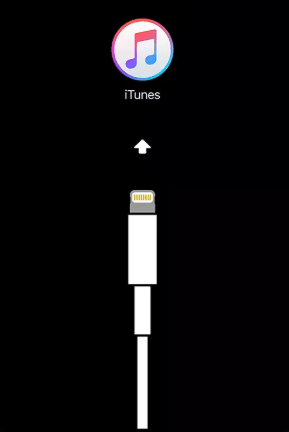
Step 2. Power off the iPhone > Press and hold the Home button and the Side/Power button for 10 seconds.
Step 3. Release the Side/Power button, but continue to hold the Home button until iTunes recognizes your iPhone in DFU mode.
Step 3. Once in DFU mode, iTunes will prompt you to restore your iPhone.
✅ Pros: Official method
❌ Cons: Complex process, erases all data
Way 2. Unlock iPhone with iTunes/Finder
If you have a backup on your computer, you can use iTunes/Finder to restore your iPhone.
Step 1. Launch iTunes > Connect the iPhone to PC via a USB cable.
😥Encounter iTunes error 3004? Please check:
1. Network Connection
2. Update iTunes
3. Edit Hosts File on the PC
Step 2. Keep holding the Home button until you see the Recovery Mode screen.
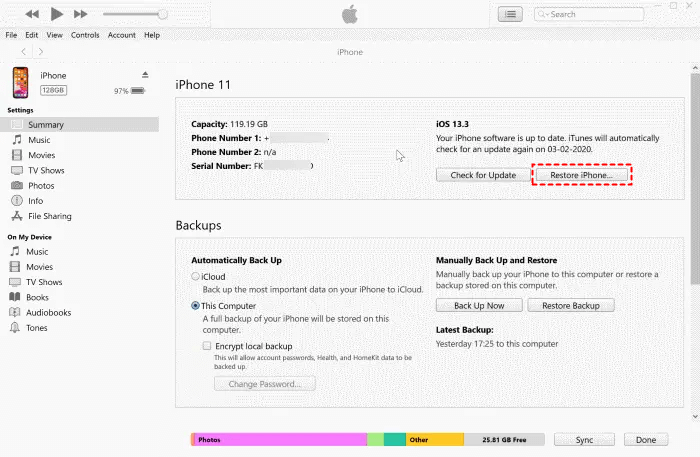
Step 3. Click the device icon on the pop-up > Summary > Restore iPhone.
✅ Pros: Safe restoration
❌ Cons: Data loss, can’t bypass the iCloud Activation
Way 3. Restore iPhone without computer with iCloud
iCloud is useful when you need to unlock iPhone without computer. You can unlock your device after resetting it.
Step 1. Go to iCloud website > Log in with your Apple ID associated with your iPhone.
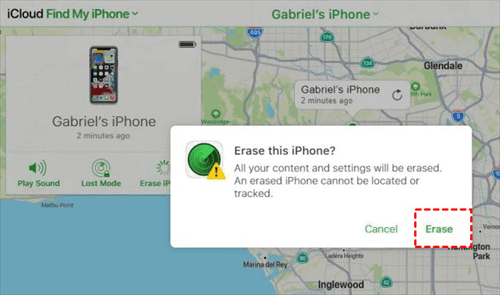
Step 2. Click on Find iPhone to access Find My > Tap on All Devices > Choose the device that you want to unlock.
Step 3. Click on the Erase iPhone option and confirm again.
✅ Pros: No computer needed
❌ Cons: Requires good internet, erases data
Way 4. Get into locked iPhone without computer via Erase iPhone
Another way to reset your iPhone is through a lock screen. But you need to note whether there is a Forget/Erase iPhone icon on your iPhone.
- Tip: Before the process, you need to✎...
- Turn on the Find My feature
- Connect iPhone to WiFi
- Remember Apple ID
Follow the steps to restore your iPhone:
Step 1. Tap on the Forget Password/Erase iPhone option.
Step 2. Check the on-screen information > Click Start iPhone Restart/Erase iPhone again.
Step 3. Enter your Apple ID and start the reset process.
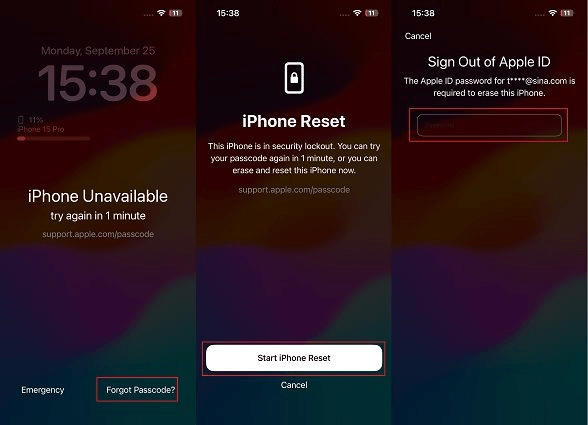
After erasing, you can set up your iPhone and restore it from an iCloud backup or others.
✅ Pros: Safe and fast.
❌ Cons: Data loss and only works on iOS 15.2+.
FAQS on unlocking iPhone without resetting
Related Solutions
If your iPhone is disabled, stuck on the emergency call screen, or you’ve heard about secret unlock codes, check out these guides for specific scenarios:
- How to Unlock iPhone with Emergency Call Screen → Learn why the old iOS 6.1 trick no longer works and what actually works today.
- Unlock iPhone Without Passcode or Face ID → Alternative methods for when Face ID is unavailable.
- How to Unlock Disabled iPhone Without Computer → Solutions for iPhones that have been completely disabled.
- Is There a Secret Code to Unlock iPhone Passcode? → Why secret codes don’t work and the legal alternatives.
Conclusion
To conclude this guide, there are easy and useful solutions for unlocking an iPhone without a passcode or resetting it. And you can also restore your iPhone if you have backed up. You can use FoneTool Unlocker to unlock your iPhone without a passcode, easily and safely.
FoneTool Unlocker - 1-Click iPhone Unlock Software
Easily unlock all passcodes and restrictions on your iPhone, iPad, and iPod Touch.
-
 iOS 27 Compatible
 iPhone 17 Supported
100% Secure

Kelsey is an English editor at FoneTool, passionate about helping users solve tech issues. She specializes in iPhone data management, backup, and recovery. In her free time, she enjoys learning IT skills and spending time with loved ones.
Read author info >>



 as a preferred
source on Google
as a preferred
source on Google