How to Backup iPhone to Laptop: 4 Easy Ways (Windows & Mac)
ant to backup iPhone to laptop without iCloud? This guide covers 4 methods: FoneTool (easiest, selective backup), Apple Devices App (Windows 11), iTunes (older Windows), and Finder (Mac). No monthly fees.


You've got a laptop with plenty of storage. Your iPhone needs a backup. Makes sense to put the two together, right?
Apple gives you a few official ways to do this - iTunes, Finder, Apple Devices App. They work. But if you've used them, you know they're not perfect.
iTunes backups are locked away in hidden folders. You can't see what's inside. You can't pick what to back up. And iCloud? That 5GB free space fills up fast, then asks for a monthly subscription.
The good news? There's a simpler way.
In this guide, I'll show you 4 ways to backup iPhone to a laptop, starting with the easiest and most flexible option, then covering the official tools for Windows and Mac.
| ❓ Your Situation | 🎯 Best Method | 💡 Why |
|---|---|---|
| Want the easiest, most flexible option | Method 1: FoneTool | Free, selective backup, view backup content |
| Windows 11 user who prefers official tools | Method 2: Apple Devices App | Official new tool, replaces iTunes |
| Older Windows user | Method 3: iTunes | Official tool, works on older systems |
| Mac user (macOS Catalina+) | Method 4: Finder | Official Apple method, built-in |
What You Need Before You Start
Before we dive into the methods, let's get the basics covered.
-
A laptop (Windows PC or Mac)
-
The USB cable that came with your iPhone (Lightning or USB-C)
-
Be sure your laptop have enough space to backup iPhone.
-
Download the software you need - iTunes, Finder, etc., depending on the method you pick.
-
No Wi-Fi required – all these methods work over a USB connection.
Not sure where is iPhone backup stored on PC? We'll cover that too.
Method 1: Backup iPhone to Laptop with FoneTool (Easiest & Most Flexible)
👍 Best for: Windows users who want full control over their backups - without iTunes or iCloud.
Let's start with the simplest option.
FoneTool is a free Windows tool that lets you backup iPhone to laptop with full control. It's best if you want to pick what to backup, choose where to save it, and actually see what's inside your backup files.
📌 What it does:
- Full or selective backup - backup everything, or just pick photos, contacts, messages, etc. No iCloud or iTunes required.
- View backups anytime - browse what's inside your backup whenever you want.
- Flexible storage -save to laptop, external hard drive, USB drive, NAS, etc.
- Preview before backup - See what's in your backup before it starts.
- Completely free - no subscriptions, no hidden fees.
How to backup iPhone to laptop with FoneTool:
Step 1. Download and install FoneTool on your Windows laptop. Connect your iPhone to your laptop using the USB cable and tap Trust to authorize your computer.
Step 2. Open FoneTool. You'll see two options: Full Backup & Selective Backup. Pick what fits. Here, we'll walk through Selective Backup.
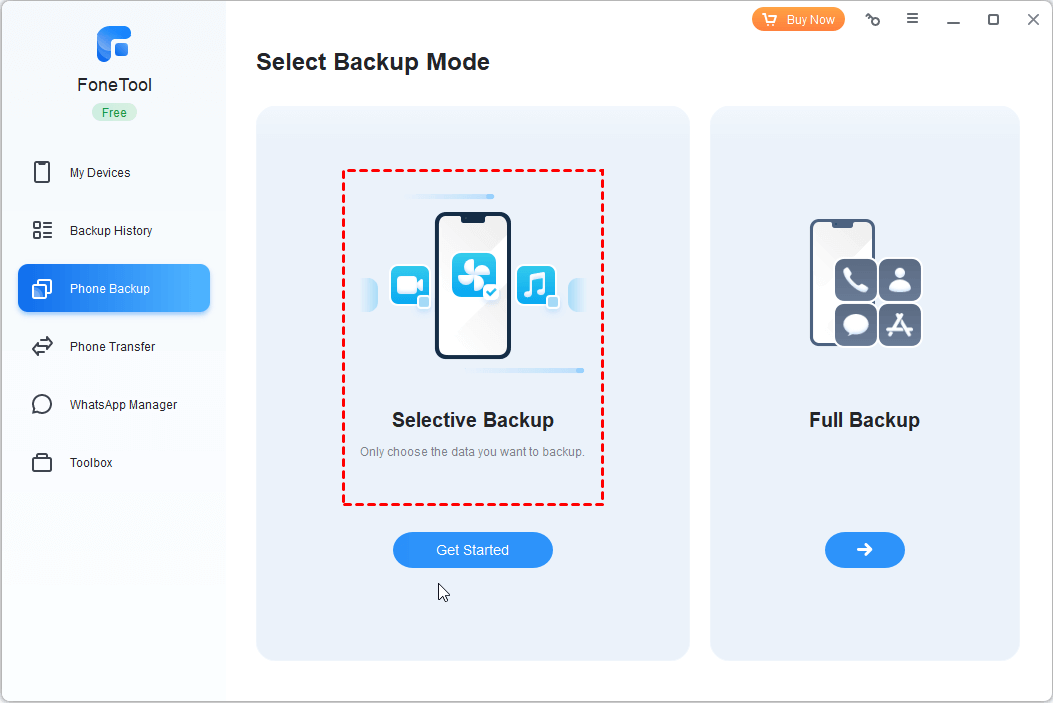
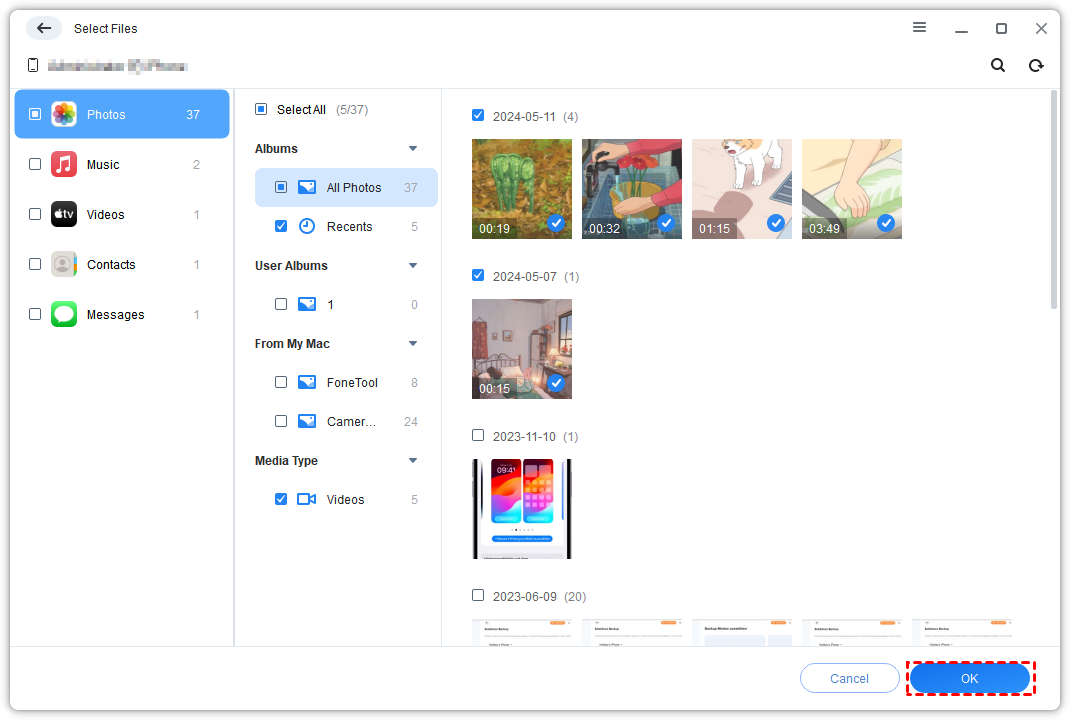
Step 3. Click the Photos or Videos icon to preview and select what you want to back up. Click OK to continue.
Step 4. Click Backup Storage Path to choose a folder on your laptop, then click Start Backup and wait for it to finish.
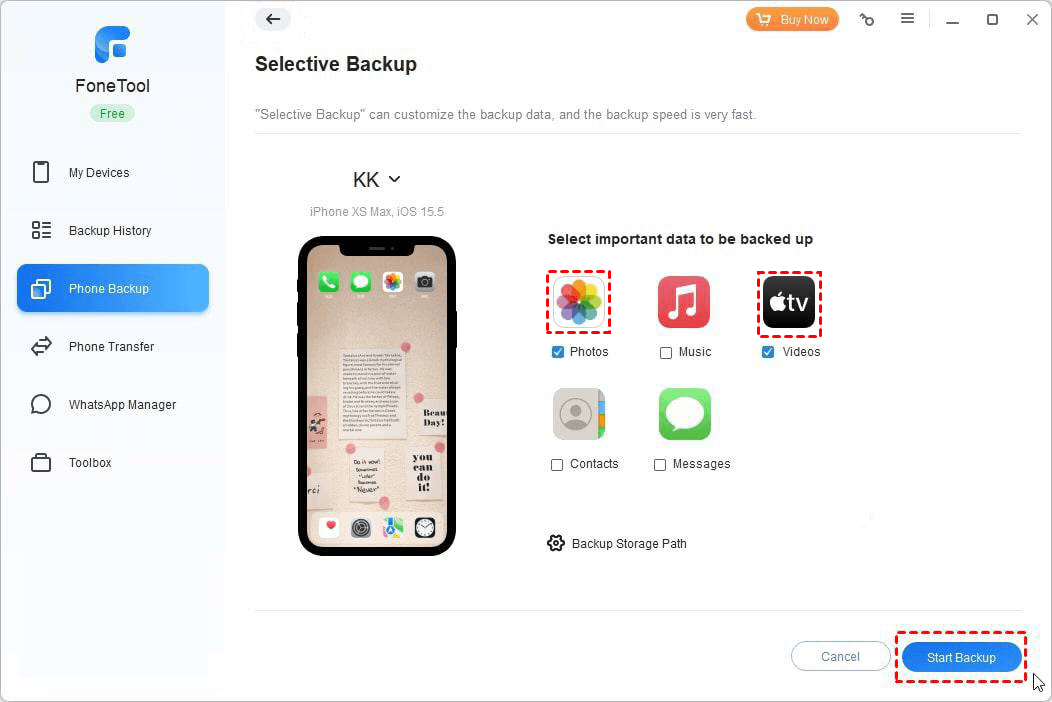
Once complete, you can browse your backup files anytime. Something iTunes and Apple Devices App simply don't allow.
If you want to skip unwanted files and save only what matters, check how to backup iPhone without photos.
Method 2: Backup iPhone to Laptop with Apple Devices (Windows 10 & higher)
👍 Best for: You are using Windows 10 (22H2 or higher) and prefer official tools.
If you'd rather use Apple's own software, the Apple Devices App is the modern replacement for iTunes on Windows 10 22H2 and 11. It's lightweight, focused, and designed specifically for managing and backing up your iPhone, iPad, or iPod touch.
It's free, supports encrypted backups (so you can save Health data, passwords, and Wi-Fi settings), and it's official Apple software. The only catch? Backup files are stored in a hidden system folder, and you can't browse what's inside them.
How to backup iPhone to laptop with Apple Devices:
Step 1. Open the Microsoft Store on your laptop, search for Apple Devices, and download it. Connect your iPhone using the USB cable, tap Trust on your phone, and enter your passcode.
Step 2. Open the Apple Devices app and click on your iPhone in the sidebar.
Step 3. Then, go to General and click Back Up Now. Optionally, you can also check the Encrypt local backup option to save Health and Activity data, and create a password.

Your iPhone is now backed up to your Windows 11 laptop. You'll see the date and time of your latest backup.
Method 3: Backup iPhone to Laptop with iTunes
👍 Best for: Older Windows versions or users who prefer the familiar iTunes interface.
Unlike Apple Devices, iTunes works with all versions of the Windows operating system, from Windows 7 to Windows 11, and lets you back up your iPhone without iCloud, including encrypted backups. The downside? It's bulkier than the newer Apple Devices App, and your backup files are hidden in system folders that you can't browse.
How to backup iPhone to laptop with iTunes:
Step 1. Connect your iPhone to your laptop using the USB cable, unlock it, and tap Trust to authorize your laptop. If you don't already have iTunes installed, download it from the Microsoft Store or Apple's website.
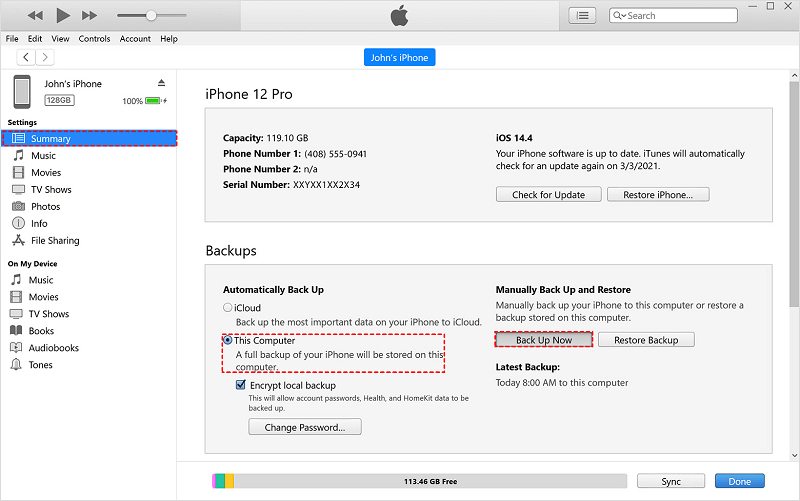
Step 2. Open iTunes, and click the iPhone icon at the top.
Step 3. Click Summary in the sidebar. Under the Backups section, select This Computer and click Back Up Now. If you want to encrypt your backup (recommended), check Encrypt local backup and create a password.
Method 4: Backup iPhone to Laptop with Finder (Mac)
👍 Best for: Mac users running macOS Catalina 10.15 or later.
If you're on a Mac running macOS Catalina or later, Finder handles iPhone backups. It's free, built right in, and supports encrypted backups. The catch? Your backups are stored on your Mac's internal drive, and you can't browse them or pick a different location.
How to backup iPhone to laptop with Finder:
Step 1. Connect your iPhone to your Mac using the USB cable and tap Trust and enter your passcode to authorize your laptop.
Step 2. Open a Finder window, and click your iPhone > General.
Step 3. Under Backups, select Back up all of the data on your iPhone to this Mac, and click Back Up Now. If you want to save Health and Activity data, check "Encrypt local backup" and create a password.
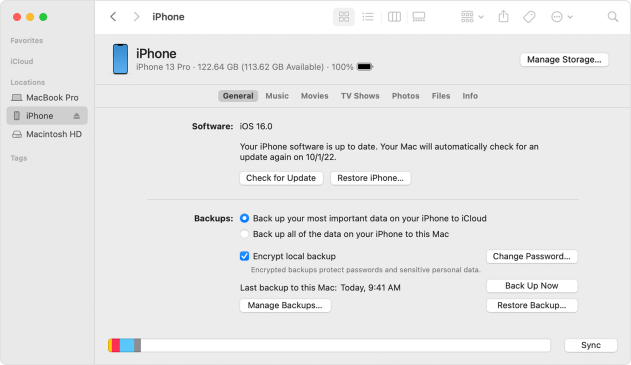
Your iPhone is now backed up to your Mac.
Which Method Should You Pick?
| Method | Platform | Difficulty | Selective Backup | View Backup Content | 👍 Best For |
|---|---|---|---|---|---|
| FoneTool | Windows | ★☆☆ | ✅ | ✅ | Users who want full control and flexibility |
| Apple Devices App | Windows 11 | ★☆☆ | ❌ | ❌ | Windows 11 users who prefer official tools |
| iTunes | Windows (older) | ★★☆ | ❌ | ❌ | Older Windows users |
| Finder | Mac | ★☆☆ | ❌ | ❌ | Mac users |
🔥 My recommendation:
-
Want the easiest, most flexible option? → Start with FoneTool. It's free, lets you choose what to backup, and you can actually see what's inside your backups.
-
Windows 11 user who prefers official tools? → Apple Devices App is your best bet.
-
Older Windows user? → iTunes is still available and works.
-
Mac user? → Finder is built-in and works great.
Frequently Asked Questions
Q1: Can I backup my iPhone to a laptop without iCloud?
Yes. All four methods in this guide backup your iPhone locally to your laptop. No iCloud storage is required.
Q2: How much space do I need on my laptop?
At least as much as your iPhone's used storage. Check Settings > General > iPhone Storage on your iPhone to see how much space you need.
Q3: Can I backup multiple iPhones to one laptop?
Yes. Each backup is stored separately and labeled by device name.
Q4: How long does it take to backup iPhone to laptop?
It depends on how much data you have. A typical backup takes 10–30 minutes. If you're looking to save time, how to backup iPhone without photos can help reduce backup size.
Q5: What's the difference between backing up to laptop vs. external hard drive?
Laptop backup saves to your computer's internal drive and is vulnerable to system crashes or other issues. External hard drive backup saves to a separate drive you can unplug and store safely elsewhere.
Q6: Can I restore my iPhone from a laptop backup later?
Yes. If you used iTunes, Finder, or Apple Devices App, you can restore from that backup. For iTunes users, check how to restore iPhone from iTunes backup.
FoneTool - All-in-one iPhone Data Manager
Transfer, backup and manage data on iPhone, iPad and iPod touch in an easy way.
-
 iOS 27 Compatible
 iPhone 17 Supported
Windows 11/10/8/8.1/7

100% Secure

Ivey is passionate about teaching users how to easily protect mobile device data. With the FoneTool series of iPhone management, unlocking, and repair software, even beginners can perform data backup, iPhone unlocking, and troubleshooting like a pro.
Read author info >>



 as a preferred
source on Google
as a preferred
source on Google