Backup iPhone to Windows 11 without iTunes: 4 Easy Ways (2026)
Tired of iTunes on Windows 11? This guide covers 4 ways to backup iPhone without iTunes: Apple Devices App (official), Phone Link, iCloud, and FoneTool for a simpler, more flexible backup experience.


You just plugged your iPhone into your Windows 11 PC, opened iTunes, and... nothing. Or it's painfully slow. Or it crashes halfway through. Or you can't even find where the backup went.
You're not alone. iTunes on Windows has never been a great experience. It's bloated, confusing, and frankly, it feels like Apple doesn't really want you to use it on a PC.
The good news? You don't have to use iTunes at all.
There are at least 4 ways to backup iPhone to Windows 11 without iTunes - some from Apple, some built right into Windows, and one that's actually simpler than any official tool.
Here's what actually works.
Quick Guide: Which Method Should You Use?
| ❓ Your Situation | 🎯 Best Method | 💡 Why |
|---|---|---|
| Want the official Apple way, no iTunes | Method 1: Apple Devices app | Apple's replacement for iTunes on Windows |
| Just want to backup photos, nothing else | Method 2: Phone Link | Built into Windows 11, wireless, simple |
| Already paying for iCloud | Method 3: iCloud for Windows | Wireless, automatic, no cables needed |
| Want full control over your backups | Method 4: FoneTool | Free, selective backup, view what's inside |
Not sure where to start? If you want the simplest, most flexible option, skip straight to Method 4. If you prefer official tools, start with Method 1.
What You Need Before You Start
Before we get into the methods, let's get the practical stuff out of the way.
-
A Windows 11 PC
-
Your iPhone and its USB cable (Lightning or USB-C)
-
Check your internal drive has enough storage (at least as much as your iPhone's used storage)
-
The software you need depends on your method - Apple Devices, Phone Link, iCloud for Windows, or FoneTool.
-
No Wi-Fi required for Methods 1 and 4 - they work over USB.
Method 1: Backup iPhone to Windows 11 with Apple Devices (The Official Way)
👍 Best for: want Apple's official solution without iTunes.
Apple finally split iTunes into separate apps on Windows. One of them is the Apple Devices app, which is primarily for backing up and restoring your iPhone. It's free, official, and supports encrypted backups (so you can save Health data, passwords, and Wi-Fi settings).
The downside? Your backup files are stored in a hidden system folder - you can't browse them, see what's inside, or choose where they go.
Here's how to set it up:
Step 1. Open the Microsoft Store on your PC, search for Apple Devices, and download it. Connect your iPhone using the USB cable, tap "Trust" on your phone, and enter your passcode.
Step 2. Open the Apple Devices App and select your iPhone.
Step 3. Under the General tab, go to Backup and click Back Up Now.

Check Encrypt local backup f you want to save Health data, passwords, and Wi-Fi settings. Set a password and don't forget it, as Apple can't help you recover it with a password.
That's it. Your iPhone is backed up to your Windows 11 PC - no iTunes required.
Method 2: Backup iPhone to Windows 11 using Phone Link (Built-in Windows)
👍 Best for: Only want to backup photos without extra software.
Phone Link is Microsoft's official tool for connecting your iPhone to your Windows PC. It's wireless and great for quickly saving photos, messages, and notifications, but it's not a full device backup. It's already installed on Windows 11, so you don't need to download anything.
Here's how to set it up:
Step 1. On your Windows 11 PC, search for Phone Link in the Start menu and enable it. Meanwhile, download the Link to Windows app from the App Store on your iPhone.
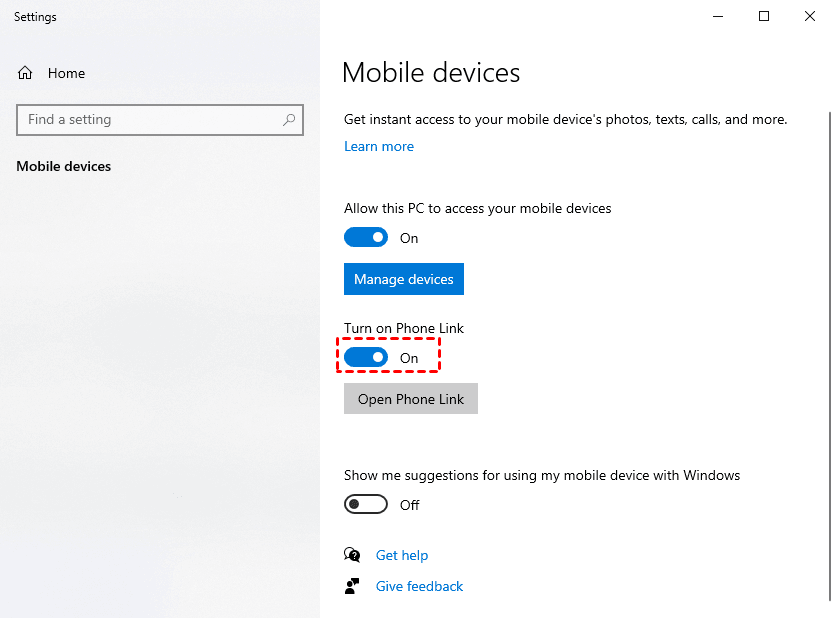
Step 2. Click Open Phone Link. In the new window, click iPhone. If prompted, turn on Bluetooth.
Step 3. Scan the QR code on your PC screen with your iPhone to pair the devices. Follow the prompts to grant permissions to photos, messages, notifications, etc.
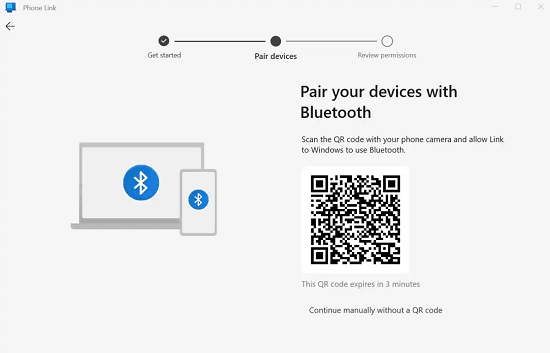
Once connected, you can access your iPhone from the Phone Link app and save what you want to your Windows 11 PC.
Method 3: Backup iPhone to Windows 11 using iCloud for Windows
👍 Best for: Users who already pay for iCloud storage and want wireless, automatic backups.
iCloud for Windows is Apple's official app for syncing iCloud data (e.g., photos, files, contacts, etc) to your PC. It's wireless, automatic, and your data is accessible from any device.
The catch? iCloud's free tier is only 5GB. If your iPhone has more data than that (and it probably does), you'll need to pay for more storage. And like Apple Devices, you can't browse what's inside your backup.
Here's how to set it up:
Step 1. Download iCloud for Windows from Apple's website and install it. Sign in with your Apple ID.
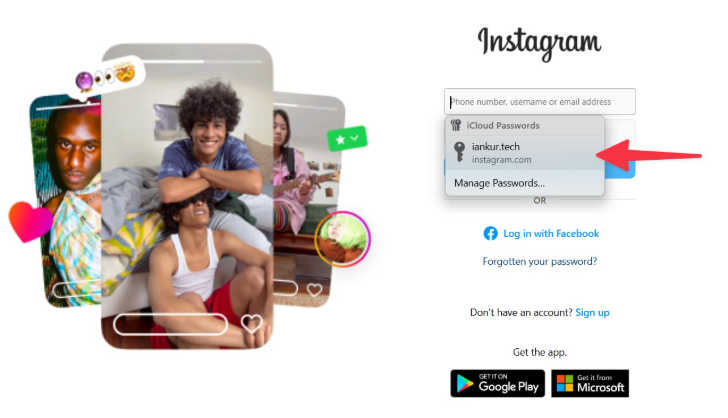
Step 2. Choose what to sync - photos, files, bookmarks, etc., and toggle it on.
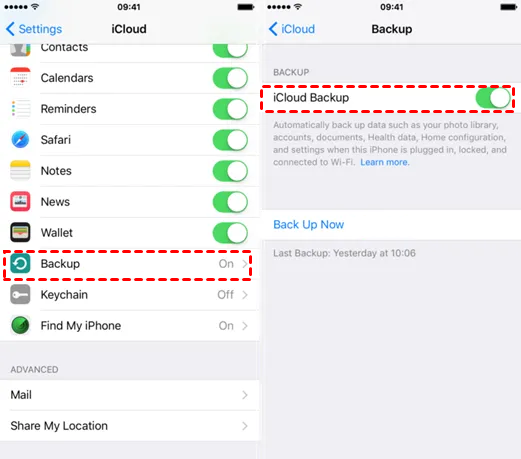
Step 3. On your iPhone, go to Settings > [Your Name] > iCloud > iCloud Backup and turn it on. Be sure it's connected to Wi-Fi and let iCloud for Windows run automatically.
Method 4: Backup iPhone to Windows 11 with FoneTool (Easiest & Most Flexible)
👍 Best for: Users who want full control over backups and avoid Apple's limitations.
If you want full control over your backups - what to backup, where to save it, and what's inside, FoneTool is the simplest way. It's free, Windows-based, and doesn't lock your backups away in hidden folders.
What you can do with it:
-
Completely free: no subscriptions, no hidden fees
-
Full or selective backup: backup everything, or just pick photos, contacts, messages, etc. No iTunes or Apple ID required.
- Preview before backup: See what's in your backup before it starts.
-
View backups anytime: browse what's inside your backup whenever you want.
-
Flexible storage: save to internal drives, external hard drives, USB drives, NAS, etc.
Here's how to set it up:
Step 1. Download and install FoneTool on your Windows 11. Connect your iPhone using the USB cable, tap Trust on your phone, and enter your passcode.
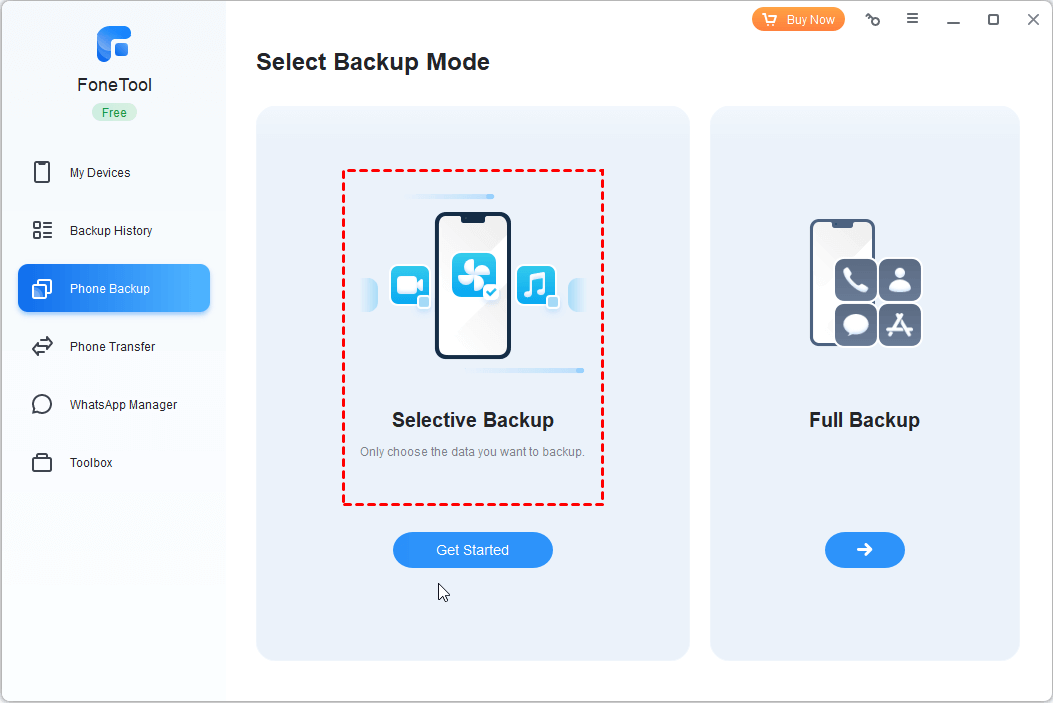
Step 2. Open FoneTool. You'll see two options: Full Backup & Selective Backup. Pick what fits. Here, we'll walk through Selective Backup.
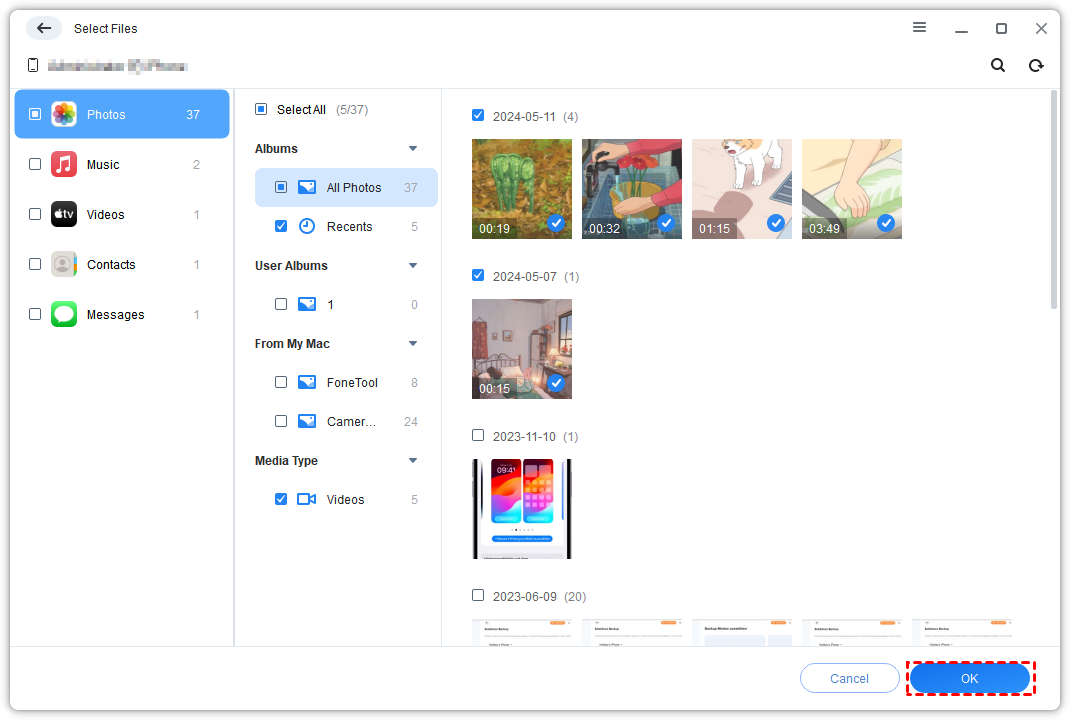
Step 3. Select the data types you want, such as photos, contacts, messages, etc., to preview and select any files you want.
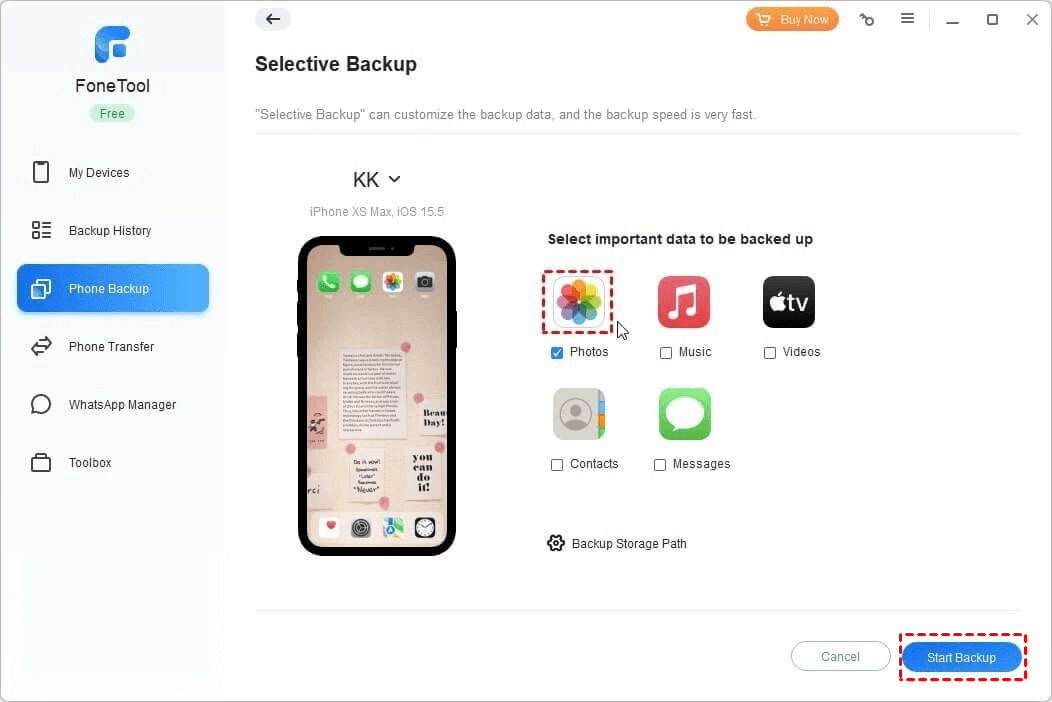
Step 4. Click Backup Storage Path to choose a folder on Windows 11, then click Start Backup and wait for it to finish.
Which Method Should You Pick?
| Method | Type | Connection | Selective Backup | View Backup Content | Best For |
|---|---|---|---|---|---|
| Apple Devices App | Official | USB | ❌ | ❌ | Users who want Apple's official solution |
| Phone Link | Microsoft | Wireless | ⚠️ Photos only | ✅ | Users who only need photos |
| iCloud for Windows | Official Cloud | Wireless | ❌ | ❌ | Users already paying for iCloud |
| FoneTool | Third-party | USB | ✅ | ✅ | Users who want full control |
🔥 My take:
-
Want the official Apple way? → Method 1: Apple Devices App
-
Only need to save photos? → Method 2: Phone Link. Simplest
-
Already paying for iCloud? → Method 3: iCloud for Windows
-
Want the most flexible, no-nonsense option? → Method 4: FoneTool
FAQs
Q1: Is Apple Devices App the same as iTunes?
No. Apple split iTunes into separate apps on Windows. Apple Devices handles backups, updates, and restores. No music library, no podcasts.
Q2: Do I need to install iTunes for any of these methods?
No. None of the methods in this guide require iTunes.
Q3: How much space do I need on my PC?
At least as much as your iPhone's used storage. Check Settings > General > iPhone Storage on your iPhone.
Q4: What's the difference between backing up to a PC vs. an external hard drive?
PC backup saves to your internal drive - it's convenient but tied to one machine and at risk if your system crashes. An external hard drive backup is portable, can be stored safely offline, and works across multiple devices.
FoneTool - All-in-one iPhone Data Manager
Transfer, backup and manage data on iPhone, iPad and iPod touch in an easy way.
-
 iOS 27 Compatible
 iPhone 17 Supported
Windows 11/10/8/8.1/7

100% Secure

Ivey is passionate about teaching users how to easily protect mobile device data. With the FoneTool series of iPhone management, unlocking, and repair software, even beginners can perform data backup, iPhone unlocking, and troubleshooting like a pro.
Read author info >>



 as a preferred
source on Google
as a preferred
source on Google