iOS 26/18: iMessage Not Working? Try the 6 Fixes
After updating to the iOS 18 or iOS 26, you may find iMessage not working. In this guide, you will know why you encounter the issue, as well as solutions to help you out of iOS 18 iMessage not working issue.


iOS 18 Update Makes it Difficult to Text
I just updated my phone to IOS 18 and everything has been fine, but my mom has an Android phone and my phone doesn't let me text her cell phone number. This problem is recent because the first couple of days after I updated my phone to iOS 18 it was working fine, I don't know what happened.
- Question from Apple Community
You are familiar with iMessage if you have used iPhone for years. With iMessage, you may use mobile data or Wi-Fi to send and receive messages between Apple devices. iMessage allows users to send documents, images, videos, and texts.
However, there has been an increasing tendency of iMessage not working after updating iOS 26/18, like iMessage not activate, cannot send message as iMessage, etc.
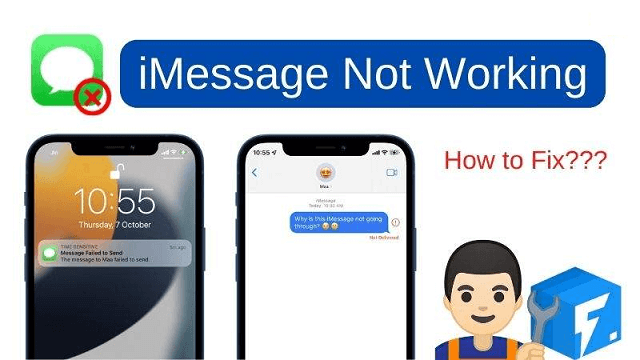
You've come to the correct place if you're having trouble with iMessage not working after updating your iPhone to iOS 26/18. This guide will assist in quickly resolving this problem.
Why Is Your iMessage Not Working After the iOS 18/26 Update?
First and foremost, let’s learn why your iMessage is not working after updating to iOS 26/18. Here are the main reasons of the iMessage issue:
⛔ Network Connection Issues: If your connection is weak or unstable, it can hinder the functionality of iMessage.
⛔ iMessage Wrong Settings: The settings for iMessage might be misconfigured following the iOS 26/18 update.
⛔ Software Bugs: iOS 26/18, while generally stable, may have glitches impacting iMessage.
⛔ Apple Server Issues: At times, Apple's servers might experience outages or maintenance, causing disruptions to services like iMessage.
⛔ Wrong Time Zone: This problem can occur when the user’s time zone doesn’t update automatically.
6 Fixes to iOS 26/18 iMessage not Working
Now that we’ve identified possible reasons behind iMessage issues, let’s fix the iOS 18 messages not working issue. Follow the detailed steps for each method to resolve your iMessage problems after updating to iOS 26/18.
1# Quick Fix System Errors that Cause iMessage Issue via FoneTool Repair
To avoid any system errors in the new iOS 26 that cause the iMessage issue, the simplest way to troubleshoot the issue is to utilize an iOS system repairing tool, like FoneTool Repair.
This professional tool specializes in diagnosing and fixing various iOS system problems that affect iMessage functionality, including activation failures, message sending issues, and other system glitches that prevent iMessage from working properly after updates.
This powerful iOS system repair tool is the best way to fix iOS/iPadOS issues without data loss
You can download FoneTool Repair to your computer and let it examine and fix your iPhone system errors.
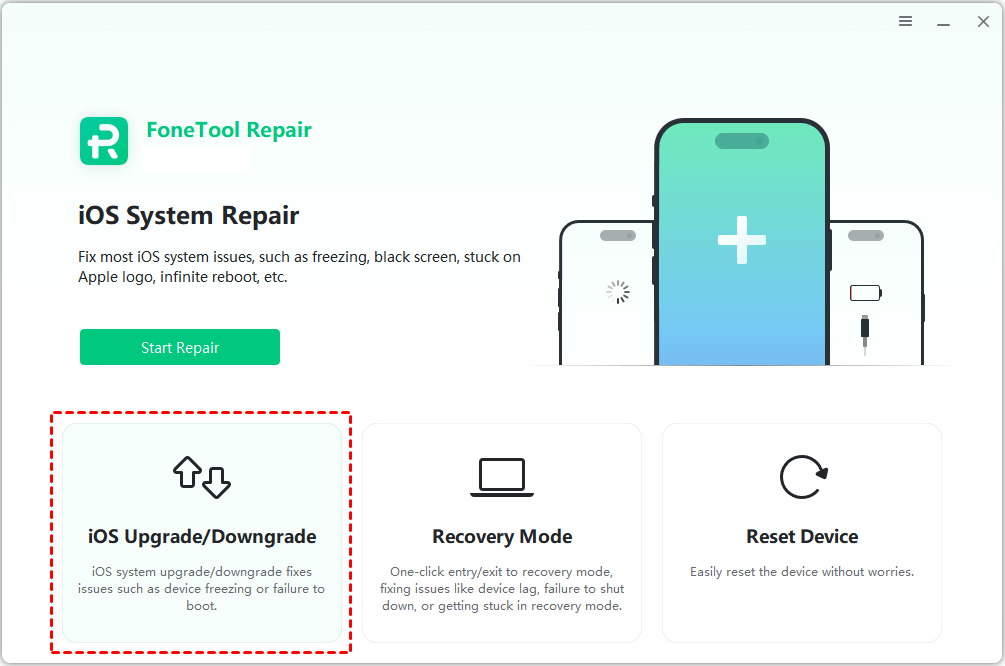
Step 1. Connect your iPhone to computer with USB > You may need to tap Trust on your iPhone > Launch FoneTool Repair on your PC.
Step 2. Select iOS System Repair from the main interface.

Step 3. Choose Standard Mode to repair your iPhone, and click Start to continue.

Step 4. Download the previous firmware file on your iPhone > When the download completes, you can click Start Repair to begin the troubleshooting.

Wait for the repair to complete, then check if your iMessage issue is resolved. FoneTool Repair also allows you to upgrade or downgrade iOS to previous version while keeping all your data intact.
2# Force Restart iPhone
If you don’t want to use a third-party tool to troubleshoot iOS 26/18 iMessage not working issue, you can also try common solutions like force restarting iPhone, which can often resolve common iOS issue.
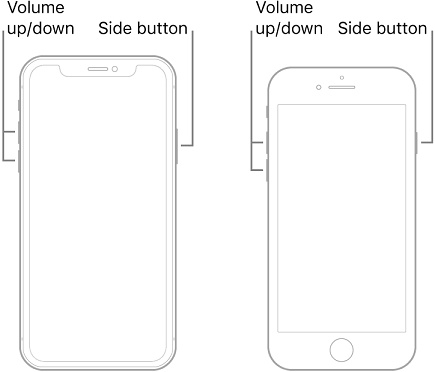
• For iPhone XR and later: Quickly press and release the Volume Up button > Quickly press and release the Volume Down button > Press and hold the Side button. When the Apple logo appears, release the button.
• For iPhone SE: Press and hold both the Sleep/Wake button and the Home button. When the Apple logo shows up, release both buttons.
3# Check iMessage is Enabled
To send messages, you need to change text message to iMessage. It's possible that you unintentionally disabled iMessage on your iPhone. Therefore, it's crucial to confirm that iMessage is turned on. To activate iMessage on your iPhone, follow the steps listed below.
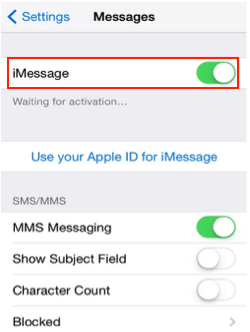
Step 1. Open the Settings app on your iPhone. Scroll down and select Messages.
Step 2. Toggle on the iMessage switch. When a window prompts, tap on OK to confirm.
4# Sign Out & In iMessage
Try signing out and back into iMessage if it's not functioning on your iPhone. iMessages may not always be able to verify your Apple ID. Here's how to refresh your iMessage account:
Step 1. On your iPhone Settings app > Scroll down to locate and choose Messages.
Step 2. Tap Send & Receive > Choose your Apple ID and tap on the Sign Out option.
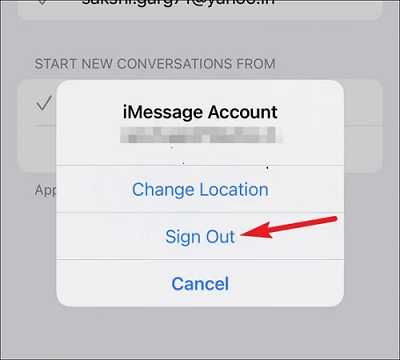
Wait for seconds, and you can repeat the same steps above to sign into your account to in iMessage. You can go to the Messages app to check whether your issue gets fixed.
5# Check Network Connection
iMessage requires a stable and strong network connection to send and receive messages, which means if there is something wrong with your iPhone network connection, it will be difficult to sending and receiving messages as iMessage. To ensure this isn't the case, check the Control Center to see if Wi-Fi and Cellular are enabled.
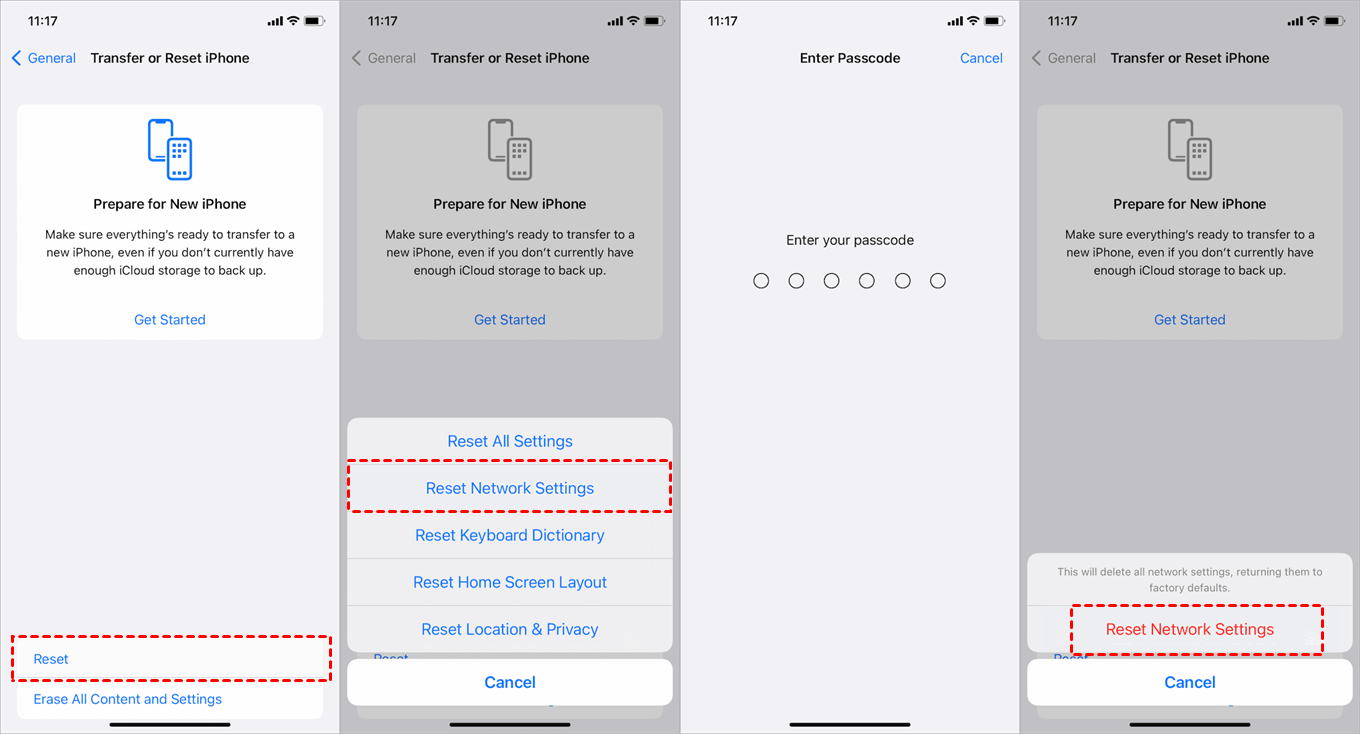
To prevent any network issues that lead to iOS 26/18 iMessage not working, you can consider resetting network settings by following steps below.
To reset all settings on your iPhone, go to the Settings app > General > Transfer or Reset iPhone > Reset > Choose Reset Network Settings to fix iOS 18 iMessage issue.
6# Contact Apple Support
If none of the above methods work, it may be time to reach out to Apple Support for assistance. Visit the Apple Support website. Choose your device and issue to get help or schedule a call with an Apple representative.
Conclusion
It can be frustrating to experience the iOS 26/18 iMessage not working issue, but most problems are solvable with the right approach. By following the fixes outlined in this article, you can troubleshoot and resolve the issues preventing you from using iMessage effectively.
For persistent system-related problems, FoneTool Repair offers specialized iOS system repair capabilities to get iMessage working again quickly.
Fixes 160+ iOS/iPadOS issues, boot loops, crashes, failed updates, with no data loss.
-
 iOS 27 Compatible
 iPhone 17 Supported
100% Secure

Demi is an editor of FoneTool group as well as an good advisor in the area of iOS-related issues. She does well in finding solutions to people's problems. She enjoys traveling, gardening, and watching movies. She spends most of her free time with her pet and family.
Read author info >>



 as a preferred
source on Google
as a preferred
source on Google