Updated! Top 6 Fixes to iPhone Echo When Talking
Are you getting distracted by the iPhone echo during call? Don’t worry, this guide comes to help. You will get possible causes and effective solutions to the issue - iPhone echo when talking in this guide.


iPhone 15 echo on speaker
My new iPhone 15 has an issue with echoes when I use speakerphone. Callers complain of hearing their own voice, echoing back to them when I am on speaker.
- Question from Apple Community
Are you distracted and annoyed by the echo from your iPhone while on a call? Why does your own voice echoes always back to you during calls? Does the person on the other end have difficulties hearing what you are talking?

If you’re encountering iPhone echo when talking, you may need this guide to know why the issue happens, and get effective solutions to fix it.
Why Is Your iPhone Speaker Phone Echoing?
Understanding the causes of echoing during calls can help you troubleshoot more effectively. Here are some common reasons:
❌ Software Glitches: Outdated software can lead to various issues, including audio problems during calls.
❌ Speakerphone Usage: Using the speakerphone function can amplify the echo effect, especially in noisy environments.
❌ Network Issues: Poor cellular or Wi-Fi signals can cause delays in audio transmission, resulting in echo.
❌ Microphone Issues: A malfunctioning or obstructed microphone can contribute to echo.
❌ Bluetooth Connection: If you're connected to Bluetooth devices, compatibility issues may lead to echo.
Common Solutions to iPhone Echo When Talking
This part will provide you with some common solutions you can try to fix iPhone echo when talking. You can try them one after another until your issue gets fixed.
For software bugs, the next part offers you a better solution for a higher success rate, you can skip to here have a try.
Force Restart iPhone
Force restarting iPhone is the most common solution when your iPhone fails to work properly. It can refresh your iPhone software, and many software glitches can be solved.
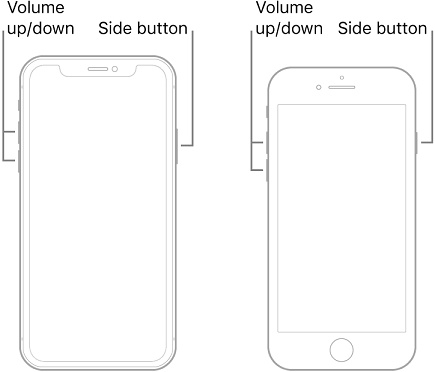
• For iPhone XR and later: Quickly press and release the Volume Up button > Quickly press and release the Volume Down button > Press and hold the Side button. When the Apple logo appears, release the button.
• For iPhone SE: Press and hold both the Sleep/Wake button and the Home button. When the Apple logo shows up, release both buttons.
Update Carrier Settings
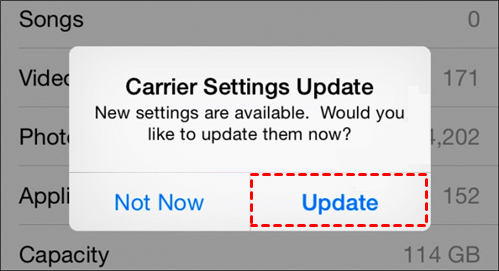
Keeping your device's carrier settings up to date will significantly reduce iPhone echo during call. Carrier settings updates provide critical adjustments for optimizing your phone. Follow the steps below to update carrier settings to fix iPhone echo issue:
Connect your iPhone to a WiFi network and go to Settings > General > About. If updated carrier settings are available, you can choose to install them.
Switch to Headset or Speaker
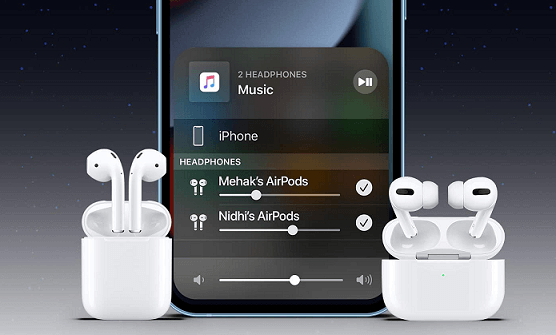
As what we’ve concluded before, the iPhone echo issue can result from iPhone’s audio output. Switching the audio output will help to rectify the iPhone echo on the speaker. To make the switch, you just need to connect and disconnect your AirPods.
Clean the Receiver and Speakers
Dust, skin, oil, and other material may be trapped on your iPhone receiver and speaker, causing the iPhone echo. Simply getting the dirt off may prevent iPhone echoing during calls.
Get an electric brush or use a dry toothbrush. Brush the receiver and speaker carefully. Please make careful to blow air over the receiver or speaker rather than straight into it.
Reset Network Settings
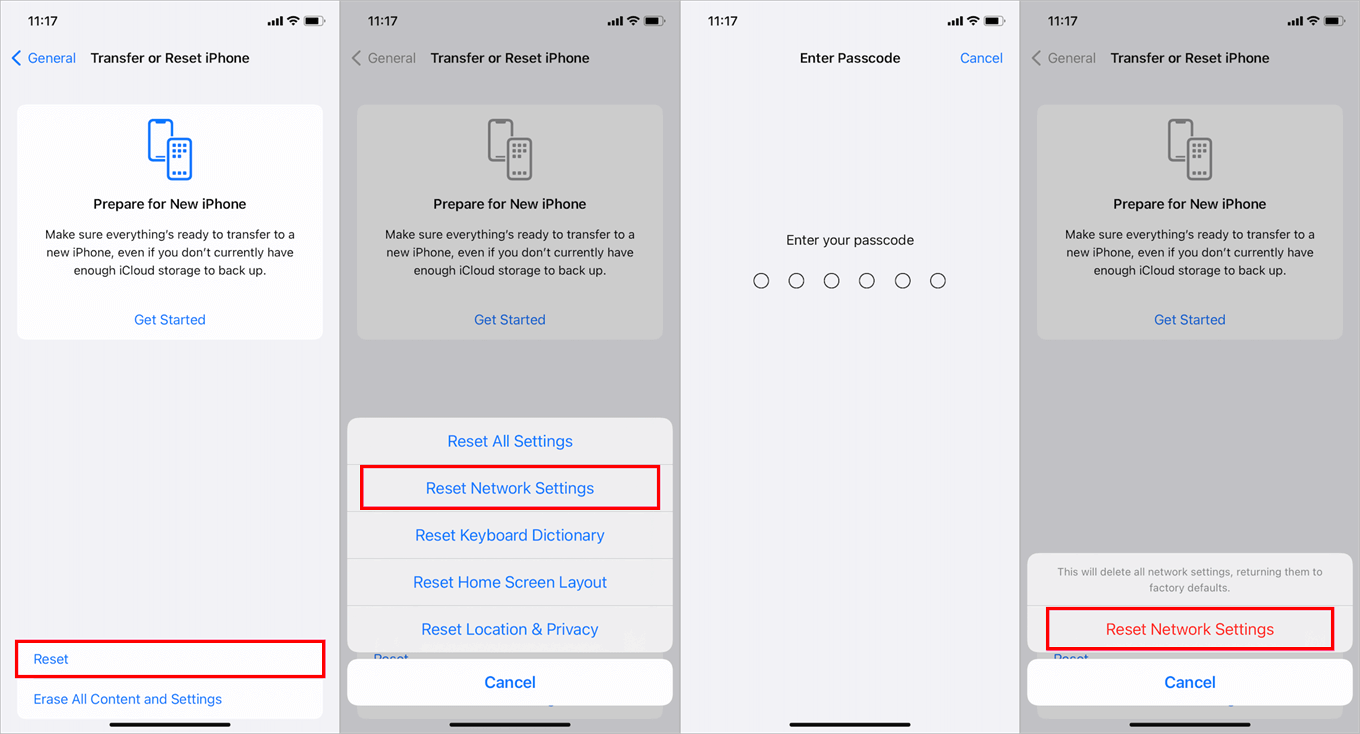
When dealing with iPhone echoing on calls, resetting network settings will typically solve the problem. This step resets all network configurations, including cellular, Wi-Fi, and Bluetooth settings. This allows you to solve any network-related issues that may be causing the echoing problem.
Go to iPhone Settings app > General > Transfer or Reset iPhone > Reset > Reset Network Settings. When prompted, enter your passcode to confirm your operation.
Fix iPhone Echo Issues via FoneTool Repair (High Success Rate)
If you suspect your iPhone echo issues result from software bugs or system glitches, one of the most reliable methods to fix it is to utilize a professional iOS system repair tool like FoneTool Repair. This dedicated tool is designed to address various iOS system issues that could be causing audio problems during calls.
This powerful iOS system repair tool is the best way to fix iOS/iPadOS issues without data loss
Click the icon below to download FoneTool Repair to your computer, and let's fix iPhone echo during calls.
Step 1. Connect your iPhone to computer with USB > You may need to tap Trust on your iPhone > Launch FoneTool Repair on your PC.
Step 2. Select iOS System Repair from the main interface.

Step 3. You can choose either Standard Mode (recommended for echo issues) or Deep Mode, and click Start to continue.

Step 4. The software will download appropriate firmware for your device > Click Start Repair to begin the fixing process.

Wait for the repair to complete, then test if the echo issue persists during phone calls.
Conclusion
Indeed, iPhone echo when talking are annoying, but with the workable solutions introduced in this guide, hope your issue can be fixed. For software-related echo problems, FoneTool Repair provides a professional solution that can address underlying system glitches causing audio issues. With its user-friendly interface and high success rate, it's an excellent choice for resolving various iOS system problems without data loss.
If the issue persists even after trying all these methods, it might be time to contact Apple Support or visit an authorized service provider for further assistance. For more queries or suggestions, feel free to contact us.
Fixes 160+ iOS/iPadOS issues, boot loops, crashes, failed updates, with no data loss.
-
 iOS 27 Compatible
 iPhone 17 Supported
100% Secure

Demi is an editor of FoneTool group as well as an good advisor in the area of iOS-related issues. She does well in finding solutions to people's problems. She enjoys traveling, gardening, and watching movies. She spends most of her free time with her pet and family.
Read author info >>



 as a preferred
source on Google
as a preferred
source on Google