Fixed! “This iPhone Wants to Use Your iCloud” Keeps Popping Up
Your Macbook keeps saying “This iPhone wants to use your iCloud account”? You may need this guide to know why and how to solve the error this iPhone wants to use your iCloud keeps popping up.


MacBook Air pop up "this device wants to use your iCloud account"
Why does the message keep popping up every minute to the point it fills my screen - This device wants to use your iCloud account. I've shut everything off, even my Wi-Fi, but it still keeps popping up.
- Question from Apple Community
iCloud is an excellent service that lets you store and share documents, sync data, and upload photos and videos from your Mac and iOS devices to the cloud. But iCloud does more than that.
It syncs your Safari bookmarks, protects your passwords and sensitive data, supports Find My, and allows Home devices to communicate. However, it occasionally fails to function properly and causes problems, like “This iPhone wants to use your iCloud” keeps popping up.
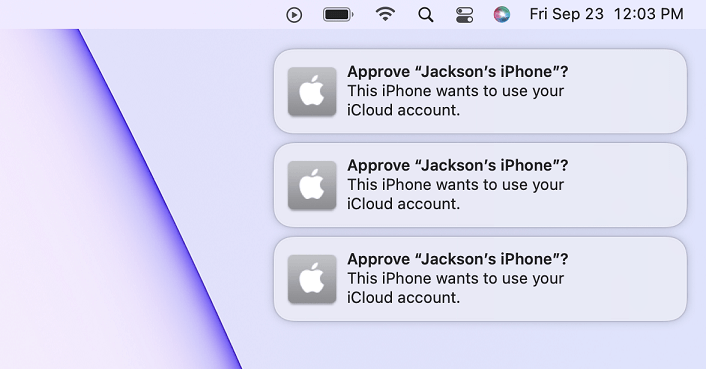
In this guide, you’ll why the message keeps popping up, as well as effective solutions to prevent the message from popping up again.
Why Does iCloud Notification Keep Popping up on Mac?
It’s important to understand the possible reasons behind the frequent appearance of the “This iPhone Wants to Use Your iCloud” notification on your Mac.
When you rapidly receive the This iPhone wants to use your iCloud account notification on Mac, it probably has something to do with your iCloud Keychain. iCloud Keychain is responsible for storing your passwords, credit card information, and other sensitive data across your Apple devices.
If there is an issue with iCloud Keychain, it can trigger repeated notifications asking for your iCloud credentials.
Fixes to This iPhone Wants to Use Your iCloud Keeps Popping UP
Now that we understand why this notification may keep appearing, let’s explore the solutions to fix it. Below are several methods, with detailed steps, to resolve this issue.
1# Enable Keychain on All Apple Devices
As what we’ve mentioned above, one of the most possible reasons that you got constant iCloud approval on Mac is that you haven't enabled iCloud Keychain. Follow the instructions below to enable iCloud Keychain on your Mac, iPhone, and iPad.
How to Enable iCloud Keychain on Mac
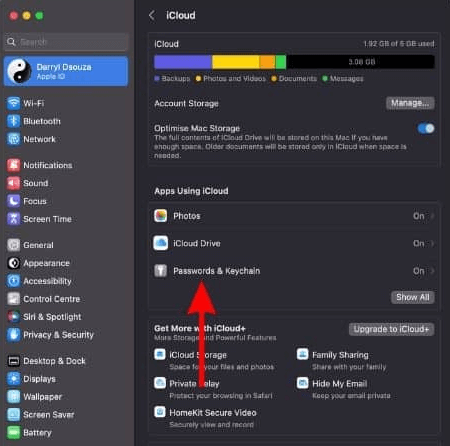
Step 1. Go to the System Settings on your Mac > Click your name at the top of the sidebar > Choose iCloud > Go to Passwords & Keychain.
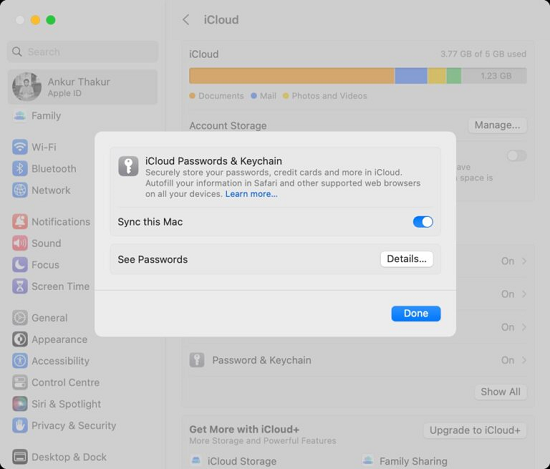
Step 2. In the pop-up settings menu, enable the toggle next to Sync this Mac > Click Done to confirm.
How to Enable iCloud Keychain on iPhone/iPad
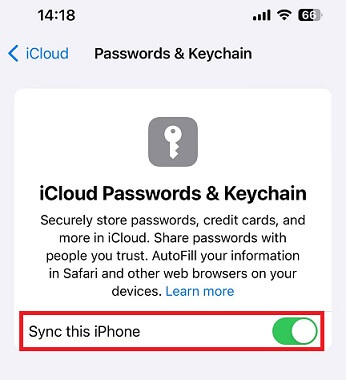
Step 1. Go to the Settings app > Tap [your name] > Click iCloud > Tap Passwords and Keychain.
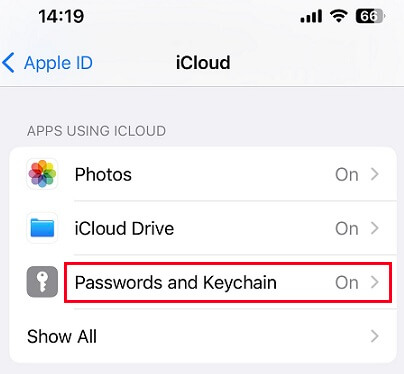
Step 2. Enable the Sync this iPhone/iPad toggle to enable Keychain and sync your iPhone/iPad data to iCloud.
2# Sign Out & In Apple Account
Another remedy for the this iPhone wants to use your iCloud keeps popping up is to sign out of your Apple ID on all devices and then sign in again.
Also, after you've signed out of your Apple ID, we recommend rebooting your device before signing in again. Because if there are any temporary bugs resulting in this error, a fast restart will resolve them.
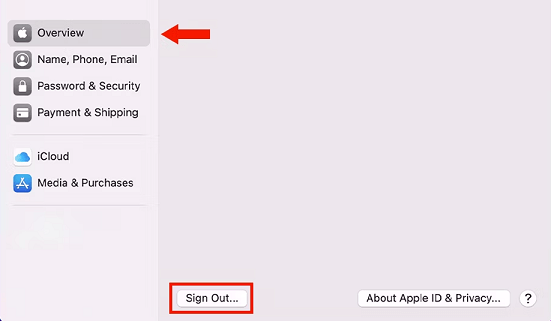
Step 1. Open System Settings on your Mac > Click [your name] > Scroll down to locate and tap Sign Out.
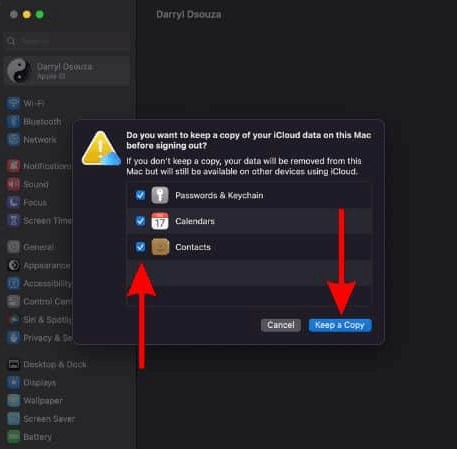
Step 2. From the pop-up window, choose whether you want to keep a copy of your iCloud data > Click Keep a Copy to confirm.
Step 3. Finally, enter your Apple ID password, and tap Continue to sign out your Apple ID from Mac.
3# Update macOS to the Latest Version
If neither of the solutions above work, you should consider checking for macOS updates. Because if this is a common problem, Apple may publish an update to fix it. Follow the procedures outlined below to update macOS to the most recent version.
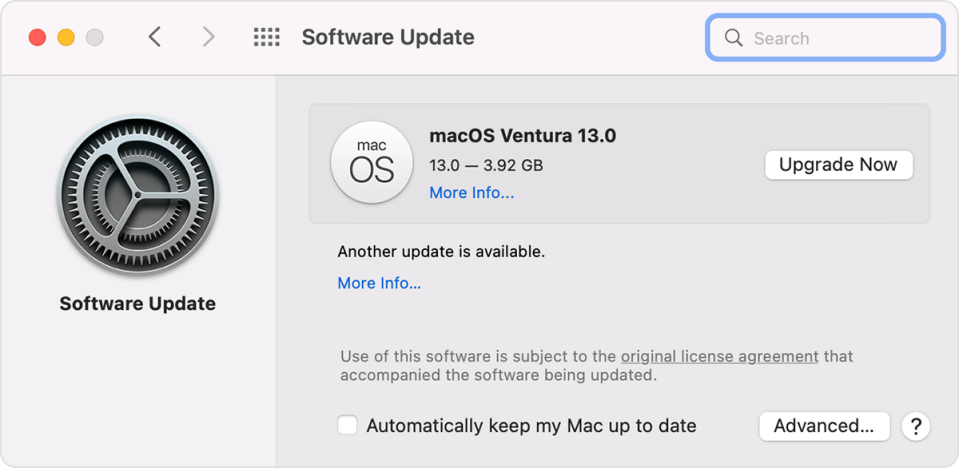
Click the Apple logo > Select System Settings > Choose General > Software Update.
If there is a new macOS available, click Upgrade Now, and follow the onscreen instructions to download and install it to your Mac.
4# 1-Click Repair iPhone Issue with FoneTool Repair
If the notification continues to appear, the issue might be related to deeper iOS system glitches on your iPhone that affect iCloud synchronization. FoneTool Repair offers a professional solution to fix such iOS system issues without data loss, helping restore normal iCloud functionality and eliminate persistent notifications.
This powerful iOS system repair tool is the best way to fix iOS/iPadOS issues without data loss
Connect your iPhone via USB cable, and follow these steps to repair your iPhone or iPad issue:
Step 1. Download and install FoneTool Repair on your Windows computer. Select iOS System Repair and tap Start Repair.

Step 2. Choose Standard Mode to fix issues without data loss.

Step 3. The software will automatically detect your device and download the appropriate firmware.
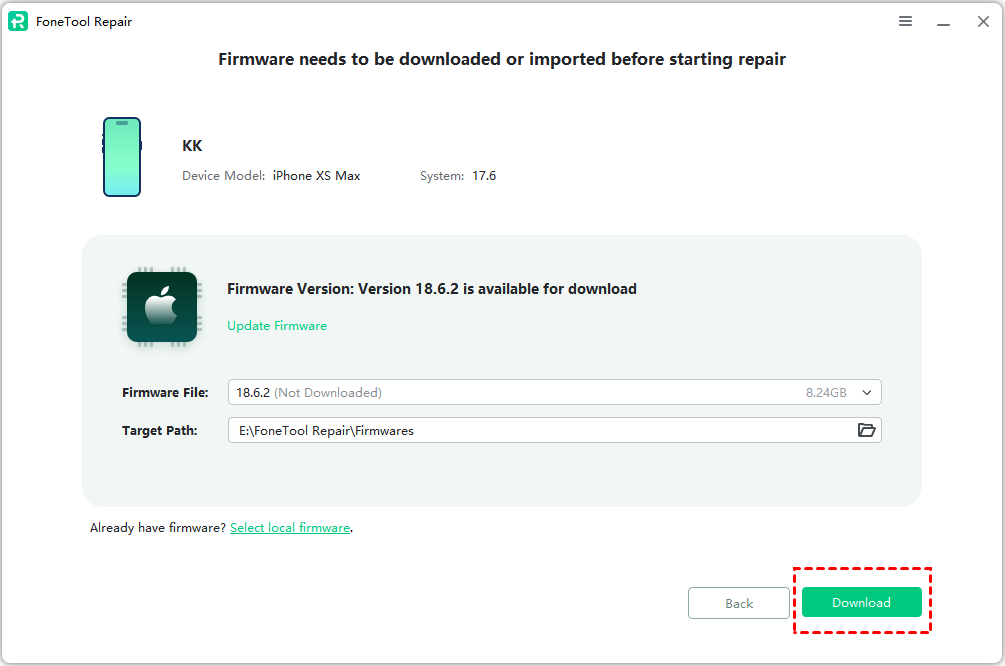
Step 4. Click Start Repair. The process will complete automatically and your iPhone will restart with system issues resolved.

5# Contact Apple Support for Help
If none of the above methods work, it might be time to contact Apple Support. They can provide further assistance and check if there is an underlying issue with your account.
Summary
It can be frustrating if the message This iPhone wants to use your iCloud keeps popping up on your Mac. Hopefully, you can restore your Mac functionality and enjoy a seamless experience with your Apple devices after following the fixes outlined in the article. For persistent issues that may be related to iOS system glitches, FoneTool Repair provides an effective professional solution that addresses the root cause without compromising your data.
If you continue to experience issues, don't hesitate to reach out to Apple Support for further assistance. With patience and persistence, you can overcome this common problem and get back to enjoying your iPhone or Mac without interruptions.
Fixes 160+ iOS/iPadOS issues, boot loops, crashes, failed updates, with no data loss.
-
 iOS 27 Compatible
 iPhone 17 Supported
100% Secure

Demi is an editor of FoneTool group as well as an good advisor in the area of iOS-related issues. She does well in finding solutions to people's problems. She enjoys traveling, gardening, and watching movies. She spends most of her free time with her pet and family.
Read author info >>



 as a preferred
source on Google
as a preferred
source on Google