4 Easy Methods to Download MP3 to iPhone Directly
Read the 4 effective methods this article provides to download MP3 to iPhone directly. Whether you use iTunes, Apple Music, or free third-party tools, you can achieve MP3 transmission.


Can You Download MP3 Directly to iPhone?
While Apple's ecosystem typically saves iTunes songs as AAC files, you can absolutely download MP3 directly to iPhone without format conversion. This guide reveals four effective methods, starting with the simplest solution.
💡Why is MP3 not like an ordinary iPhone song?
•iTunes converts MP3 to AAC format by default to save space.
•No built-in browser for MP3 downloads (unlike Android).
| Method | Cost | Difficulty | Best For |
|---|---|---|---|
| FoneTool | Free | ☆ | Bulk transfers, without iTunes |
| Apple Music | $10.99/mo | ☆☆ |
Subscribers wanting legal access |
| iTunes Sync | Free/Paid | ☆☆☆ | Users with existing MP3 libraries |
| Websites & Transfer | Free | ☆☆ | Downloading rare tracks not on streaming platforms |
Method 1. Download MP3 to iPhone Without Converting
Using free and professional iPhone data transfer tools can help you download MP3 files to your iPhone, eliminating the complex program of audio format conversion. FoneTool is the best solution to transfer any music and files to iPhone easily.
- No file conversion - Maintains original MP3 quality
- Faster than iTunes - Transfers 1000 songs in ~5 minutes
- Multi-format support - Handles photos, videos, and various files
- User-friendly interface - Simple steps requiring no technical knowledge
- Universal compatibility - Works with all iPhone models and iOS versions

100% Secure
Step 1. Download FoneTool > Connect iPhone via USB cable.
Step 2. Select Phone Transfer > PC to iPhone > Click Get Started.
Step 3. Click folder icon or drag-and-drop MP3 files into the window.
Step 4. Click Start Transfer to complete the process.
Method 2. Download MP3 Files on iPhone via Apple Music
Apple Music subscribers can download songs directly to their iPhones through the streaming service's integrated library.
Step 1. Open Apple Music > Tap Search > Find desired songs.
Step 2. Tap + next to songs to add to your library.
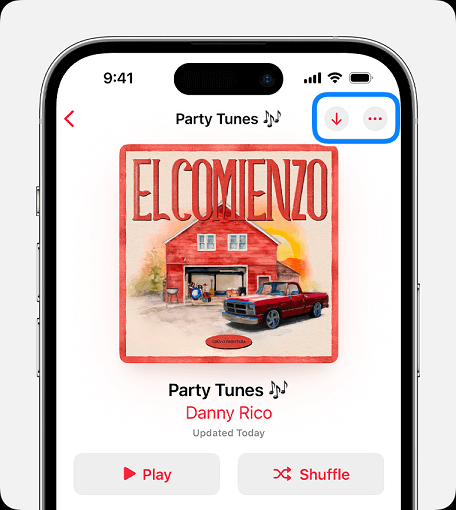
Step 3. Tap download icon to save for offline listening.
Method 3. Sync MP3s to iPhone via iTunes
iTunes can sync MP3 files to iPhone after configuring import settings to preserve the MP3 format.
Step 1. Open iTunes > Connect iPhone to computer.
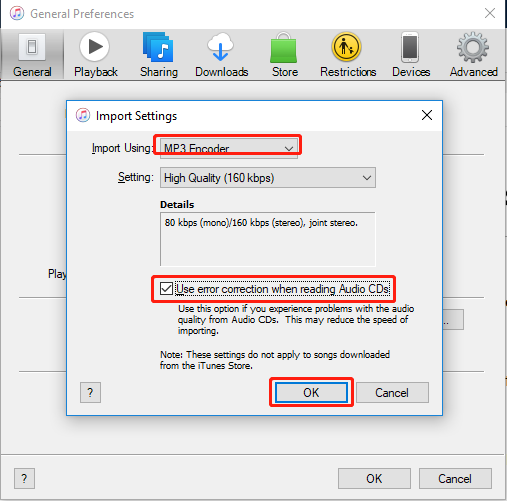
Step 2. Go to Edit > Preferences > General > Import Settings.
Step 3. Select MP3 Encoder from dropdown > Click OK.
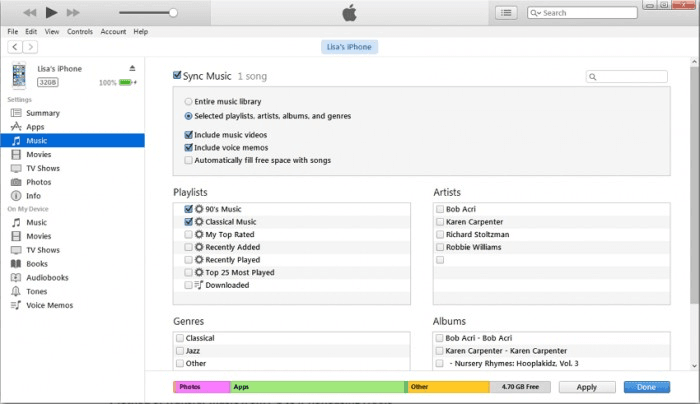
Step 4. Drag MP3 files into library > Enable Sync Music.
Step 5. Click Apply to transfer files.
Method 4. Download MP3 from Website and Transfer to iPhone
Download MP3 files from legitimate websites, then transfer to iPhone using cloud services or email.
Step 1. Download the MP3 file you need from an audio-sharing website to your computer. Here we have provided you with some common websites:
Step 2. Transfer to iPhone via iCloud Drive or email attachments.
FAQs on Downloading MP3s to iPhone
Final Words
You can download MP3 to iPhone directly with 4 methods in this article, and you can choose one of the characteristics of each method. For anyone who wants to transfer MP3 files to an iPhone, our most recommended method is FoneTool, which is designed to make transferring music files simple and secure. And you can also transfer files from iPhone to iPhone effortlessly. There are more powerful features waiting for you to discover!
FoneTool - All-in-one iPhone Data Manager
Transfer, backup and manage data on iPhone, iPad and iPod touch in an easy way.
-
 iOS 27 Compatible
 iPhone 17 Supported
Windows 11/10/8/8.1/7

100% Secure

Kelsey is an English editor at FoneTool, passionate about helping users solve tech issues. She specializes in iPhone data management, backup, and recovery. In her free time, she enjoys learning IT skills and spending time with loved ones.
Read author info >>



 as a preferred
source on Google
as a preferred
source on Google