Import CSV Contacts to iPhone - 4 Easy Methods [2026 Guide]
How to import CSV contacts to iPhone? This guide covers 4 easy ways (with/without iCloud/iTunes). Includes FoneTool for fast transfers, Google Contacts, iCloud, and iTunes methods.


Efficient Ways to Import CSV Contacts to iPhone
Trying to import CSV contacts to iPhone can be challenging without the right tools. Fortunately, several straightforward methods exist that eliminate manual data entry and streamline the process.
This guide demonstrates how to transfer CSV contacts to iPhone using four effective approaches, whether you're moving contacts from a computer or another device.
| Method | Easy to Use | Speed | Network Required | Advantages |
|---|---|---|---|---|
| 👍🏻FoneTool | Very Easy | Fast | No | No data loss, easy transfer, supports all iPhone models |
| iTunes | Moderate | Moderate | Yes | Built-in method |
| iCloud | Easy | Moderate | Yes | Syncs seamlessly across Apple devices |
| Google Contacts | Easy | Fast | Yes | Syncs contacts with Google account, works across platforms |
Way 1. How to Import CSV Contacts to iPhone without iCloud/iTunes
FoneTool provides the most efficient solution for importing CSV contacts to iPhone without iCloud or iTunes, handling large files seamlessly in just a few clicks.
This powerful iPhone data management tool is the best way to transfer contacts to iPhone without iCloud or iTunes.
- Export iPhone data quickly (export 100+ contacts in 10 seconds).
- Fully support various contact formats like CSV, VCF, Excel, etc.
- Preview and select iPhone data to export.
- Comprehensive USB connectivity prevents all data leakage.
- Efficiently add exported contacts to Google Mail or Outlook Mail.
Windows 11/10/8/8.1/7

100% Secure
Now, you can free download FoenTool and follow the guide to import CSV contacts to iPhone without iTunes/iCloud.
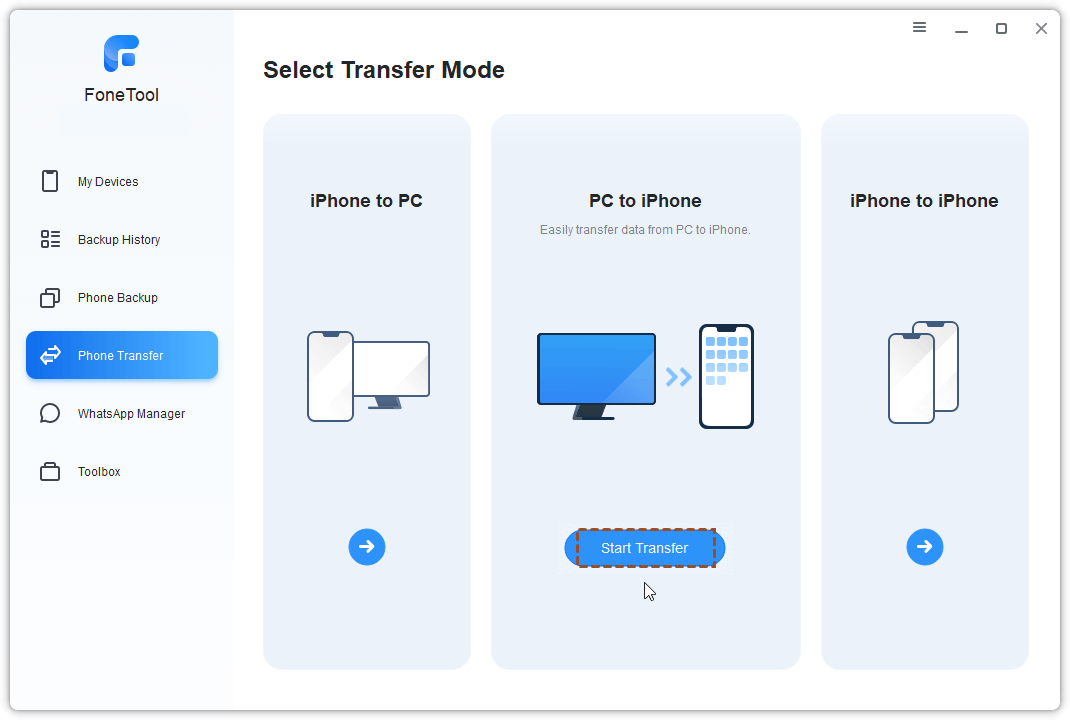
Step 1. Open FoneTool > Connect iPhone via USB > Select Phone Transfer > PC to iPhone > Start Transfer.
- ★Tips:
- If you also want to learn how to export contacts from iPhone, you can choose iPhone to PC icon to export iPhone contacts to Excel or CSV files.
Step 2. Click Contacts icon > Preview and select contacts > Click OK.
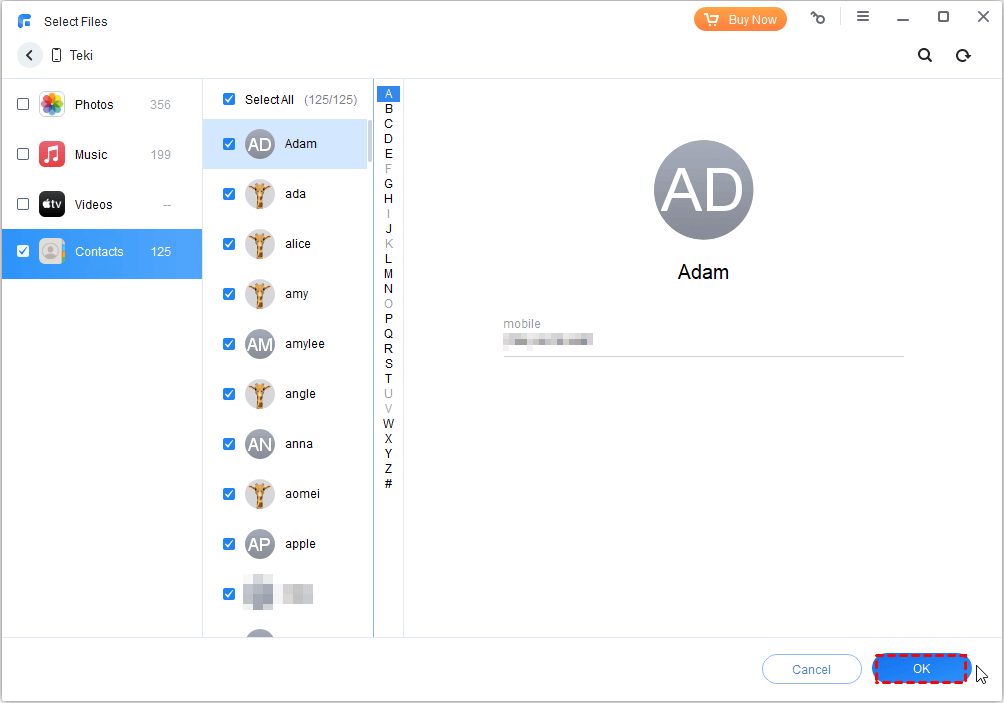
Step 3. Choose preferred format in Transfer Settings > Click Start Transfer.

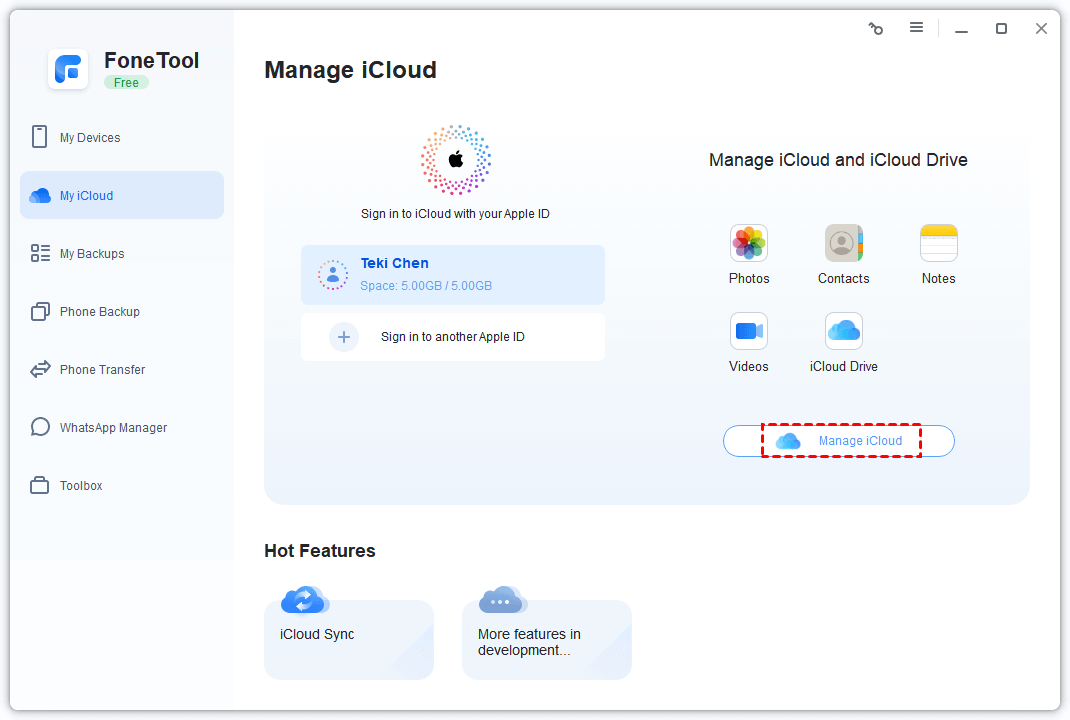
iCloud Contact Management:
FoneTool also enables direct adding contacts to iCloud without iPhone: Go to My iCloud > Sign in > Manage iCloud
Way 2. How to Transfer CSV Contacts to iPhone with iTunes
iTunes provides a built-in method for CSV contact transfer, but requires Microsoft Outlook and involves multiple synchronization steps. Now, learn how to import contacts to iPhone from CSV files:
Step 1. Open Outlook > File > Open & Export > Import/Export.
Step 2. Select Import from another program > Comma Separated Values > Next.
Step 3. Click Browse to select your CSV file.
Step 4. Connect iPhone to computer > Launch iTunes.
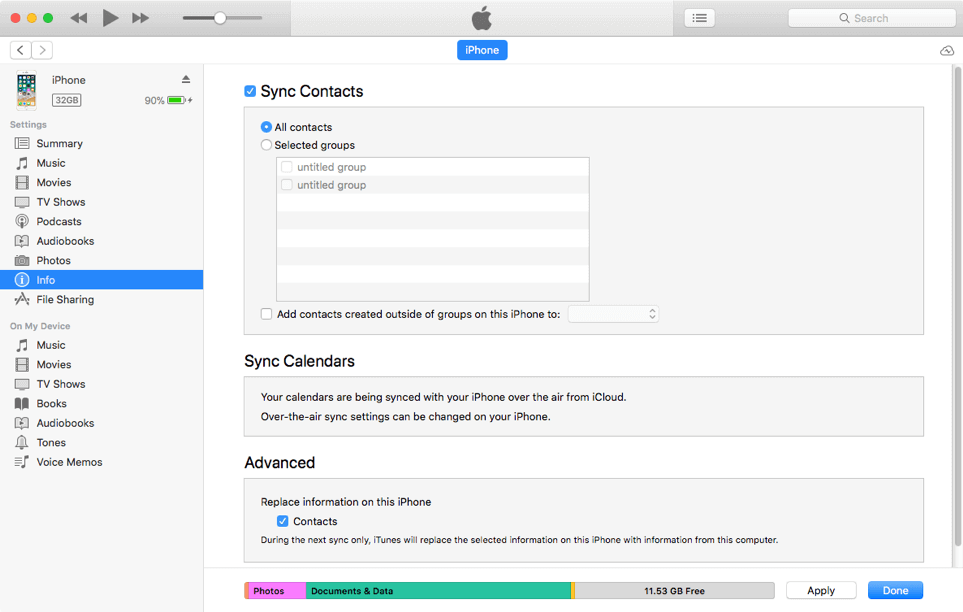
Step 5. Select device icon > Info > Sync Contacts with > Choose Outlook.
Step 6. Click Apply to complete transfer.
Way 3. How to Send Contacts in CSV to iPhone with iCloud
In the Apple community, users often ask: "Can I import CSV contacts to my iPhone using iCloud?" iCloud requires converting CSV files to vCard format before import, adding an extra step but enabling seamless Apple ecosystem synchronization.
Step 1. Convert CSV to vCard using online tools like AnyConv CSV to VCF Converter.
Step 2. Visit iCloud.com > Sign in > Contacts > Settings > Import vCard.
Step 3. Select converted file > Open to upload to iCloud.
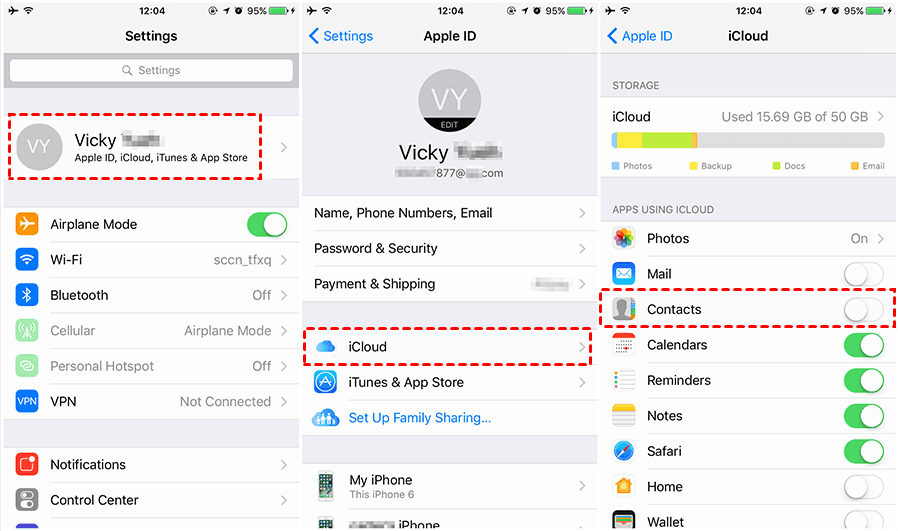
Step 4. On iPhone: Settings > [your name] > Contacts > Enable sync.
Way 4. How to Move CSV Contacts to iPhone via Google Contacts
Google Contacts offers cross-platform CSV import with automatic synchronization to iPhone through Google account integration. How to send CSV contacts to iPhone with Google Contacts:
Step 1. Open Google Contacts on computer > Click Import > Upload CSV file.
Step 2. On iPhone: Settings > Passwords & Accounts > Add Account > Google.
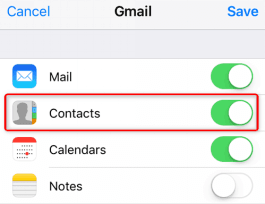
Step 3. Enter Google credentials > Enable Contacts sync option.
Step 4. Open Contacts app to view synchronized data.
Conclusion
This article introduces 4 reliable options to import CSV contacts to iPhone. FoneTool provides the easiest and fastest way to transfer CSV files with just a few clicks without converting the file format. It takes more time for iTunes and iCloud to process CSV contacts. If you have stored your contacts in the Google ecosystem, using Google Contacts is a good choice. Choose the method that best suits your needs and enjoy seamless transfer!
Frequently Asked Questions
FoneTool - All-in-one iPhone Data Manager
Transfer, backup and manage data on iPhone, iPad and iPod touch in an easy way.
-
 iOS 27 Compatible
 iPhone 17 Supported
Windows 11/10/8/8.1/7

100% Secure

Kelsey is an English editor at FoneTool, passionate about helping users solve tech issues. She specializes in iPhone data management, backup, and recovery. In her free time, she enjoys learning IT skills and spending time with loved ones.
Read author info >>



 as a preferred
source on Google
as a preferred
source on Google