Transfer Files from PC to iPad Without iTunes - 6 Easy Ways
How to send files from PC to iPad without iTunes but via USB or wirelessly? Find detailed answers here and you can get 6 different & useful ways to meet your needs.


Why need to transfer files without iTunes?
When you have files stored on your PC that you want to view, edit, or share on your iPad, figuring out how to efficiently transfer files from PC to iPad can be challenging. While iTunes is Apple's official software, its complicated interface and complex functionality often frustrate users, leading to unexpected errors during transfer.
If you're looking for how to transfer files from PC to iPad without iTunes, you've come to the right place. Below we present 6 effective methods — choose the one that best suits your needs.
| Method | Connection | Supported File | Transfer Speed | Storage Limitation | Effectiveness |
| 👍🏻FoneTool | USB | Media, Contacts | Super-Fast | Unlimited | High - 3 Steps |
| File Explorer | USB | Photos, Videos | Slow | Limited by device | Moderate |
| iCloud | Wireless | Media, Contacts, Notes | Depends on Internet | 5 GB for free | Moderate |
| Google Drive | Wireless | Media, Documents | Depends on Internet | 15 GB for free | Moderate |
| iCloud Drive | Wireless | Media, Documents | Depends on Internet | 5 GB for free | Moderate |
| Wireless | Media, Documents | Slow | Depends on the Email Service | Low |
Method 1. How to transfer files from PC to iPad without iTunes [Recommended]
Looking for the easiest way to transfer files from PC to iPad? FoneTool is a professional iPad data transfer tool that ensures safe, stable transfers via USB connection.
Best Windows to iPad File Transfer App
- Transfer unlimited files between iPad and PC as you like.
- Move photos, videos, music, ringtones and contacts.
- Preview and select data for full or selective transfers
- Fast speeds: 46 GB in approximately 39 minutes
- Supports all common file formats and iOS versions
- Compatible with all iPad models including iPad 10/Air 6/iPadOS 18
Windows 11/10/8/8.1/7

100% Secure
Now you can download and install FoneTool on your computer and follow the steps below to learn how to transfer music from PC to iPad without iTunes or transfer other files as you like.
Step 1. Connect iPad to PC via USB > Unlock iPad > Tap Trust when prompted.
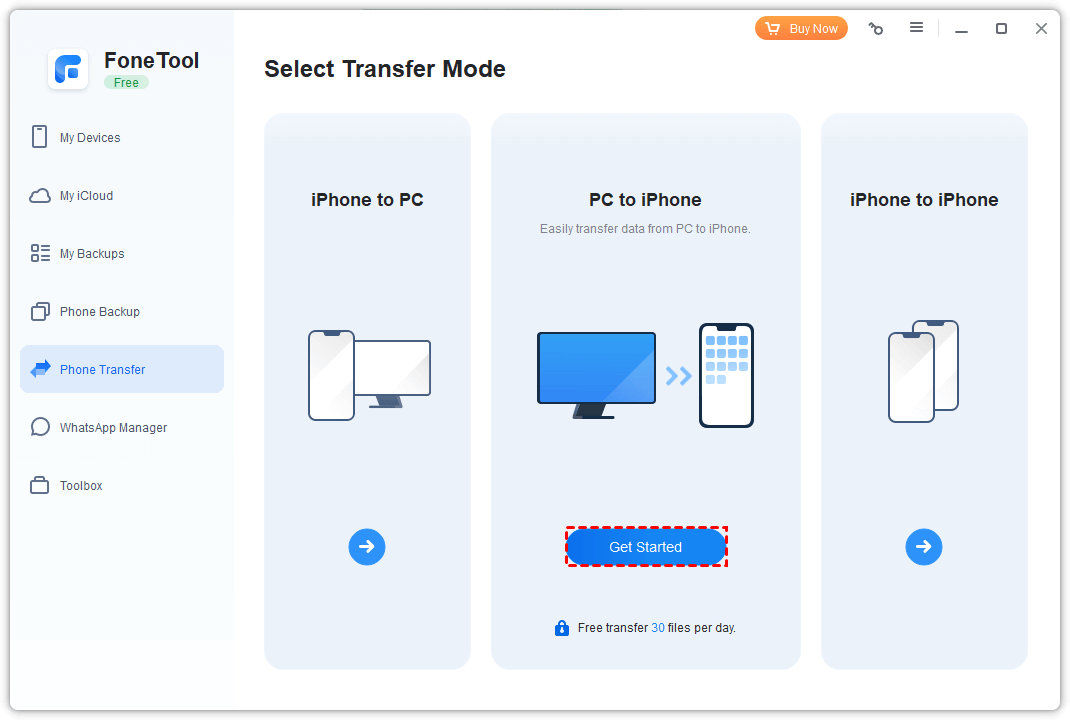
Step 2. Launch FoneTool > Go to Phone Transfer > Select PC to iPhone > Click Get Started.
Step 3. Choose file type (Music, Photos, etc.) > Select files > Click Open to add.
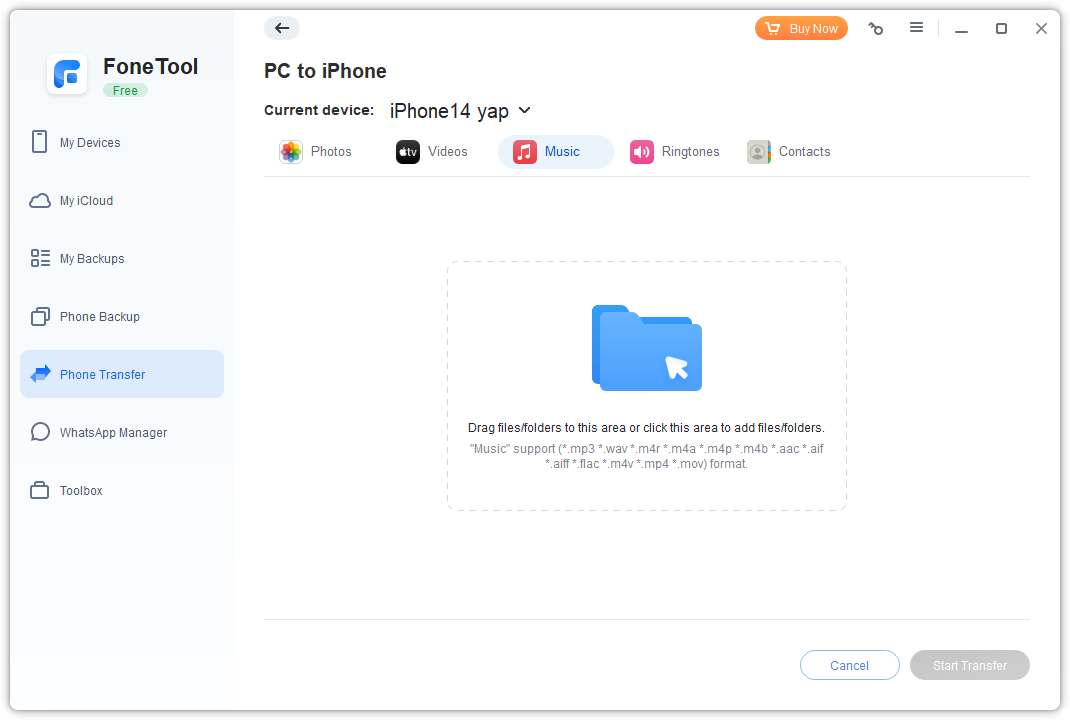
Step 4. Confirm your files and click Start Transfer.
To transfer files from iPad to Windows PC, simply choose the iPhone to PC option in the Phone Transfer section.
Method 2. How to transfer files from PC to iPad using USB cable - File Explorer
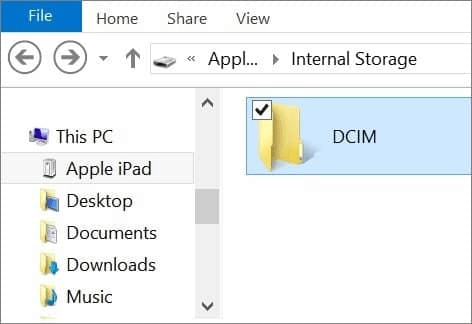
Windows File Explorer provides a built-in way to transfer photos and videos directly to your iPad's DCIM folder without additional software.
Step 1. Connect iPad to PC via USB cable > Tap Trust on iPad.
Step 2. Lpen File Explorer > Go to This PC > Find your iPad device.
Step 3. Open Internal Storage > Navigate to DCIM folder.
Step 4. Create new folder (optional) > Copy and paste files from PC.
Method 3. How to transfer file from PC to iPad wirelessly - iCloud
iCloud offers wireless file synchronization for small transfers, though upload speeds may be slow and storage is limited to 5 GB free.
Standard iCloud Transfer:
Step 1. Visit iCloud.com on PC > Sign in with Apple ID
Step 2. Upload photos and contacts to iCloud
Step 3. On iPad: Go to Settings > [your name] > iCloud > Enable app synchronization
But the upload process can be very slow and you may encounter the iCloud upload stuck error. Besides, when you upload contacts, you may also receive an error message saying “Unable to import vCard”.
So here we would like to recommend you a better iCloud manager - FoneTool to assist you. This tool also supports uploading notes/videos to iCloud from PC, while iCloud.com cannot do.
- Highlights:
- · Easily upload, download or delete iCloud photos, videos, contacts and notes from PC, as well as iCloud Drive.
- · Uploading 1,000 photos via FoneTool takes only 40 minutes, while uploading through iCloud.com requires 6 to 8 hours.
- · FoneTool uses professional SSL encryption to ensure all your data is safe and will never access any information on your account.
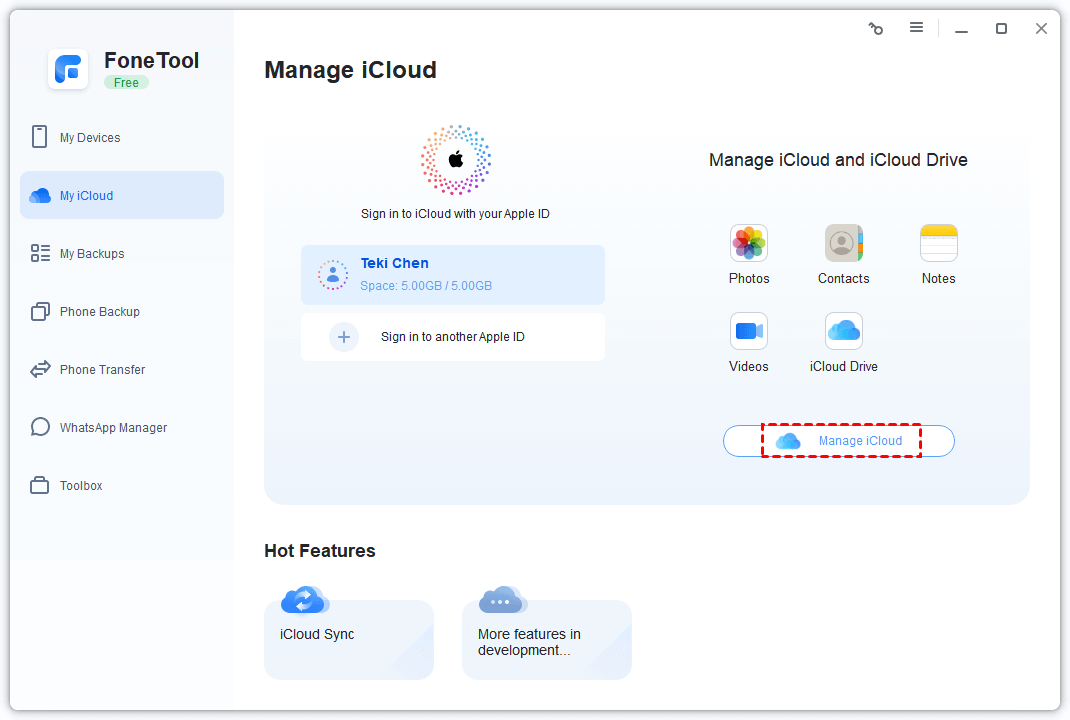
Step 1. Launch FoneTool > Go to My iCloud > Sign in > Choose Manage iCloud.
Step 2. Select data type to import > Click Upload.
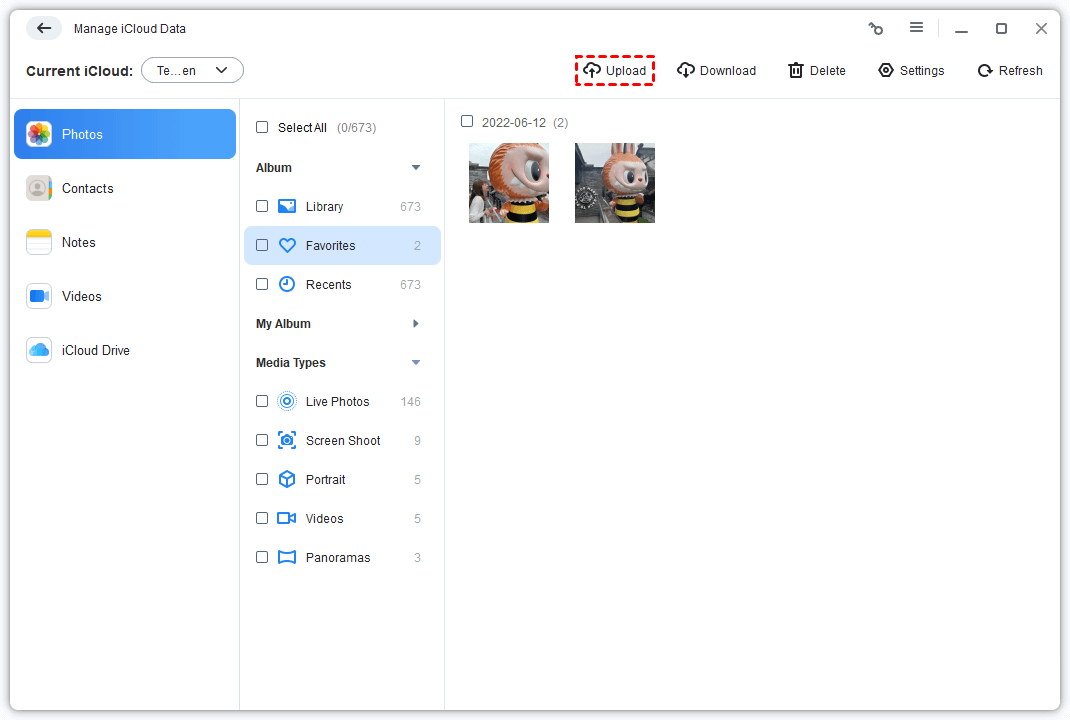
Step 3. Choose files from PC > Click Open to begin upload.
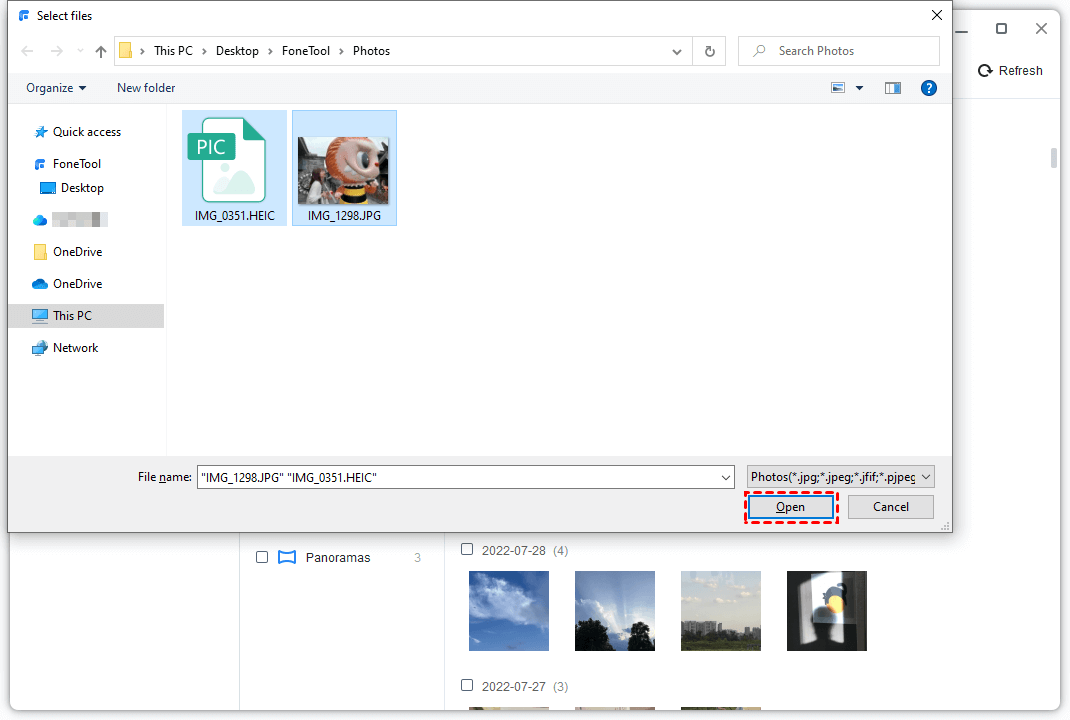
Wait for a while and all data will be uploaded to iCloud, you can go to Settings on iPad > Tap [your name] > Tap iCloud and enable the app you need to sync to get your targeted files (For example, you have uploaded photos just now, then you need to turn on the Photos option to sync the data).
Method 4. How to send file from PC to iPad wirelessly - Google Drive
Google Drive provides 15 GB of free storage and supports various file types including photos, videos, documents, and music.
Step 1. On PC: Visit drive.google.com > Click New > Choose File Upload or Folder Upload.
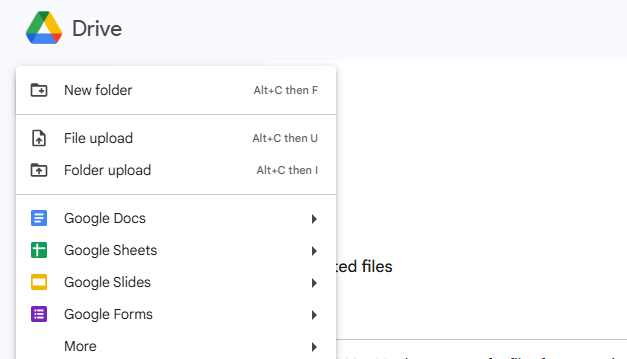
Step 2. Select files > Click Open or Upload.
Step 3. On iPad: Install Google Drive app > Sign in to your account.
Step 4. Locate files > Tap three dots > Send a copy > Save to device.
Method 5. Free software to transfer files from PC to iPad - iCloud Drive
iCloud Drive allows direct file uploads from PC that sync across your Apple devices, sharing the same 5 GB storage as iCloud.
Step 1. On PC: Visit iCloud.com > Sign in > Open iCloud Drive > Click Upload > Select files.
Step 2. On iPad: Go to Settings > [your name] > iCloud > Enable iCloud Drive.
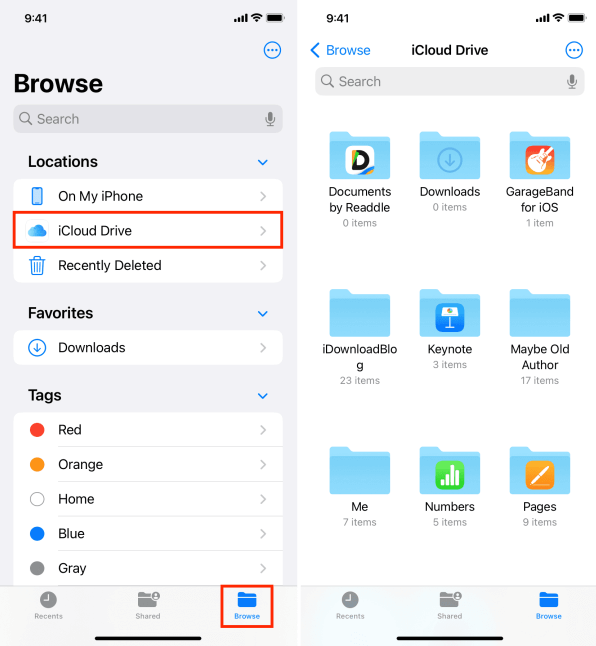
Step 3. Open Files app > Tap Browse > Select iCloud Drive under Locations.
Method 6. How to copy file from Windows to iPad - Email
Email works well for transferring small files quickly and requires no additional apps or setup.
Step 1. On PC: Create new email > Attach files > Send to yourself.
Step 2. On iPad: Open Mail app > Download attachments > Save to device.
Frequently Asked Questions
Conclusion
Here you can know how to transfer files from PC to iPad without iTunes. To transfer a large number of files, you can choose FoneTool mentioned in Method 1 to make it. Its super-fast transfer speed will never let you down. With its powerful features, you can also transfer photos from iPhone to iPad.
If you need a wireless way, then you can choose iCloud, iCloud Drive, Google Drive or sending an email to finish the process.
FoneTool - All-in-one iPhone Data Manager
Transfer, backup and manage data on iPhone, iPad and iPod touch in an easy way.
-
 iOS 27 Compatible
 iPhone 17 Supported
Windows 11/10/8/8.1/7

100% Secure

Kelsey is an English editor at FoneTool, passionate about helping users solve tech issues. She specializes in iPhone data management, backup, and recovery. In her free time, she enjoys learning IT skills and spending time with loved ones.
Read author info >>



 as a preferred
source on Google
as a preferred
source on Google