7 Ways to Transfer Files from PC to iPhone Without iTunes (2026)
Learn how to transfer files from PC to iPhone without iTunes using these 7 reliable methods. From lightning-fast USB transfers (FoneTool) to wireless cloud options (iCloud/Google Drive).


Why Transfer Files from PC to iPhone Without iTunes?
Many users report facing limitations with iTunes, such as slow transfer speeds, storage issues, and compatibility problems. This leads them to seek alternative methods for moving files from a Windows PC to an iPhone without using iTunes.
Below, you'll find 7 simple and reliable solutions to transfer photos, videos, documents, and other data between your devices in just a few steps.
 Way 1. FoneTool Way 1. FoneTool |
Fast, direct transfer of large files via USB. >>Learn More |
| Way 2. iCloud |
Syncing photos, videos, and files across Apple devices. >>Learn More |
| Way 3. USB |
Direct file management via USB cable. >>Learn More |
| Way 4. Google Drive |
Cross-platform cloud storage and access. >>Learn More |
| Way 5. AirDrop (Mac only) |
Instant wireless transfer between Mac and iPhone. >>Learn More |
| Way 6. Email |
Quickly sending small files to yourself. >>Learn More |
| Way 7. Dropbox |
Another versatile cloud storage solution. >>Learn More |
1. Quick & Easy: Transfer Files from PC to iPhone without iTunes
FoneTool is a professional iPhone data management tool that allows you to easily transfer files without iTunes. It has a simple interface, and you can quickly and directly transfer large files with easy clicks, supporting multiple file formats.
Highlights of FoneTool
► Fast USB Transfer: Leverage a USB connection for quick and reliable file moves.
► Selective Preview: Choose specific files to transfer after previewing them.
► Wide Format Support: Transfer photos, videos, music, contacts, and more.
► No Size Limits: Move unlimited files, including large videos and images.
Now, you can free download FoneTool and follow the guide to transfer files from PC to iPhone without iTunes.
Step 1. Connect your iPhone to your PC via USB and tap "Trust" on your iPhone.
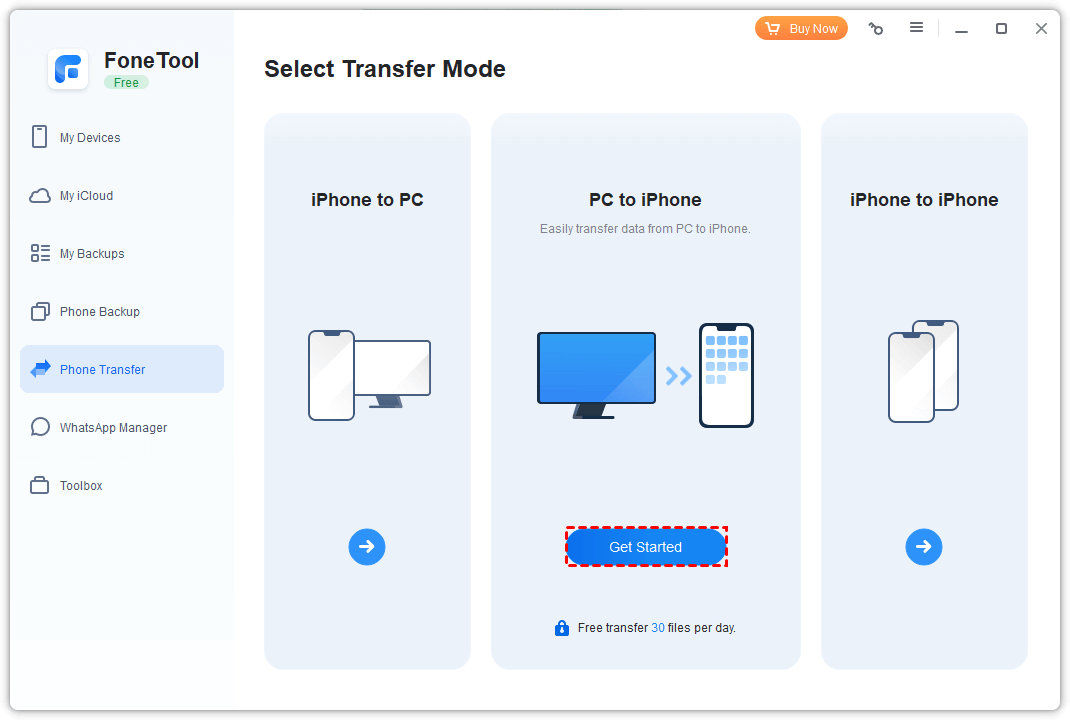
Step 2. Launch FoneTool, go to Phone Transfer > PC to iPhone, and click Get Started.
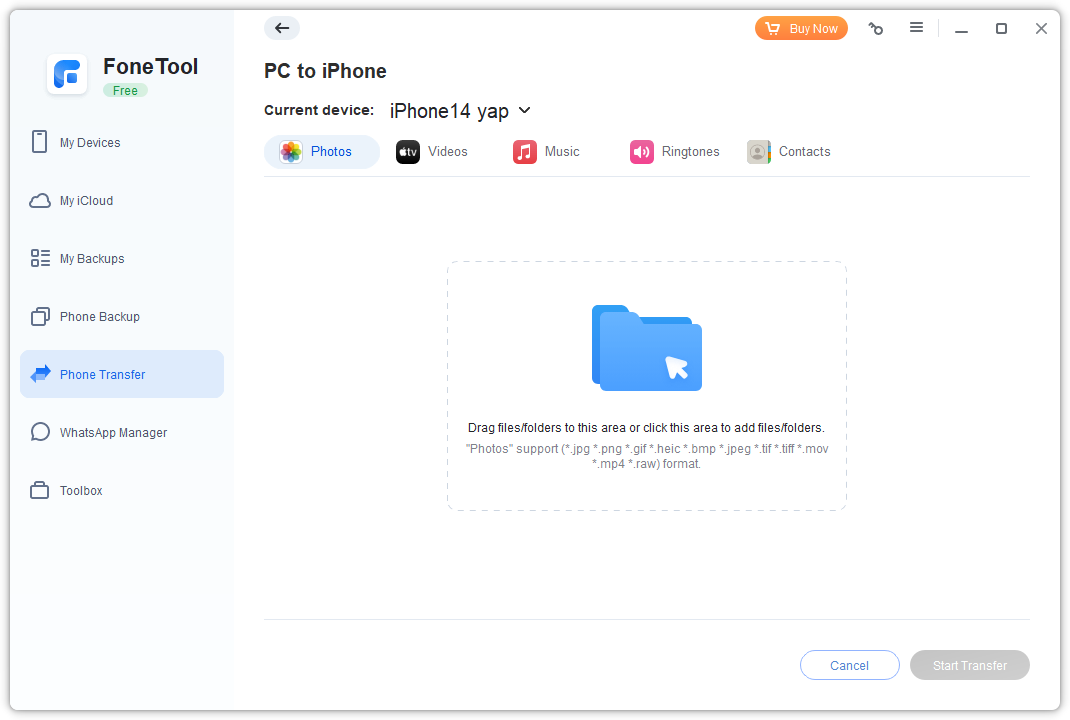
Step 3. Click the folder icon to browse for files, or simply drag and drop them into the FoneTool window.
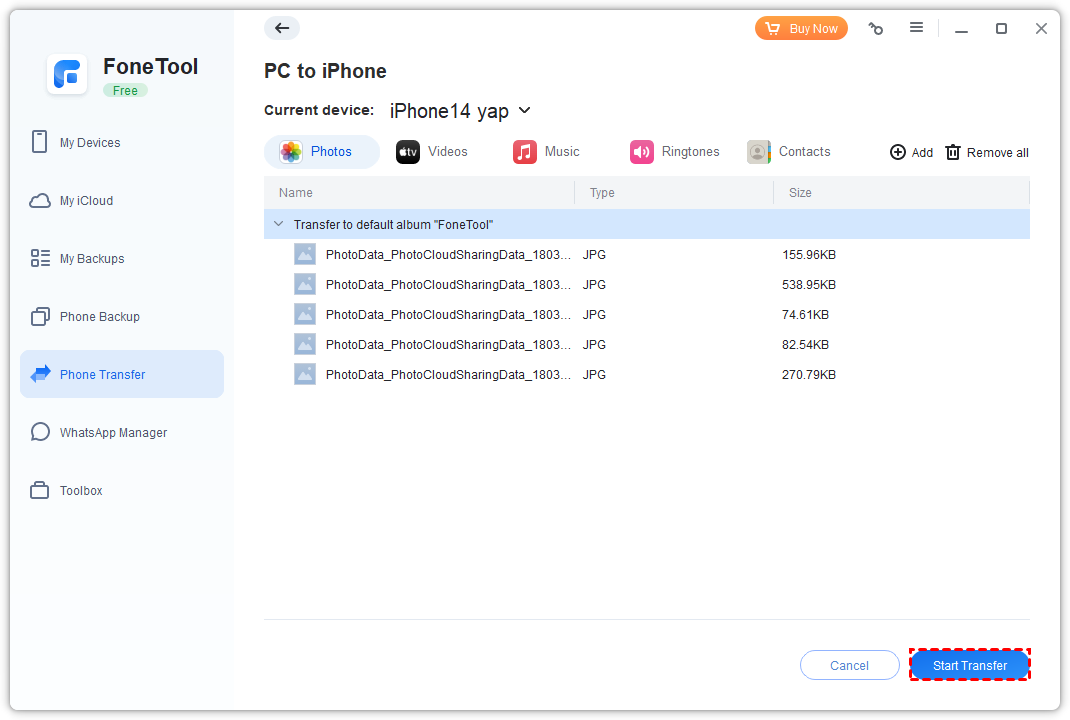
Step 4. Click Start Transfer to move the files to your iPhone.
- ★Tip:
- • FoneTool can transfer files from iPhone to PC without using iTunes, utilizing the iPhone to PC feature.
- • FoneTool also offers robust backup functions, allowing you to create selective or full backups of your iPhone data, including photos, messages, and WhatsApp data.
2. How to Sync Data from Computer to iPhone with iCloud
iCloud provides a seamless way to sync files across your Apple devices. By uploading files to iCloud Drive on your PC, you can access them instantly on your iPhone.
Step 1. Download and install iCloud for Windows on your PC.
Step 2. Open the iCloud app and sign in with your Apple ID.
Step 3. iCloud will create a dedicated folder in your File Explorer. Navigate to this iCloud Drive folder.
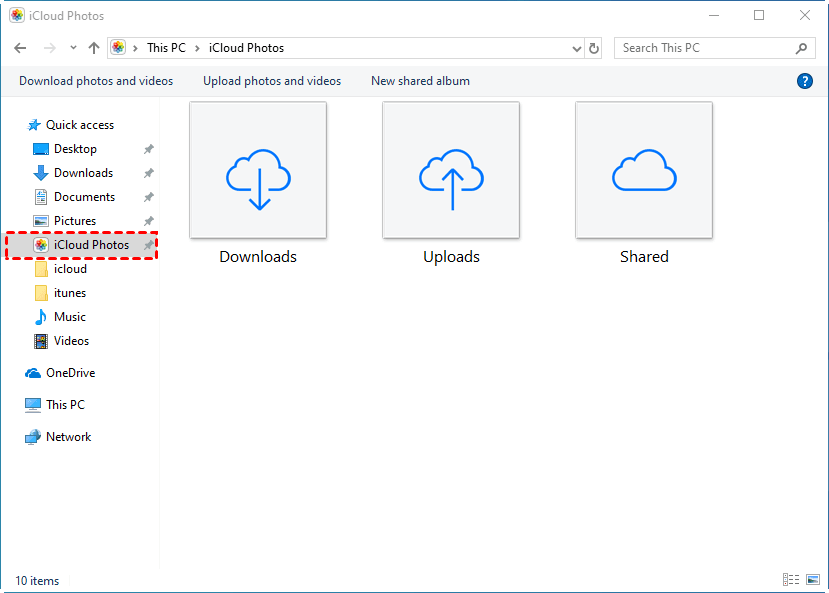
Step 4. Copy or drag the files you wish to transfer into this folder. They will automatically sync to your iPhone.
3. How to Download Files to iPhone from PC via USB without iTunes
You can manage files directly using a USB cable and your PC's File Explorer, similar to an external drive.
Step 1. Connect your iPhone to PC using a USB cable.
Step 2. On your iPhone, tap "Trust" to allow computer access.
Step 3. On your PC, open File Explorer > This PC, and select your iPhone device.
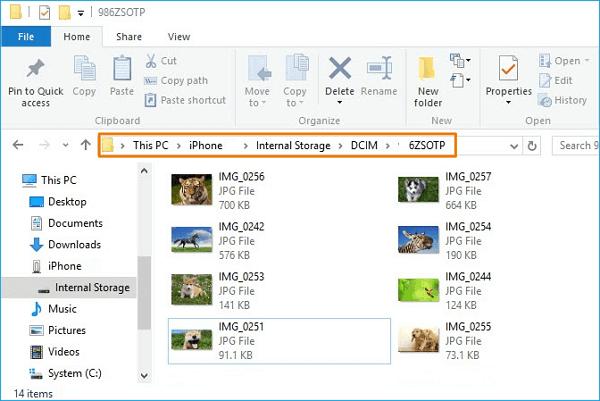
Step 4. Browse to your desired location, then copy and paste files from your PC to your iPhone's storage.
4. How to Move Data from PC to iPhone with Google Drive
Google Drive is a versatile cloud platform for cross-device file access without iTunes. Here is how to copy files from PC to iPhone without iTunes via Google Drive.
Step 1. On your PC, visit the Google Drive website and sign in.
Step 2. Click New > File upload and select the files from your computer.
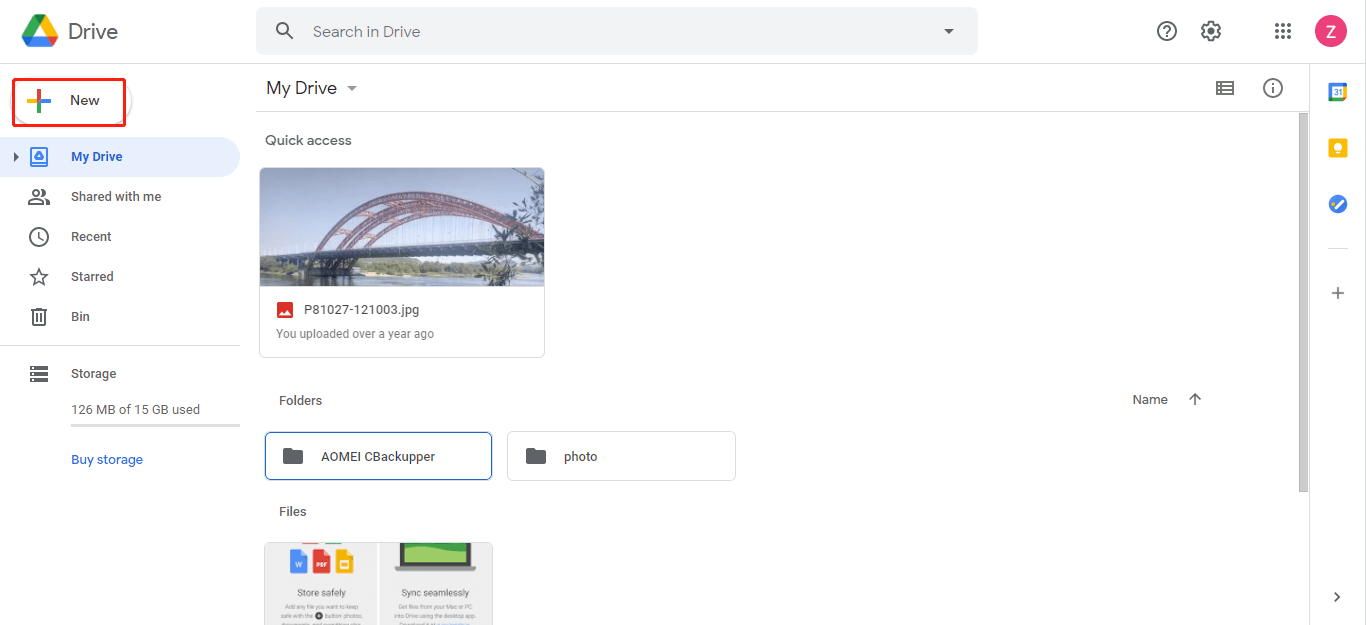
Step 3. On your iPhone, open the Google Drive app, find the files, and download them to your device.
5. How to AirDrop Files from PC to iPhone without iTunes Wirelessly
For Mac users, AirDrop offers the fastest wireless transfer for files, photos, and more.

Step 1. Enable Bluetooth and Wi-Fi and turn on AirDrop in the Control Center on both your Mac and iPhone.
Step 2. On your Mac, right-click the file and select Share > AirDrop.
Step 3. Select your iPhone from the AirDrop menu and accept the transfer on your iPhone.
6. How to Access Files on iPhone from PC without iTunes by Email
Email is a straightforward method for sending small files to yourself. The transfer speed of this method depends mainly on the data speed.
Note:
- When you emial foles, the file size limit (usually around 25MB per email), making it impractical for large files.
- If you want to transfer large videos or music from computer to iPhone without iTunes, choose FoneTool.
Step 1. On your PC, open your email > Compose a new message.
Step 2. Attach the files you need and send the email to yourself.
Step 3. Open the email on your iPhone > And download each attachment.
7. How to Share Data from Computer to iPhone via Dropbox
Dropbox functions similarly to Google Drive, providing another reliable cloud-based option. A simple guide to transfer files from PC to iPhone using Dropbox.
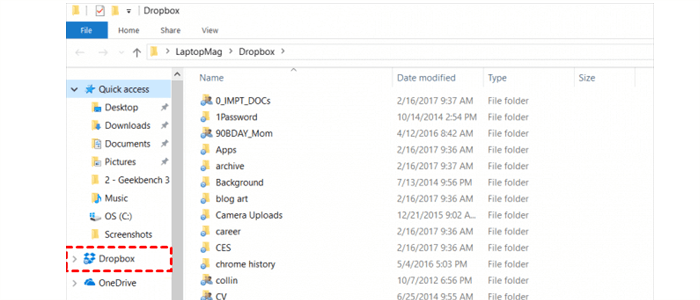
Step 1. Install Dropbox on both your PC and iPhone.
Step 2. On your PC, upload the desired files to your Dropbox folder.
Step 3. On your iPhone, open the Dropbox app, locate the files, and download them.
Guide: How to Transfer Files from PC to iPhone with iTunes
Although iTunes has its limitations, it is still an option for iPhone file transfer, especially for music and video files. If you don't mind the transfer speed and other shortcomings of iTunes, you can refer to the guide below to transfer files from computer to iPhone with iTunes.
Step 1. Install iTunes on your PC and connect your iPhone via USB.
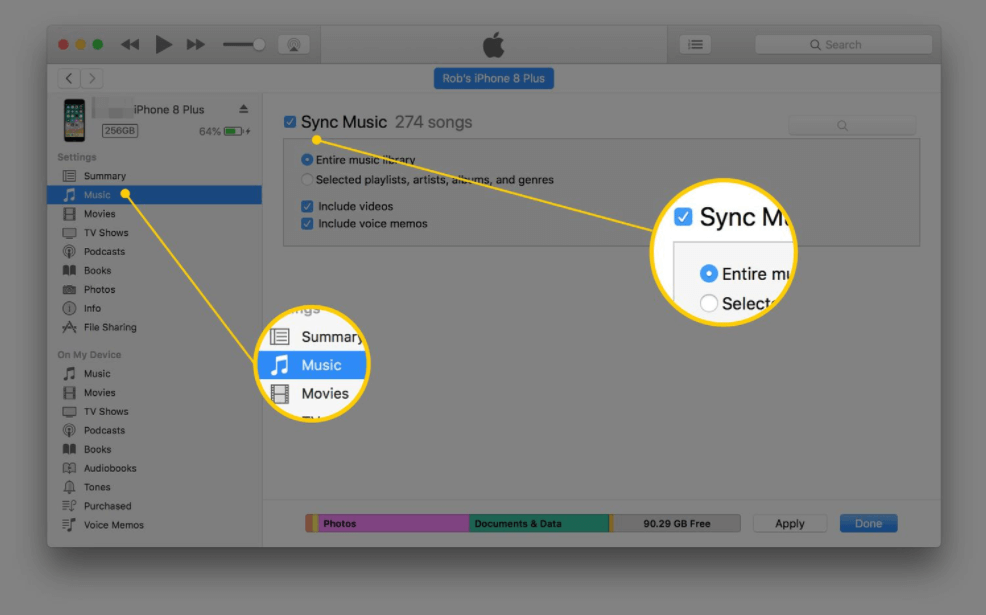
Step 2. Click your iPhone's icon in iTunes and select the file type (e.g., Music, Photos).
Step 3. Choose the files you want to sync and click Apply to start the transfer.
Conclusion
This guide has detailed 7 effective methods for transferring files from a PC to an iPhone without iTunes. Whether you prefer a fast wired connection with FoneTool, the convenience of cloud services, or wireless options, you can choose the solution that best fits your needs for smooth data transfer.
FAQs on PC to iPhone Files Transfer
FoneTool - All-in-one iPhone Data Manager
Transfer, backup and manage data on iPhone, iPad and iPod touch in an easy way.
-
 iOS 27 Compatible
 iPhone 17 Supported
Windows 11/10/8/8.1/7

100% Secure

Kelsey is an English editor at FoneTool, passionate about helping users solve tech issues. She specializes in iPhone data management, backup, and recovery. In her free time, she enjoys learning IT skills and spending time with loved ones.
Read author info >>



 as a preferred
source on Google
as a preferred
source on Google